The Action Items page is your central navigation point in the Reasonable Risk application.
From the Action Items page you can efficiently identify, access, review, and update the items that require attention in your security program.
1. "I want to..."
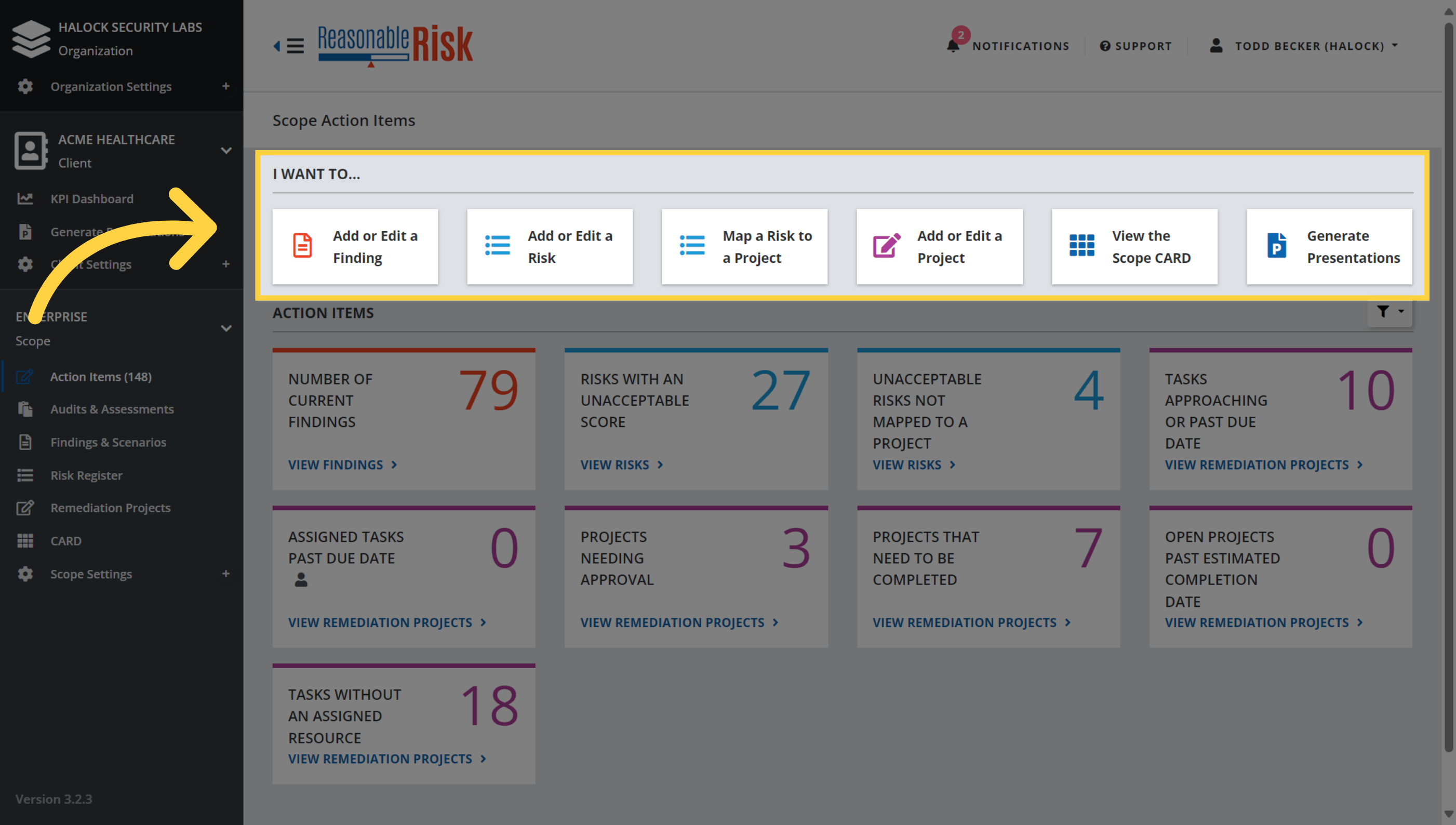
The "I want to..." section of the Action Items page allows the user quick access to create or view each of the major elements of Reasonable Risk.
These selections take you to each respective area of the application and allow you to add or edit items as desired.
2. "Add or Edit..."
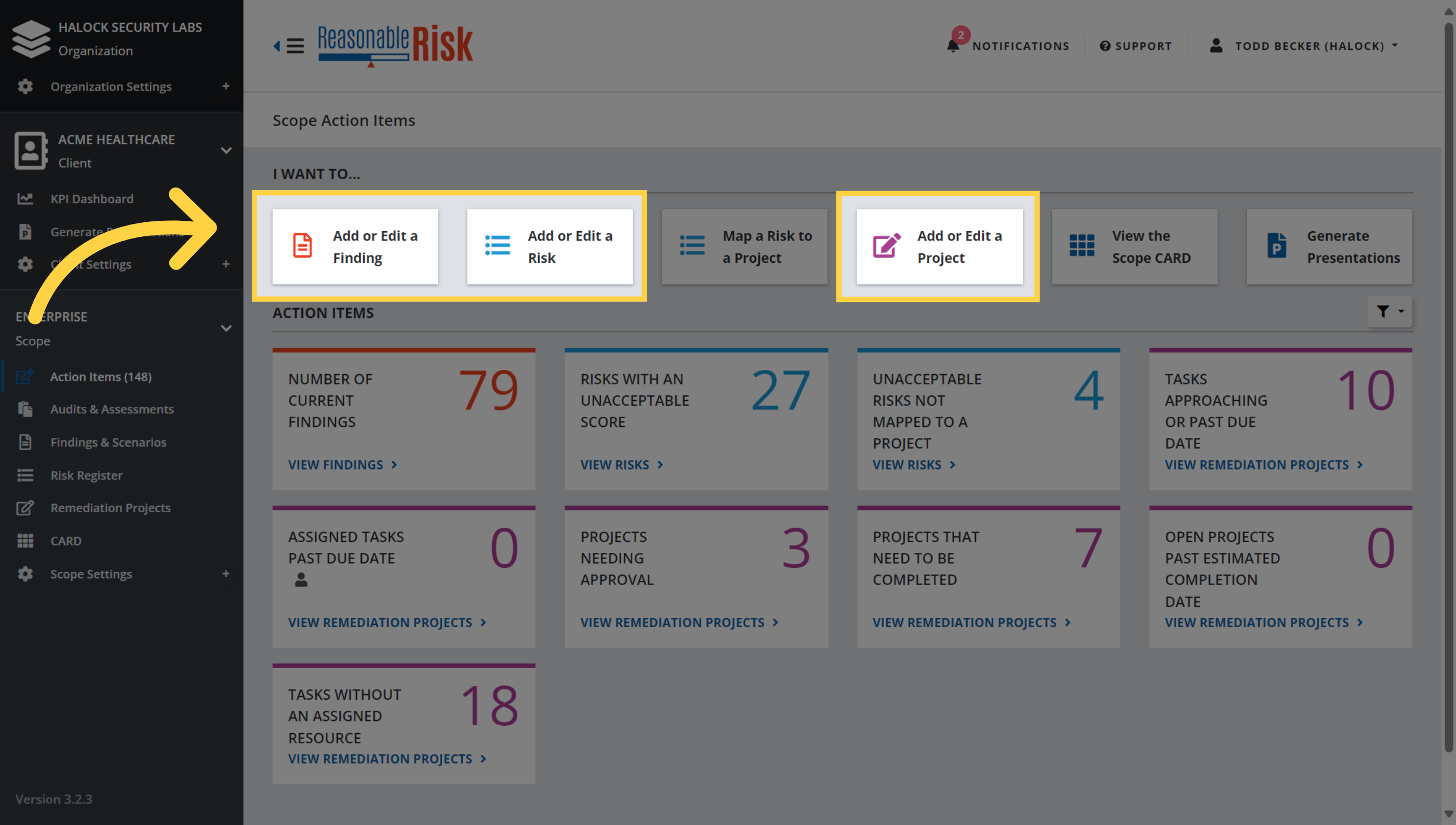
A click on the "Add or Edit" buttons will take you to each respective area of the application: Findings, Risks, or Remediation Projects. Once there, you are able to add or edit each of these items.
3. "Map a Risk to a Project"
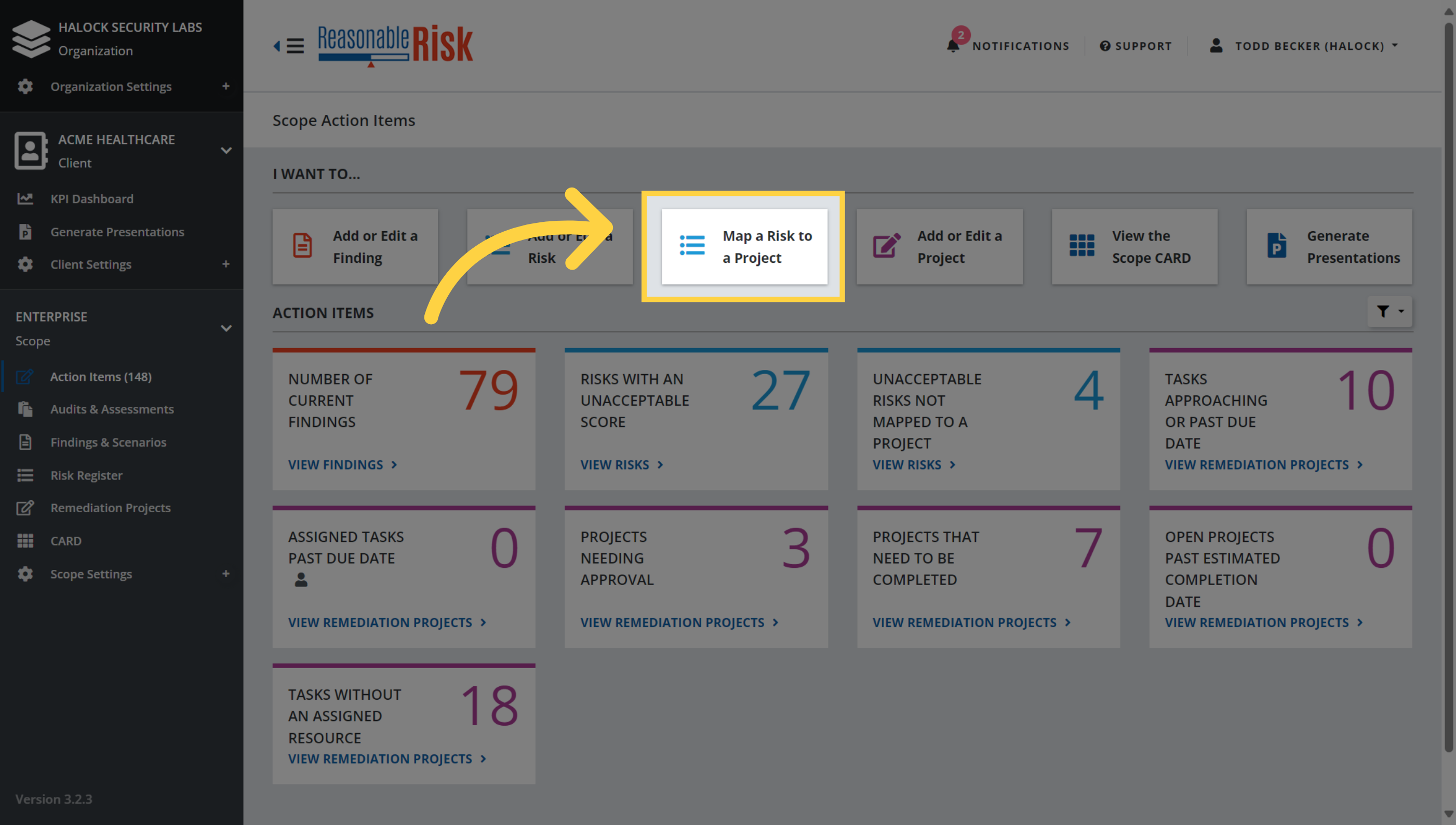
The "Map a Risk to a Project" button will take the user to the risk register and will open a selection window. The user may then search for and select risks that can be added to a new or existing project.
4. "View the Scope CARD"
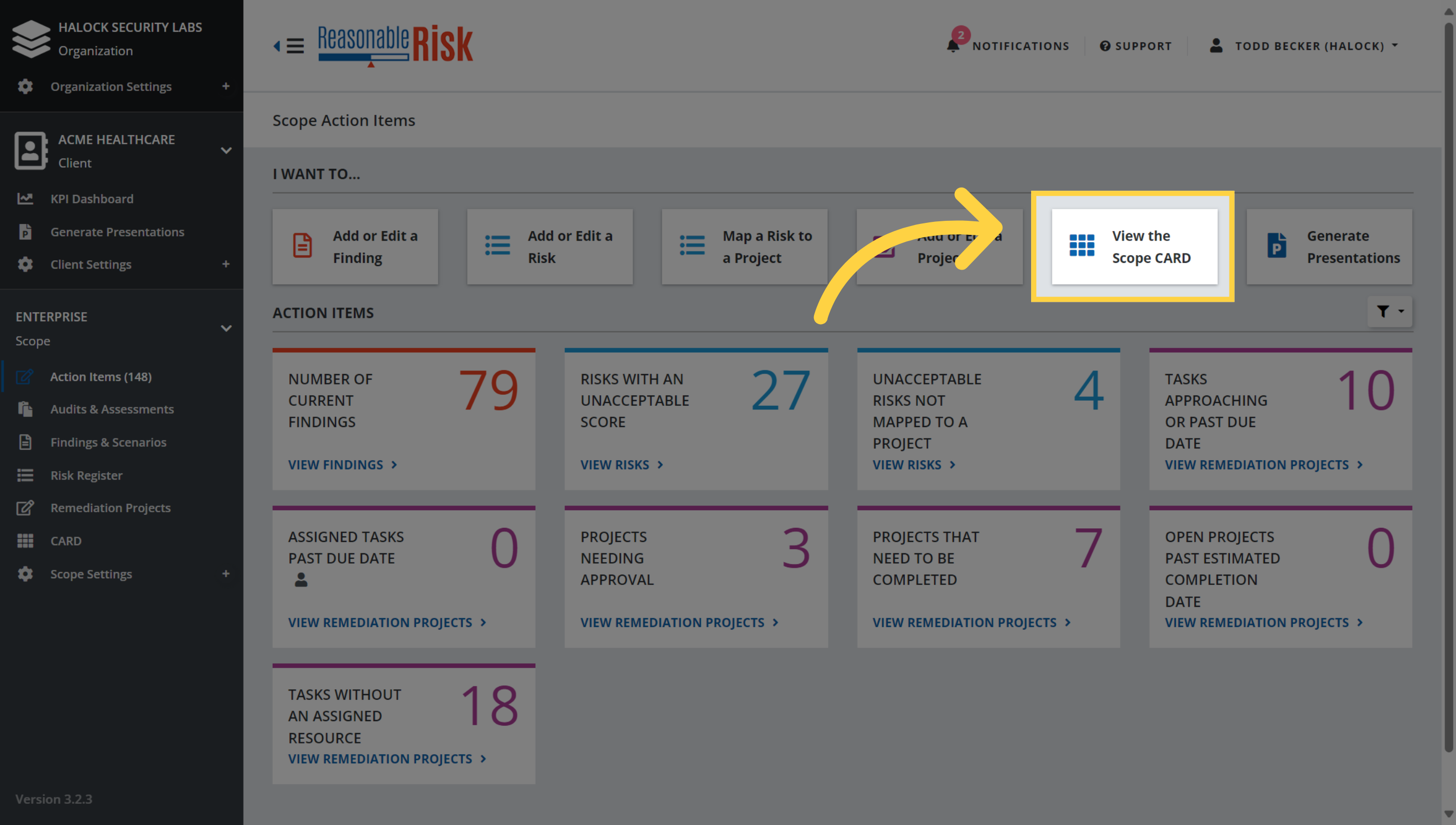
Click the "View the Scope CARD" button to open a pop up window that contains the risk assessment criteria for the current scope.
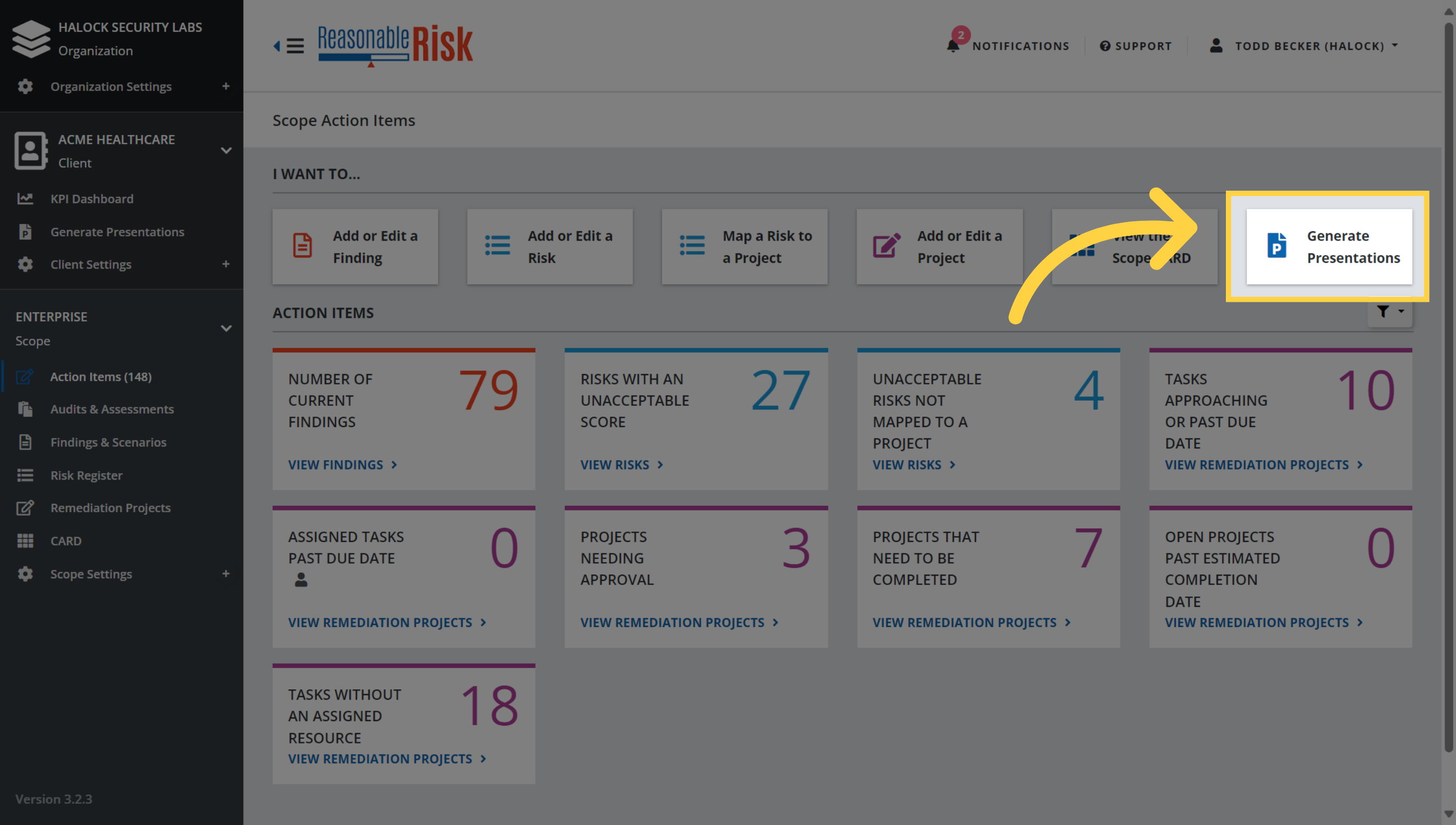
5. "Generate Presentations"
Click the "Generate Presentations" button to navigate to the presentation generation wizard.
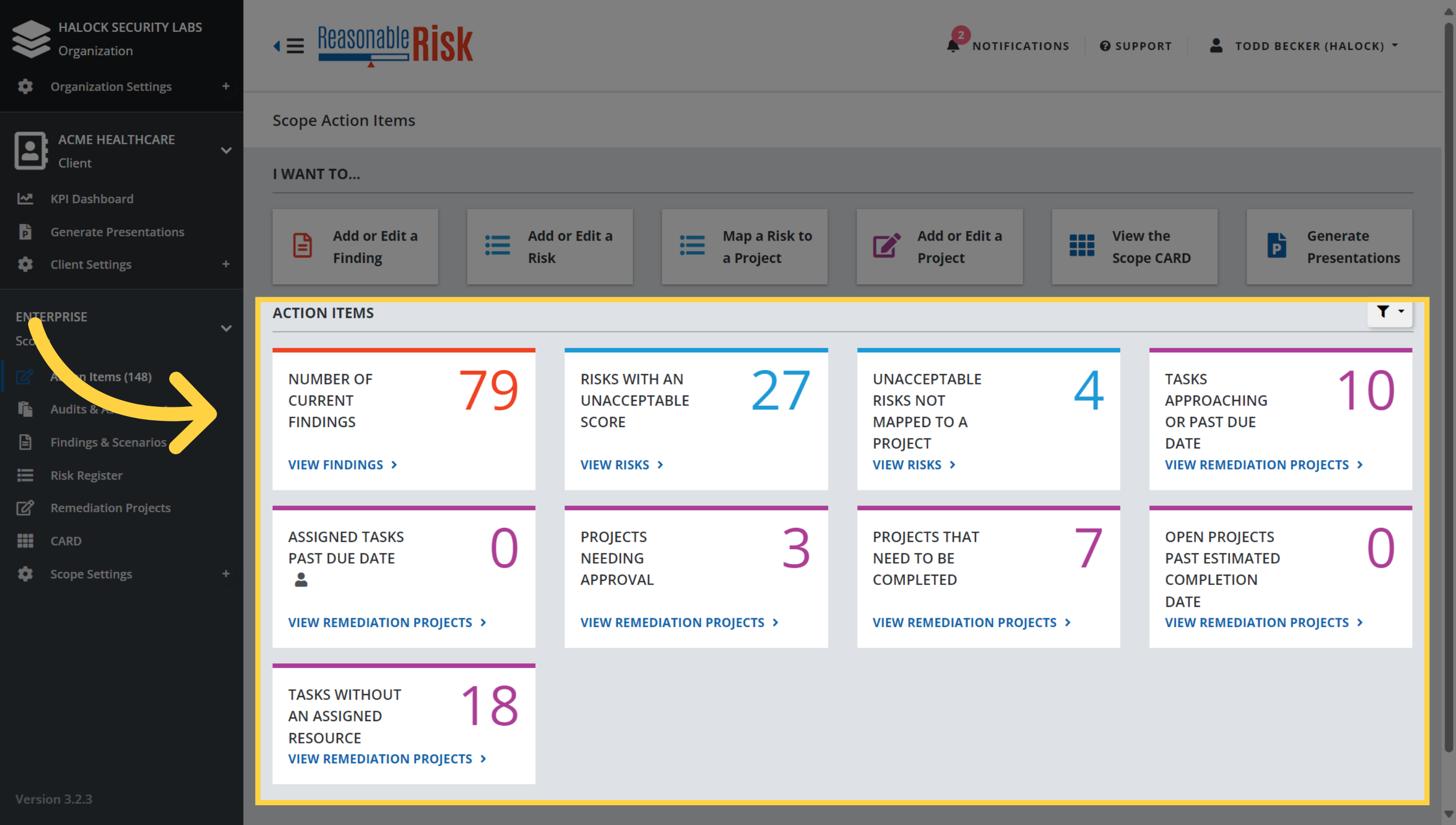
6. Action Tiles
The "Action Items" section is made up of individual "Action Tiles" that provide key metrics about the current scope.
Each tile includes a count of items and a link that will navigate to the area of the application to address the item.
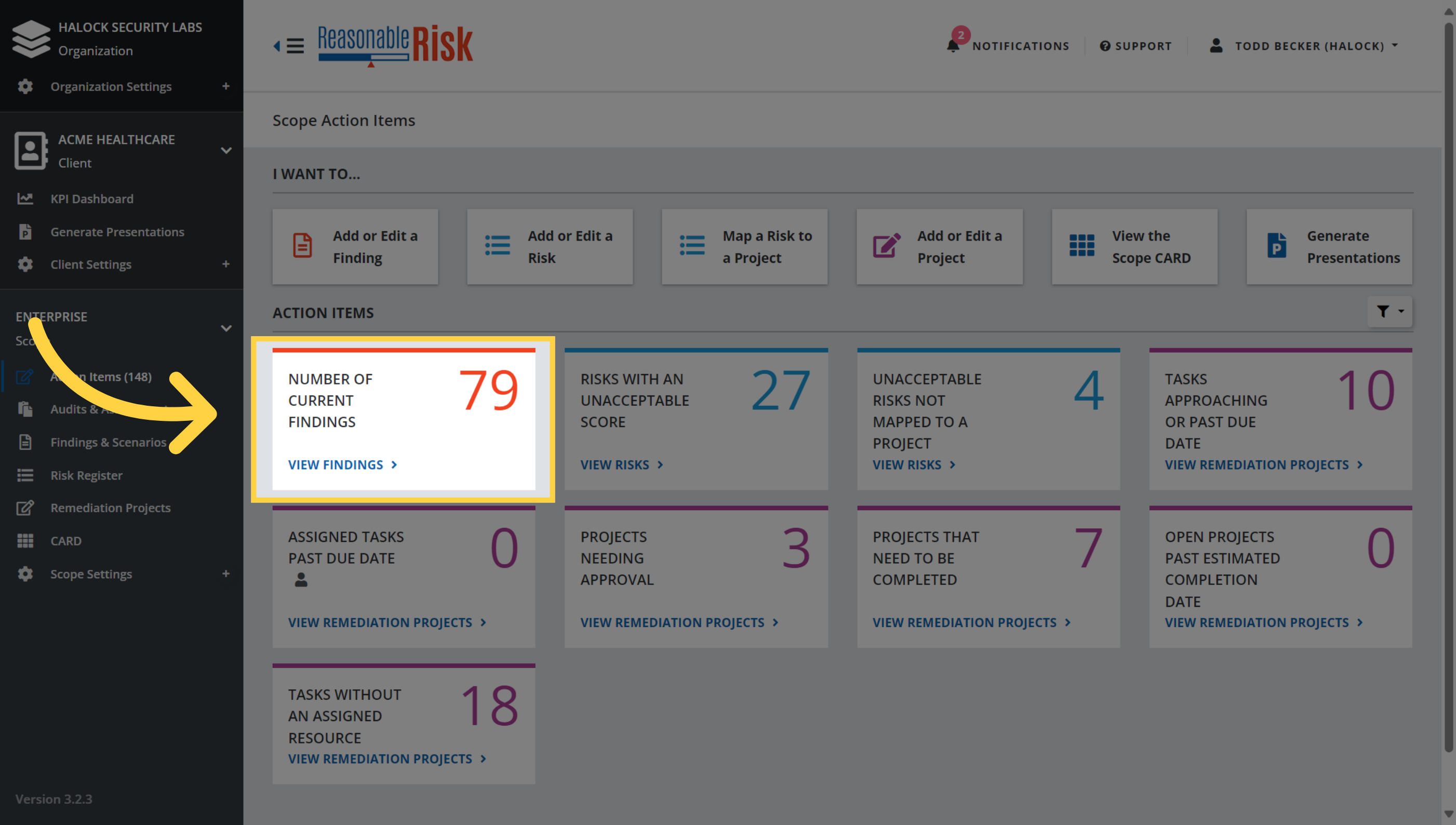
7. "Current Findings"
The "Current Findings" tile provides a count of Findings that need to be reviewed for inclusion in the Risk Register. Outstanding Findings should either be promoted to the risk register, deleted, or archived once reviewed.
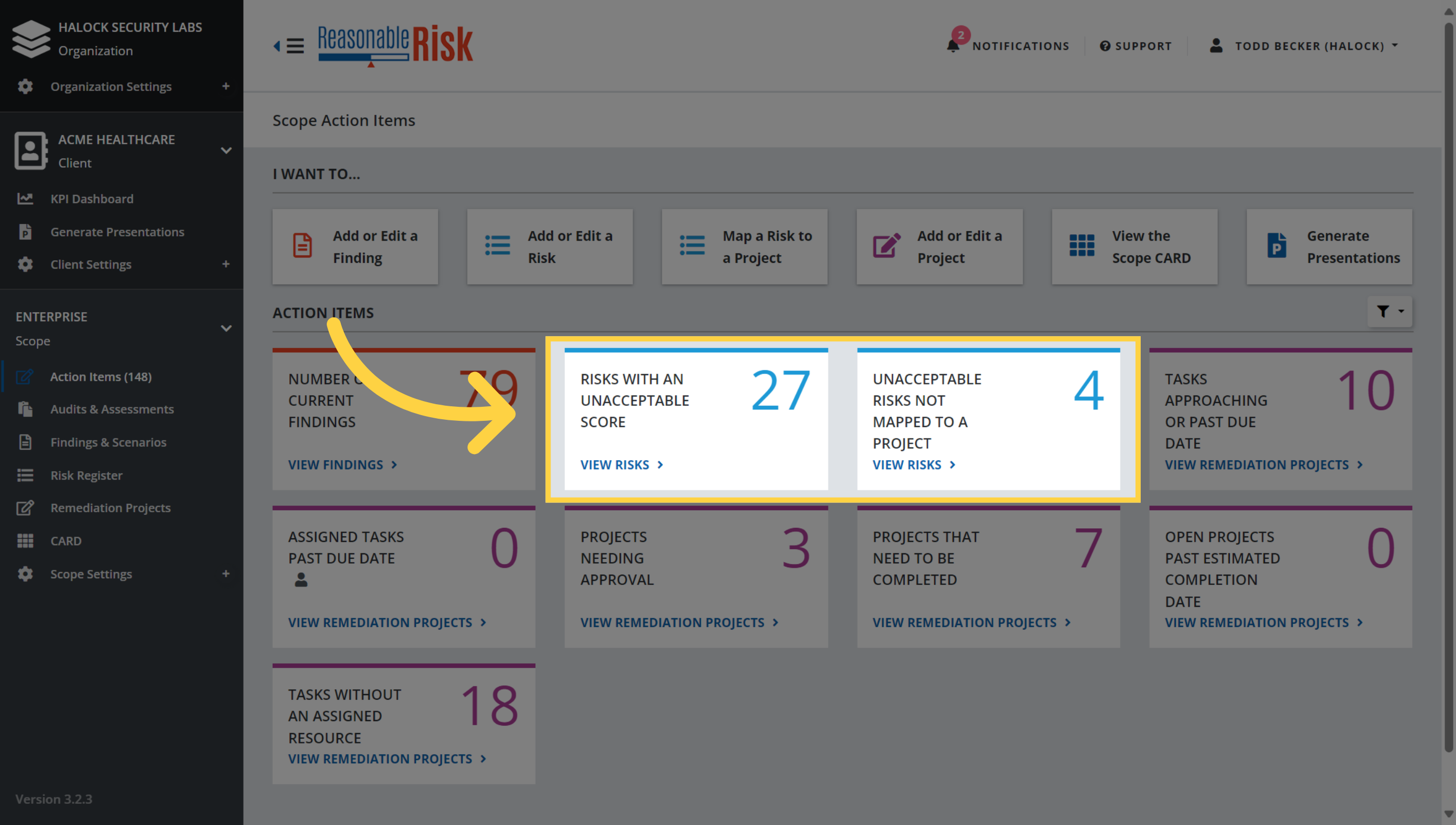
8. "Unacceptable Risks"
The "Risks with an Unacceptable Score" and "Unacceptable Risks Not Mapped to a Project" tiles provide insight into the unacceptable risks within the scope. As Remediation Projects are worked and completed, the "Risks with an Unacceptable Score" count will be reduced. The "Unacceptable Risks Not Mapped to a Project" identifies the unacceptable Risks that have yet to be added to a project. It is critical to associate risks with projects so that actions can be planned and taken to reduce the risks to an acceptable level.
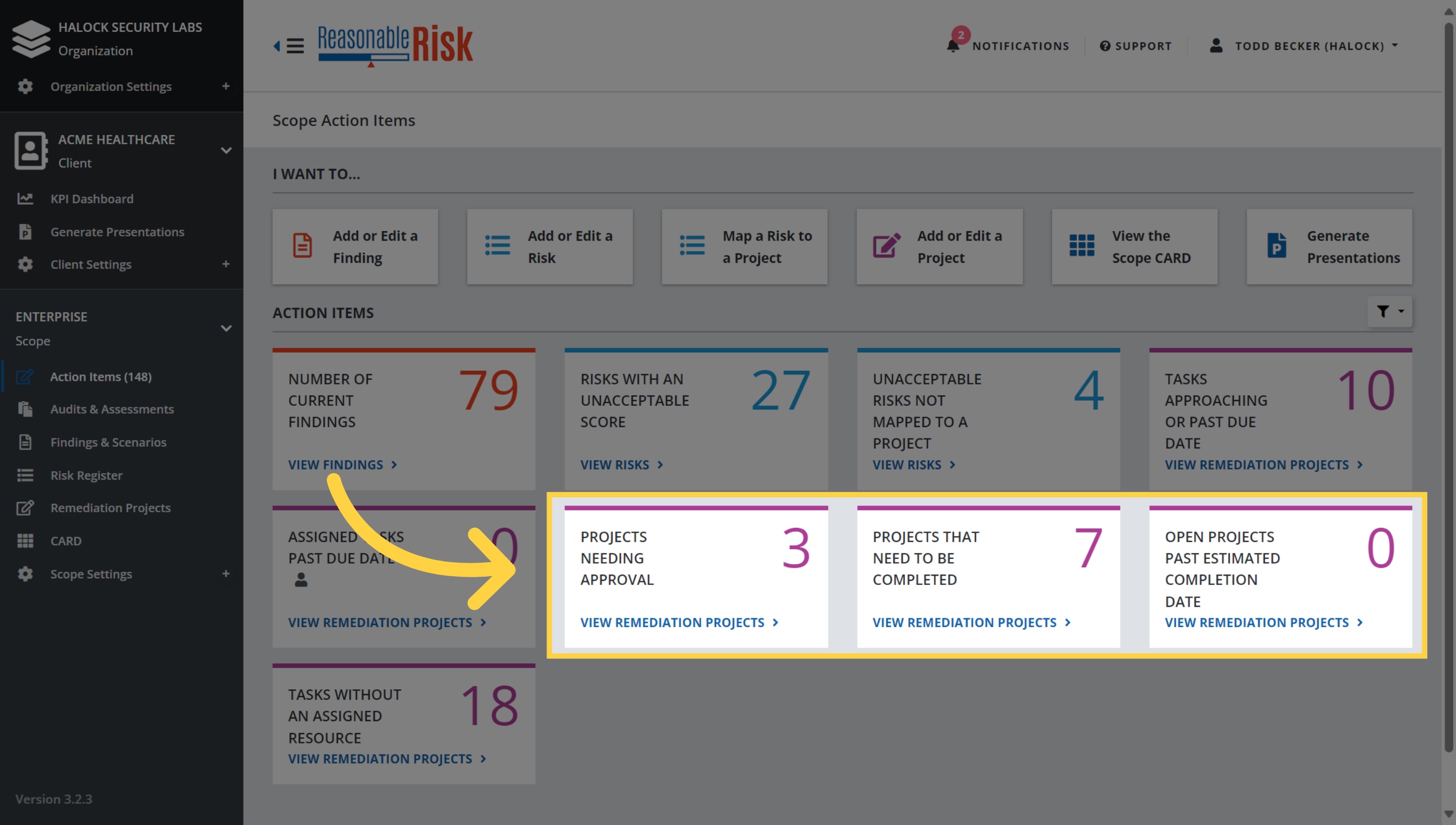
9. Projects Tiles
The "Projects Needing Approval", "Projects that Need to be Completed", and "Open Projects Past Estimated Completion Date" tiles provide insight into status of projects within the scope. These tiles allow the user to quickly identify projects that need attention and should be reviewed for approval or updates to the project timeline.
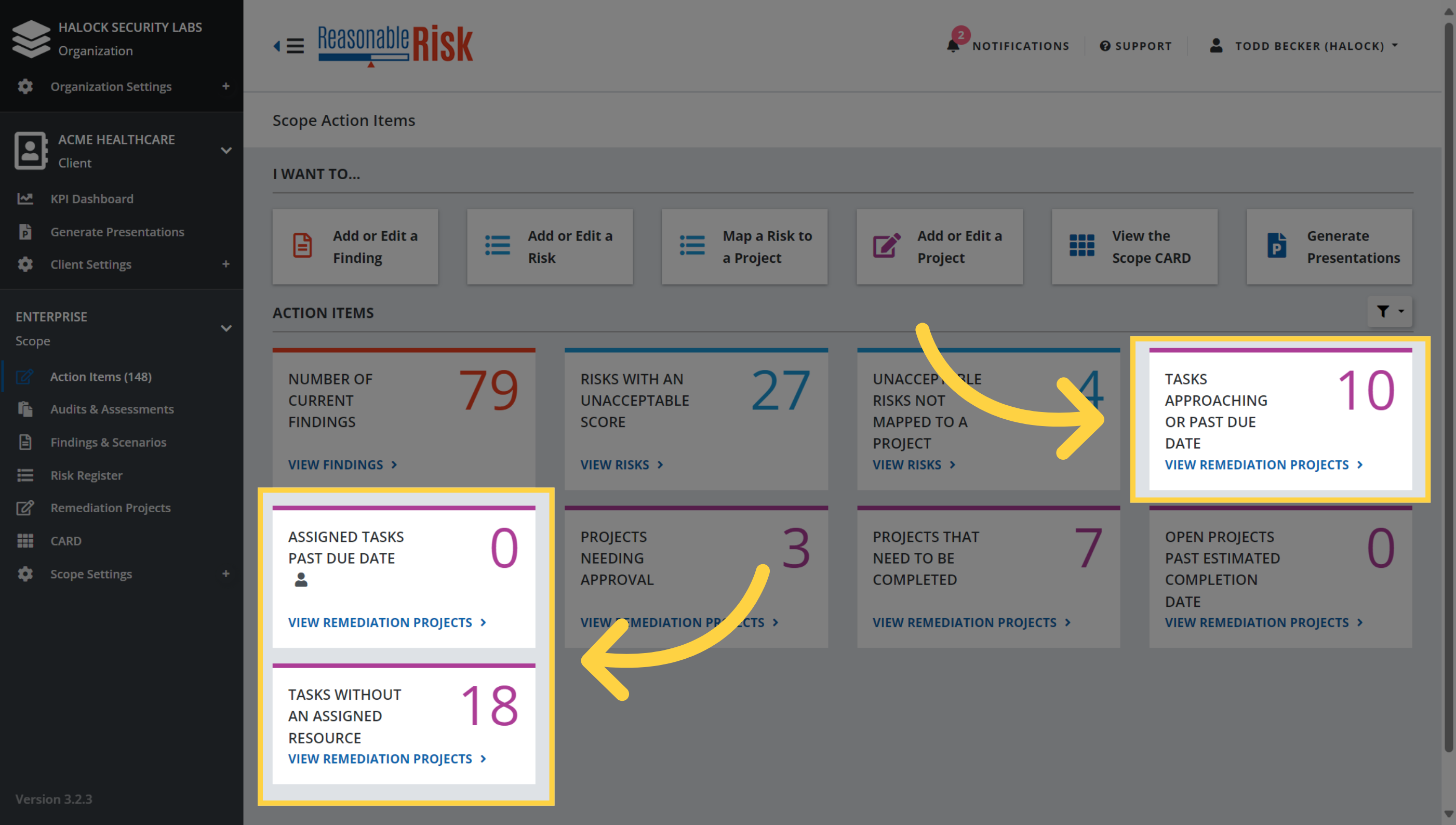
10. Task Tiles
The "Tasks Approaching or Past Due Date", "Assigned Tasks Past Due Date", and "Tasks Without an Assigned Resource" tiles provide insight into status of tasks within the scope. These tiles allow the user to quickly identify tasks on projects that need attention and should be reviewed. Task identification, assignment, and completion are a fundamental element of effective risk management.
This guide covered how to utilize the Action Items page in Reasonable Risk to efficiently identify, access, review, and update key items that require attention.
Comments
0 comments
Please sign in to leave a comment.