If you are having trouble logging in to the Reasonable Risk application,
this guide will help you determine if you can reset your password yourself,
or if you will have to contact Reasonable Risk support or your Integrator
to resolve your login issues.
1. Identify your Situation
Login issues are typically caused by one of three things:
- Account Locked - Your cat was crawling around on your desk and accidentally fat pawed your password, a lot, and now your account is locked. You will need help from Customer Support so they can unlock your account, but if you know your password and OTP, you should be good to go when that is done. If you don't know that password, move on to the next item.
- Password Reset - You just got back from a long vacation and you can't remember the pesky complex password that you set before you left. In this case, you will just need to do a Password Reset on your own.
- OTP Reset - You got that brand new phone you have been waiting for, but you didn't remember to save your OTP tokens and now you need to reset your OTP. You will need help from Customer Support so they can reset your account and you can create a new password and OTP.
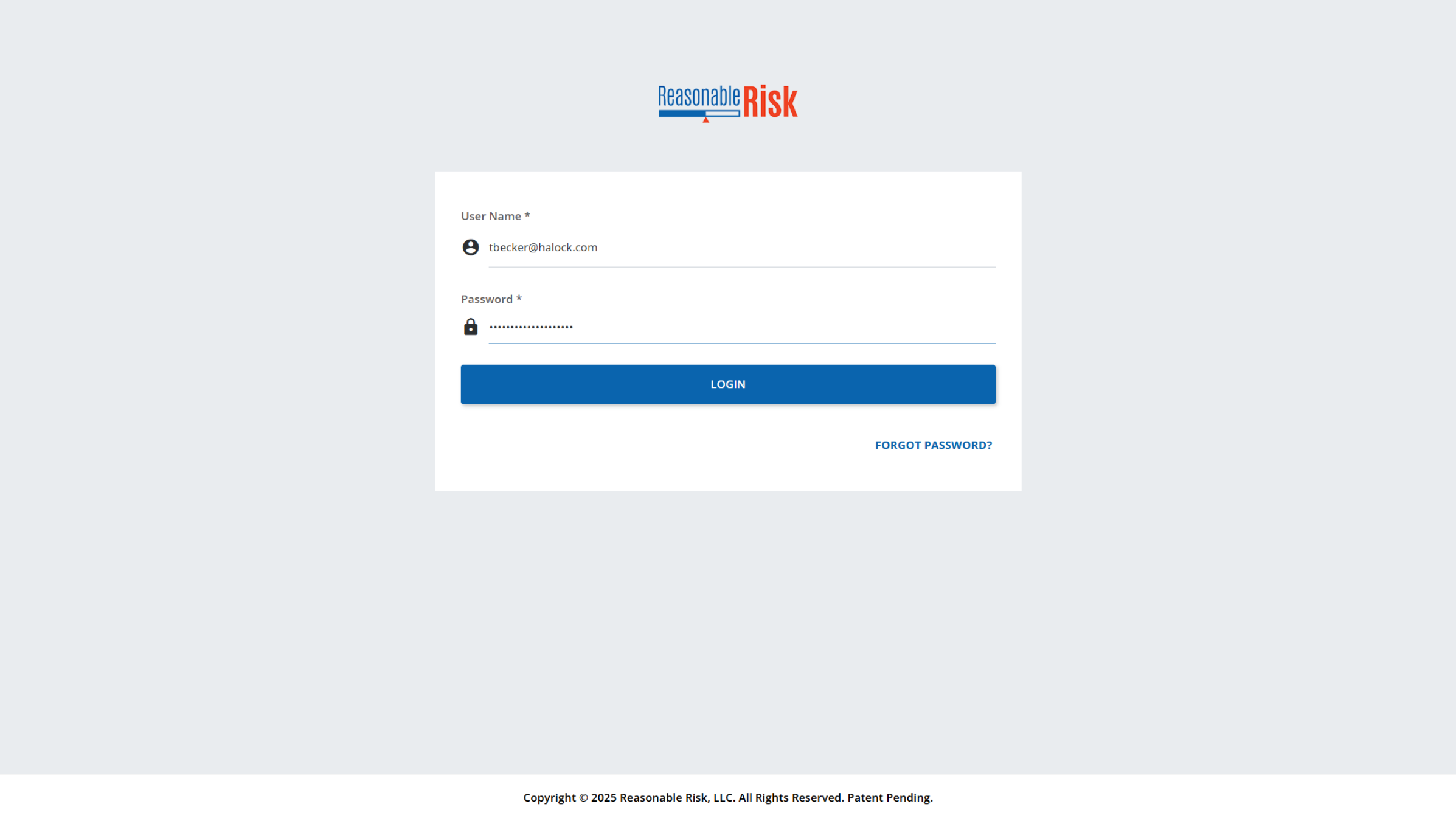
2. Account Locked
If you enter an incorrect password too many times, or if you have entered
an incorrect OTP, your account will be locked. You will receive an e-mail
notifying you that your account has been locked and when you attempt
to login to the application, you will receive an error notification telling
you that your account is locked.
You will need to contact Reasonable Risk support via e-mail, using the chat bot, or through the Reasonable Risk Support and Training Site in order to have your account unlocked so that you may try to login again or reset your password.
If you continue to have login issues, you may need to reset your password, and possibly your OTP.
You will need to contact Reasonable Risk support via e-mail, using the chat bot, or through the Reasonable Risk Support and Training Site in order to have your account unlocked so that you may try to login again or reset your password.
If you continue to have login issues, you may need to reset your password, and possibly your OTP.
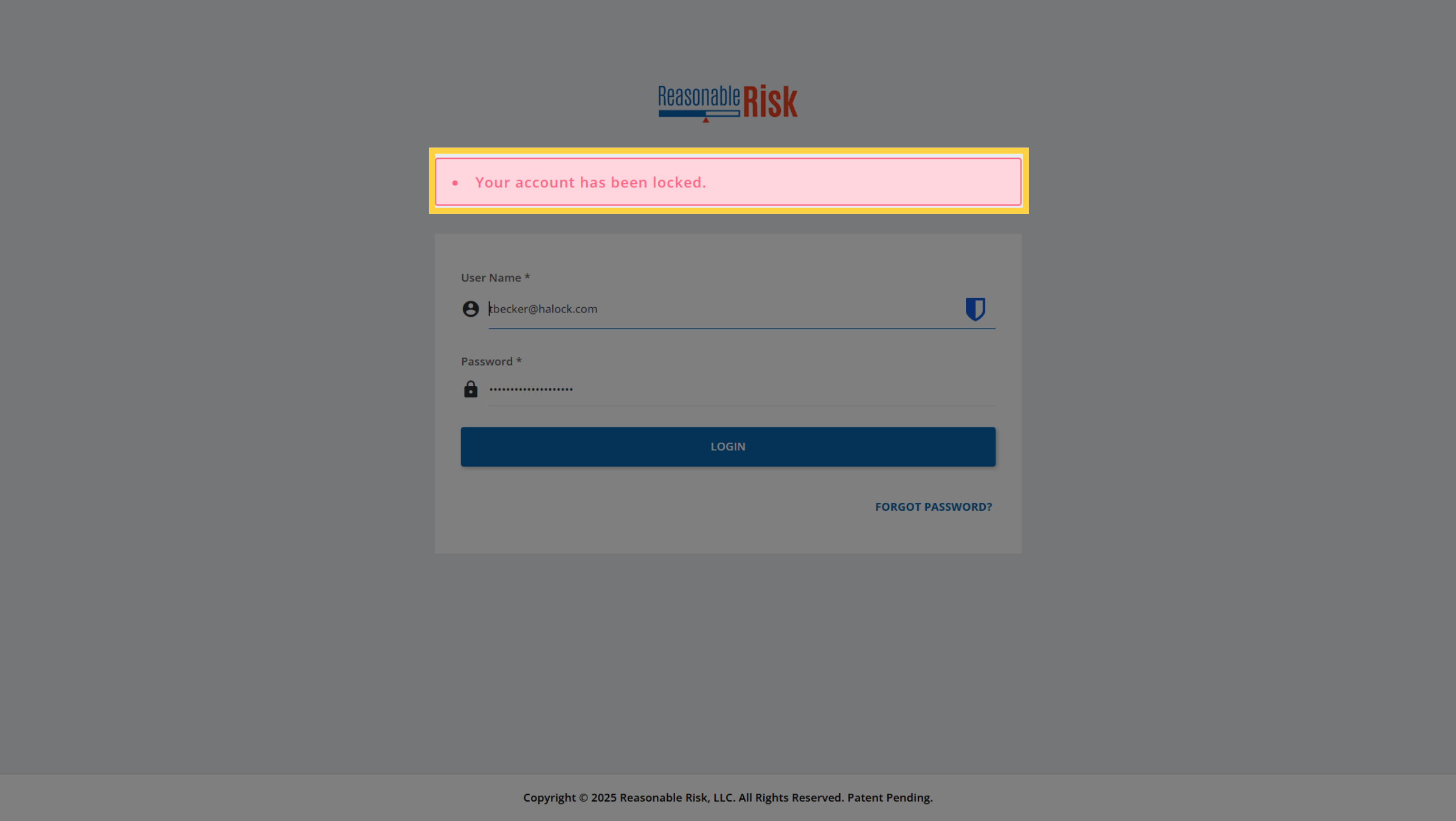
3. "Invalid User Name or Password"
If you have received the "Invalid User Name or Password" error when attempting
to login, you should be able to resolve the issue on your own using the
"Forgot Password" reset process.
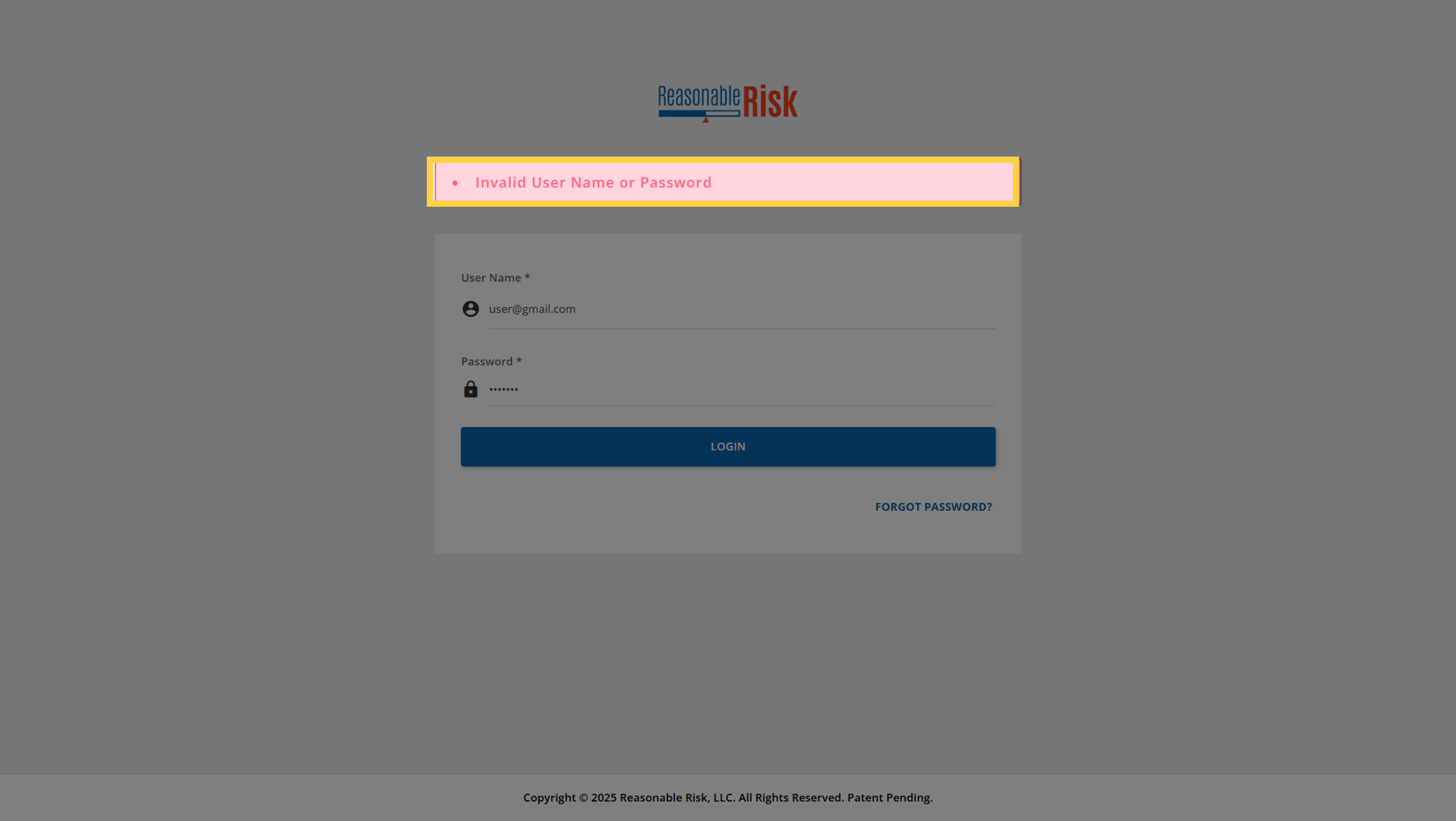
4. "Forgot Password?"
If you do not know your current password, or if you have received a message
telling you that your Account is Locked and Reasonable Risk support has
unlocked your account, you should be able to use the "Forgot Password"
functionality to restore your access.
Start by clicking on the Forgot Password link at the bottom of the login page.
Start by clicking on the Forgot Password link at the bottom of the login page.
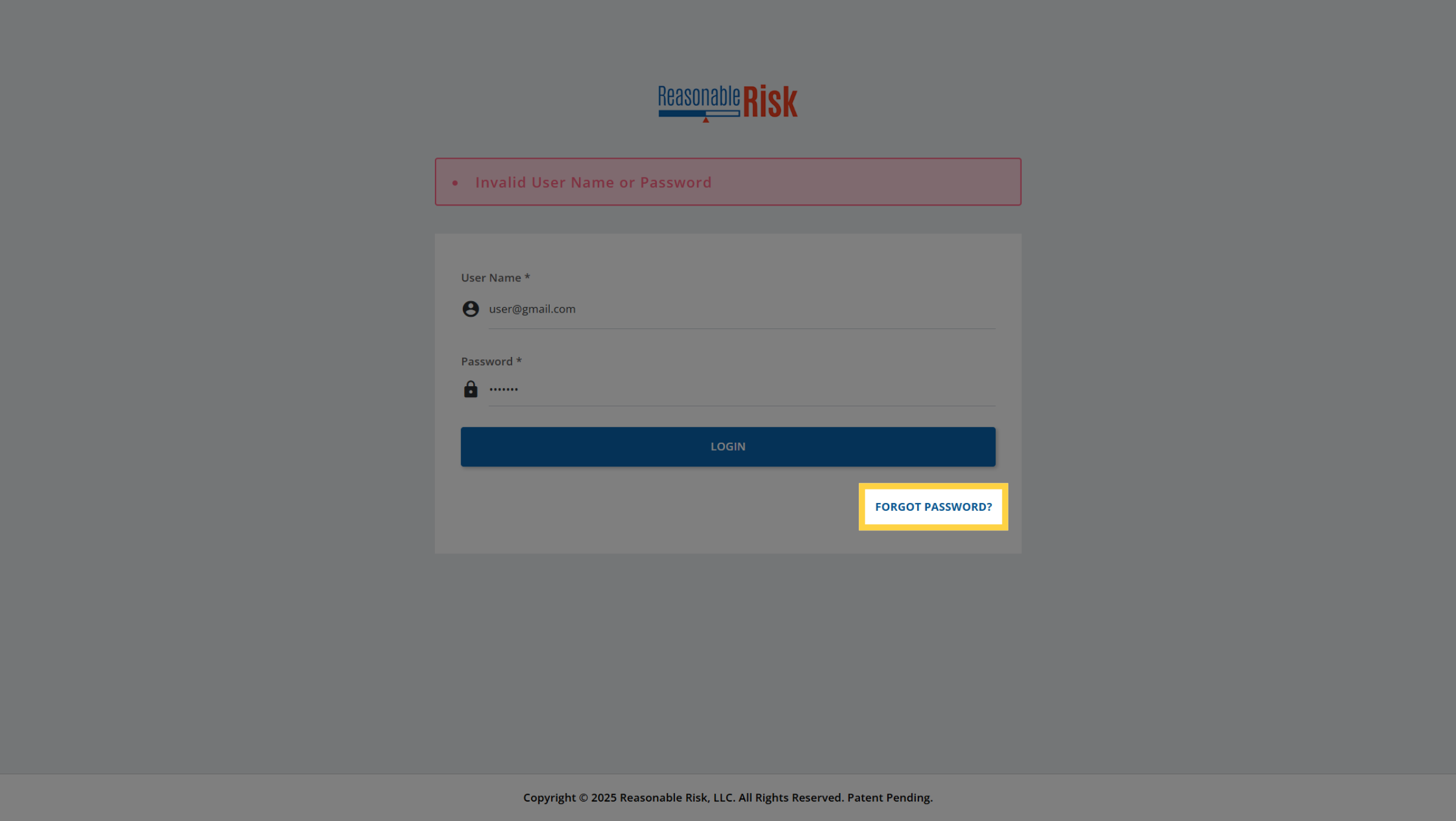
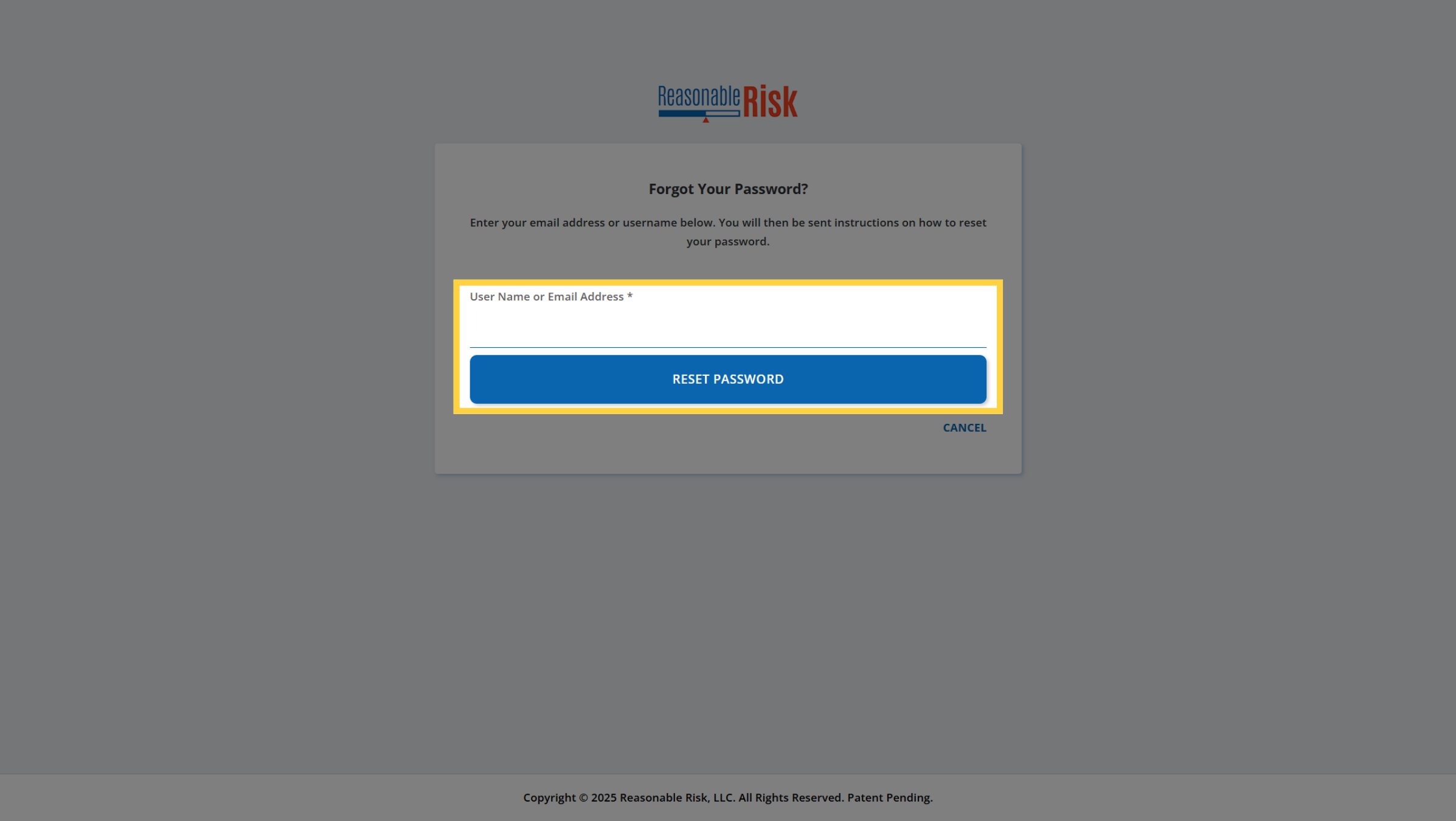
5. Reset Password
Enter the e-mail address that is used for your Reasonable Risk application
access and then click the "Reset Password" button.
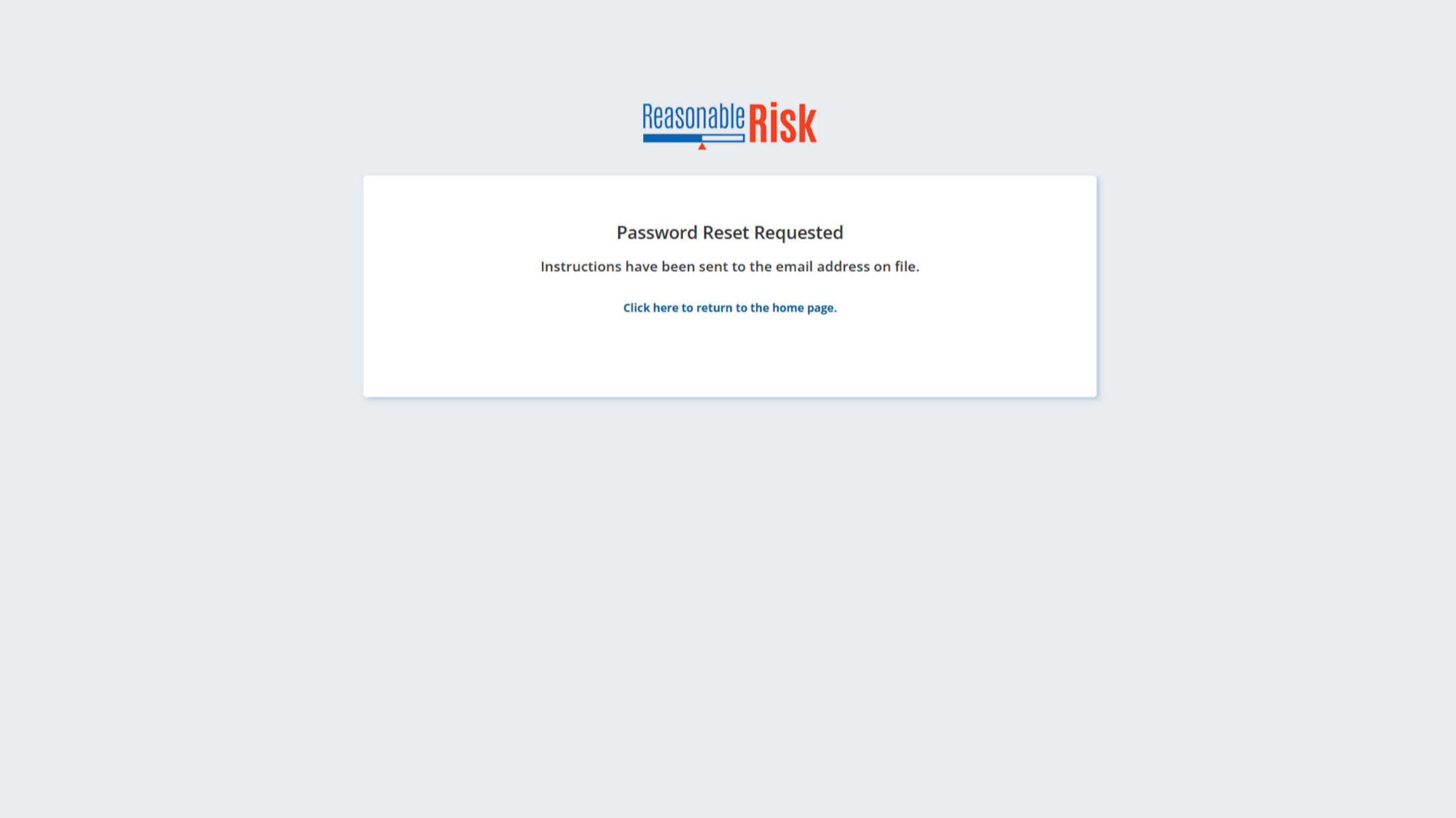
6. Password Reset Requested
Once you have submitted the password reset request, an e-mail will be
sent to the address provided.
At this time, you can close the application tab or click the link to return to the home page.
At this time, you can close the application tab or click the link to return to the home page.
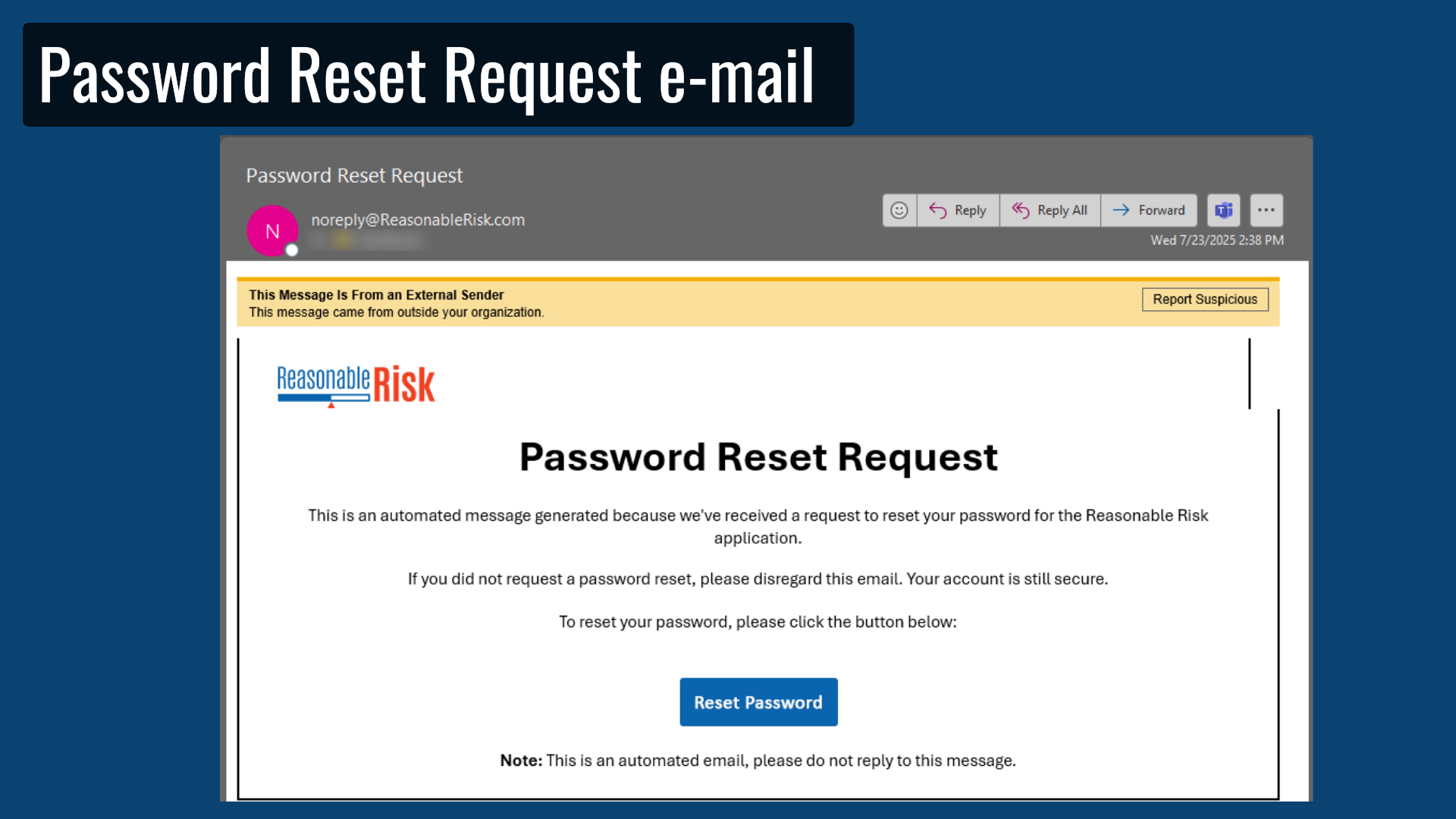
7. Password Reset Request e-mail
When you receive the Password Reset Request e-mail, you can click the
"Reset Password" button.This will take you to a page to reset your password.
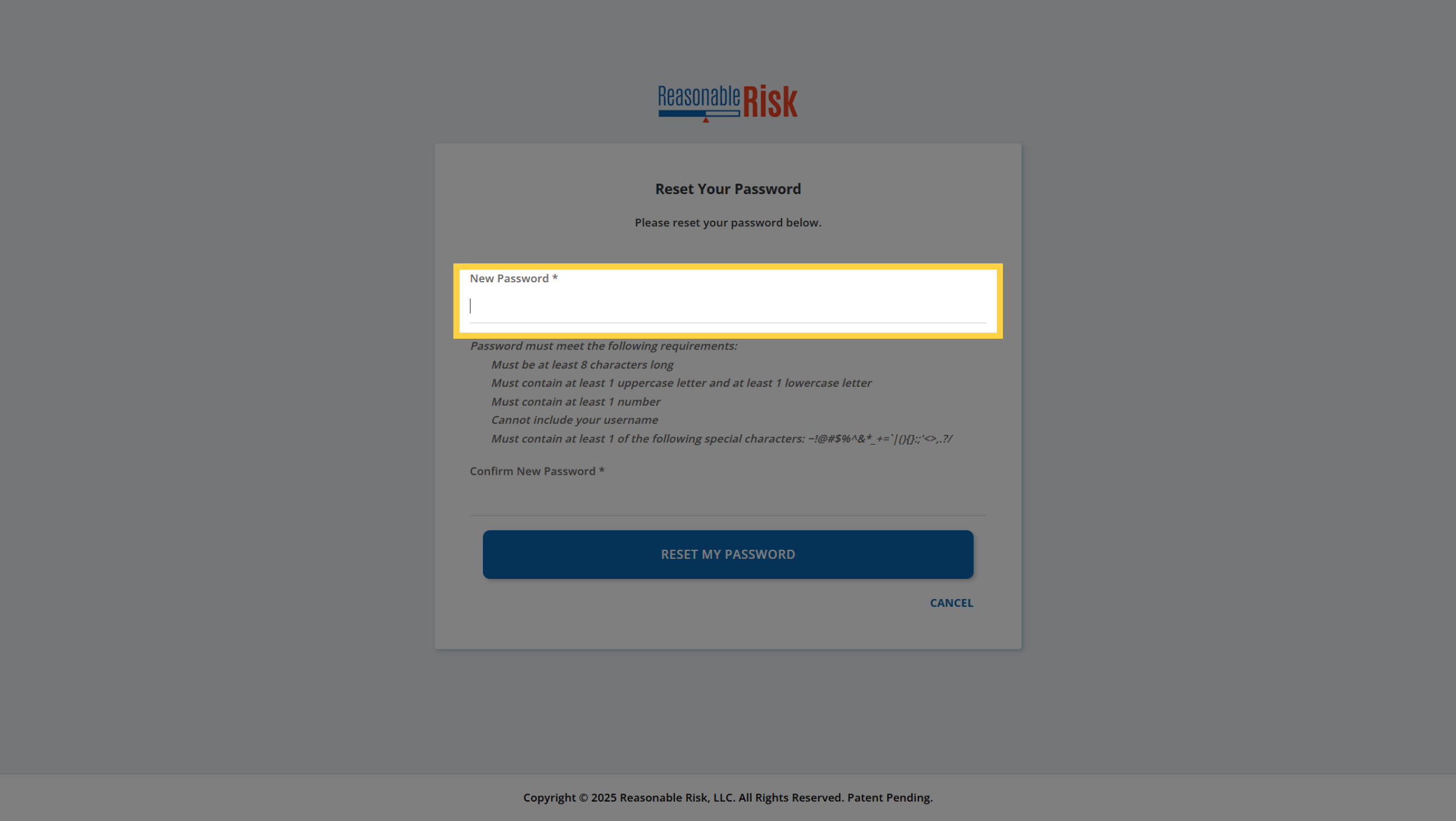
8. Reset Your Password
Click on "New Password" and enter a new password following the guidelines
provided.
9. Validate Password
Review the password criteria to ensure that all items are met, each item
should have a check mark.Modify the new password until all criteria are
met.
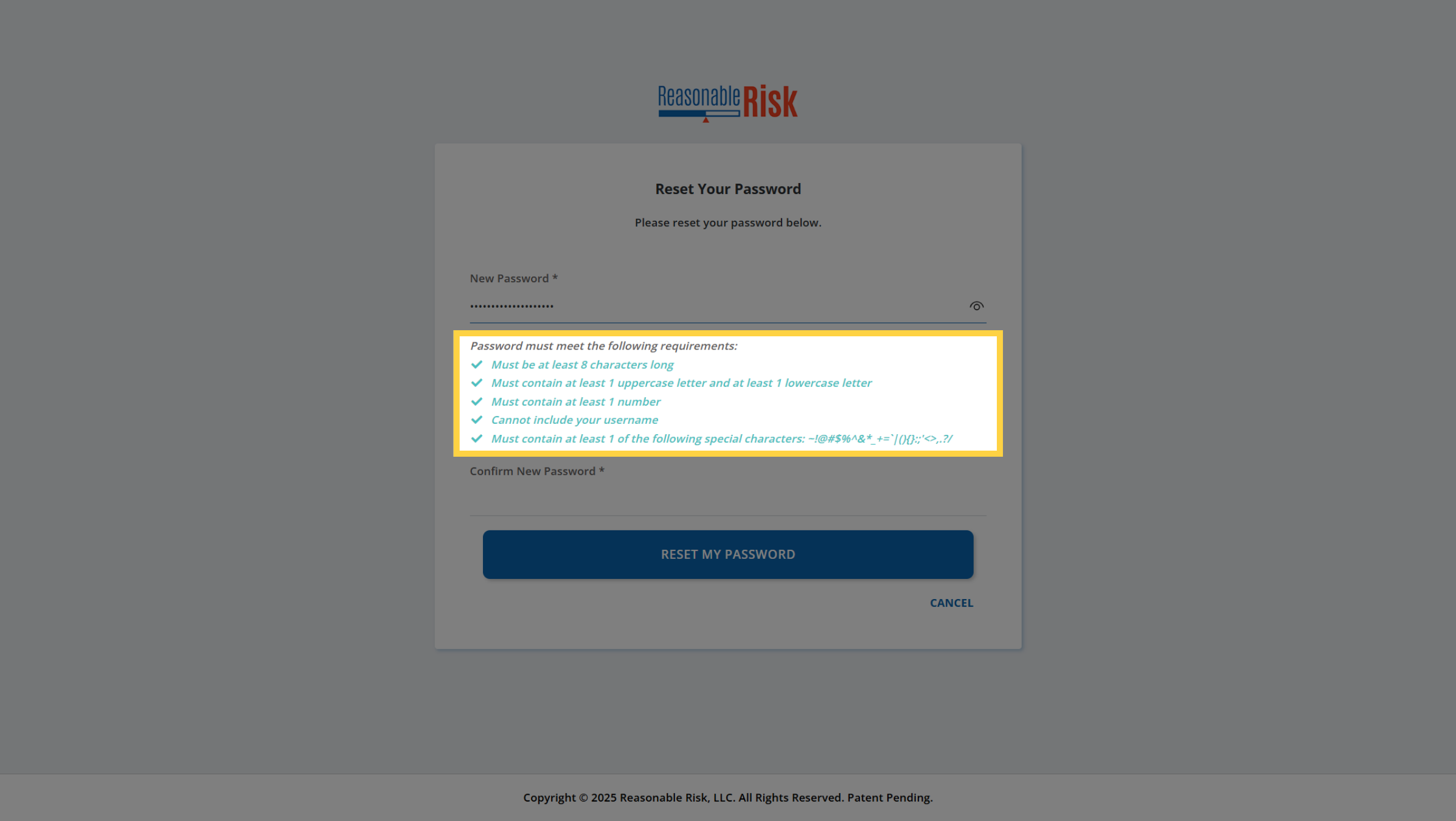
10. Confirm New Password
Re-enter the new password to confirm it is identical and then press the
"Reset My Password" button.
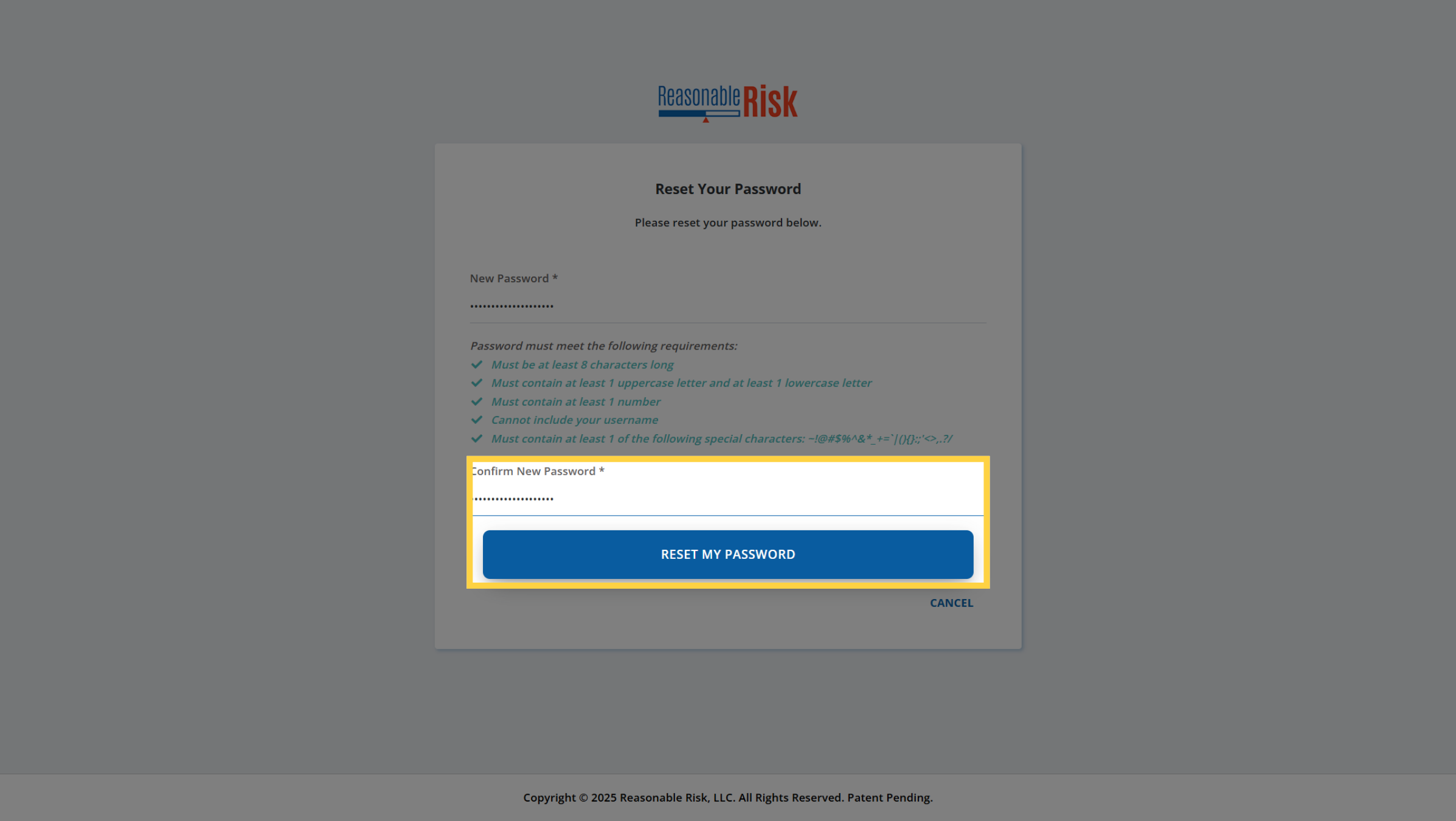
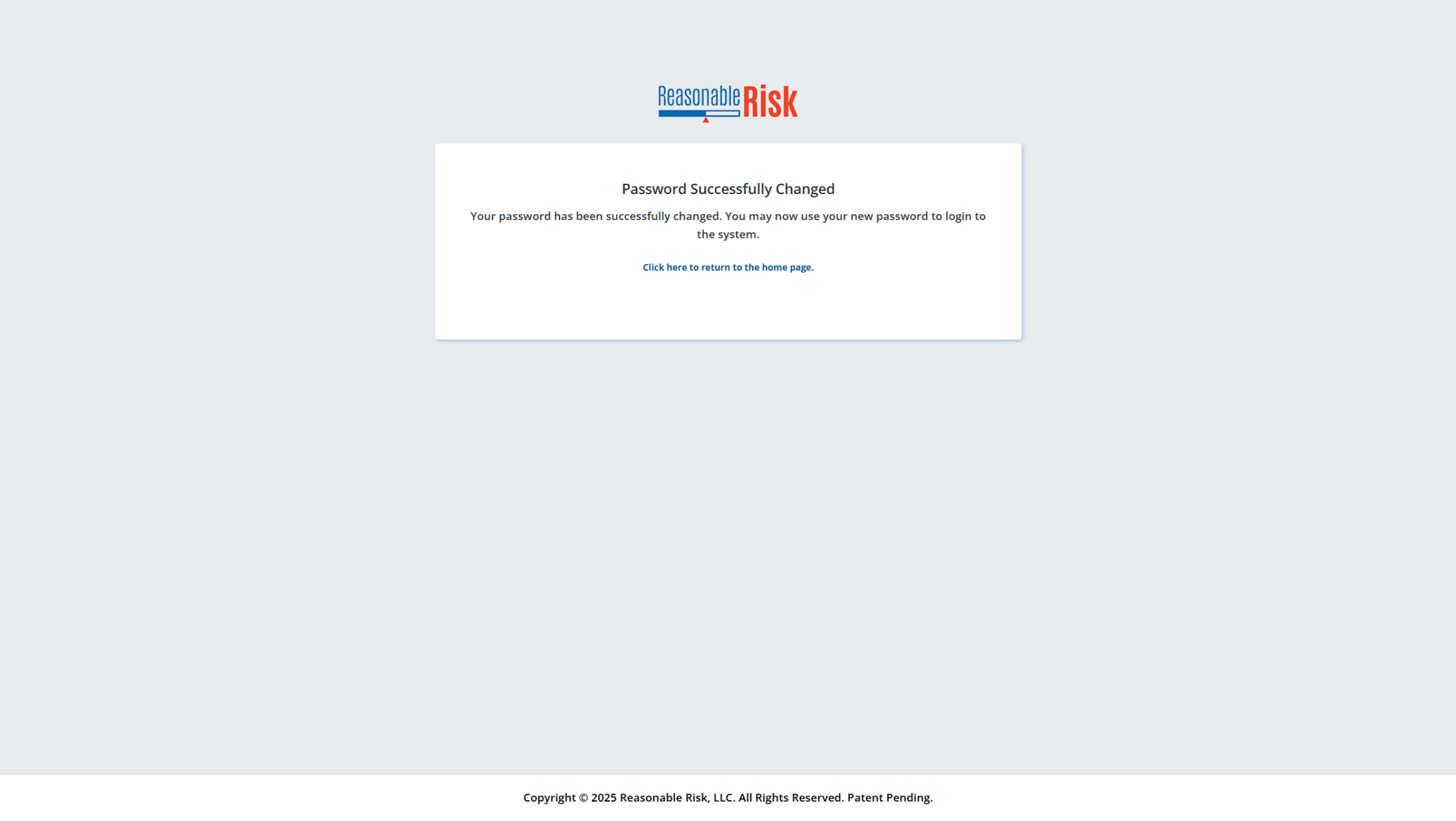
11. Password Successfully Changed
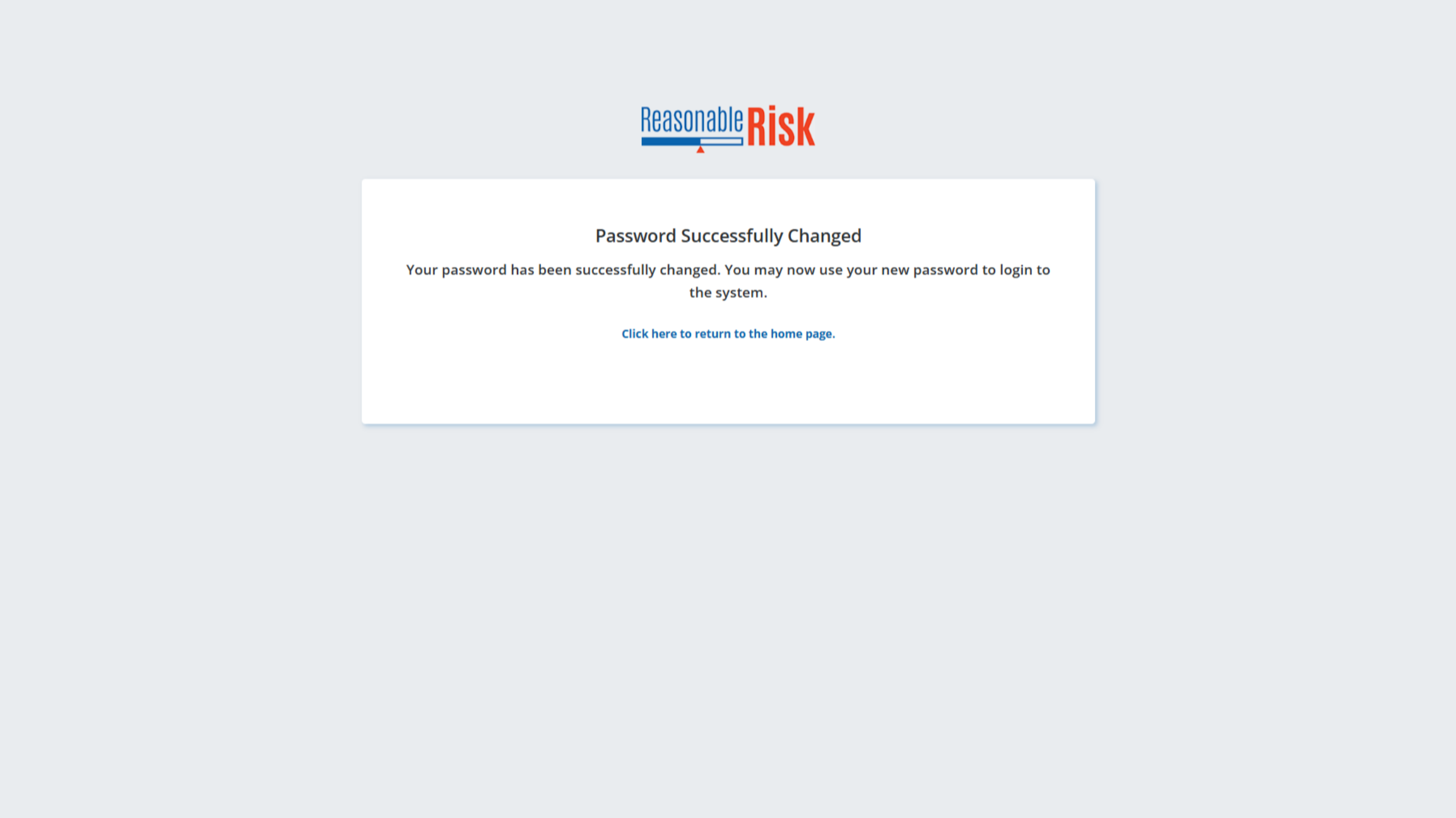
Once you successfully changed the password, an e-mail will be sent to
the address confirming the change.
At this time, you can close the application tab or click the link to return to the home page.You may now attempt to login using your updated credentials. If you continue to have login issues, you may need to reset your password and your OTP.
At this time, you can close the application tab or click the link to return to the home page.You may now attempt to login using your updated credentials. If you continue to have login issues, you may need to reset your password and your OTP.
12. One-Time Password Reset
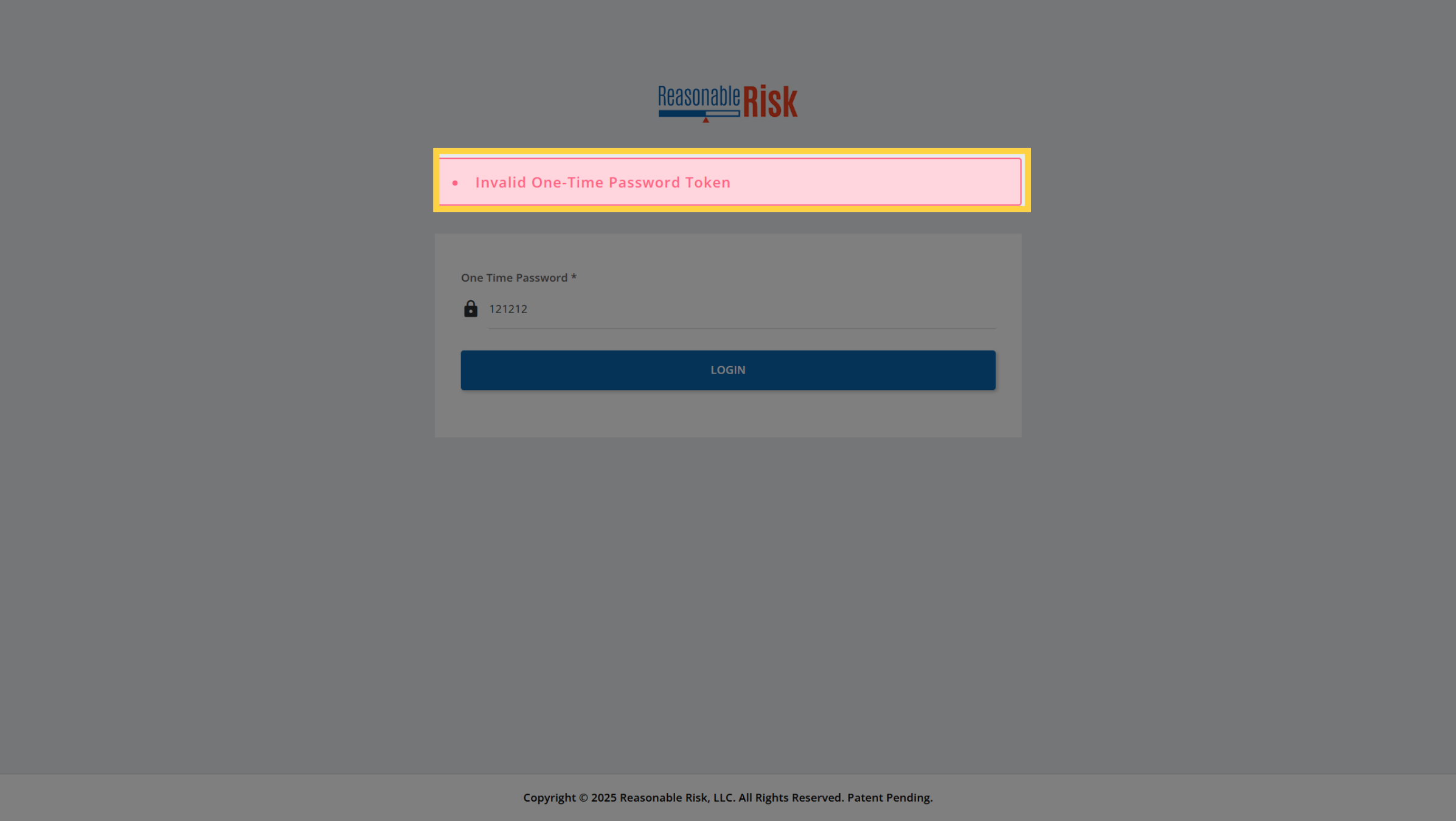
If you do not have access to your OTP, or if you enter an incorrect OTP
your account may lock. If your account is locked, you will receive an
e-mail notifying you and when you attempt to login to the application,
you will receive an error notification telling you that your account
is locked.
If you know that your account was locked due to a failed OTP entry, or you no longer have access to your OTP codes, you will need to contact Reasonable Risk support via e-mail, using the chat bot, or through the Reasonable Risk Support and Training Site so that they may reset your OTP.
Once you have contacted support, you will need to complete the Reset Password process to create a new password and OTP.
If you know that your account was locked due to a failed OTP entry, or you no longer have access to your OTP codes, you will need to contact Reasonable Risk support via e-mail, using the chat bot, or through the Reasonable Risk Support and Training Site so that they may reset your OTP.
Once you have contacted support, you will need to complete the Reset Password process to create a new password and OTP.
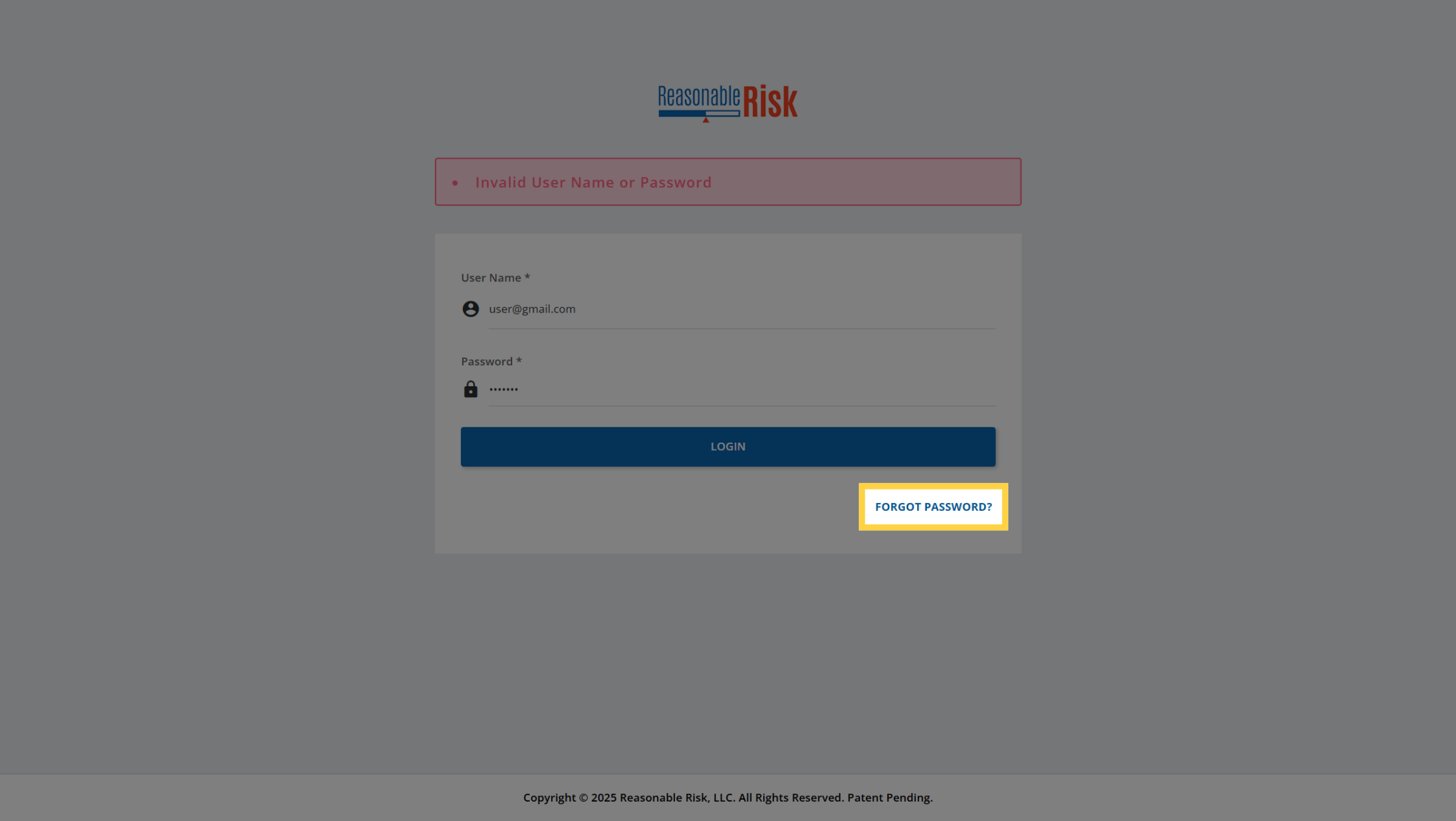
13. "Forgot Password?" for OTP Reset
Once you have been notified by Customer Support that your password and
OTP have been reset, return to the login page, but do not attempt to
login again.
On the login page, click the "Forgot Password" link at the bottom right corner.
On the login page, click the "Forgot Password" link at the bottom right corner.
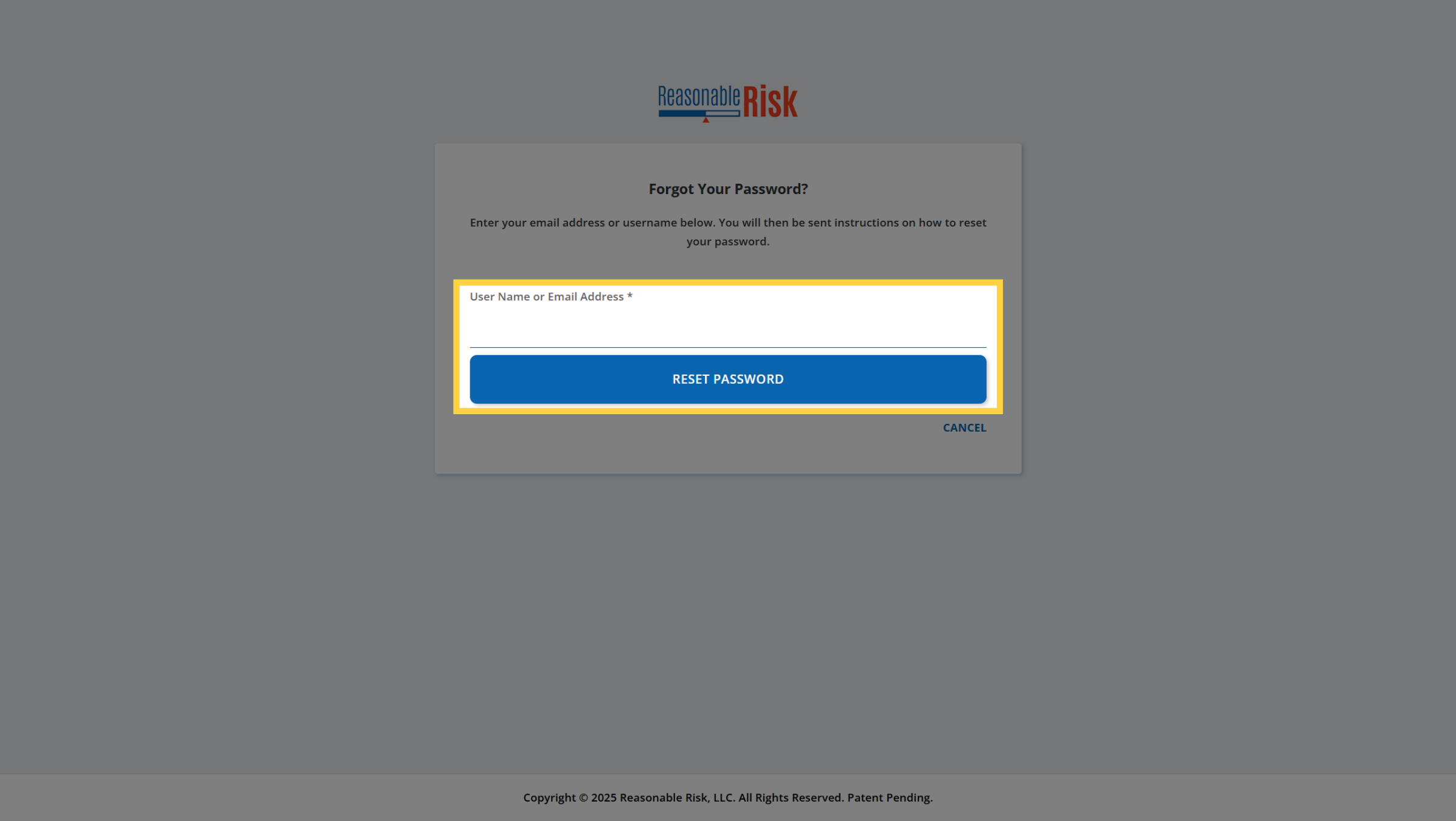
14. Reset Password
Enter the e-mail address that is used for your Reasonable Risk application
access and then click the "Reset Password" button.
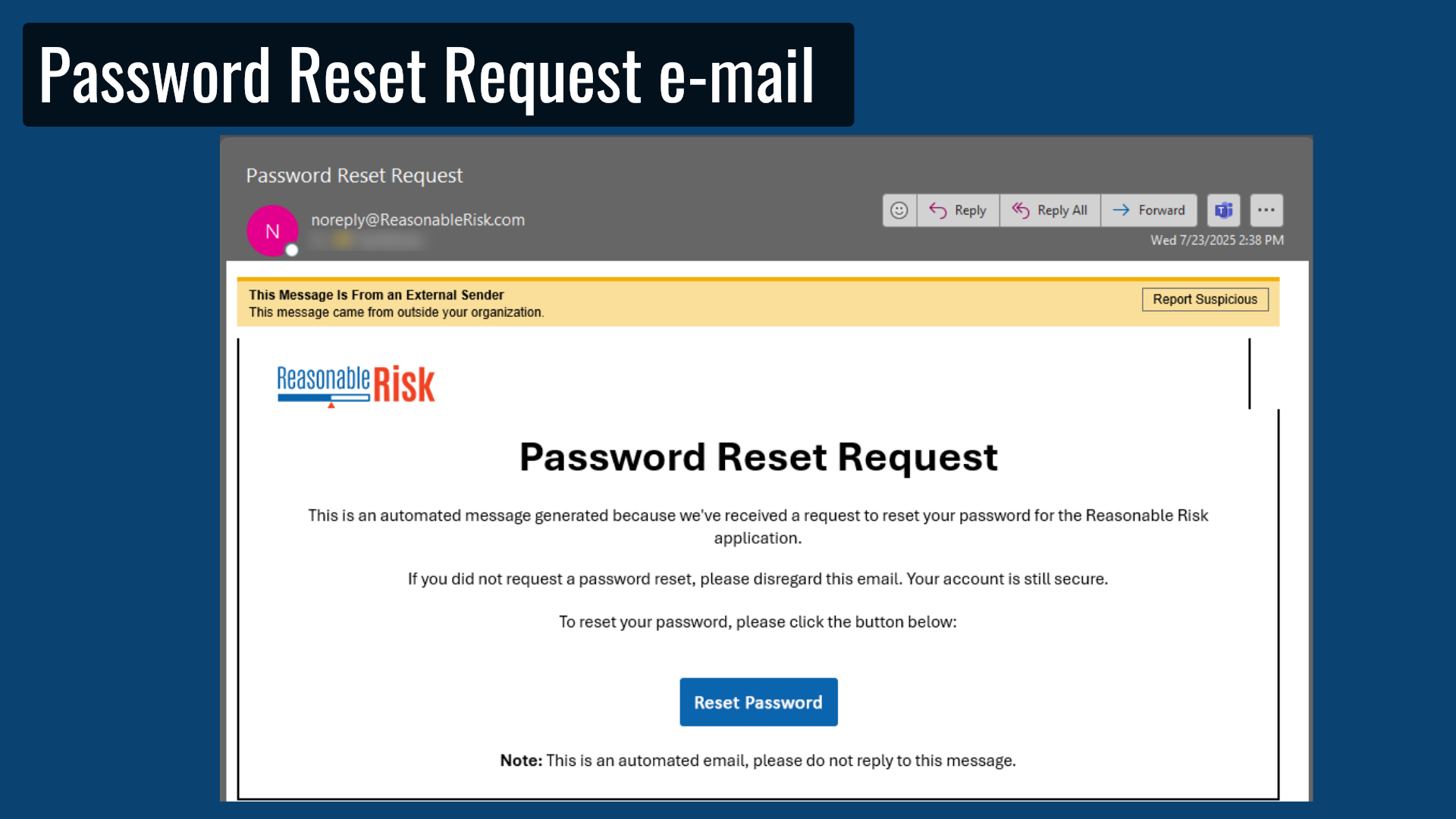
15. Password Reset Request e-mail
When you receive the Password Reset Request e-mail, you can click the
"Reset Password" button.
This will take you to a page to reset your password and OTP.
This will take you to a page to reset your password and OTP.
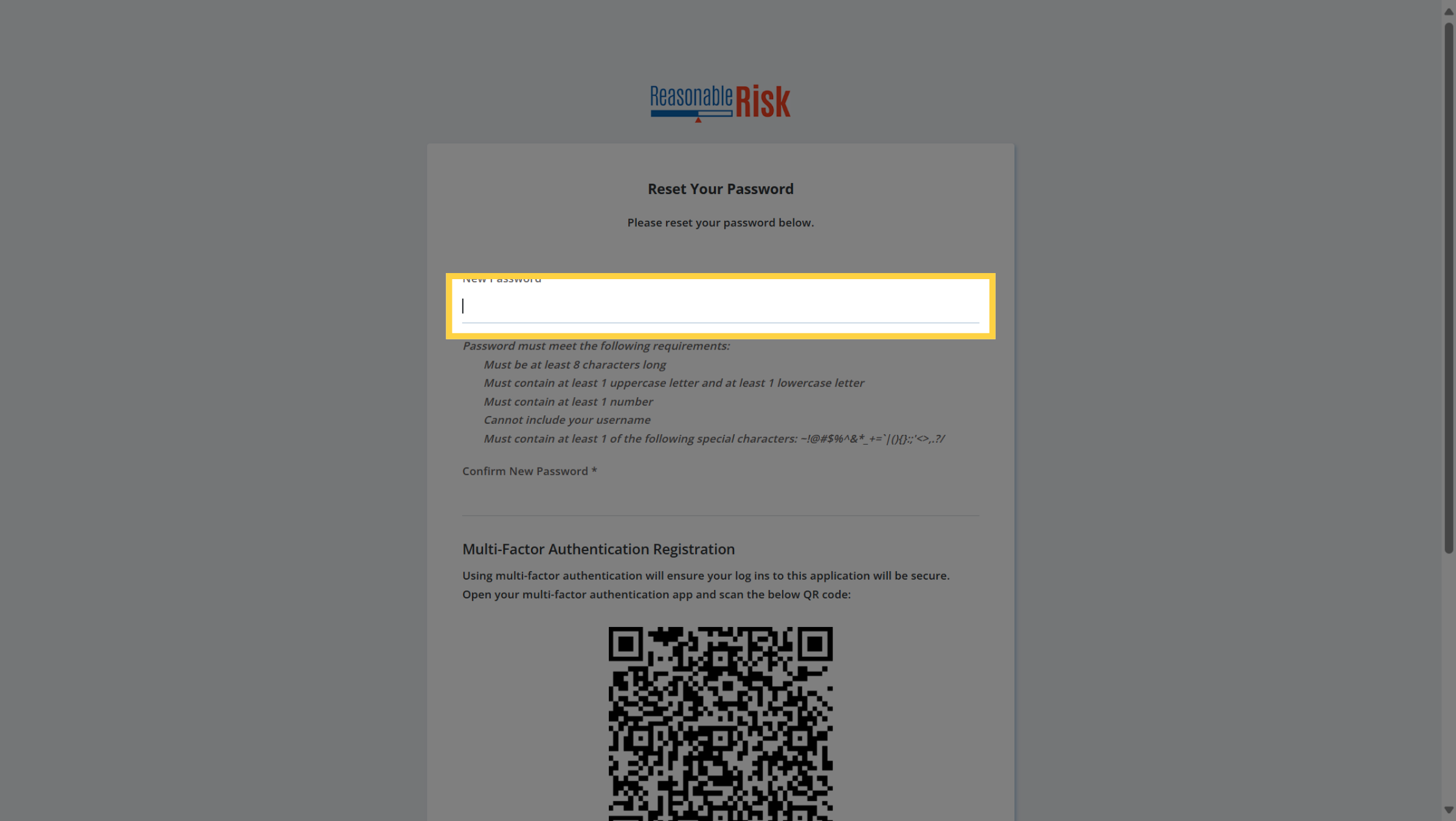
16. Reset your Password
Click on "New Password" and enter a new password following the guidelines
provided.
17. Validate Password
Review the password criteria to ensure that all items are met, each item
should have a check mark.Modify the new password until all criteria are
met.
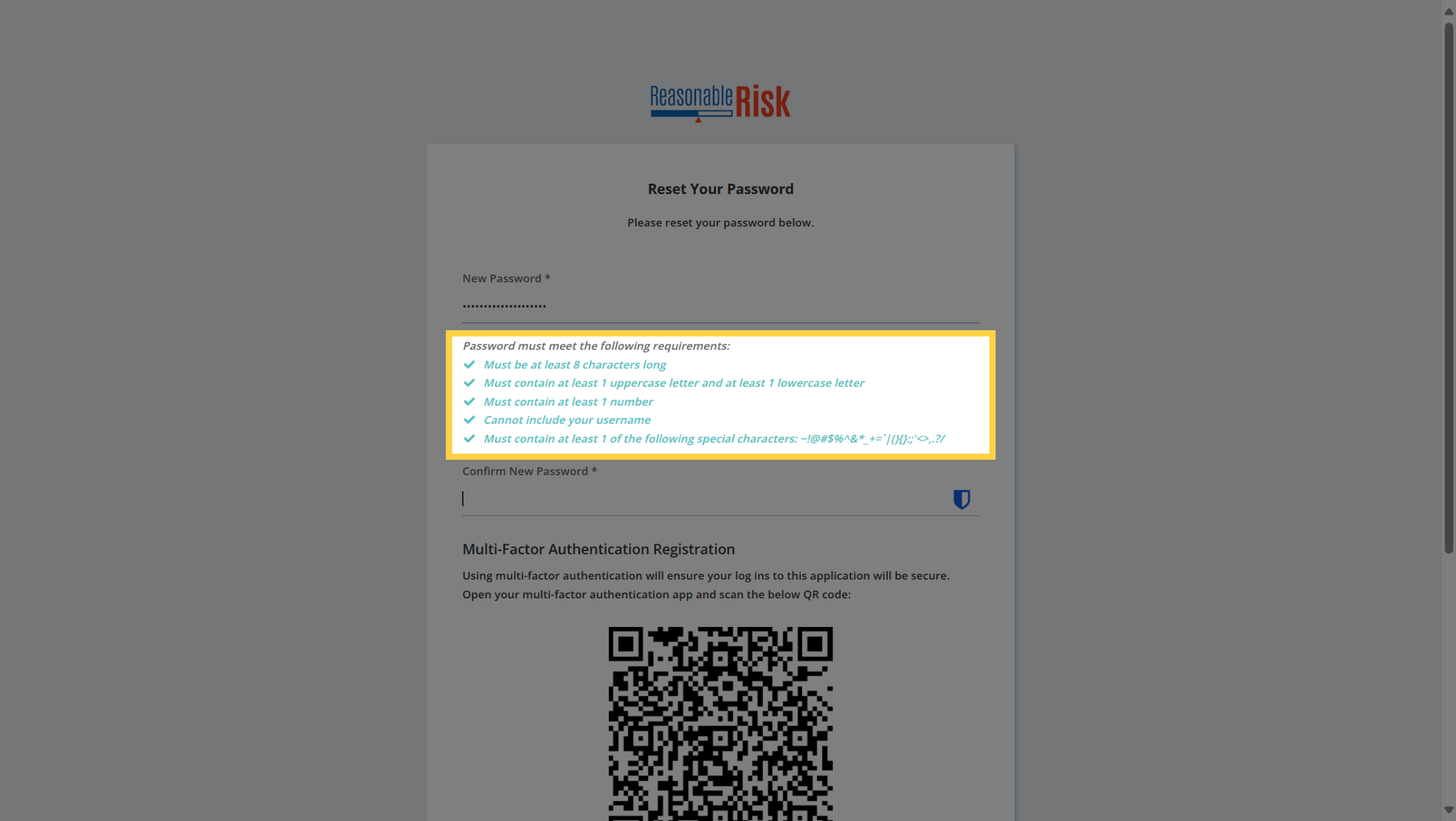
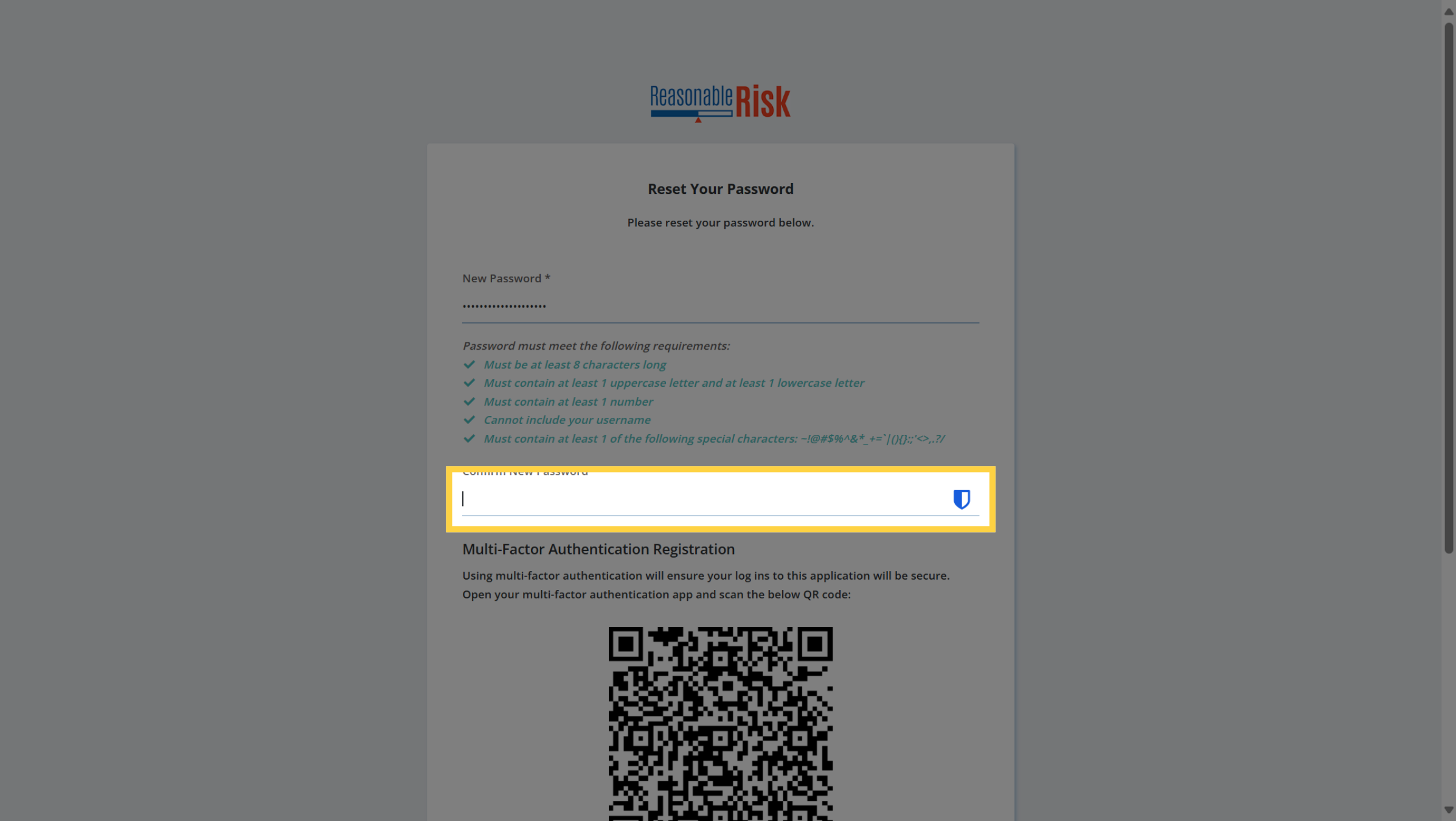
18. Confirm New Password
Re-enter the new password to confirm it is identical.Now you can setup
your authentication app with your new OTP.
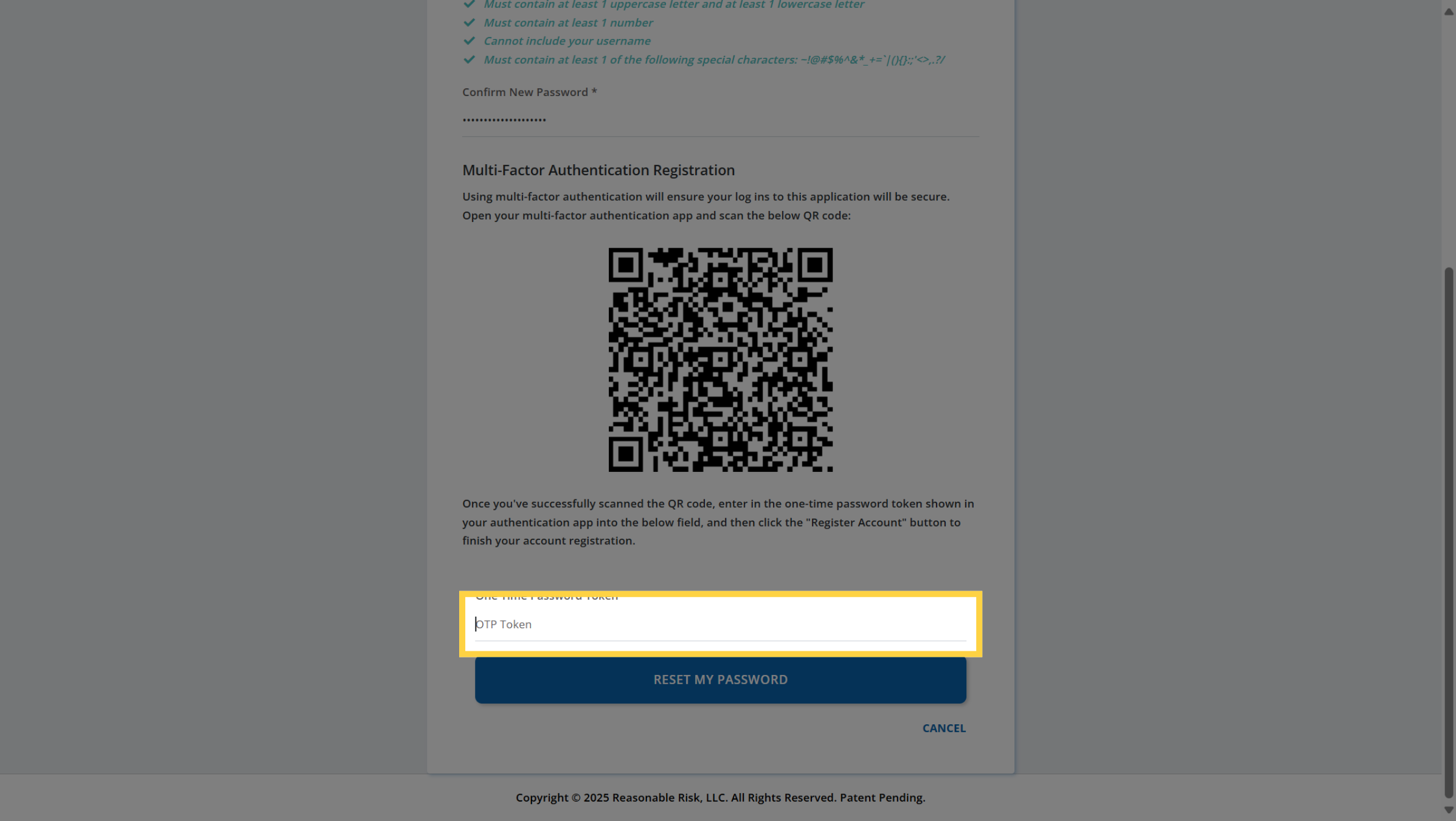
19. Enter OTP Token
Using your authentication app, scan the QR code to configure your new
OTP token. Now you can enter the new OTP.
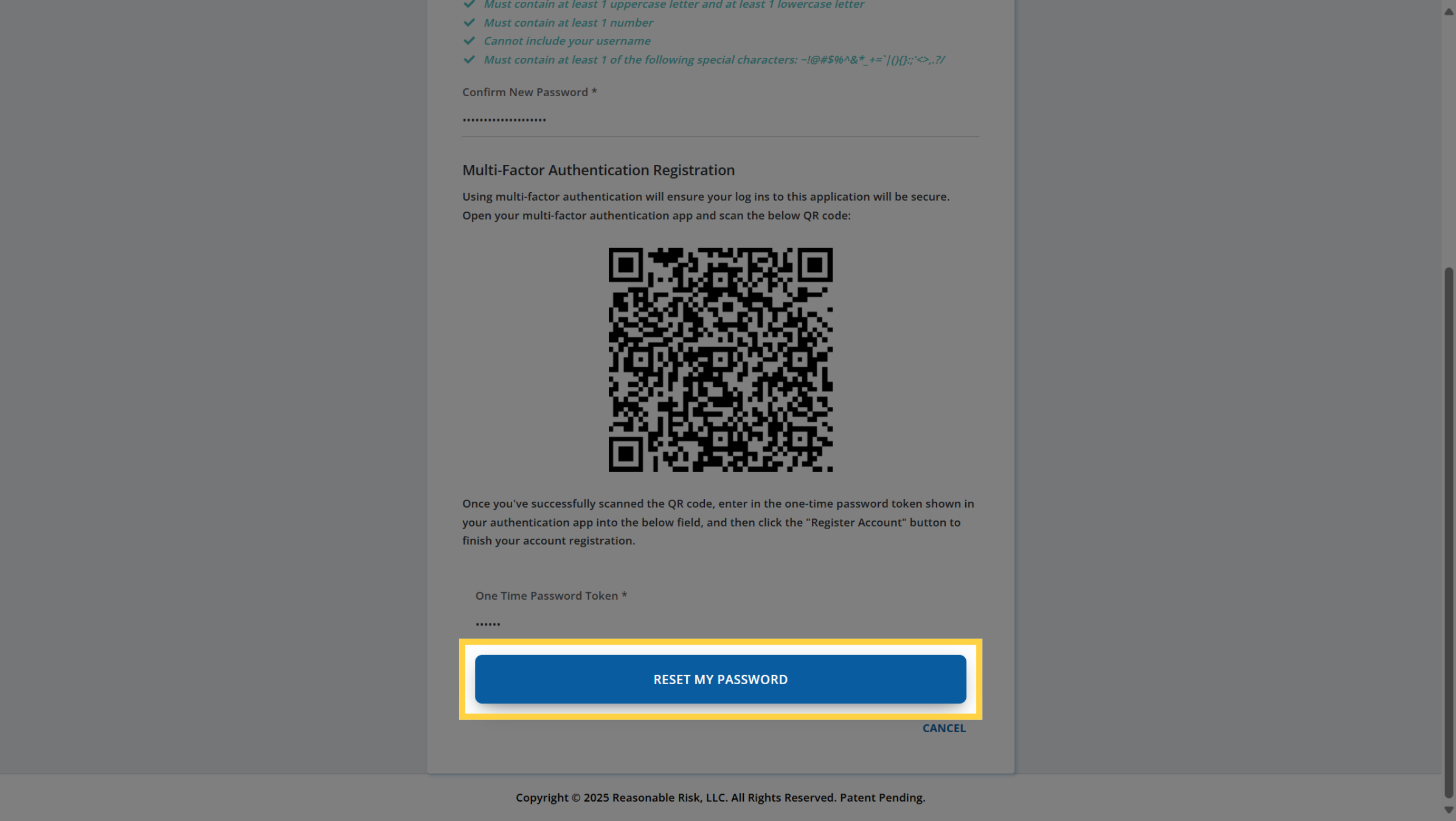
20. Complete the Password Reset
Click on "Reset My Password" button to save your changes and validate
your new OTP.
21. Password Successfully Changed
Once you successfully changed the password and OTP, an e-mail will be
sent to the address confirming the change. At this time, you can close
the application tab or click the link to return to the home page.
You may now attempt to login using your updated credentials.
You may now attempt to login using your updated credentials.
This guide covered the steps to address issues if you are having trouble
logging in to the Reasonable Risk application.
Comments
0 comments
Article is closed for comments.