Learn how to manage your user profile in Reasonable Risk. This guide will walk you through accessing and updating your personal information including your password, email address, and title.
In addition, you will learn how to update your notification preferences and select a default scope.
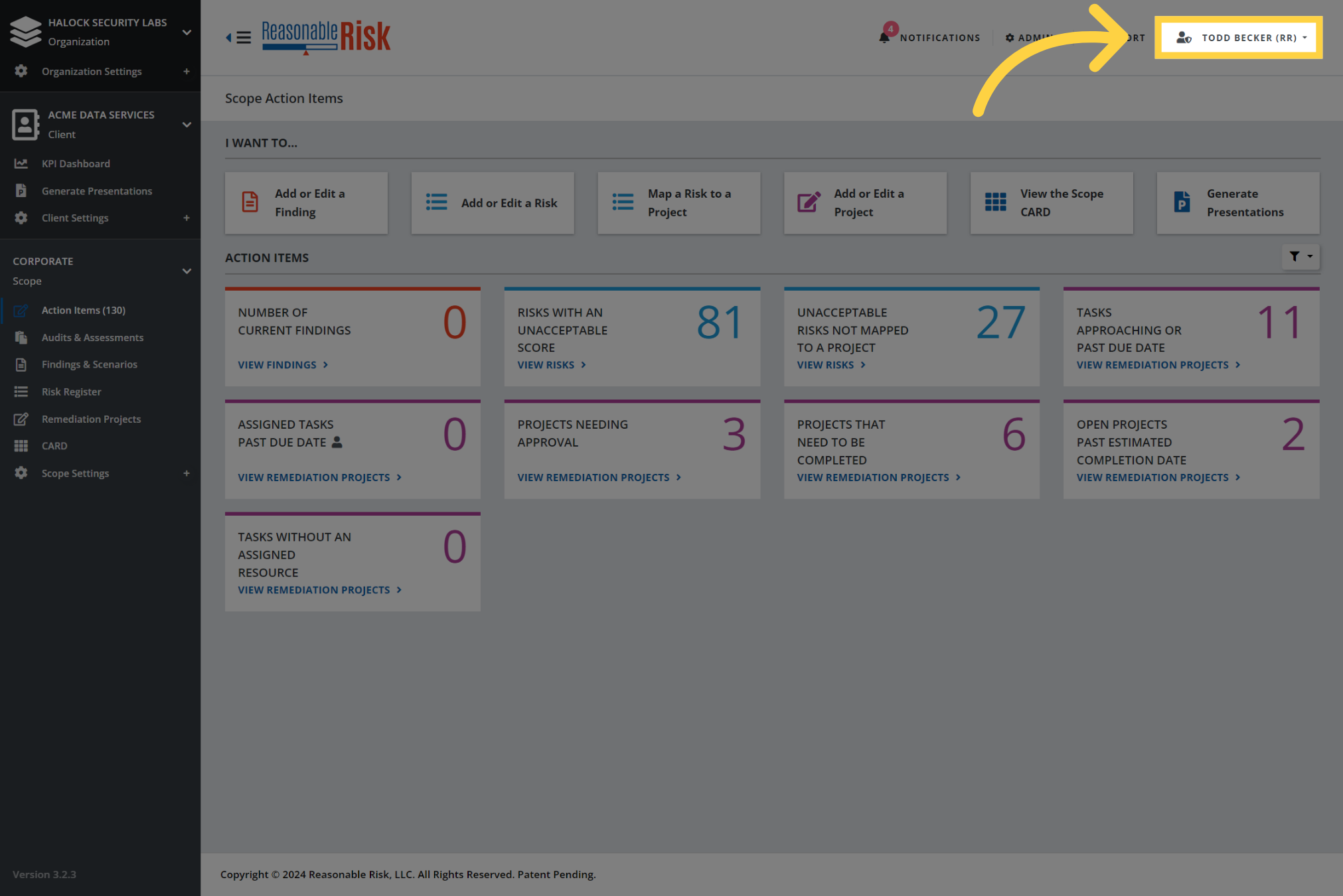
1. Click on your user name
Access your user profile by clicking on your username in the top right corner of the page.
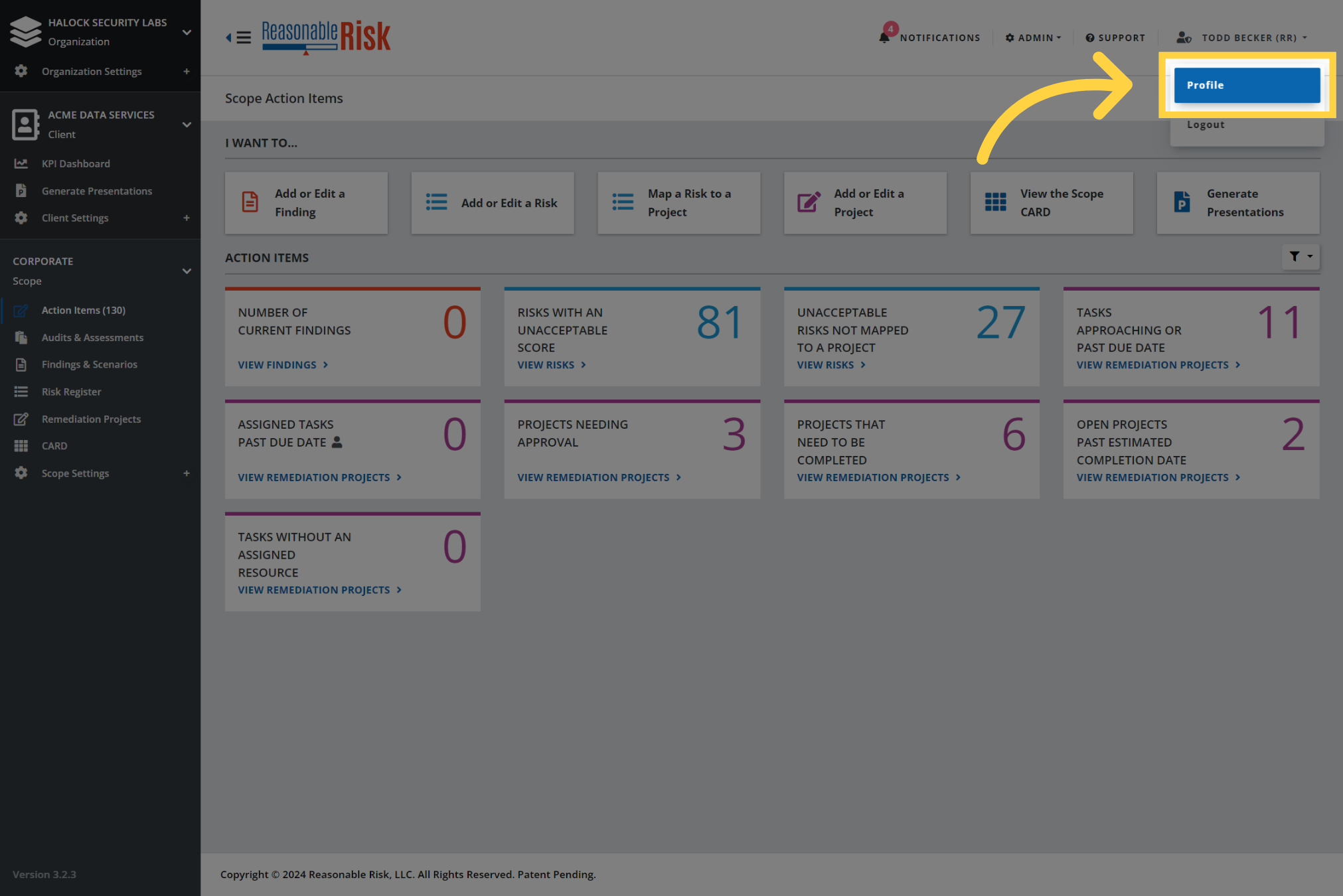
2. Click "Profile"
Click on the profile section to access the user settings.
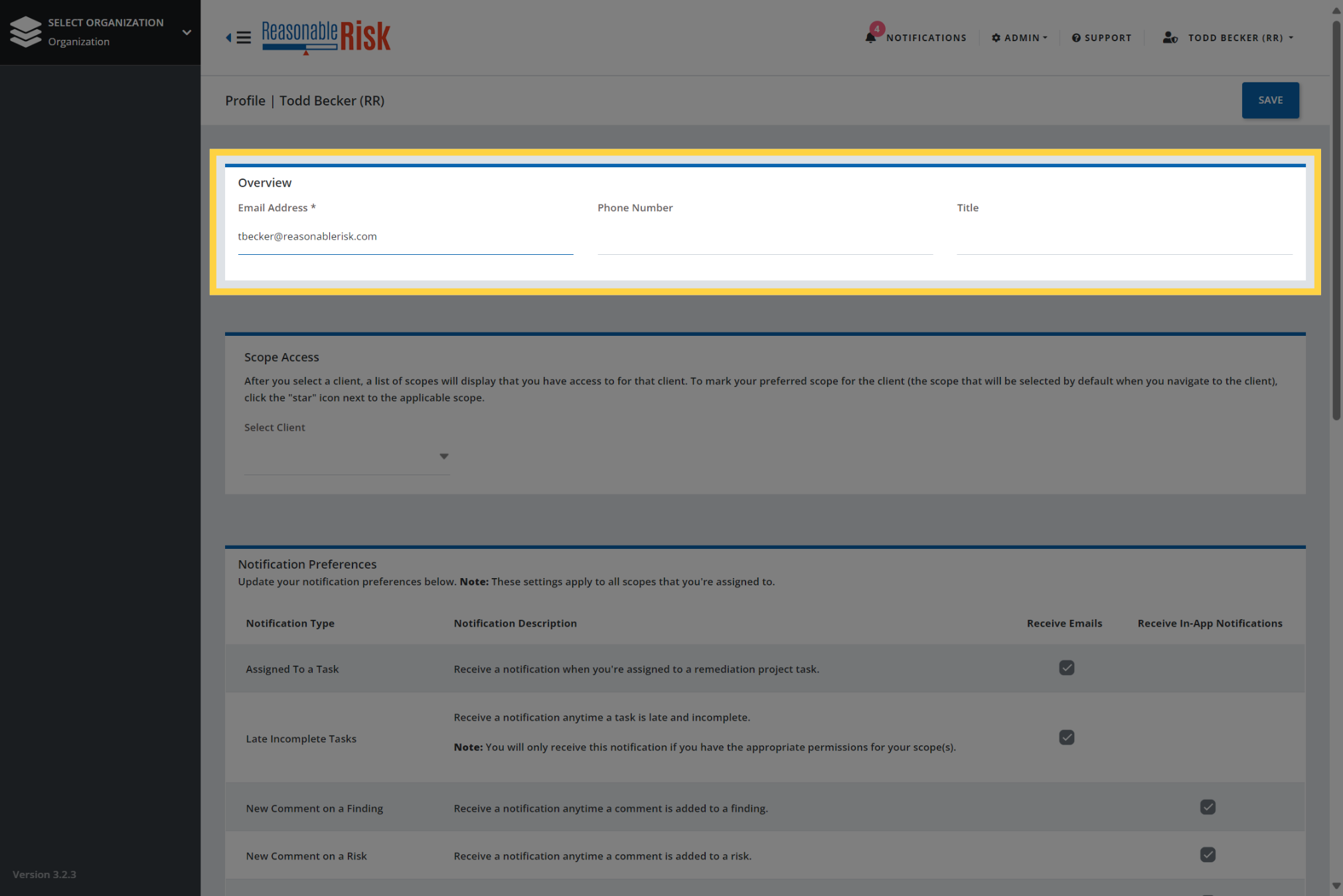
3. Overview Section
The overview section allows you to update your e-mail address, phone number, and title.
4. Notification Preferences
Notifications within Reasonable Risk are delivered inside the application or via e-mail. The Notification Preferences section allows you to choose which notifications you receive as well as choosing how the notifications are delivered.
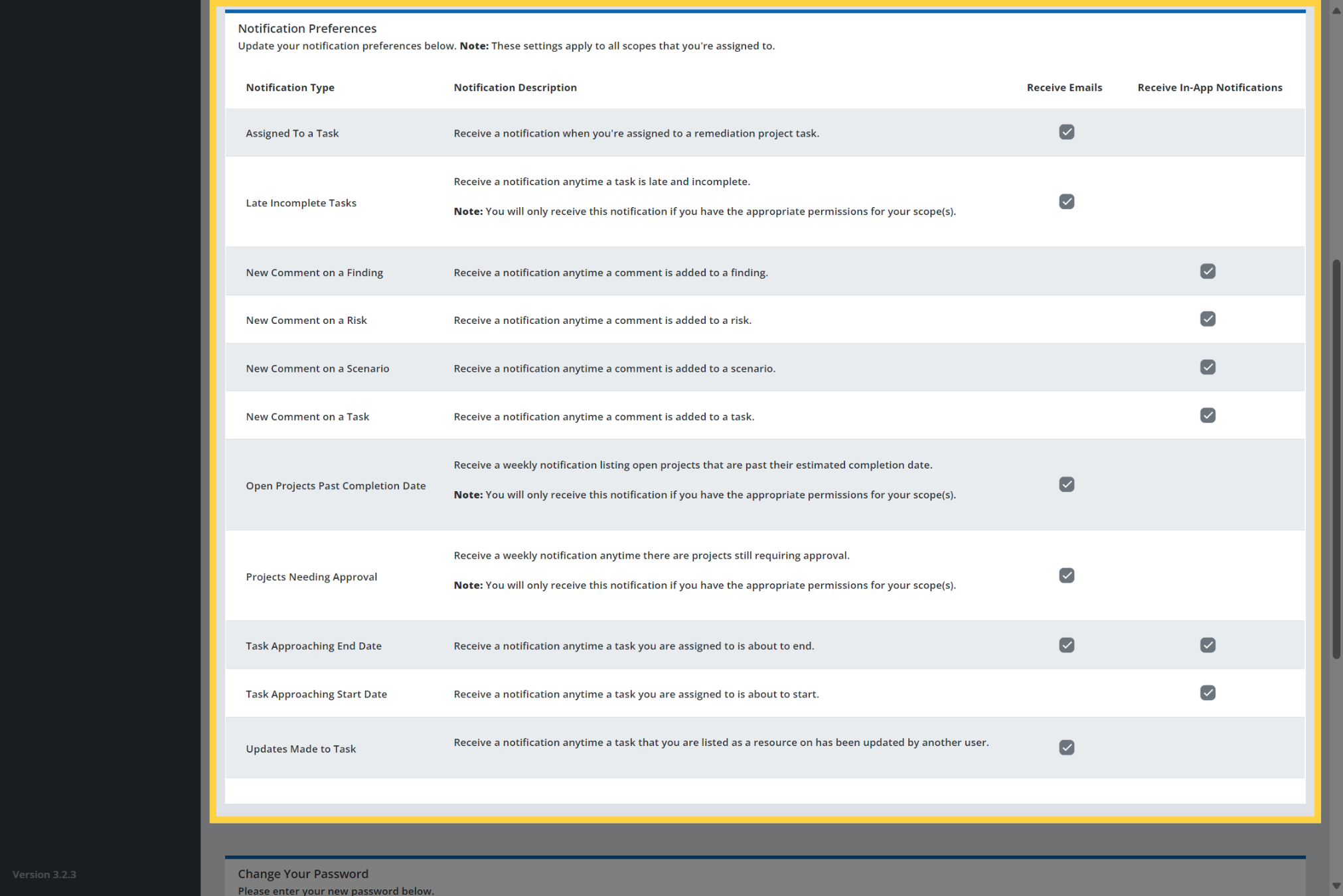
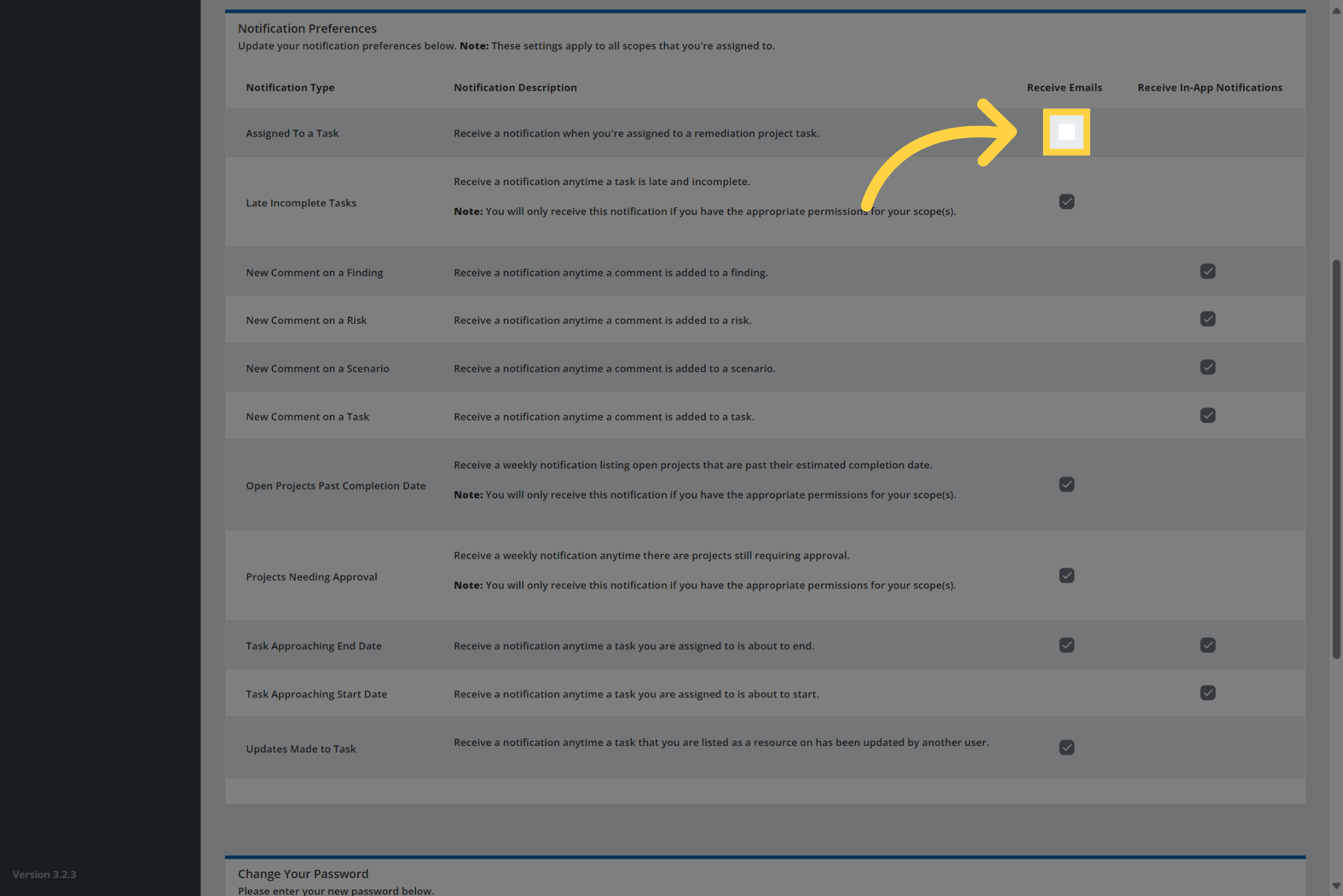
5. Check / Uncheck as desired
Adjust your notification preferences by selecting or deselecting the checkbox for each notification.
Note that some notifications can be delivered in more than one way.
6. Change Your Password
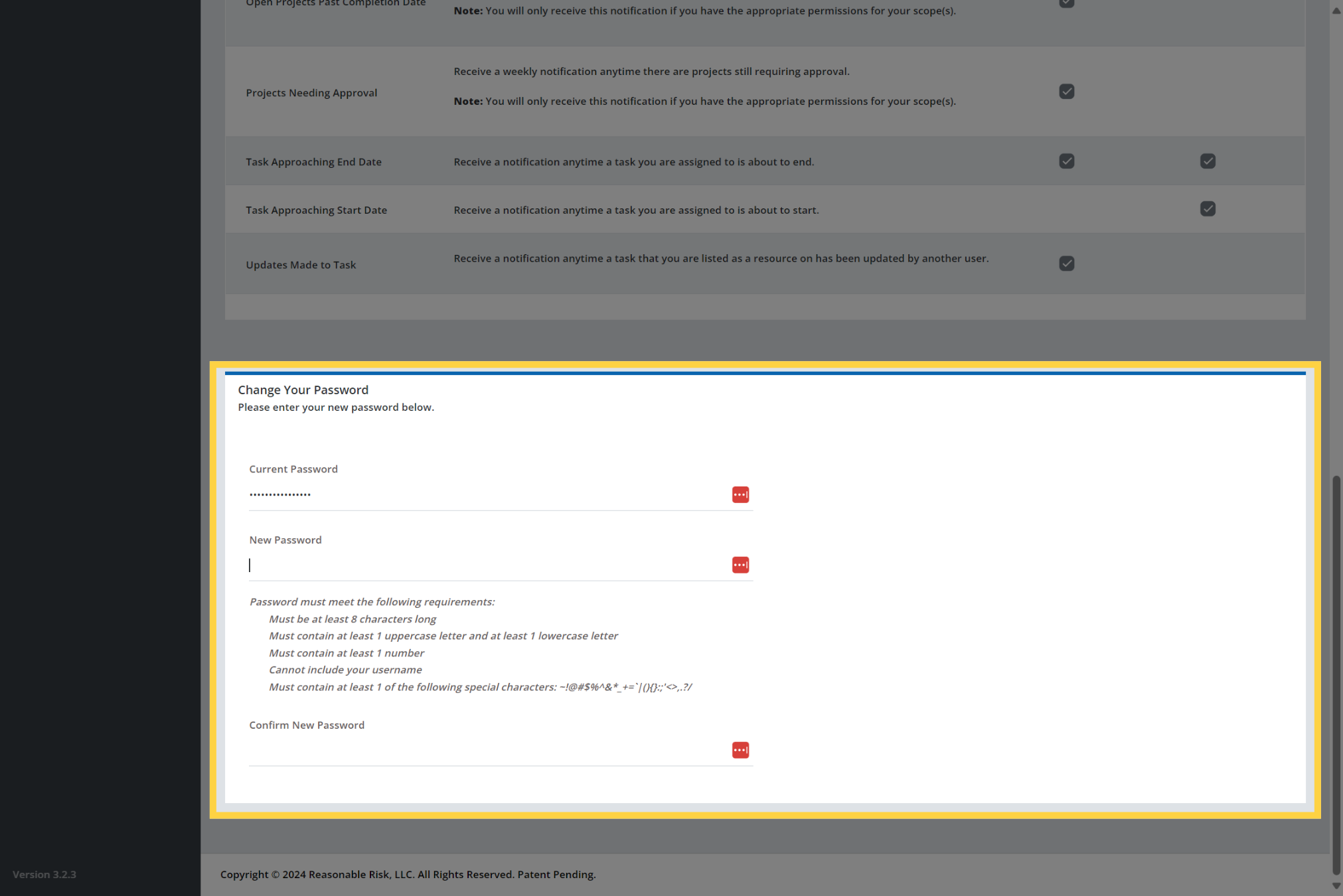
The Change Your Password section allows you to modify your current password.
Note, this will not allow you to change your MFA token, you must request a reset from your administrator to reset your MFA token.
Enter your current password, then create a new password following the criteria listed. Confirm the new password in the last field in this section.
7. Don't forget to 'Save'
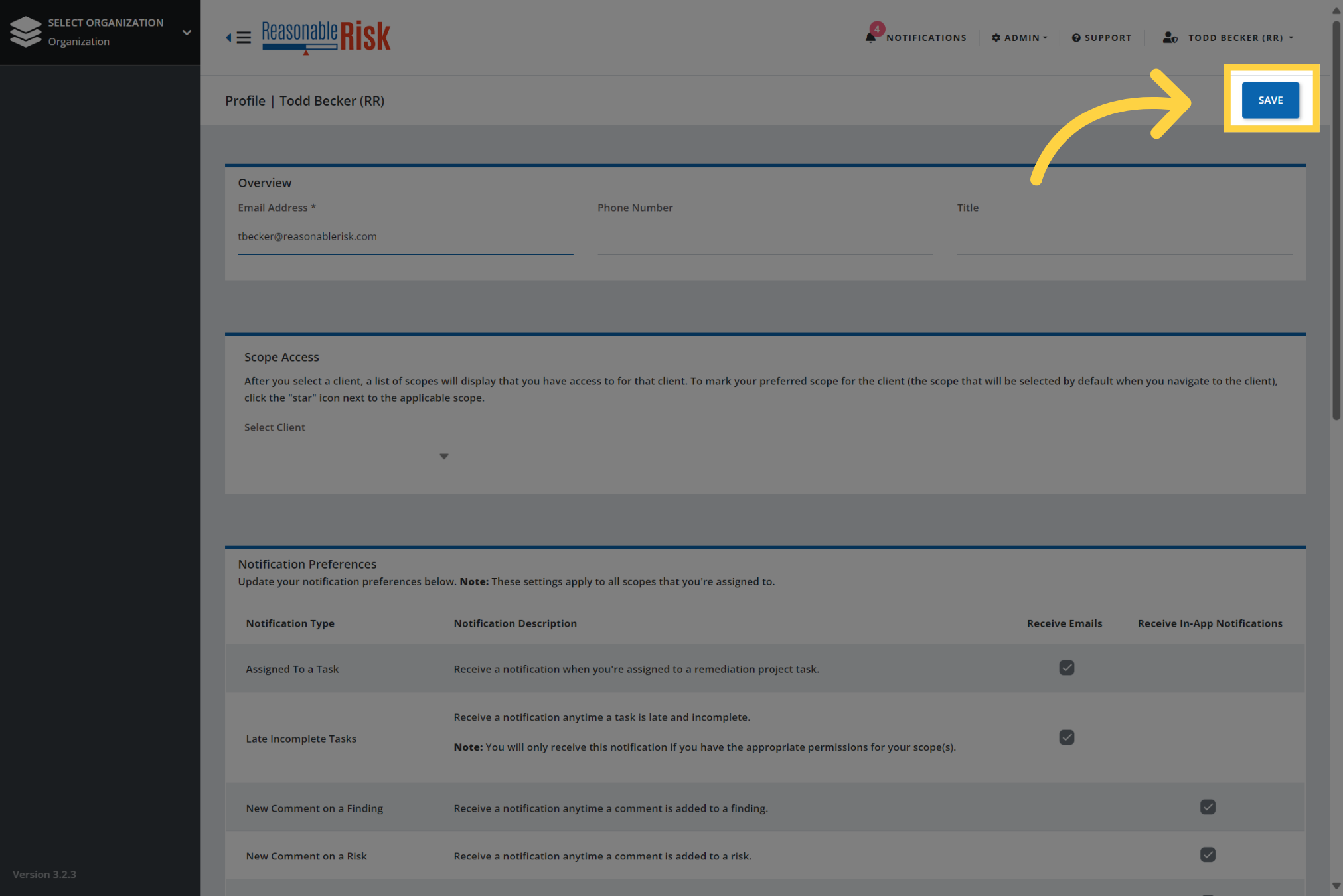
Finally, make sure to return to the top of the screen and select the 'Save' button before attempting to navigate to another area of the application.
Comments
0 comments
Please sign in to leave a comment.