This training module focuses on managing remediation project tasks within the Reasonable Risk platform. We will explore how to effectively create, link, and track tasks to mitigate identified risks.
1. Focus Area: Remediation Project Tasks
Welcome to the Reasonable Risk training module focused on remediation project tasks. Today, we will delve into the practical aspects of managing tasks, from creation and linking to risks, to tracking progress and utilizing various system features for effective risk remediation.
2. Agenda: Remediation Project Tasks
Our agenda today centers on remediation project tasks.
3. Task Management Objectives
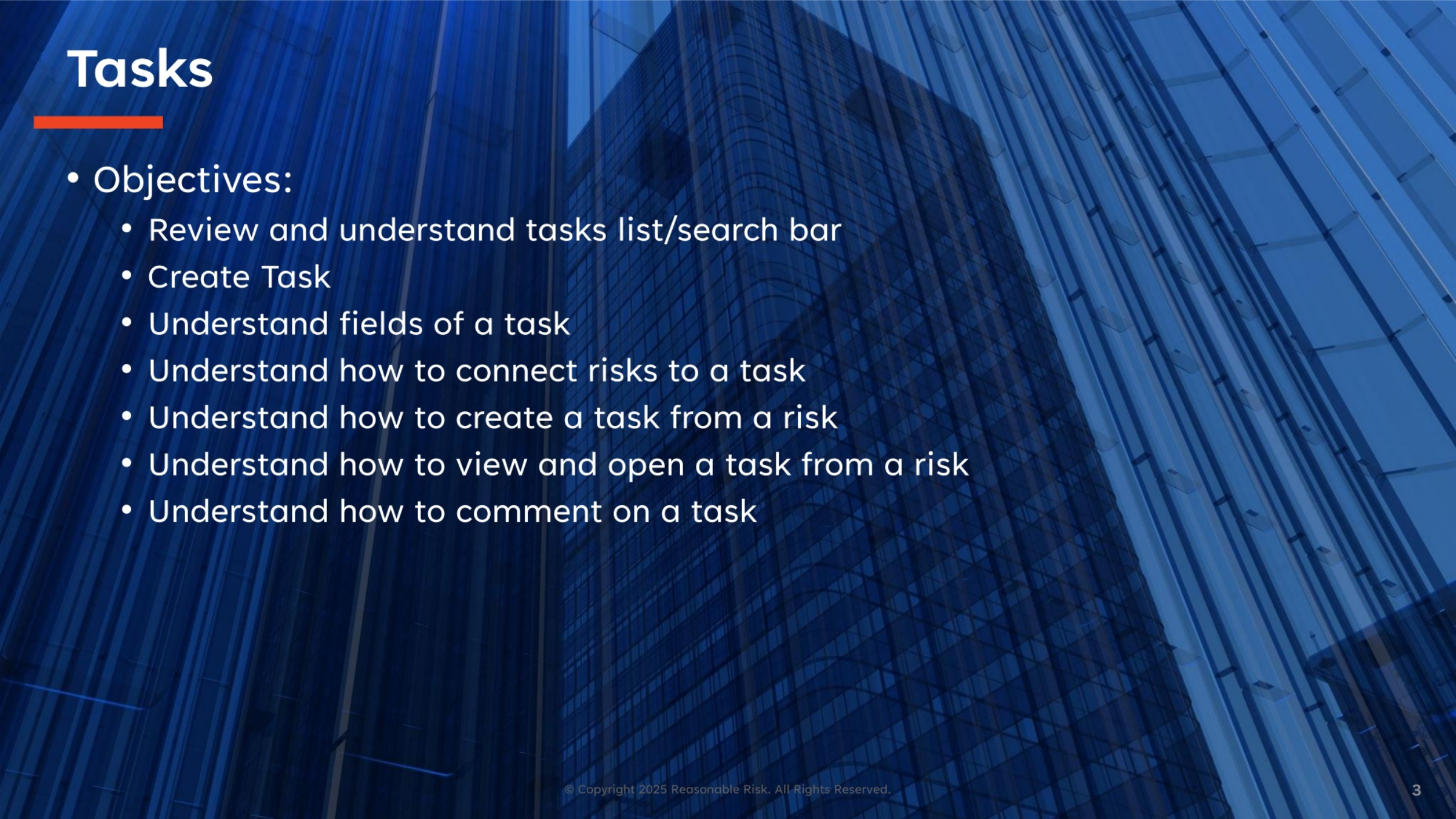
Our objectives for this session are clear. We will review and understand the tasks list and search bar, learn how to create new tasks, and explore the various fields associated with a task. Furthermore, we'll cover how to connect risks to tasks, create tasks directly from risks, and effectively view, open, and comment on tasks within the system.
4. Reasonable Risk Lifecycle and Modules
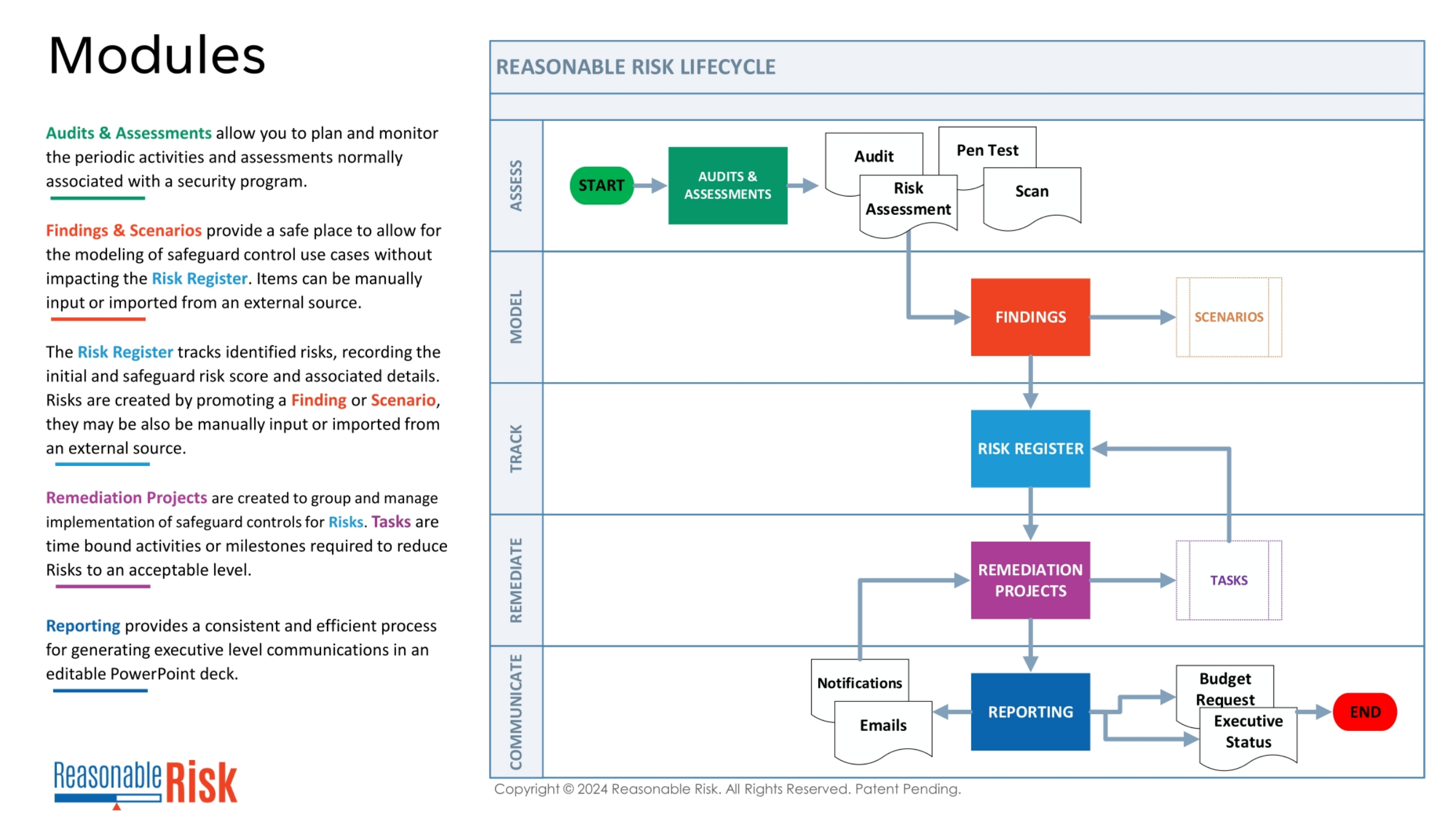
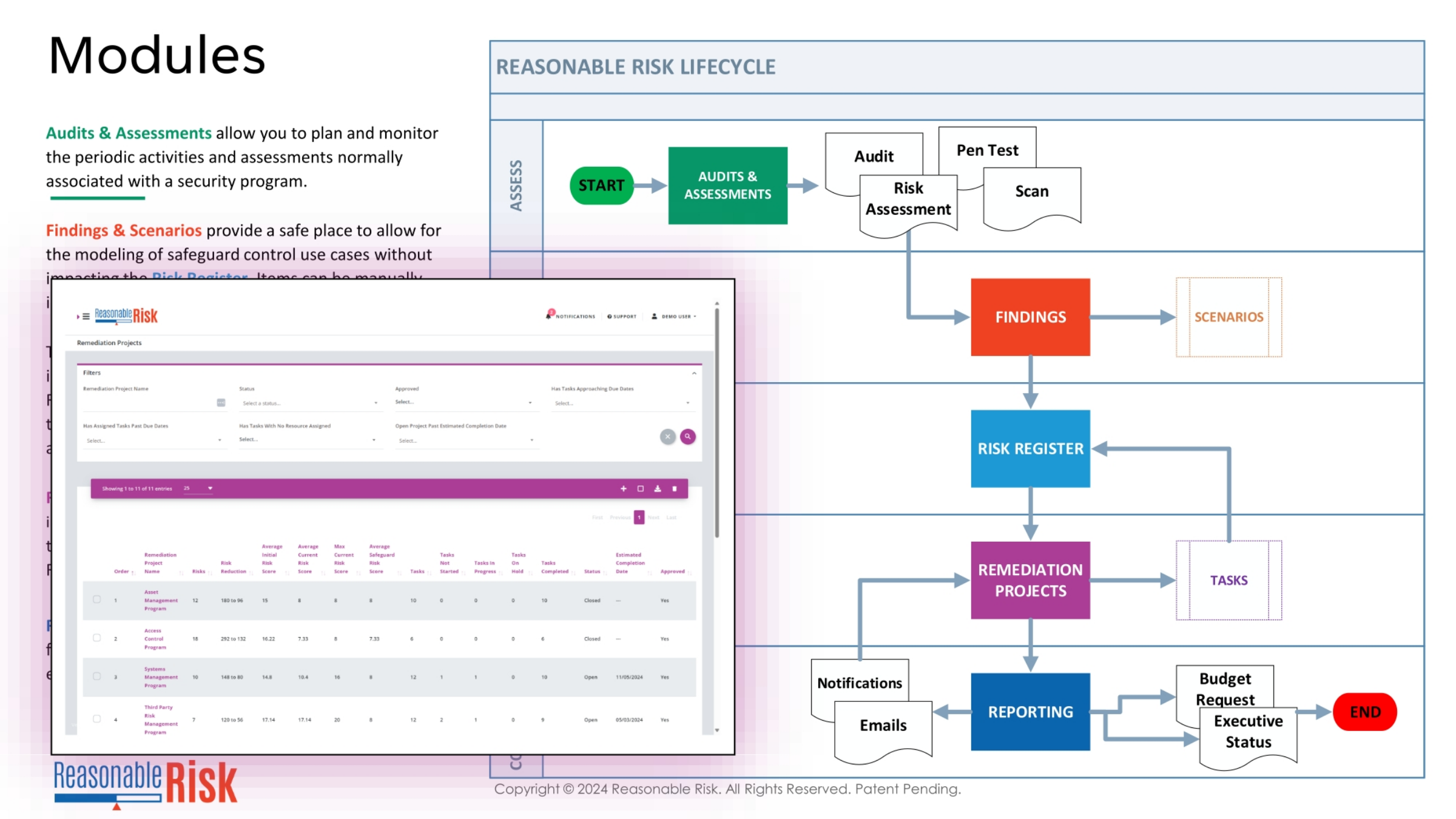
The Reasonable Risk lifecycle outlines a structured approach to managing security programs, from assessment to communication. Remediation Projects are a critical phase, designed to group and manage the implementation of safeguard controls for identified risks. Within these projects, tasks represent the time-bound activities and milestones necessary to reduce risks to an acceptable level, ensuring a clear path to resolution.
5. Remediation Projects in the Risk Lifecycle
Continuing our look at the Reasonable Risk lifecycle, this visual demonstrates how remediation projects fit into the overall process. The screenshot provides a glimpse into the Remediation Projects interface, showcasing how various projects are listed with their statuses, risk scores, and task completion details. This view helps in monitoring the progress of safeguard control implementations.
6. Remediation Projects and Tasks Overview
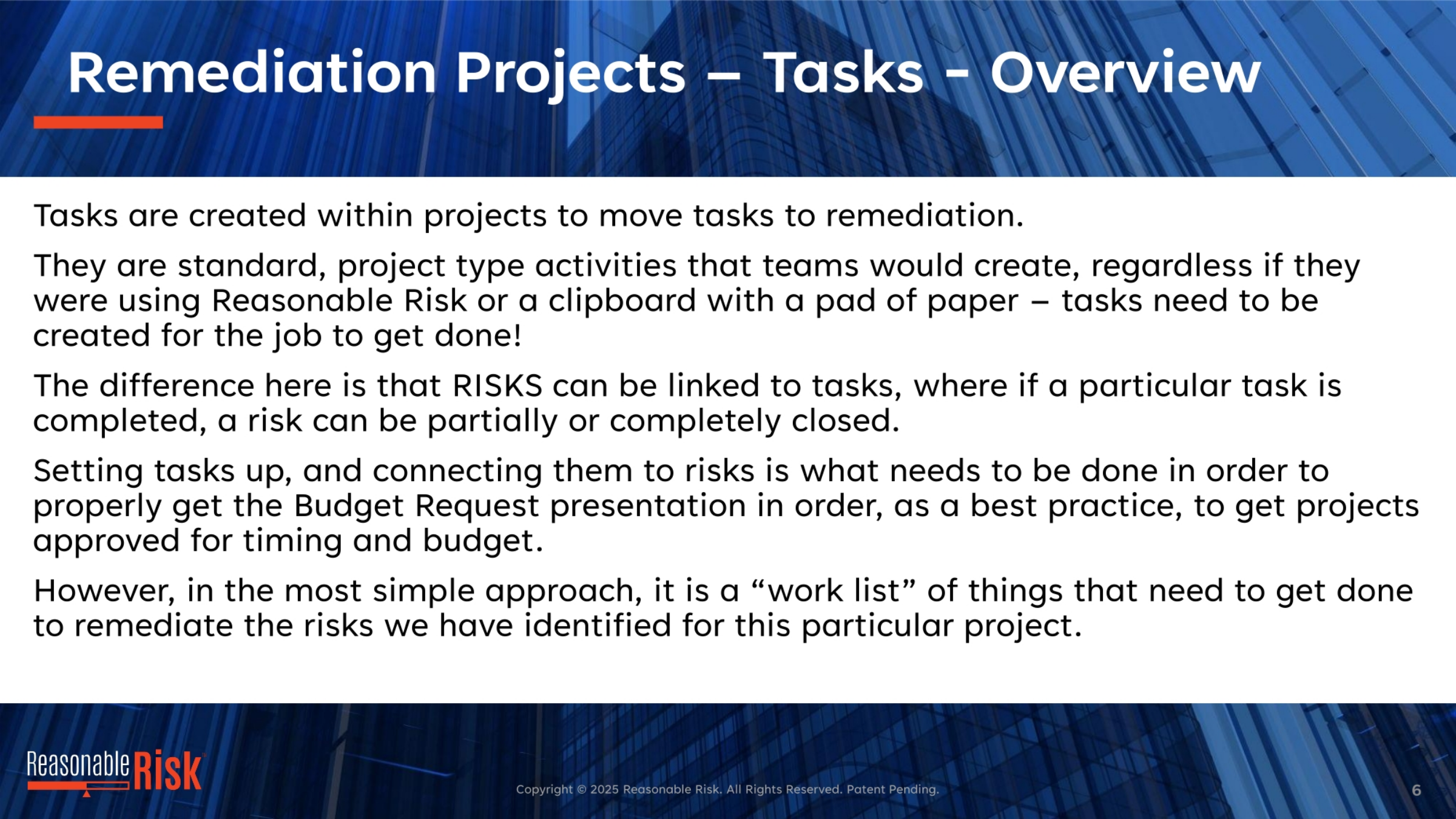
Tasks are fundamental activities created within remediation projects to drive risk mitigation. These are standard project activities, essential for getting the work done. A key differentiator in Reasonable Risk is the ability to link risks directly to tasks. This means that as tasks are completed, the associated risks can be partially or fully closed, providing a clear measure of progress. Essentially, tasks form the work list for remediating identified project risks.
7. Task Workflow and Status
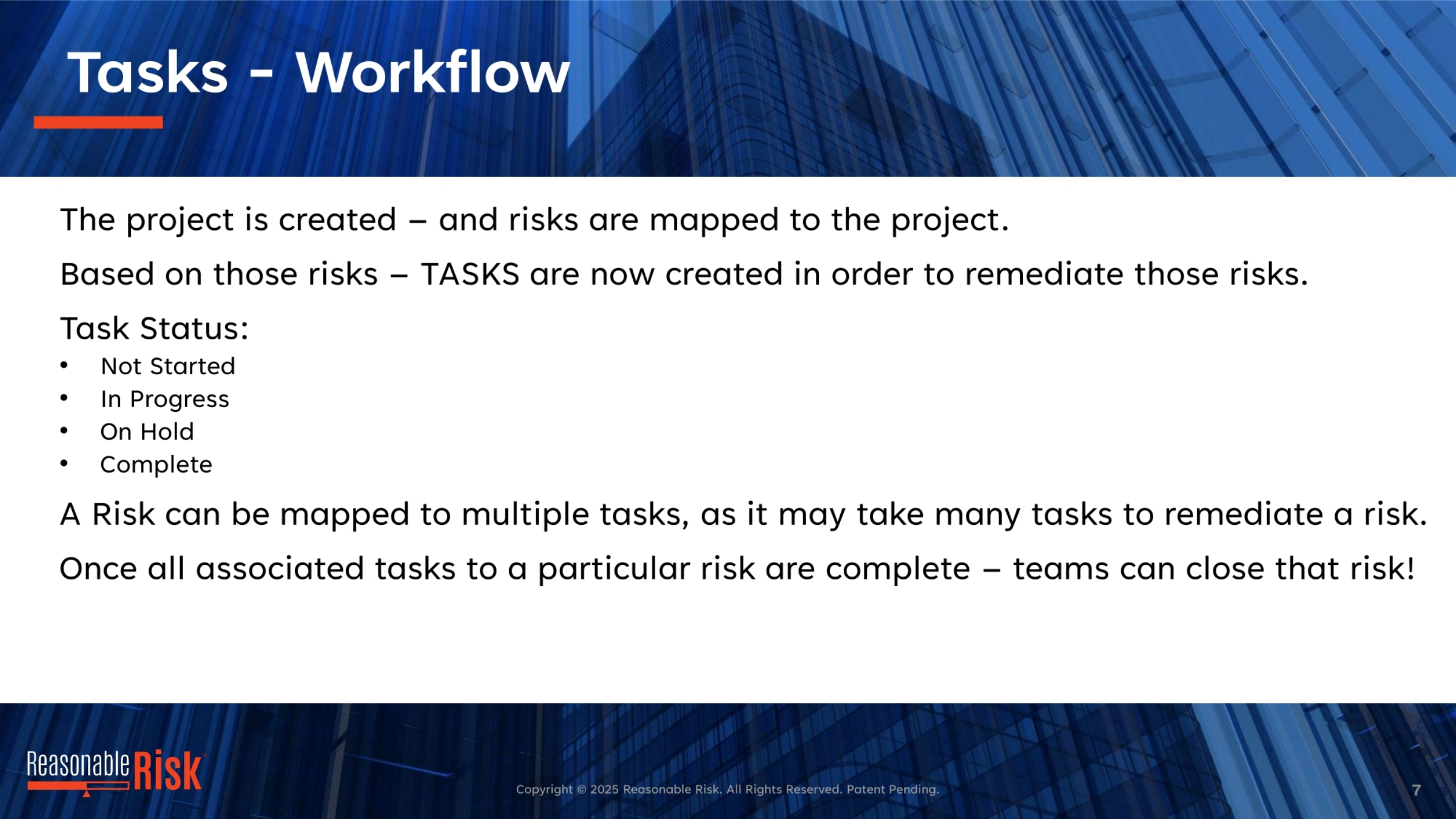
The task workflow begins once a project is created and risks are mapped to it. Tasks are then generated to remediate these specific risks. Tasks can have several statuses: Not Started, In Progress, On Hold, or Complete. It's important to note that a single risk can be mapped to multiple tasks. Once all tasks associated with a particular risk are complete, teams can officially close that risk, signifying its successful remediation.
8. Methods for Task Creation
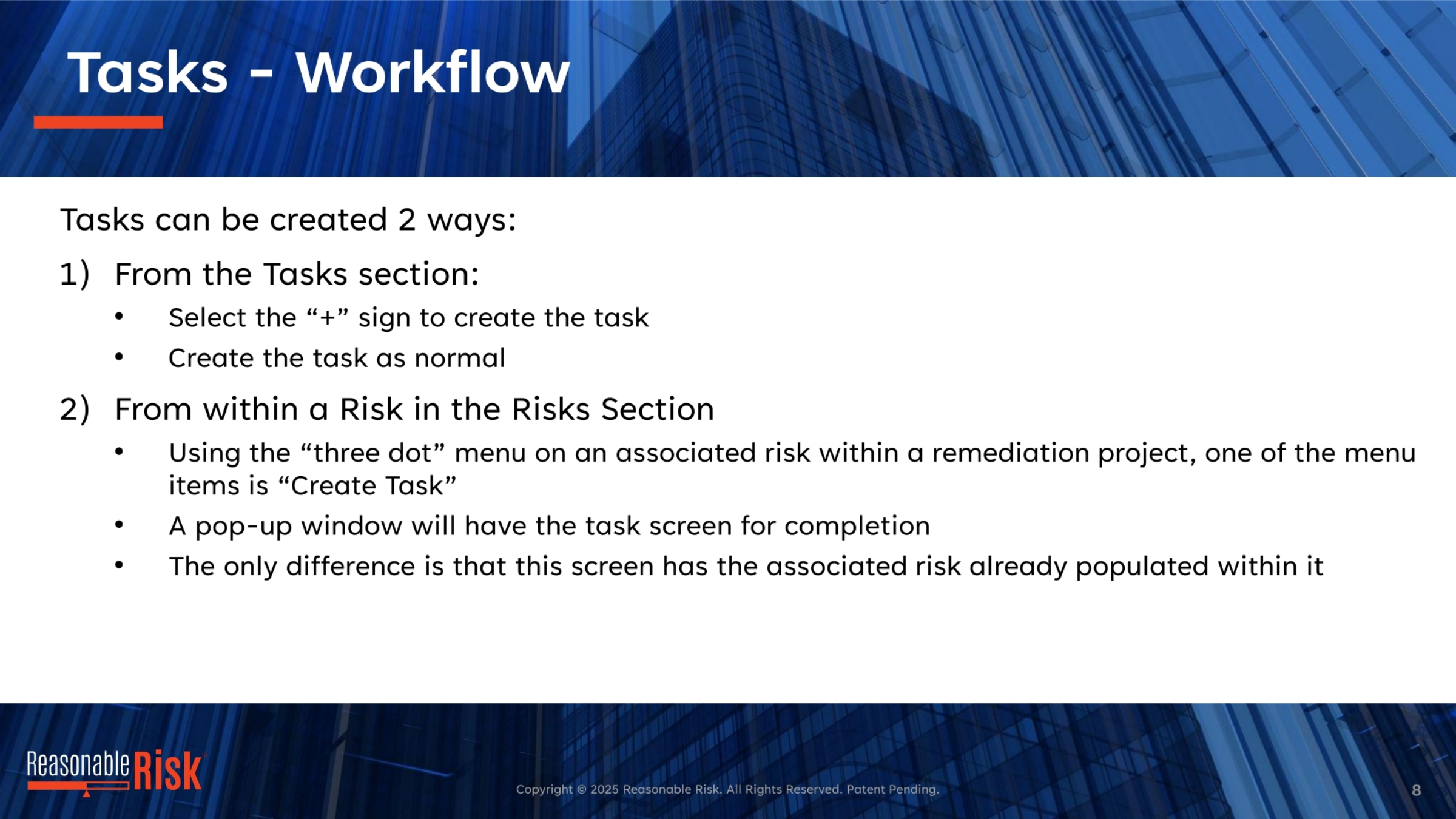
Tasks can be created in two primary ways within the system. First, you can create a task directly from the main Tasks section by selecting the plus sign and filling out the task details. The second method involves creating a task from within a specific risk in the Risks section. Using the 'three dot' menu on an associated risk within a remediation project, you can select 'Create Task.' A pop-up window will then appear, with the associated risk already pre-populated, streamlining the creation process.
9. Screen Narrative: Task Details
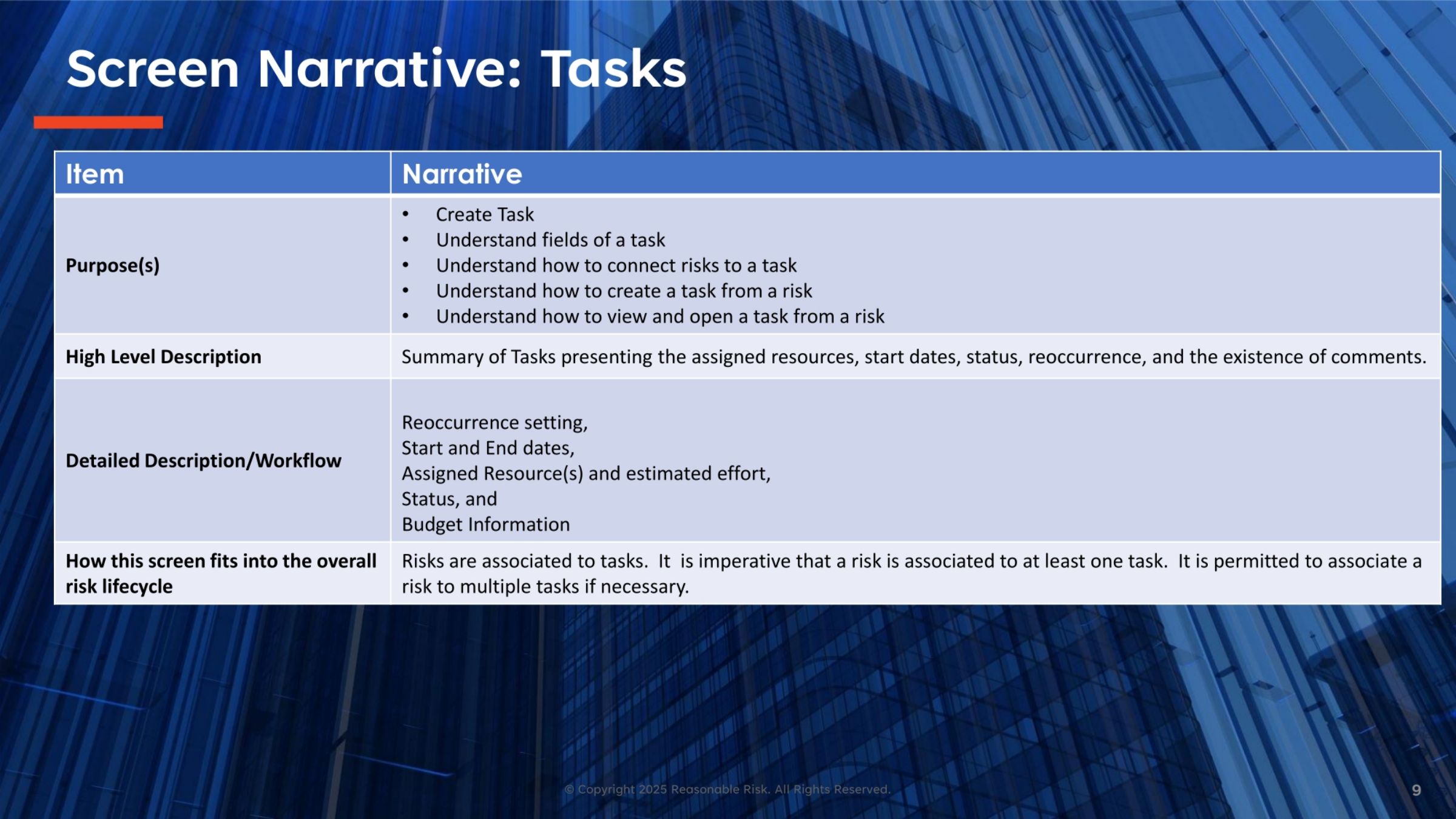
The task screen narrative provides a comprehensive overview of task management. Its purpose includes creating tasks, understanding their fields, connecting risks, and viewing or opening tasks from a risk. At a high level, it summarizes tasks by showing assigned resources, start dates, status, reoccurrence, and comments. The detailed workflow covers reoccurrence settings, start and end dates, assigned resources, estimated effort, status, and budget information. Crucially, risks are associated with tasks, and it's essential for each risk to be linked to at least one task, with the flexibility to link to multiple tasks if needed.
10. Task Screen Review: General Fields
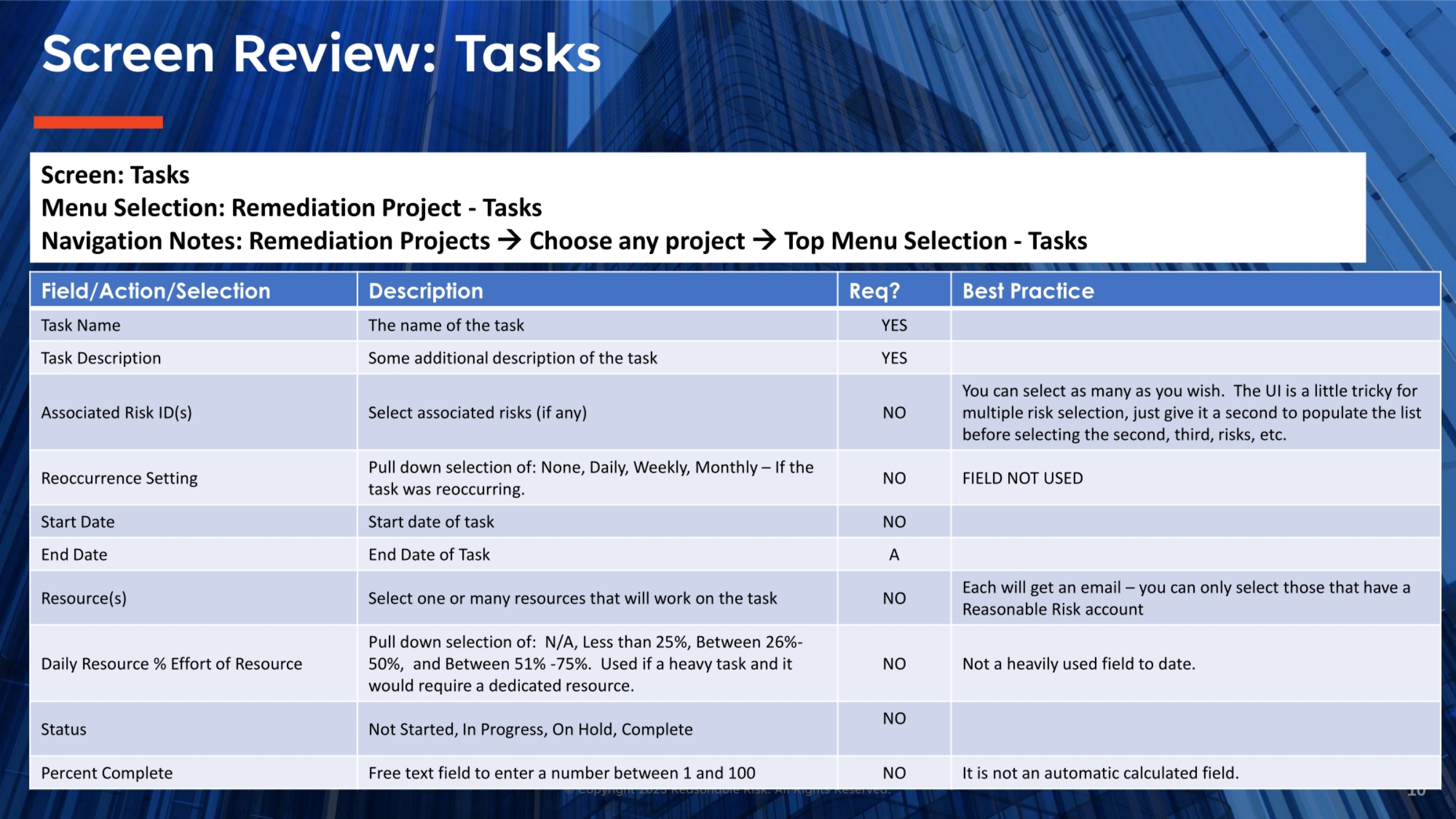
Reviewing the task screen, we see several key fields. The Task Name and Task Description are required fields for defining the task. Associated Risk IDs allow you to link multiple risks, though the user interface requires a brief pause for the list to populate when selecting multiple. The Reoccurrence Setting, Start Date, and End Date define the task's schedule. Resources can be assigned, triggering email notifications, and the Daily Resource Percent Effort helps allocate dedicated resources. Finally, the Status and Percent Complete fields track the task's progress, with Percent Complete being a manual entry.
11. Task Screen Review: Cost and Audit Fields
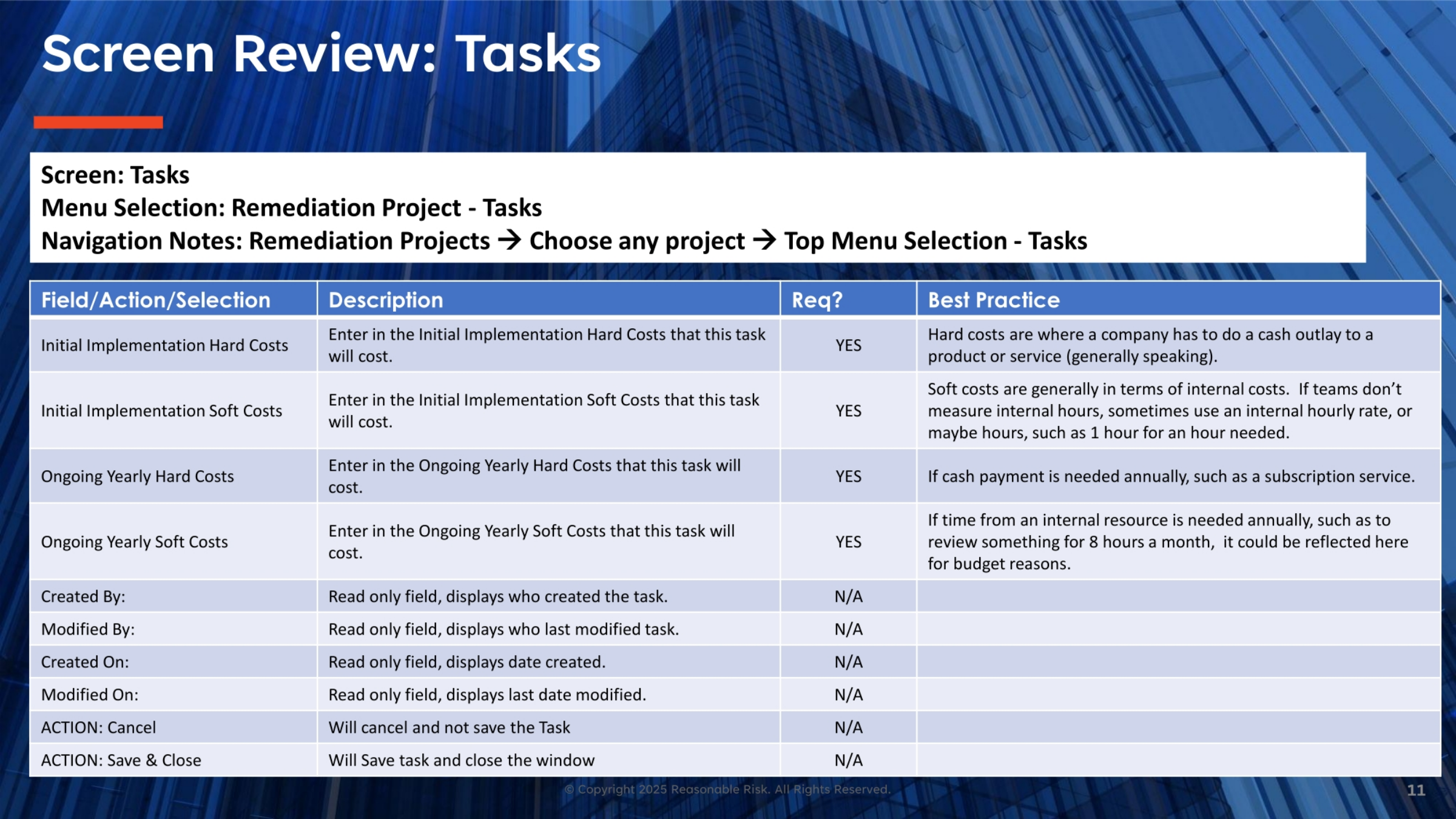
Continuing our review of the task screen, we examine the cost and audit-related fields. Initial Implementation Hard Costs represent direct cash outlays for products or services, while Soft Costs account for internal expenses, often estimated in hours. Ongoing Yearly Hard Costs cover annual cash payments like subscriptions, and Ongoing Yearly Soft Costs reflect recurring internal resource time, such as monthly review hours. The 'Created By,' 'Modified By,' 'Created On,' and 'Modified On' fields are read-only, providing an audit trail. Actions like 'Cancel' and 'Save & Close' allow for managing task entries.
12. Visualizing a Task Entry Screen
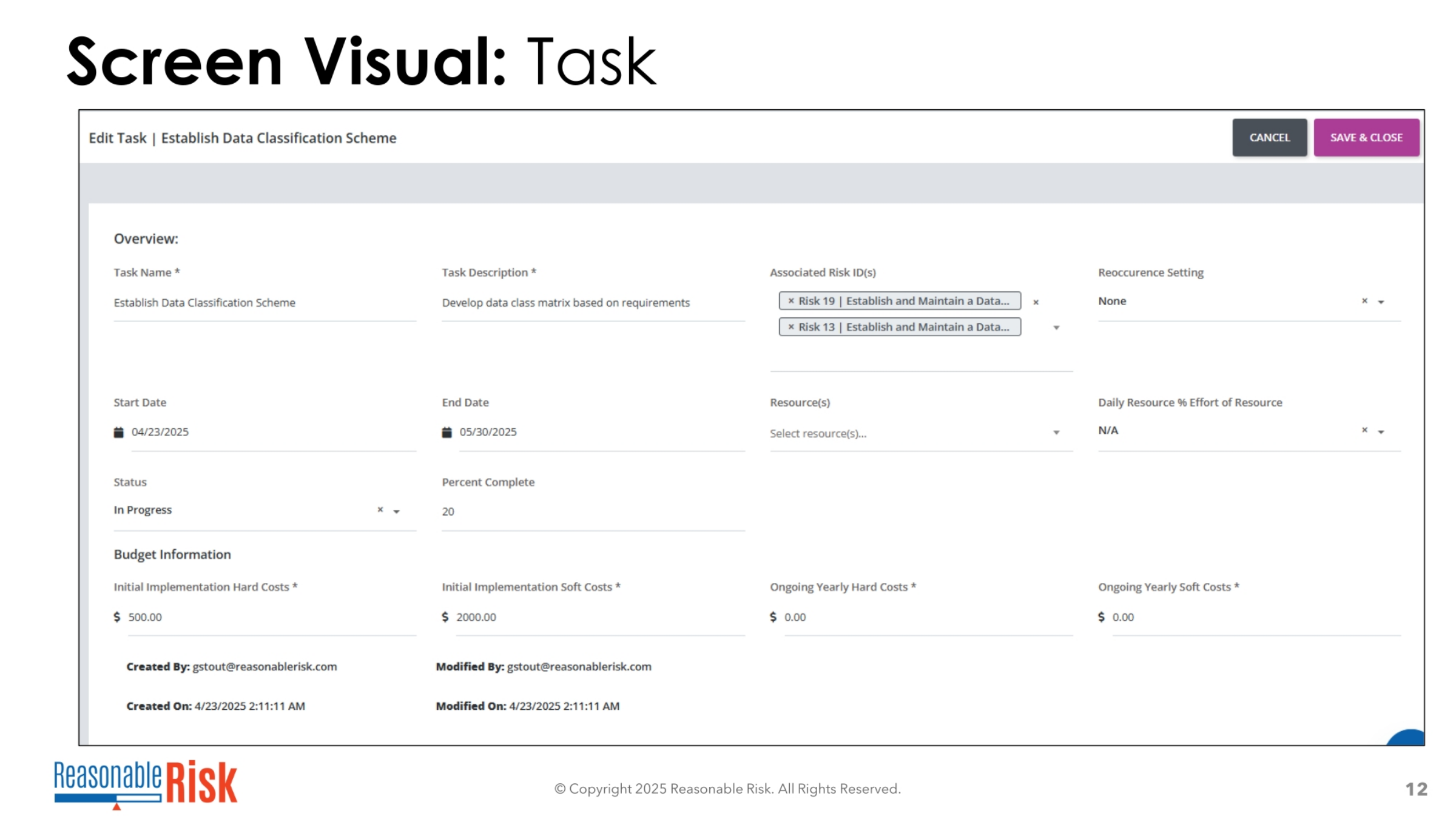
This visual provides a clear representation of the 'Edit Task' screen, specifically for establishing a data classification scheme. We can observe the various fields discussed, such as Task Name, Task Description, and the associated Risk IDs, which are pre-populated here with Risk 19 and Risk 13. The screen also displays the Start and End Dates, current Status, and Percent Complete. Below, the Budget Information section details Initial Implementation Hard and Soft Costs, along with Ongoing Yearly Hard and Soft Costs, providing a comprehensive view of the task's financial aspects. Audit information like 'Created By' and 'Modified On' is also visible.
13. Tips for Adding Tasks to Remediation Projects
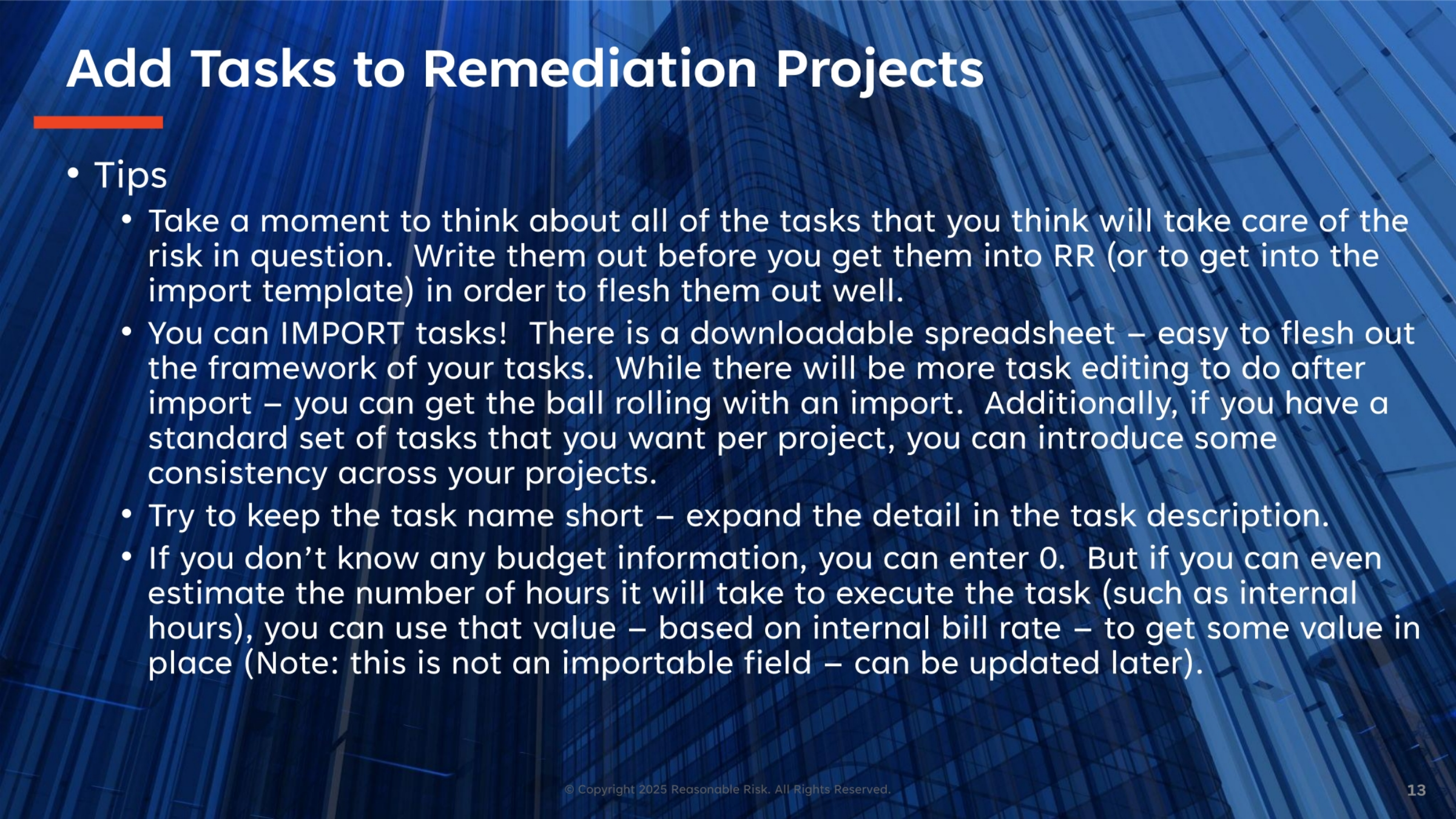
When adding tasks to remediation projects, consider these helpful tips. First, take time to outline all necessary tasks to address a risk before entering them into Reasonable Risk, or using the import template. You can import tasks using a downloadable spreadsheet, which helps establish a consistent framework across projects. Keep task names concise, expanding details in the task description. If budget information is unknown, you can enter zero, or estimate internal hours based on an internal bill rate to provide some initial value, which can be updated later.
14. Additional Task Management Features
Beyond creation and editing, tasks offer other useful features. You can download tasks into a spreadsheet, which is beneficial for sharing with non-system users or for reviewing them in a different format. This export functionality provides flexibility in how task information is utilized. Additionally, tasks can be deleted under specific conditions. It's important to note that tasks cannot be deleted once they are marked as 'complete,' ensuring a clear record of completed work.
15. Adding Comments to Tasks
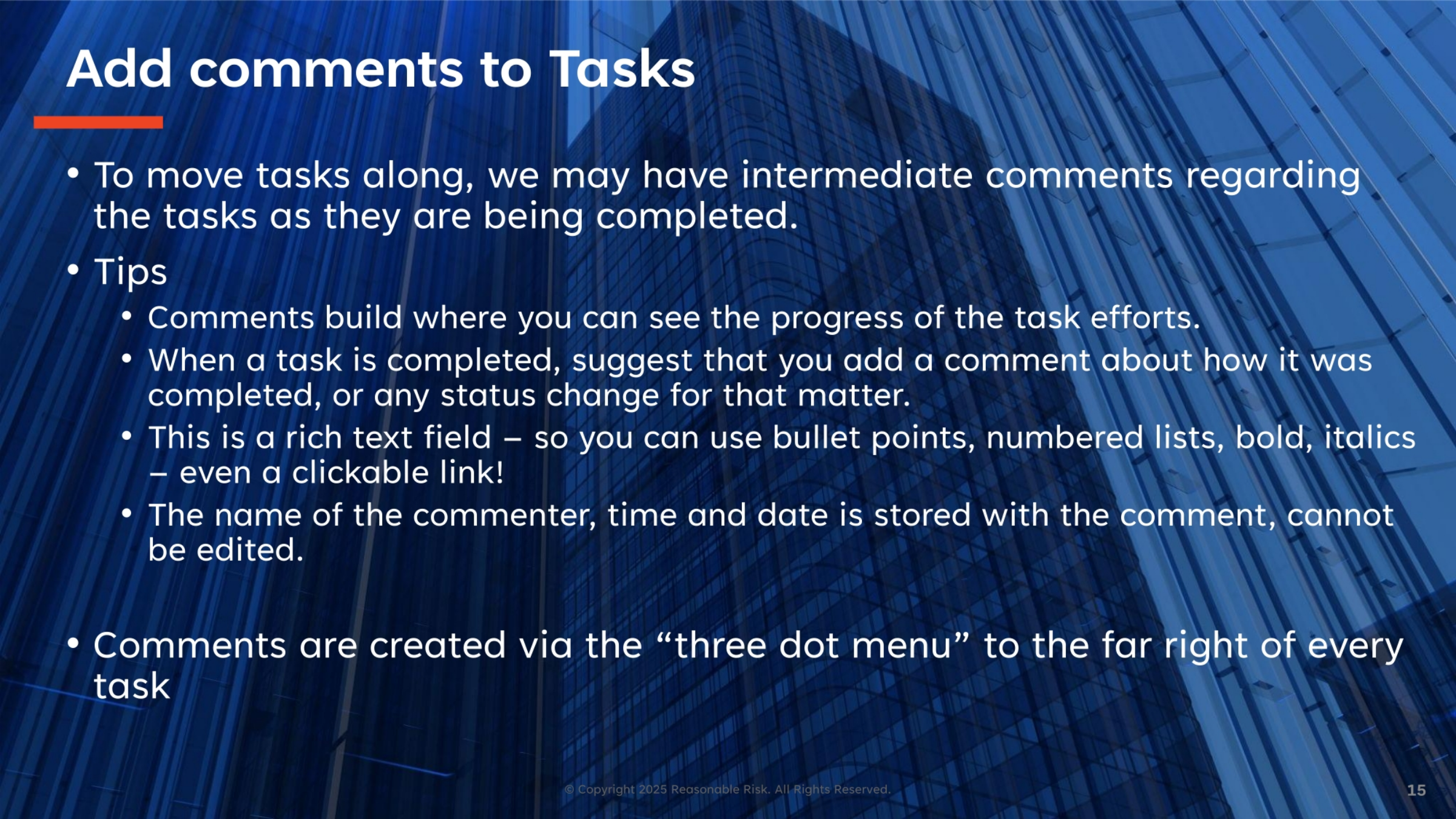
To effectively track progress and facilitate collaboration, intermediate comments can be added to tasks as they are being completed. These comments build a history of task efforts. It's a best practice to add a comment when a task is completed or its status changes, detailing the update. The comment field is a rich text editor, supporting bullet points, numbered lists, bold, italics, and even clickable links. The system automatically stores the commenter's name, time, and date, and these details cannot be edited, ensuring an accurate audit trail. Comments are accessed via the 'three dot menu' on the far right of each task.
16. Screen Narrative: Task Filter, List, and Action Bar
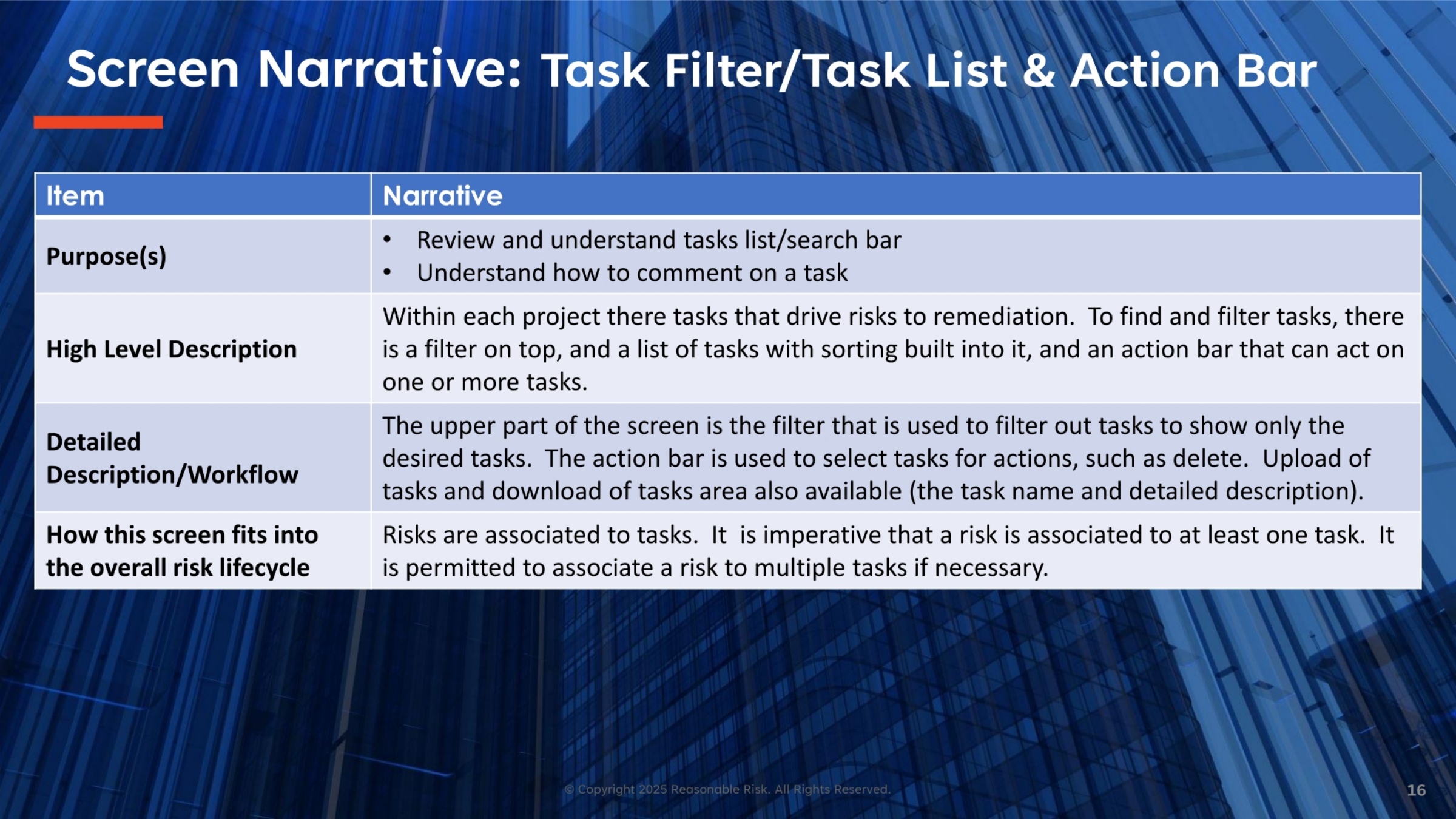
The task filter, list, and action bar screen is designed to help manage tasks within each project that drive risk remediation. The filter at the top allows you to narrow down the task list to show only desired tasks. The list itself includes built-in sorting capabilities. An action bar provides options to act on one or more selected tasks, such as deletion. This screen also supports uploading and downloading tasks, specifically their names and detailed descriptions. It reinforces the imperative that every risk must be associated with at least one task, with the option to link to multiple tasks as needed.
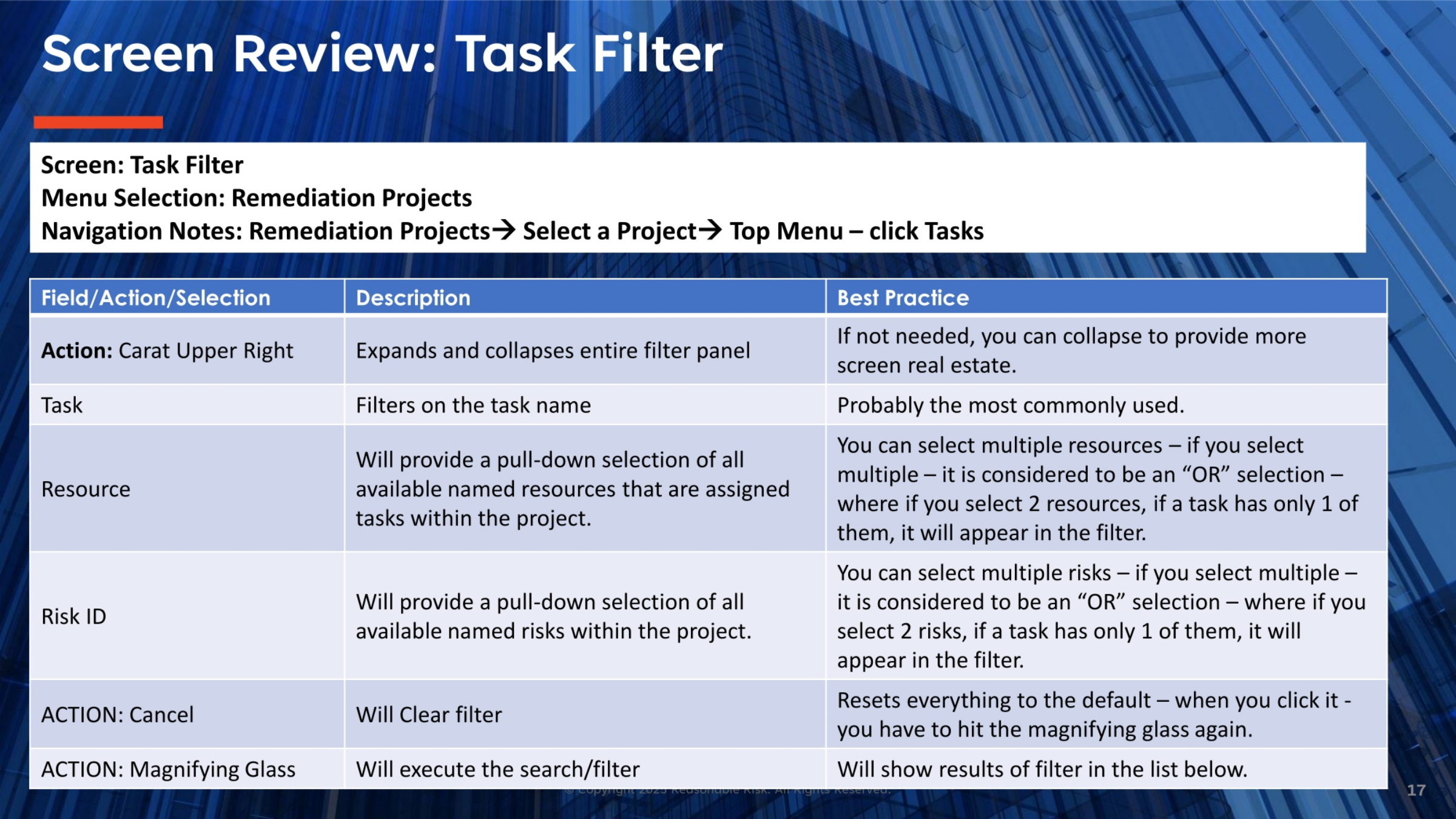
17. Reviewing the Task Filter
The task filter provides powerful tools for navigating your task list. The 'Carat Upper Right' action expands or collapses the filter panel, optimizing screen space. Filtering by task name is the most commonly used option. You can also filter by resource, selecting multiple resources to see tasks assigned to any of them. Similarly, filtering by Risk ID allows you to select multiple risks, displaying tasks associated with any of the chosen risks. The 'Cancel' action resets the filter to default, and the 'Magnifying Glass' executes the search, displaying results in the list below.
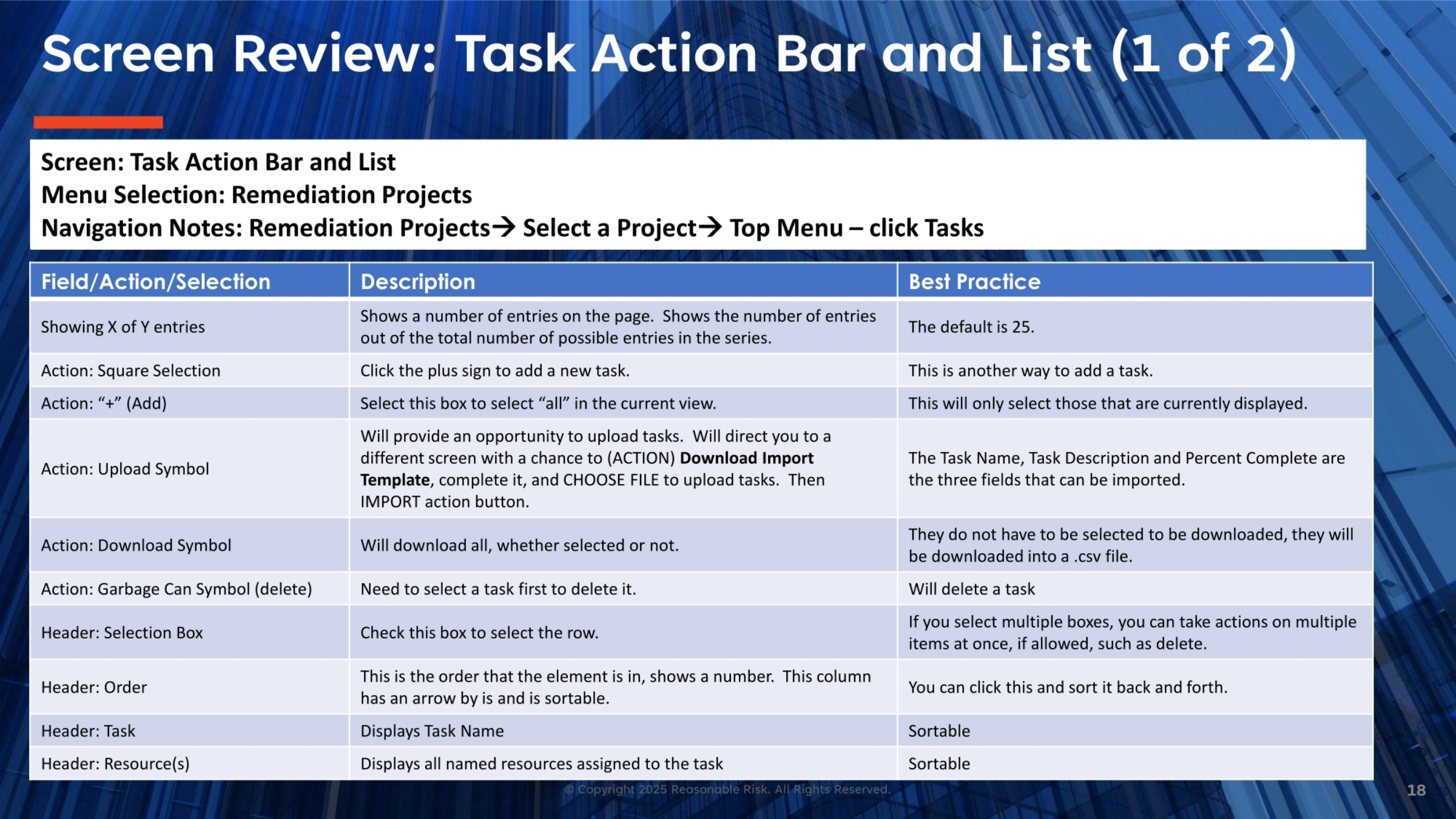
18. Task Action Bar and List Review (Part 1)
The task action bar and list offer various functionalities for managing tasks. The 'Showing X of Y entries' indicates the number of tasks displayed. The 'Square Selection' box allows you to select all tasks in the current view, while the '+' symbol provides another way to add a new task. The 'Upload Symbol' facilitates importing tasks using a downloadable template, requiring only the task name, description, and percent complete. The 'Download Symbol' exports all tasks, regardless of selection, into a CSV file. The 'Garbage Can Symbol' deletes selected tasks. Headers like 'Selection Box,' 'Order,' 'Task,' and 'Resource(s)' provide sorting and display options.
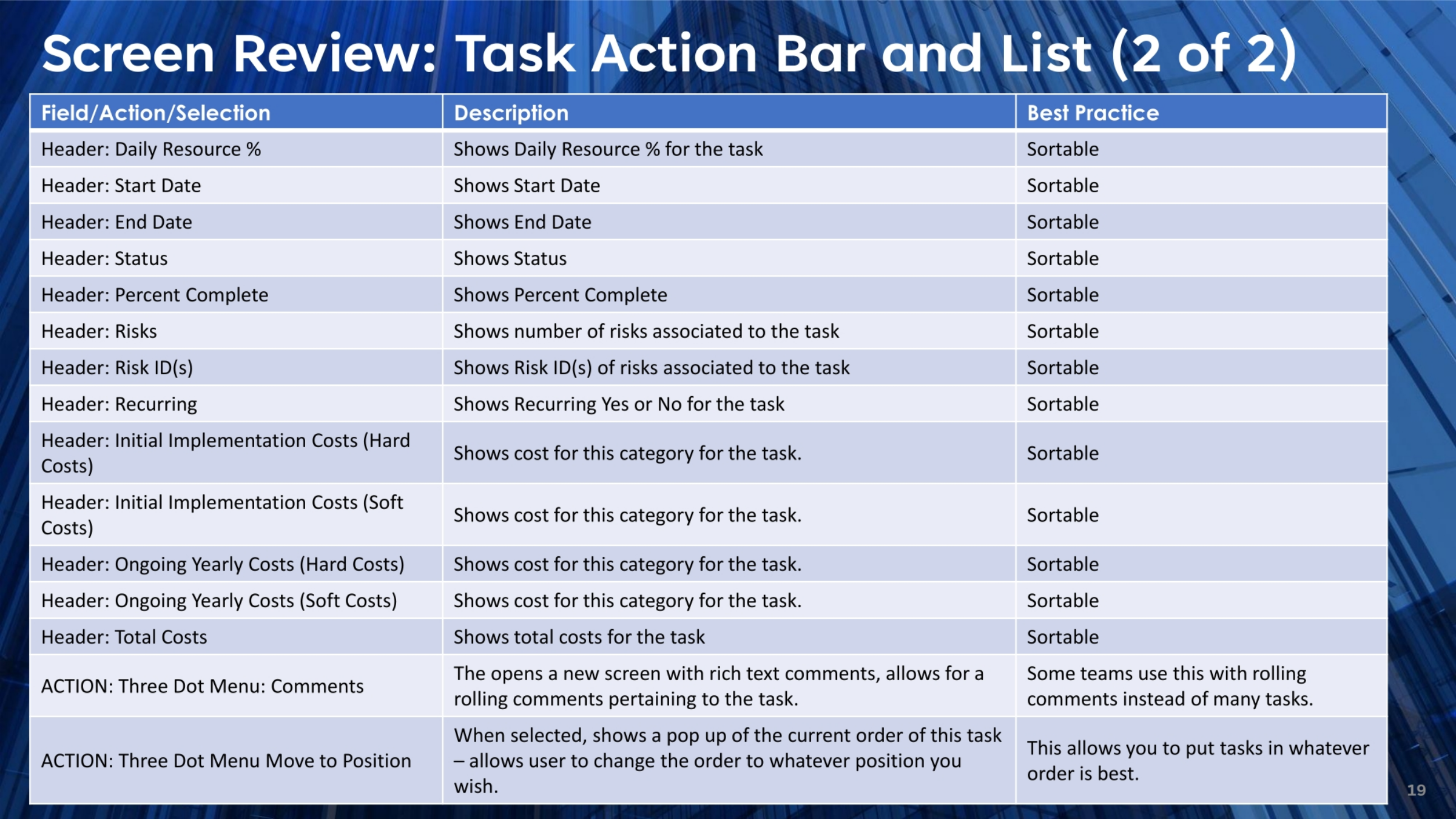
19. Task Action Bar and List Review (Part 2)
Continuing our review of the task action bar and list, many headers are sortable, including Daily Resource Percent, Start Date, End Date, Status, Percent Complete, Risks, Risk IDs, and Recurring status. The cost-related headers, such as Initial Implementation Costs (Hard and Soft) and Ongoing Yearly Costs (Hard and Soft), along with Total Costs, are also sortable, allowing for easy financial analysis. The 'Three Dot Menu' offers two key actions: 'Comments,' which opens a rich text field for rolling comments, and 'Move to Position,' which allows users to reorder tasks as needed, providing flexibility in task prioritization and display.
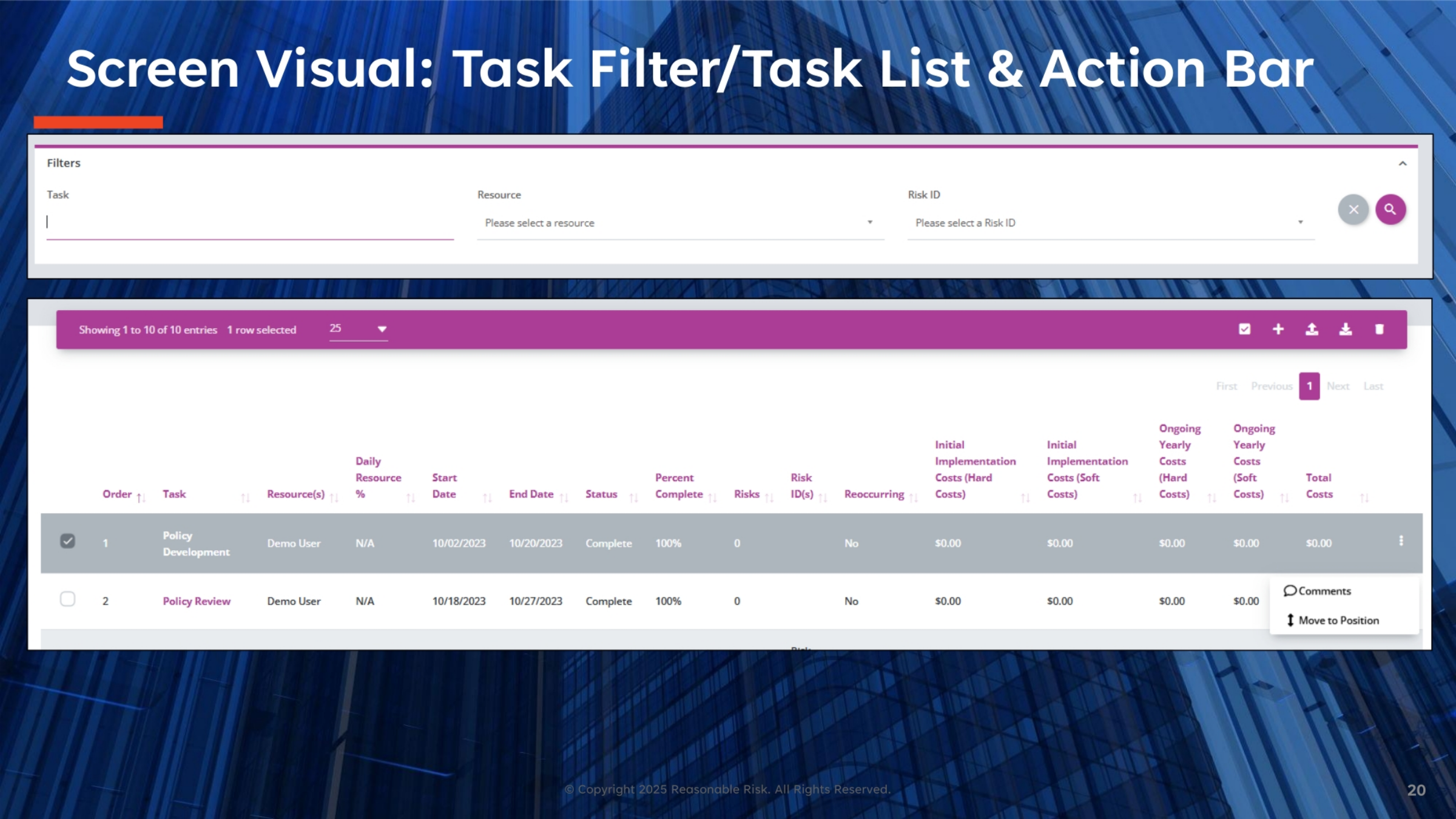
20. Visualizing the Task Filter, List, and Action Bar
This visual demonstrates the task filter, list, and action bar in action. At the top, you see the filter options for Task, Resource, and Risk ID, allowing users to refine their view. Below the filter, the task list is displayed, showing details such as Order, Task Name, Resource, Dates, Status, Percent Complete, and various cost categories. The action bar includes options like adding a new task, uploading, downloading, and deleting. This comprehensive view allows users to efficiently manage and track their remediation tasks, ensuring all relevant information is readily accessible and actionable.
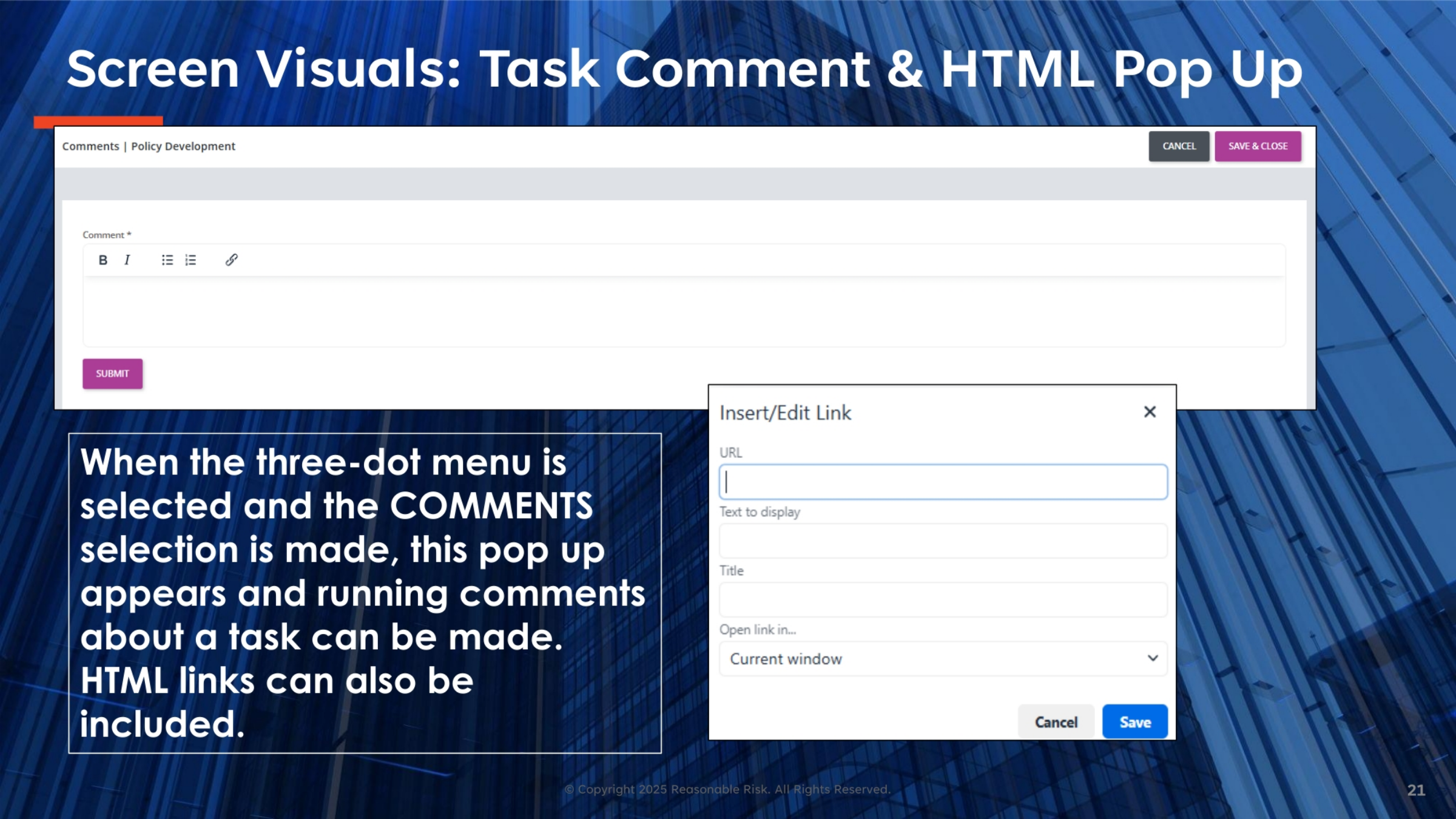
21. Visualizing Task Comments and HTML Links
This screen visual illustrates the process of adding comments to a task and the functionality for including HTML links. When the 'three-dot menu' is selected and 'Comments' is chosen, a pop-up window appears, providing a rich text field where users can add running comments about a task's progress. This field supports various formatting options, including bullet points, bold text, and italics. Crucially, it also allows for the insertion of clickable HTML links, as shown in the 'Insert/Edit Link' pop-up, enabling users to reference external resources directly within their task comments.
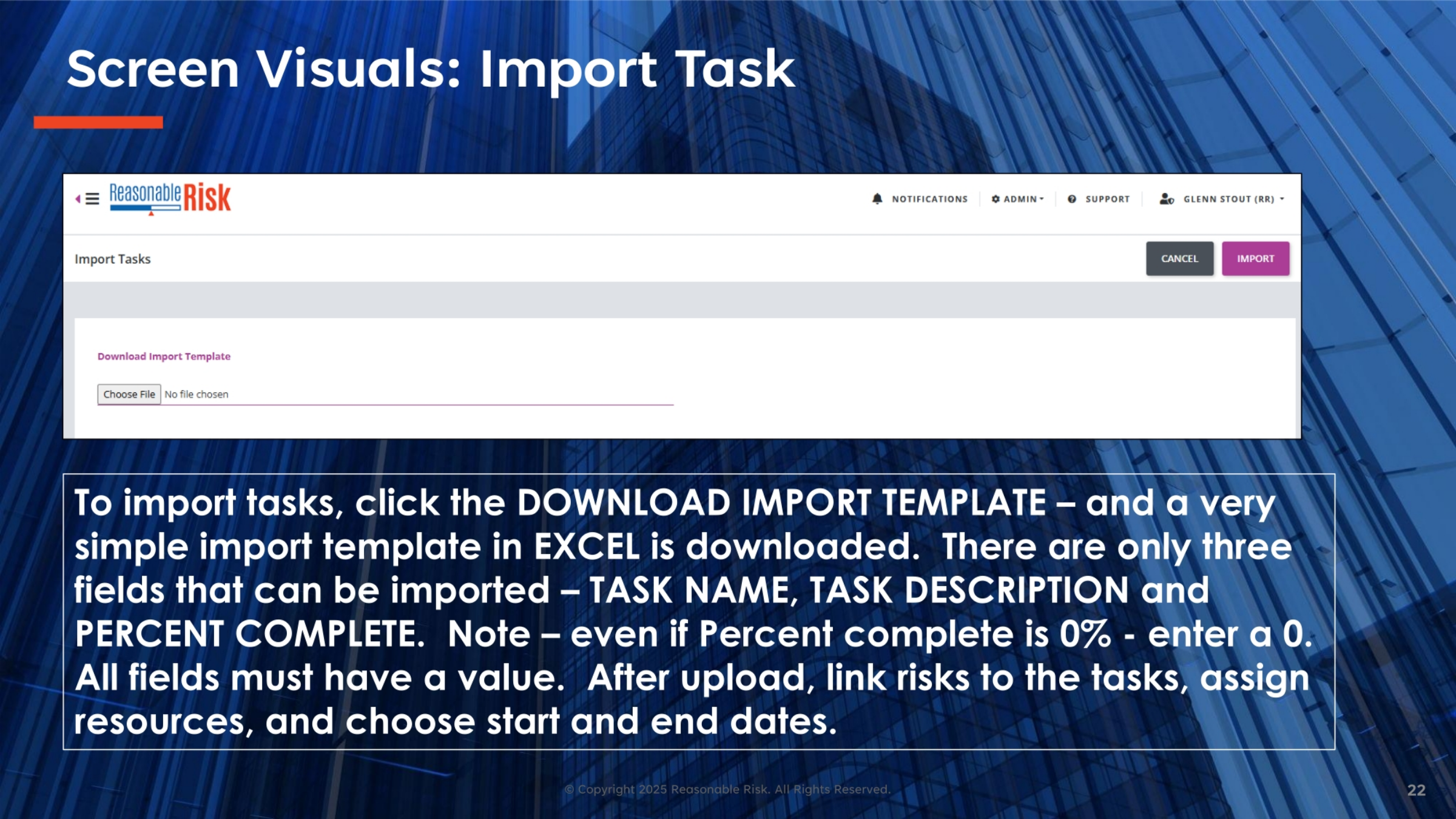
22. Visualizing the Task Import Process
This visual demonstrates the 'Import Tasks' screen, a powerful feature for efficiently populating your task list. To begin, users click the 'Download Import Template' button, which provides a simple Excel spreadsheet. This template requires only three fields: Task Name, Task Description, and Percent Complete, with a reminder to enter '0' if the task is not yet started. After completing the template, users upload the file. Post-upload, it's essential to link risks to these new tasks, assign resources, and set the appropriate start and end dates to fully integrate them into the remediation project workflow.
23. Additional Task Viewing Workflow
Tasks can also be conveniently viewed and opened directly from within their associated risks. When reviewing a specific risk from the risk section within a remediation project, any tasks linked to that risk will appear as a list in the center of the risk detail screen. These tasks are selectable, meaning that clicking on a task in this list will open its full details. This integration provides a seamless workflow, allowing users to quickly access and manage tasks directly from the context of the risks they are designed to remediate.
24. Demonstration Overview
To conclude, we will demonstrate key functionalities: creating tasks from the action bar and from a risk, adding comments, showing tasks within the risk section, and reviewing the task filter. This will provide a practical overview of the system's capabilities.
In summary, effective task management within Reasonable Risk is crucial for successful remediation projects. By understanding task creation, linking risks, and utilizing features like comments and filters, teams can efficiently address risks and achieve project goals.
Comments
0 comments
Please sign in to leave a comment.