Welcome to the Reasonable Risk training module, dedicated to understanding and managing the critical concepts of Findings and Scenarios within our risk management framework. We will explore the tools and workflows designed to efficiently identify, analyze, and address potential risks, guiding you through the entire risk lifecycle from initial finding to risk register promotion to enhance our security posture.
1. Focus Area: Findings and Scenarios
Today's training module focuses specifically on Findings and Scenarios. We will review the core concept of findings, learn how to create both findings and scenarios, and understand the process of promoting findings to the Risk Register. This session is designed to provide practical insights into these essential components of risk management.
2. Agenda Topic - Findings and Scenarios
Our agenda today centers on Findings and Scenarios.
3. Modules
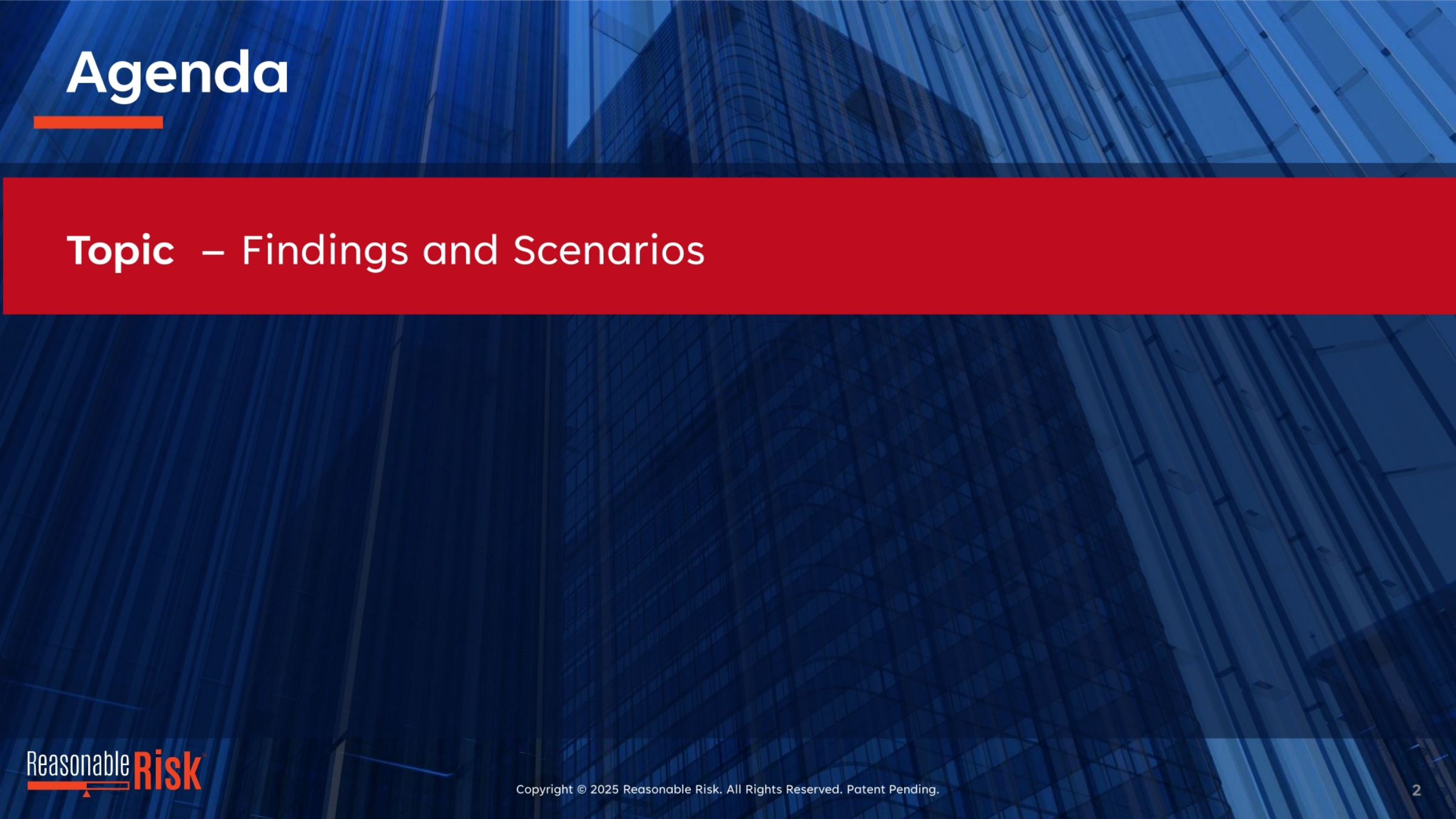
The Reasonable Risk platform is structured around several key modules, each playing a vital role in the risk lifecycle. Audits and Assessments help us plan and monitor security activities. Findings and Scenarios provide a secure environment for modeling safeguard control use cases without immediately impacting the Risk Register. The Risk Register itself tracks identified risks, recording initial scores and associated details. Remediation Projects group and manage the implementation of controls to reduce risks, while Reporting offers an efficient way to generate executive-level communications. This integrated approach ensures comprehensive risk management.
4. Modules
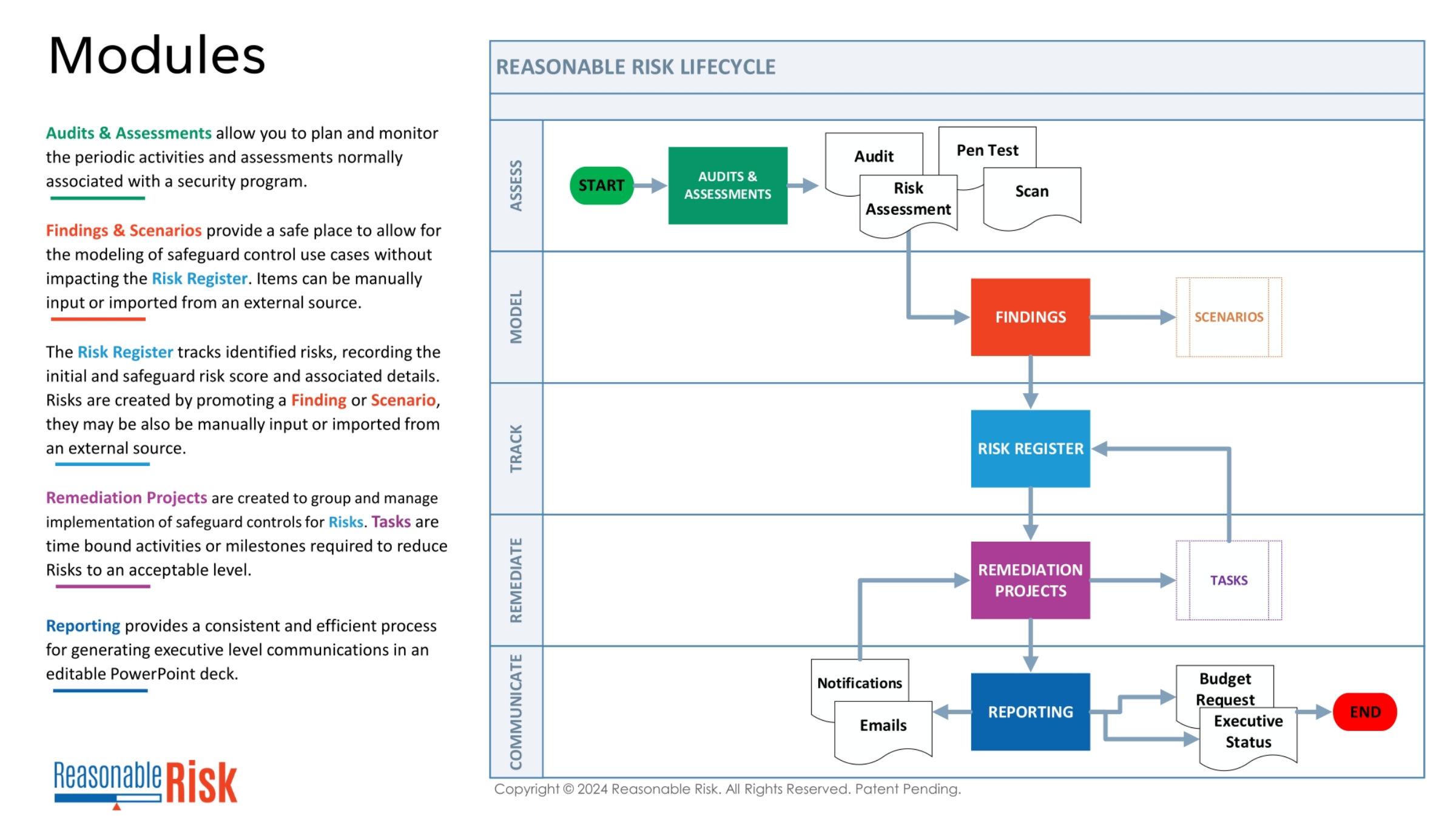
Building on our understanding of the Reasonable Risk modules, we now see a visual representation of the Findings and Scenarios interface. This screen is where you can actively manage and model potential risks. It allows for the manual input or import of items from external sources, providing a flexible way to integrate various security assessments. This visual reinforces how Findings and Scenarios serve as a crucial initial step in the risk lifecycle, enabling detailed analysis before formal entry into the Risk Register.
5. Findings
Our objectives for this module on Findings are clear and focused. We aim to review and thoroughly understand the fundamental concept of findings within the Reasonable Risk framework. You will learn how to effectively create new findings and develop various scenarios to address them. Finally, we will cover the essential process of promoting these findings to the Risk Register, transitioning them into actionable risks that require formal management and remediation.
6. Screen Narrative: Findings & Scenarios
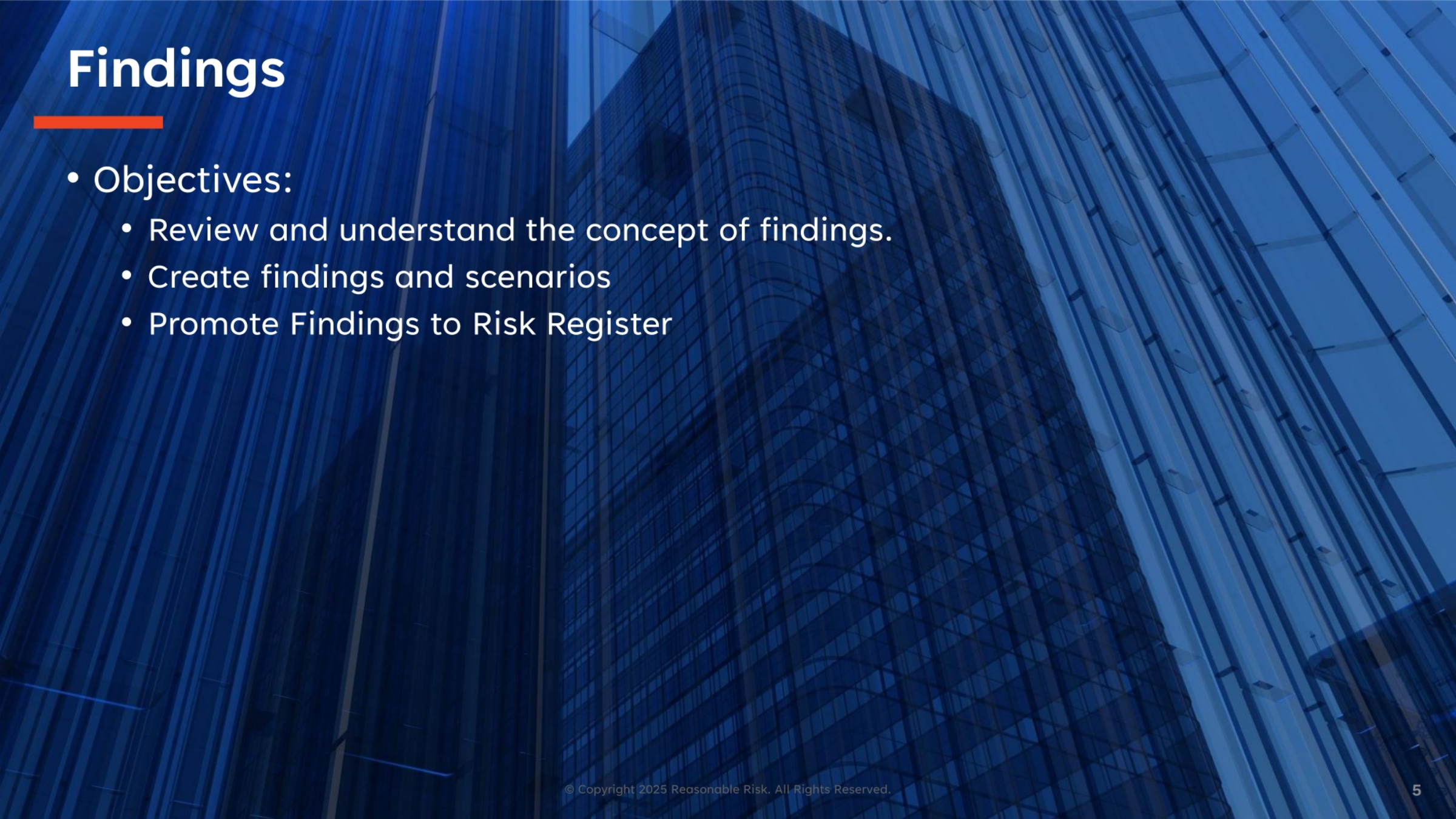
The Findings and Scenarios screen serves multiple critical purposes. It's the primary entry point for importing or manually entering findings into Reasonable Risk. This area also facilitates the workshop of scenarios, helping us discover the most reasonable remediation approaches for specific findings. Ultimately, this screen is where findings are prepared for promotion to the Risk Register. It represents the very beginning of our risk lifecycle, where potential issues are identified and analyzed before they become formally tracked risks.
7. Screen Visual: Add Finding (1 of 2)
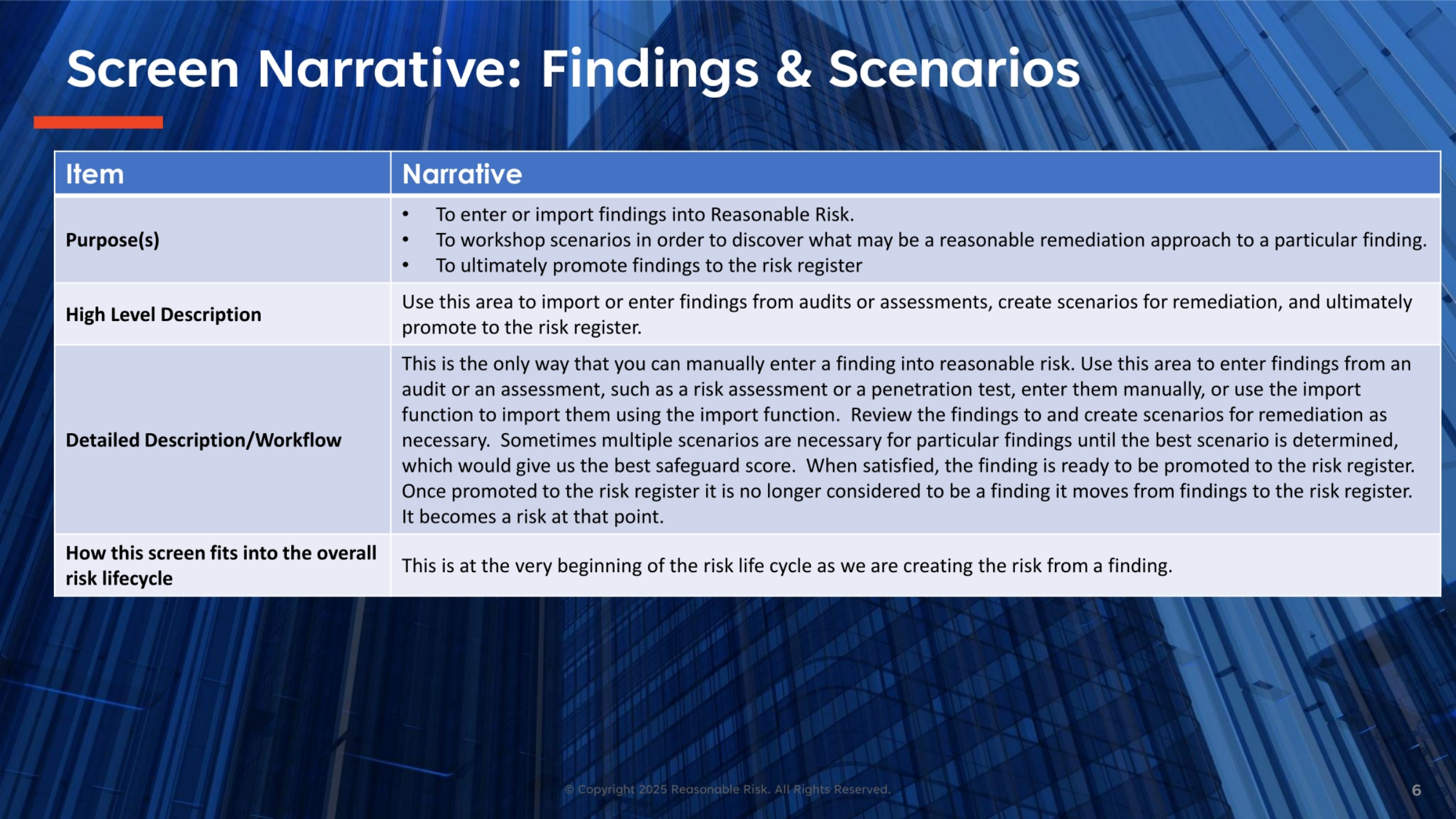
Let's examine the 'Add Finding' screen, part one. Here, you'll define the core attributes of a new finding. Key fields include the CSP Control ID, which links to common security program categories, and the Finding Description, where you detail the issue. You'll also specify the Vulnerability, Asset Class, and the particular Asset involved. Additionally, you'll identify the Threat Type, Industry, and the Origin of the finding, such as a risk assessment. These details are crucial for accurate classification and subsequent risk analysis.
8. Screen Visual: Add Finding (2 of 2)
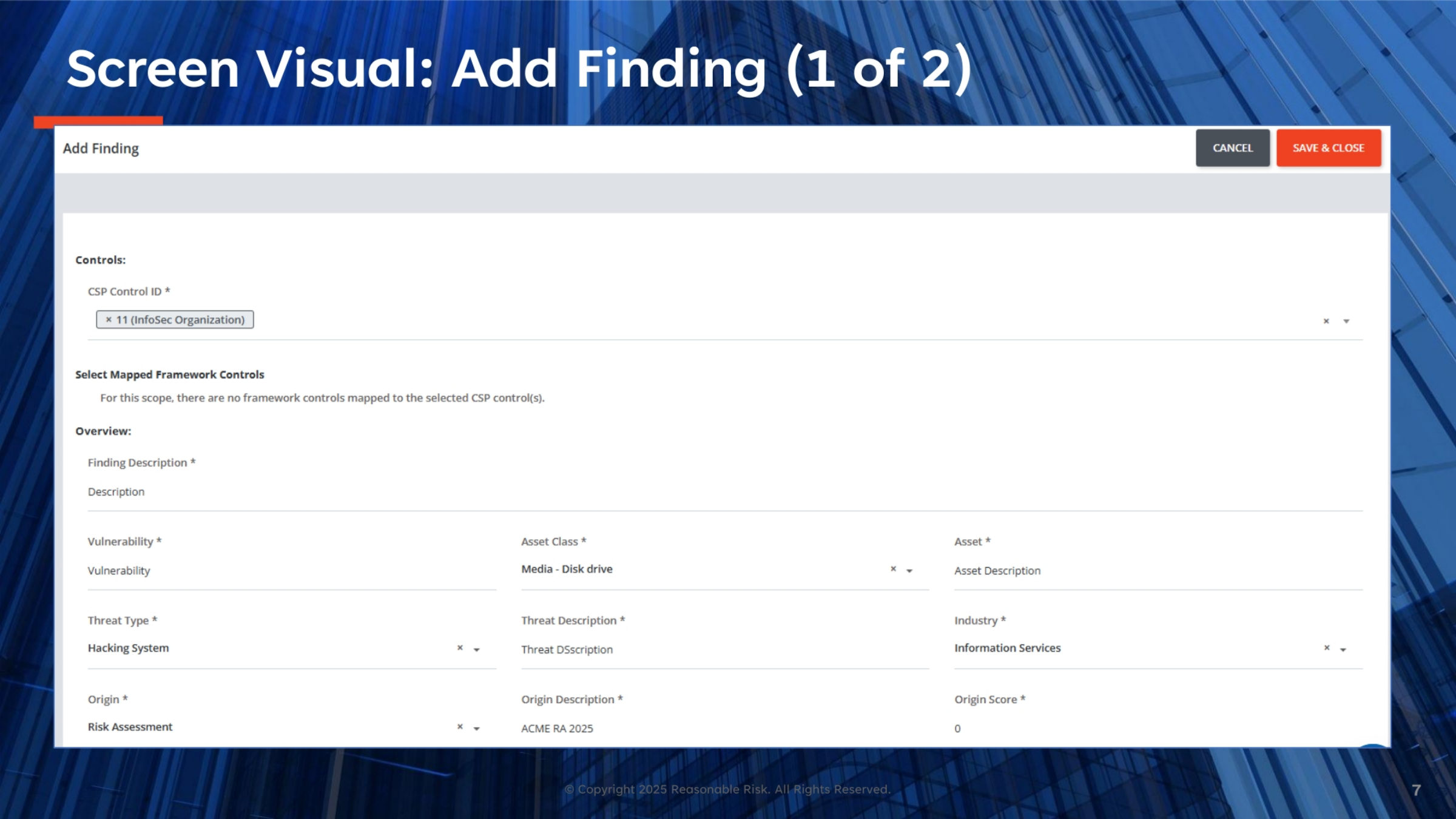
Continuing with the 'Add Finding' screen, part two focuses on mitigating controls and scoring information. You'll document the Mitigating Control currently in place and provide a Safeguard Description outlining necessary remediation. The Score Information section is vital, requiring you to select the Threat Cluster, Maturity Level of the current safeguard, and the Likelihood of the threat. You'll also define the Mission, Objectives, and Obligations impacts, which contribute to the overall risk score. The 'Recalculate Likelihood' function helps refine these assessments.
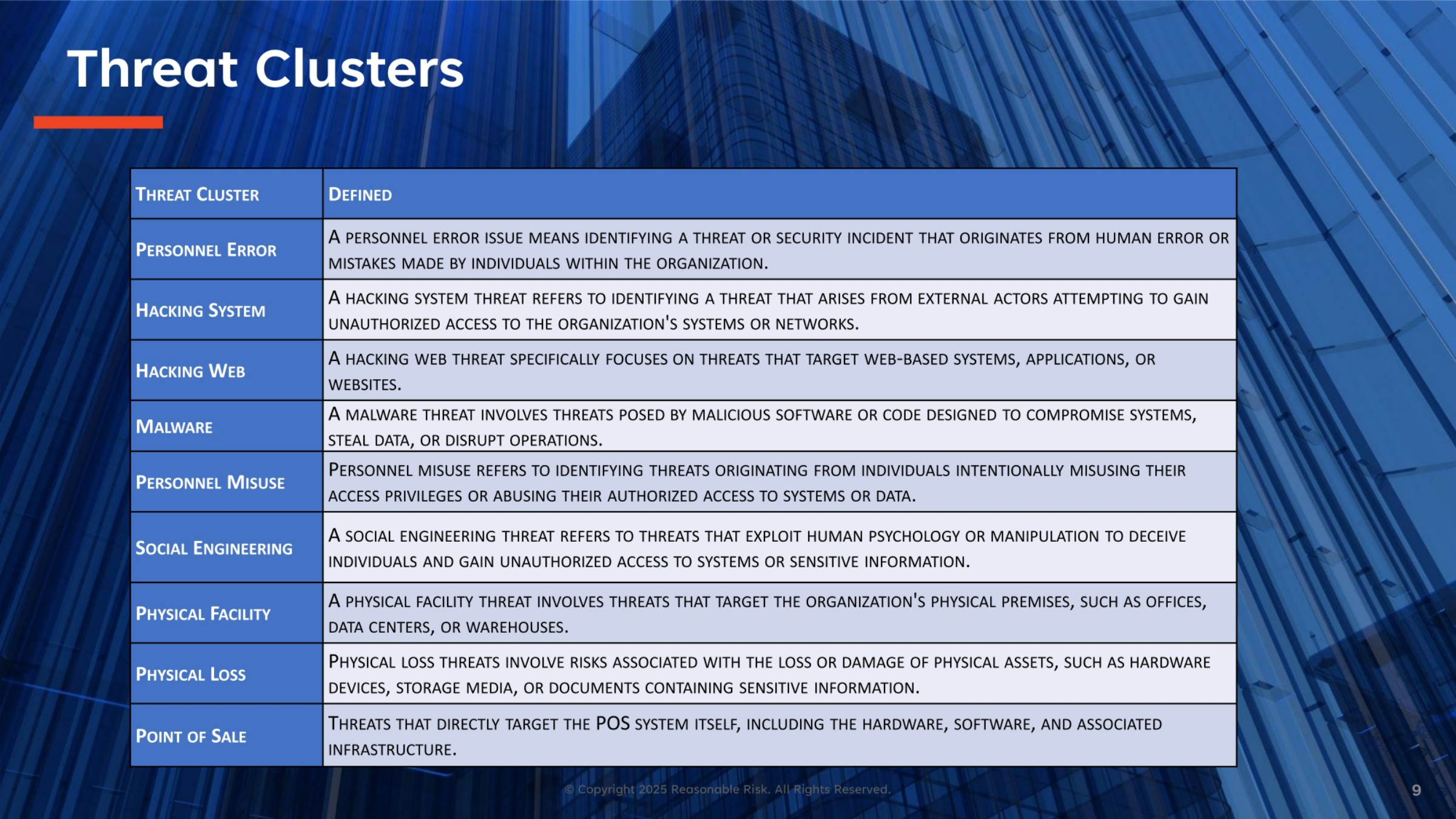
9. Threat Clusters
Understanding threat clusters is fundamental to effective risk assessment. These categories help classify the nature of potential security incidents. For instance, 'Personnel Error' refers to human mistakes, while 'Hacking System' involves external actors gaining unauthorized access. 'Malware' covers malicious software, and 'Social Engineering' exploits human psychology. 'Physical Facility' and 'Physical Loss' address threats to physical premises and assets, respectively. Each cluster provides a defined scope, enabling a more structured and comprehensive approach to identifying and mitigating risks within Reasonable Risk.
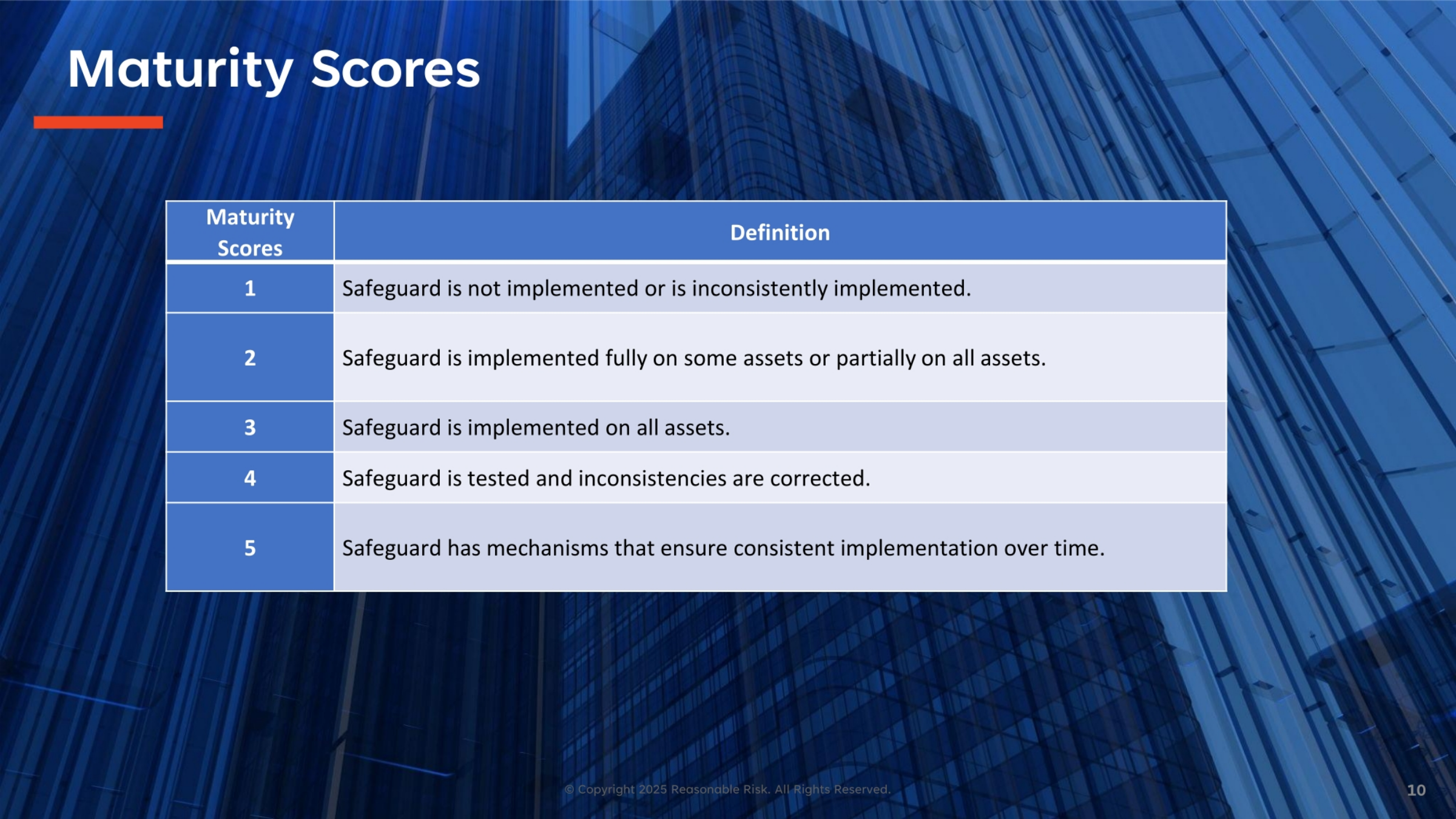
10. Maturity Scores
Maturity scores provide a standardized way to assess the implementation level of safeguards. A score of '1' indicates a safeguard is not implemented or is inconsistently applied. Moving up the scale, a '3' signifies the safeguard is fully implemented on all assets. The highest score, '5', means the safeguard has robust mechanisms to ensure consistent implementation over time. This scale helps evaluate the effectiveness and reliability of controls, guiding efforts to strengthen our security posture and reduce vulnerabilities across the organization.
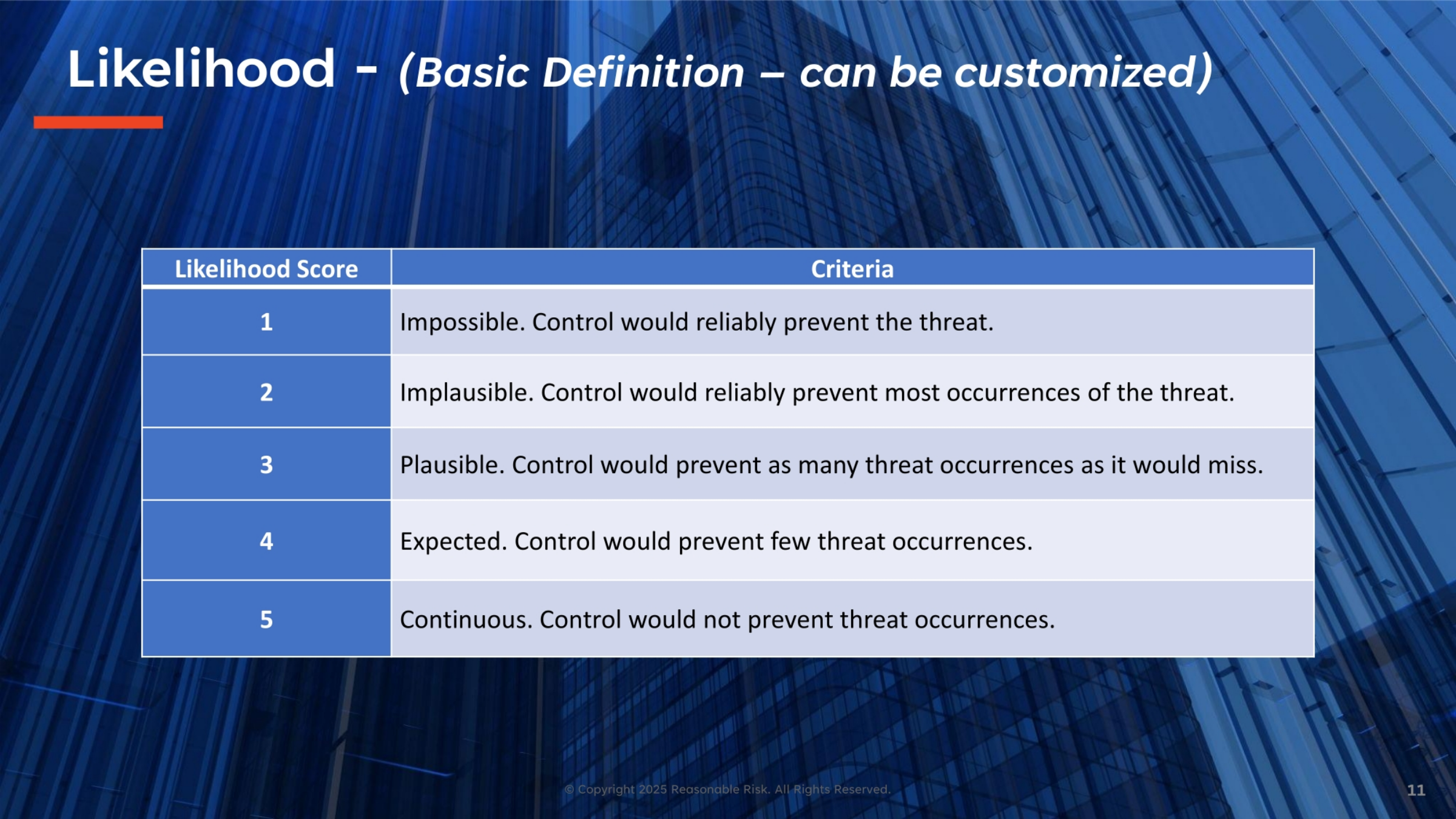
11. Likelihood - (Basic Definition – can be customized)
The Likelihood score quantifies the probability of a threat occurrence, offering a crucial component in risk assessment. A score of '1' indicates it's 'Impossible' for the control to prevent the threat, while a '2' suggests it would prevent 'most occurrences'. A '3' means it's 'Plausible' that the control would prevent as many occurrences as it would miss. At the higher end, a '5' signifies a 'Continuous' threat, where the control would not prevent occurrences at all. This customizable definition helps us accurately gauge the potential frequency of security incidents.
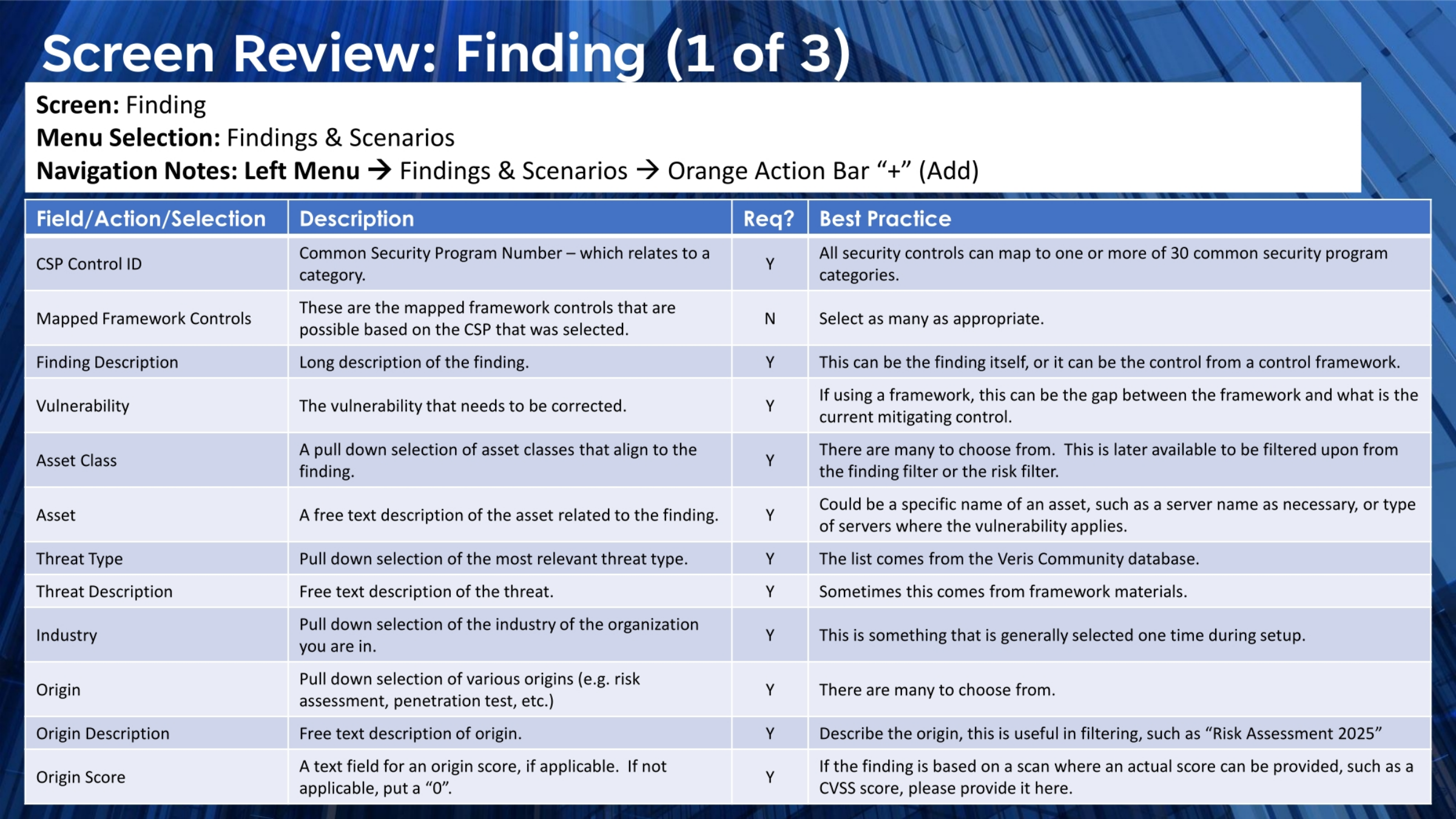
12. Screen Review: Finding (1 of 3)
This section provides a detailed review of the 'Finding' screen fields, offering best practices for each. The CSP Control ID, a common security program number, should map to relevant categories. Mapped Framework Controls are selected based on the chosen CSP. The Finding Description offers a long-form explanation of the issue, while Vulnerability identifies the specific gap needing correction. Asset Class and Asset provide details on the affected resources. Threat Type, Threat Description, Industry, Origin, Origin Description, and Origin Score further categorize the finding, aiding in precise filtering and analysis.
13. Screen Review: Finding (2 of 3)
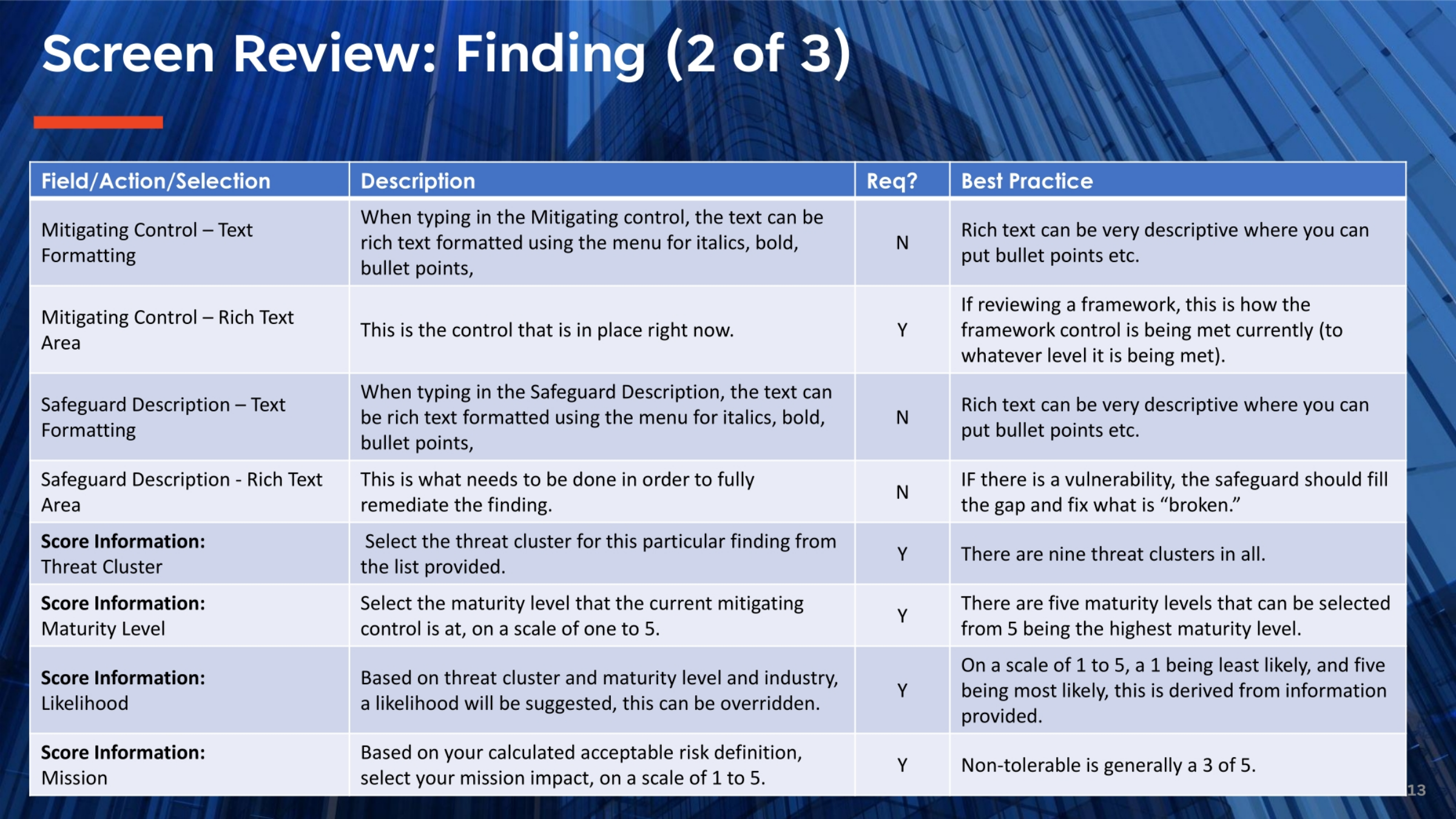
Continuing our review of the 'Finding' screen, we examine fields related to mitigating controls and scoring. The Mitigating Control field describes the current control in place, allowing for rich text formatting for clarity. The Safeguard Description outlines the necessary actions to fully remediate the finding, addressing any identified vulnerabilities. In the Score Information section, you select the Threat Cluster from a list of nine options and assign a Maturity Level from one to five, reflecting the current safeguard's implementation. The system also suggests a Likelihood based on these inputs, which can be overridden.
14. Screen Review: Finding (3 of 3)
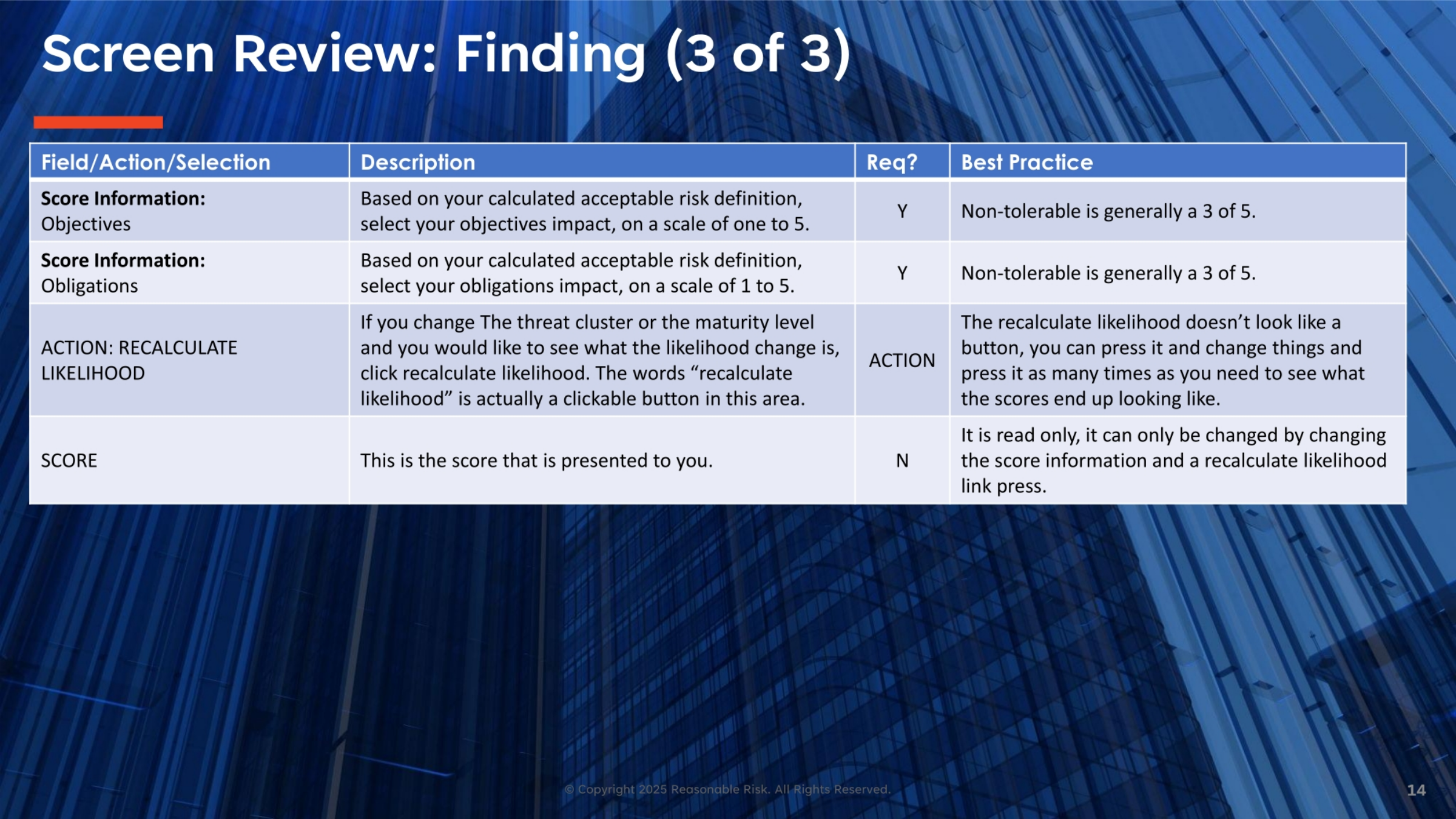
Completing our review of the 'Finding' screen, we focus on the final scoring elements and actions. The Objectives and Obligations impacts are selected based on your acceptable risk definition, typically a '3' for non-tolerable impacts. A key feature is the 'Recalculate Likelihood' action, which allows you to adjust the threat cluster or maturity level and immediately see how the likelihood score changes. This interactive button helps refine your assessment. The final SCORE displayed is read-only and can only be modified by adjusting the underlying score information and re-triggering the likelihood recalculation.
15. Screen Narrative: Edit Safeguard Risk Score
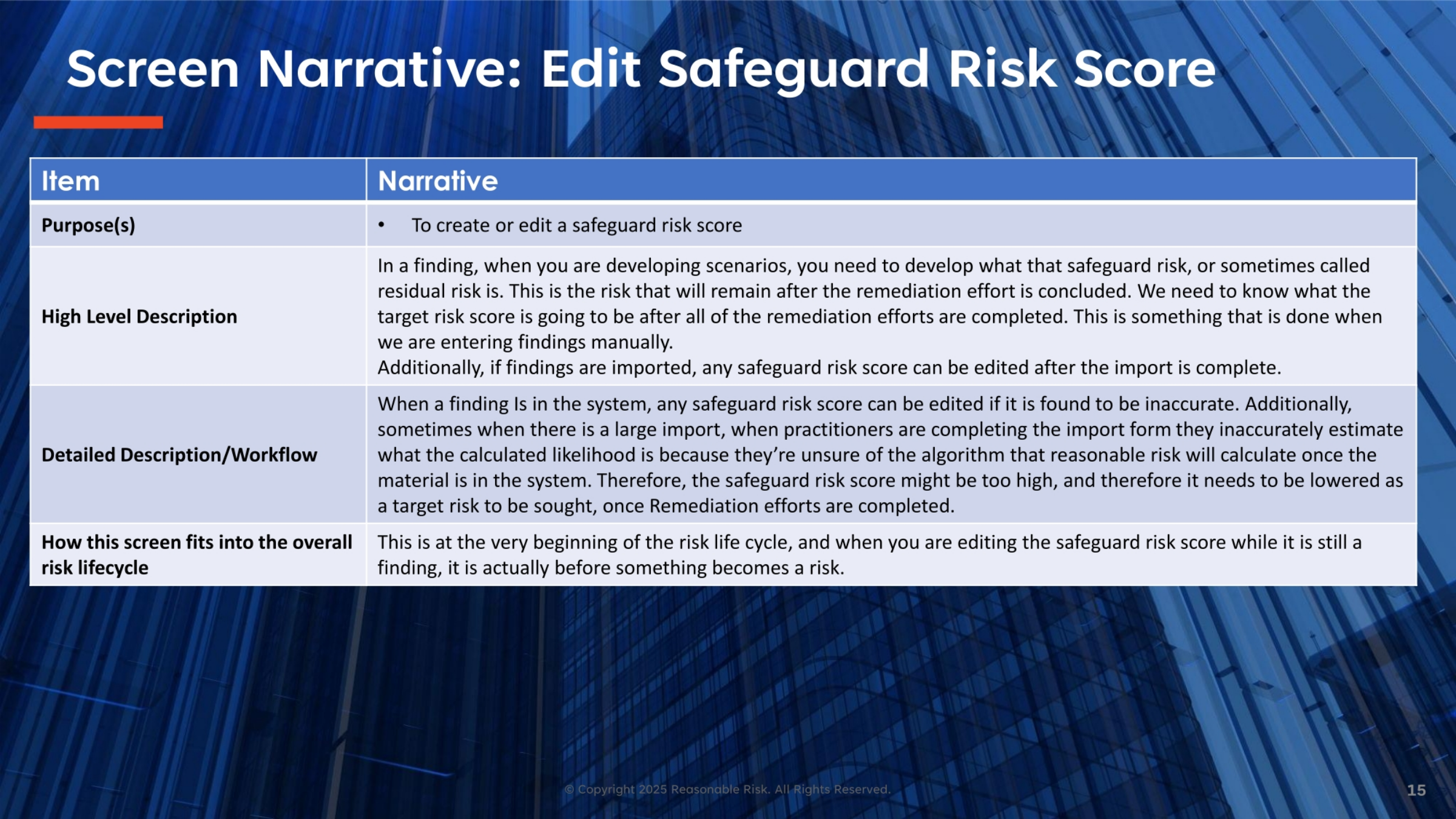
The 'Edit Safeguard Risk Score' screen is crucial for refining our understanding of residual risk. When developing scenarios for a finding, we need to determine the target safeguard risk score that will remain after remediation. This is particularly important when manually entering findings or when imported findings require adjustment due to initial inaccurate likelihood estimates. Practitioners can edit the safeguard risk score if it's found to be inaccurate, ensuring that the target risk aligns with the desired post-remediation state. This action occurs early in the risk lifecycle, before a finding formally transitions into a risk.
16. Screen Visual: Edit Safeguard Risk Score
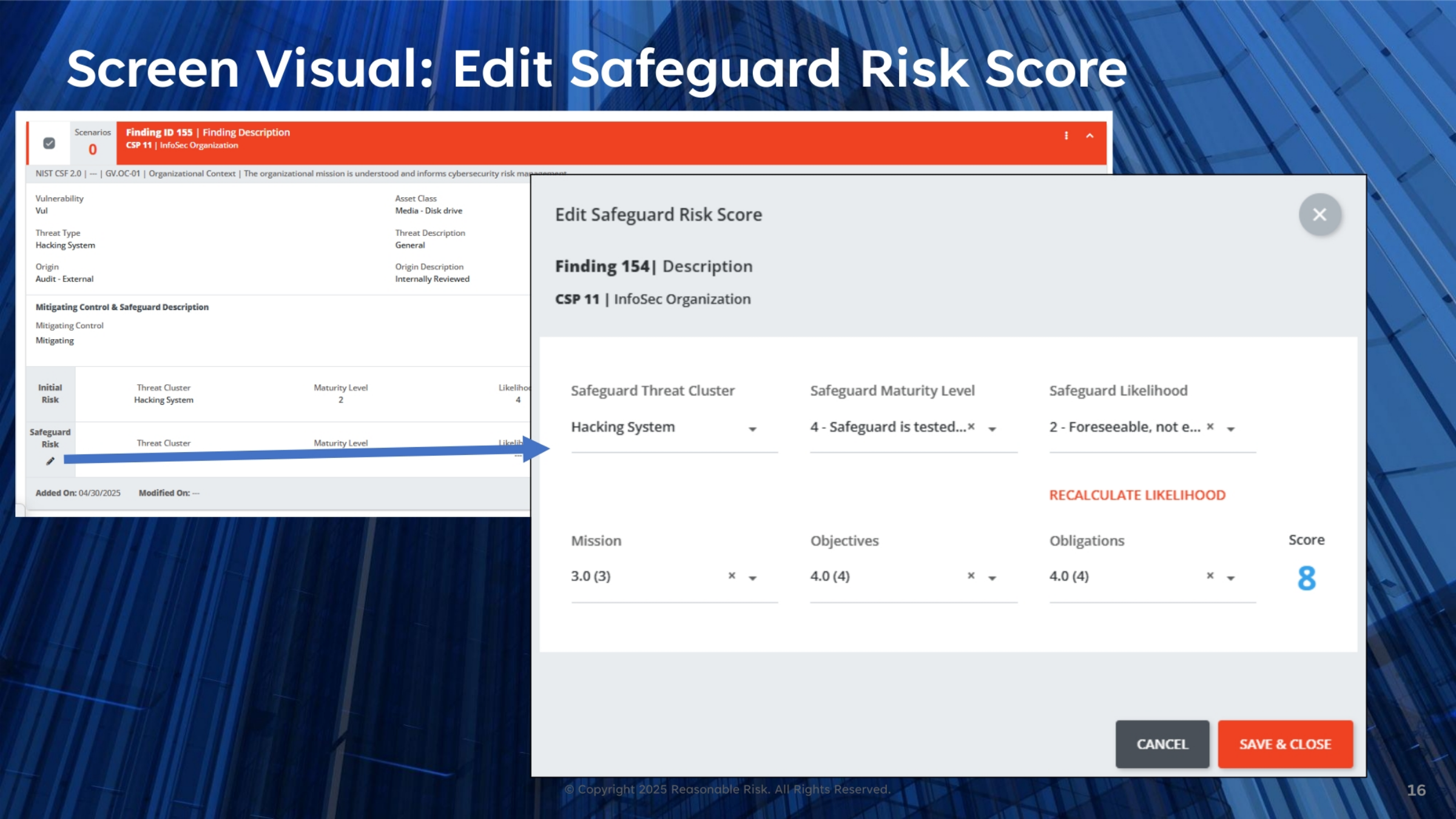
This visual demonstrates the 'Edit Safeguard Risk Score' interface, where you can fine-tune the risk assessment for a specific finding. Here, you can adjust key parameters such as the Safeguard Threat Cluster, the Safeguard Maturity Level, and the Safeguard Likelihood. These selections directly influence the calculated score. Additionally, you define the Mission, Objectives, and Obligations impacts, which contribute to the overall risk score. The 'Recalculate Likelihood' function allows for immediate updates, ensuring the score accurately reflects the current assessment. This screen is essential for achieving a precise understanding of residual risk.
17. Screen Review: Edit Safeguard Risk Score (1 of 2)
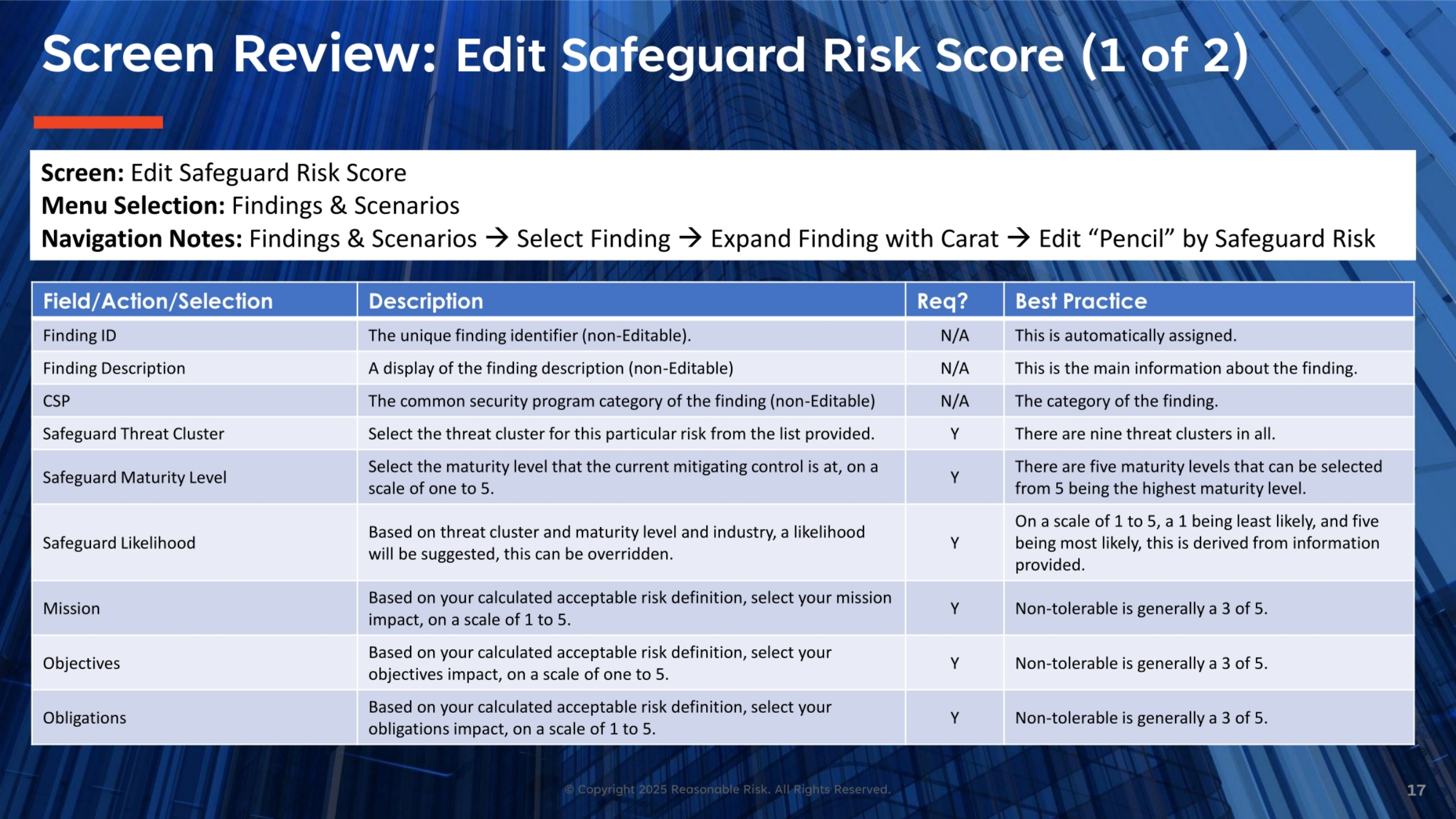
This review details the fields within the 'Edit Safeguard Risk Score' screen. The Finding ID and Finding Description are non-editable, providing a unique identifier and main information. The CSP field indicates the common security program category. You select the Safeguard Threat Cluster and the Safeguard Maturity Level, which are critical for assessing the current control's effectiveness. The Safeguard Likelihood is suggested based on these inputs and industry data, though it can be overridden. Finally, Mission, Objectives, and Obligations impacts are selected, typically a '3' for non-tolerable, to define the acceptable risk.
18. Screen Review: Edit Safeguard Risk Score (2 of 2)
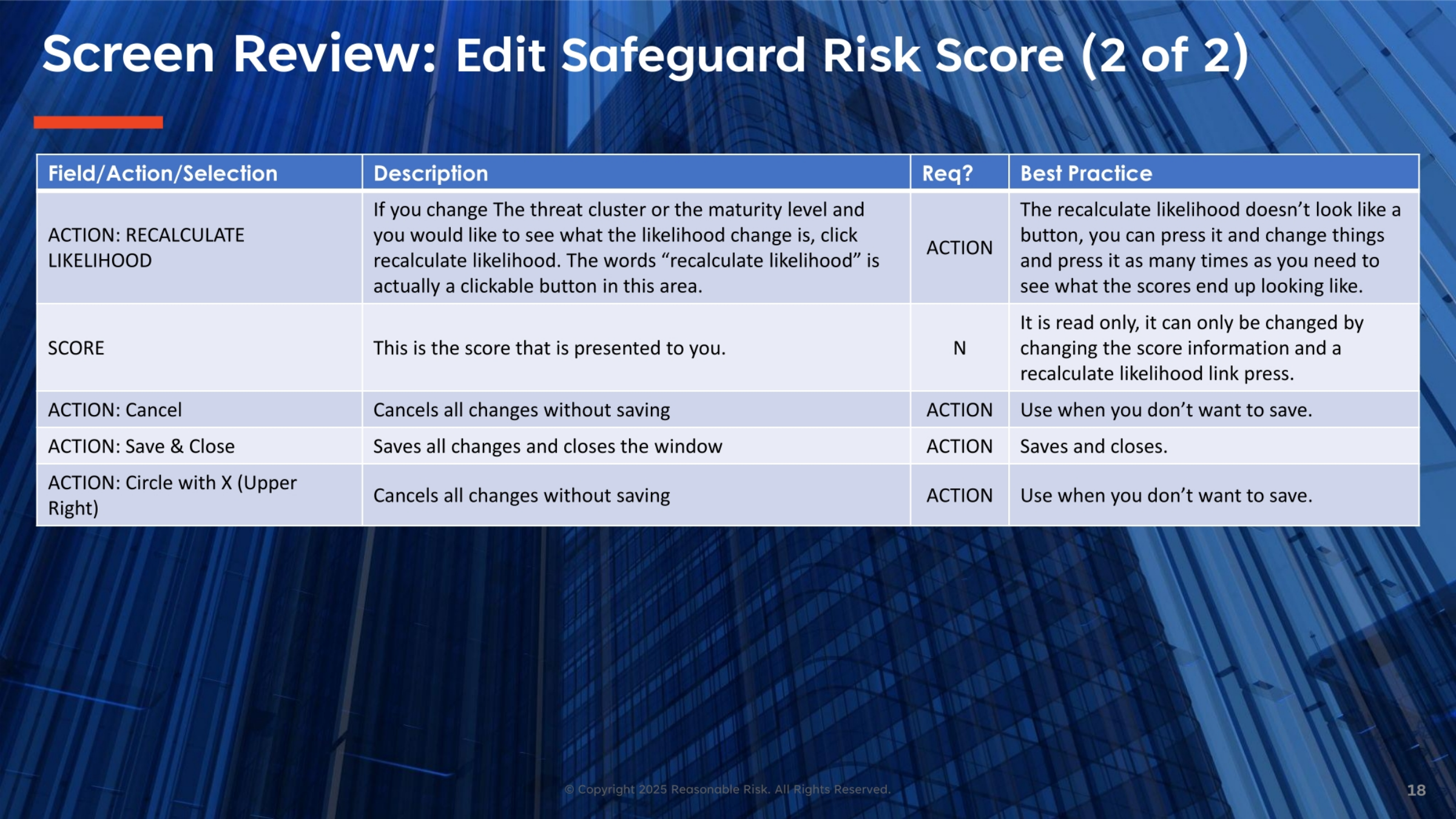
Concluding our review of the 'Edit Safeguard Risk Score' screen, we highlight the actions available. The 'Recalculate Likelihood' function is an interactive button that allows you to adjust threat clusters or maturity levels and instantly see the impact on the likelihood score. The final SCORE displayed is read-only, reflecting the calculated risk based on your inputs. To modify it, you must adjust the underlying score information and re-trigger the recalculation. Additionally, 'Cancel' discards changes, 'Save & Close' commits them, and the 'Circle with X' also cancels, providing flexibility in managing your risk score edits.
19. Screen Narrative: Findings Filter
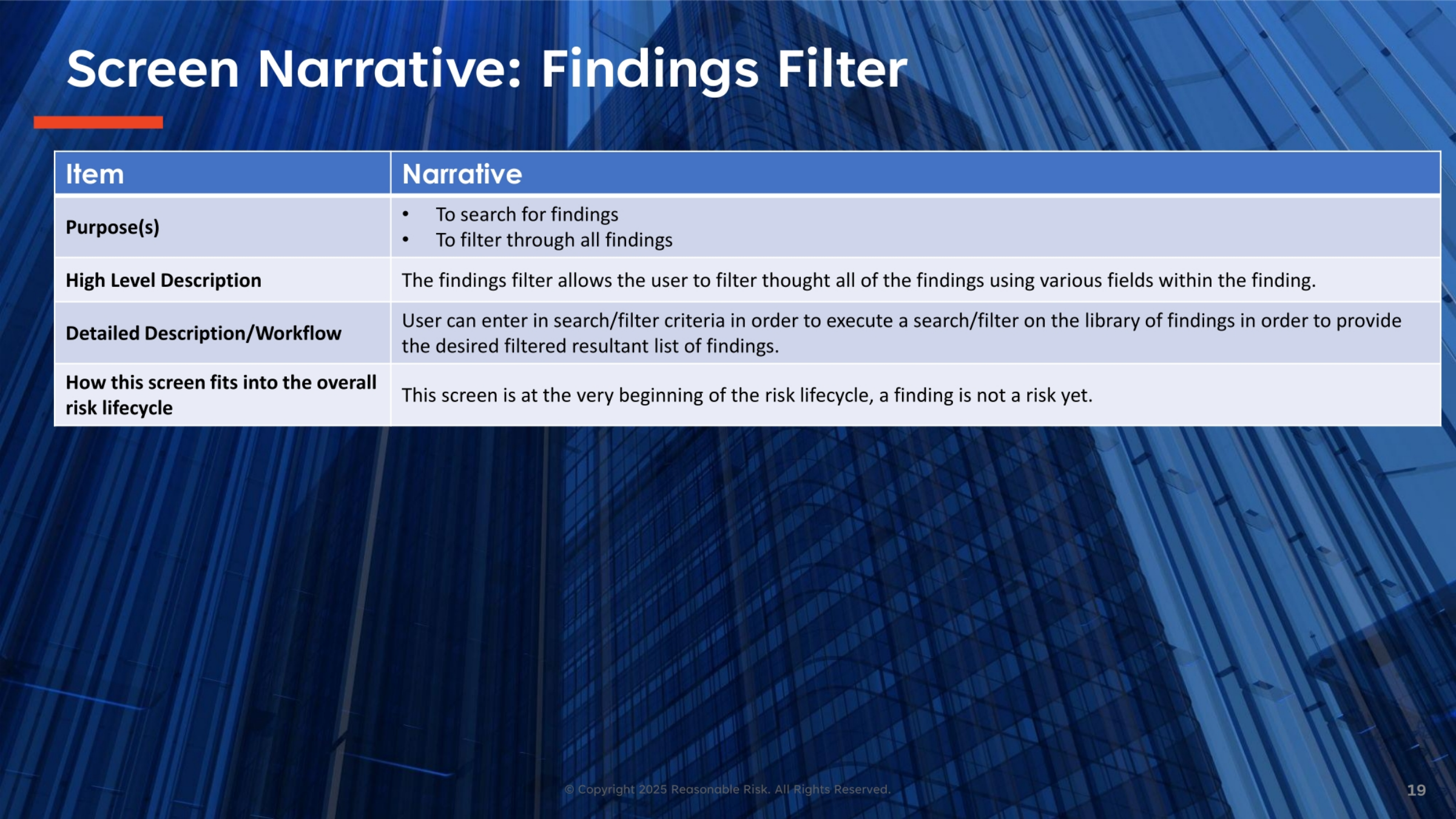
The 'Findings Filter' screen is an essential tool for efficiently navigating and managing your findings. Its primary purpose is to allow users to search for specific findings and filter through the entire library of findings using various criteria. By entering precise search and filter parameters, you can quickly narrow down the list to display only the desired results. This functionality is crucial for focusing on relevant findings without being overwhelmed by the full dataset. This screen operates at the very beginning of the risk lifecycle, as a finding is not yet a formally recognized risk.
20. Screen Review: Findings Search/Filter List
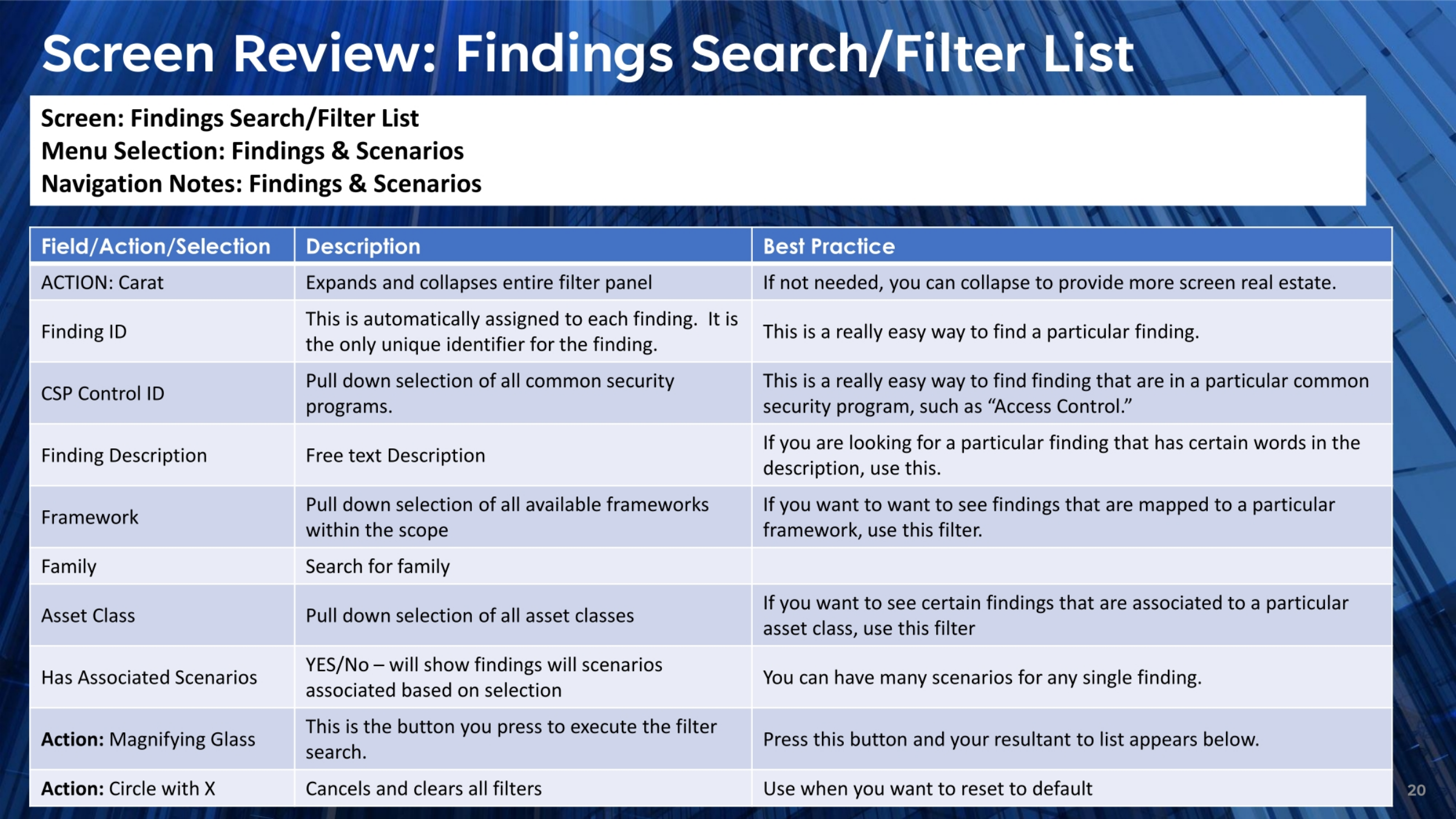
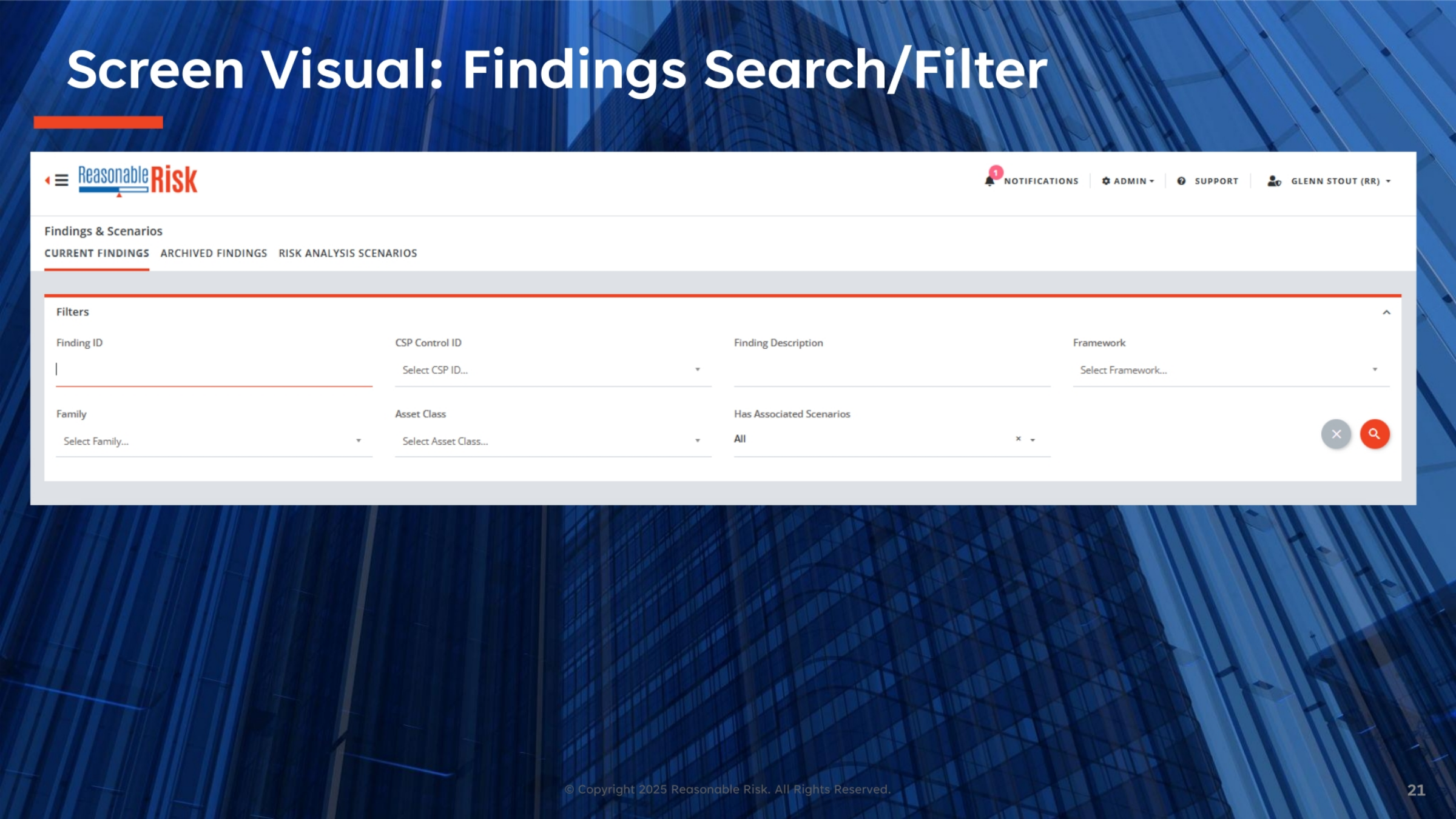
This review covers the 'Findings Search/Filter List' screen, detailing its various fields and actions. The 'Carat' action expands or collapses the filter panel, optimizing screen real estate. The Finding ID is a unique, automatically assigned identifier, making it easy to locate specific findings. You can filter by CSP Control ID, Finding Description, Framework, Family, and Asset Class to refine your search. The 'Has Associated Scenarios' option helps identify findings with existing remediation plans. The 'Magnifying Glass' executes the filter search, while the 'Circle with X' cancels and clears all applied filters, resetting to default.
21. Screen Visual: Findings Search/Filter
This screen provides a comprehensive interface for searching and filtering findings and scenarios within Reasonable Risk. Users can efficiently locate specific findings by applying various criteria, including Finding ID, CSP Control ID, and a detailed description. Additional filters allow for refinement by Framework, Family, Asset Class, and whether the finding has associated scenarios. This robust filtering capability ensures that users can quickly pinpoint the exact information they need for effective risk management.
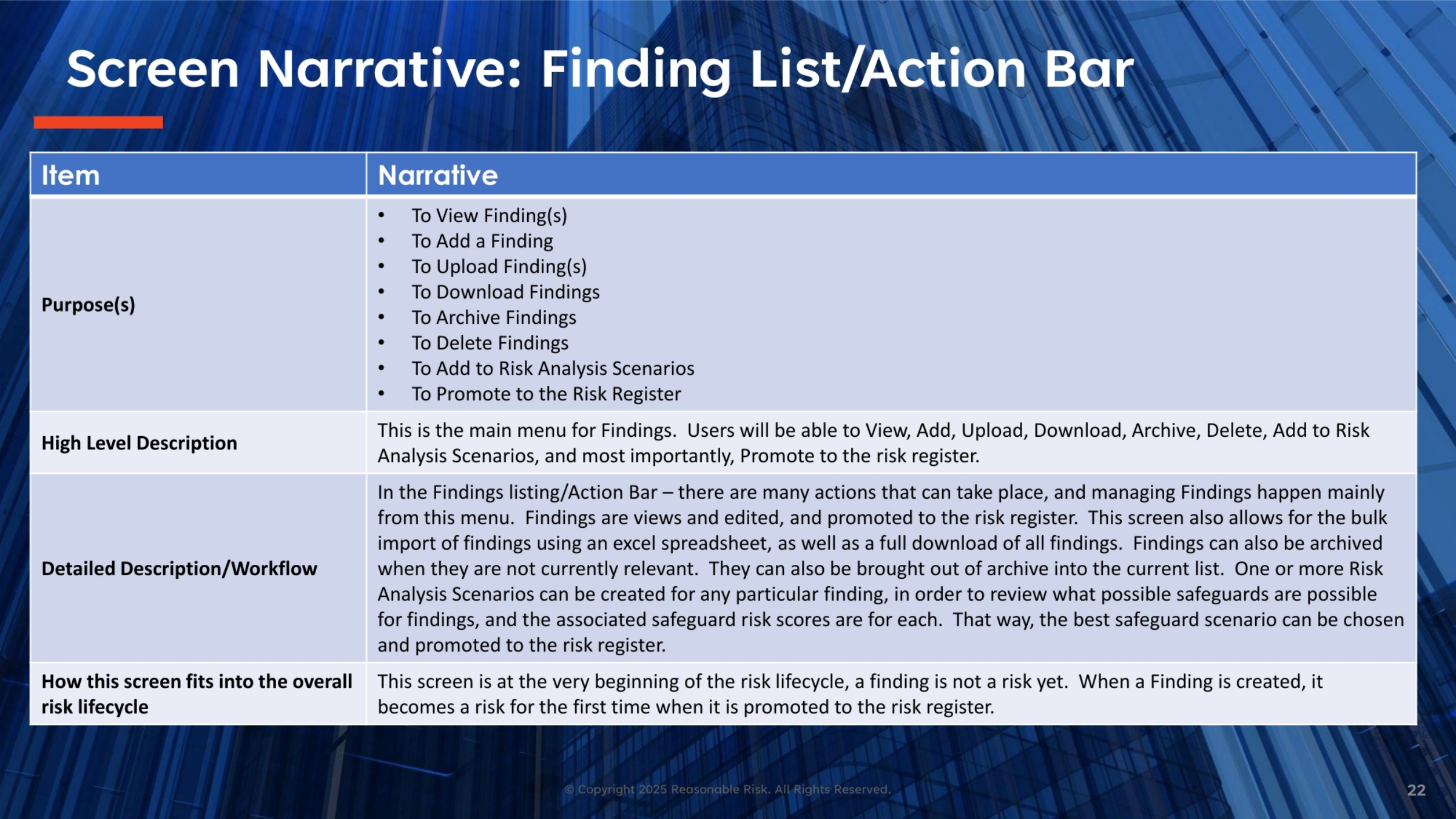
22. Screen Narrative: Finding List/Action Bar
The Finding List and Action Bar serves as the central hub for managing all findings. From here, users can perform a wide array of actions, including viewing, adding, uploading, and downloading findings. It also provides options to archive or delete findings, add them to risk analysis scenarios, and crucially, promote them to the risk register. This screen represents the very beginning of the risk lifecycle, where a finding is initially identified and processed before it officially becomes a risk.
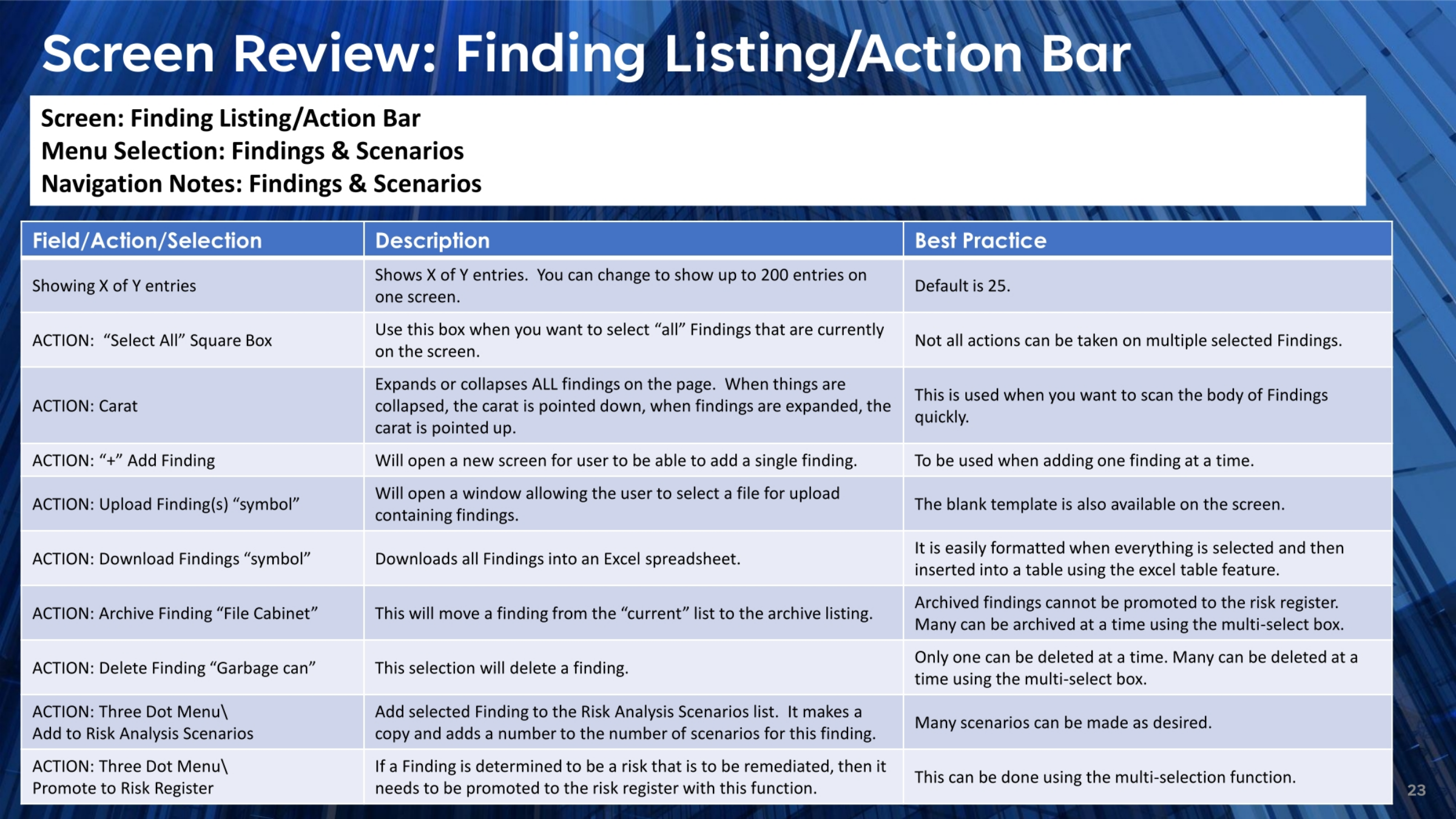
23. Screen Review: Finding Listing/Action Bar
Reviewing the Finding Listing and Action Bar, we see several key functionalities. The 'Showing X of Y entries' feature allows customization of how many entries appear, with a default of 25. The 'Select All' box enables bulk actions, though not all actions apply to multiple selections. The carat expands or collapses findings for quick scanning. Users can add a single finding, upload multiple findings via a file, or download all findings into an Excel spreadsheet. Findings can be archived or deleted, and multiple items can be archived or deleted using the multi-select box. Finally, findings can be added to Risk Analysis Scenarios or promoted to the Risk Register, often using multi-selection.
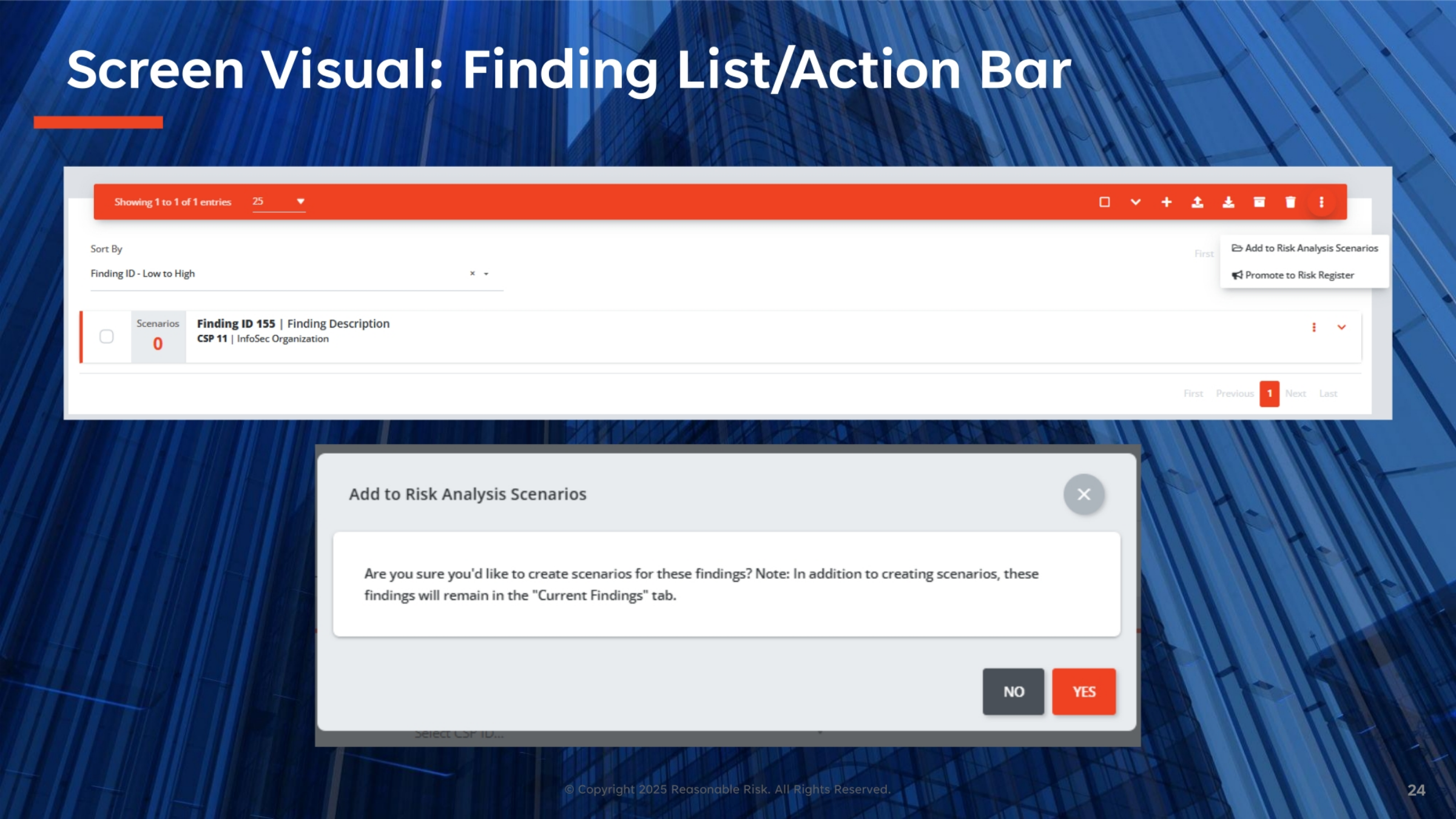
24. Screen Visual: Finding List/Action Bar
This visual demonstrates the Finding List and Action Bar in action, showcasing a specific finding, ID 155, from the InfoSec Organization. From this view, users have direct access to critical actions such as adding the finding to Risk Analysis Scenarios or promoting it to the Risk Register. The system also provides a clear confirmation prompt when creating scenarios, ensuring users are aware that the finding will remain in the 'Current Findings' tab while scenarios are being developed. This streamlined process facilitates efficient decision-making.
25. Screen Narrative: Findings Actions
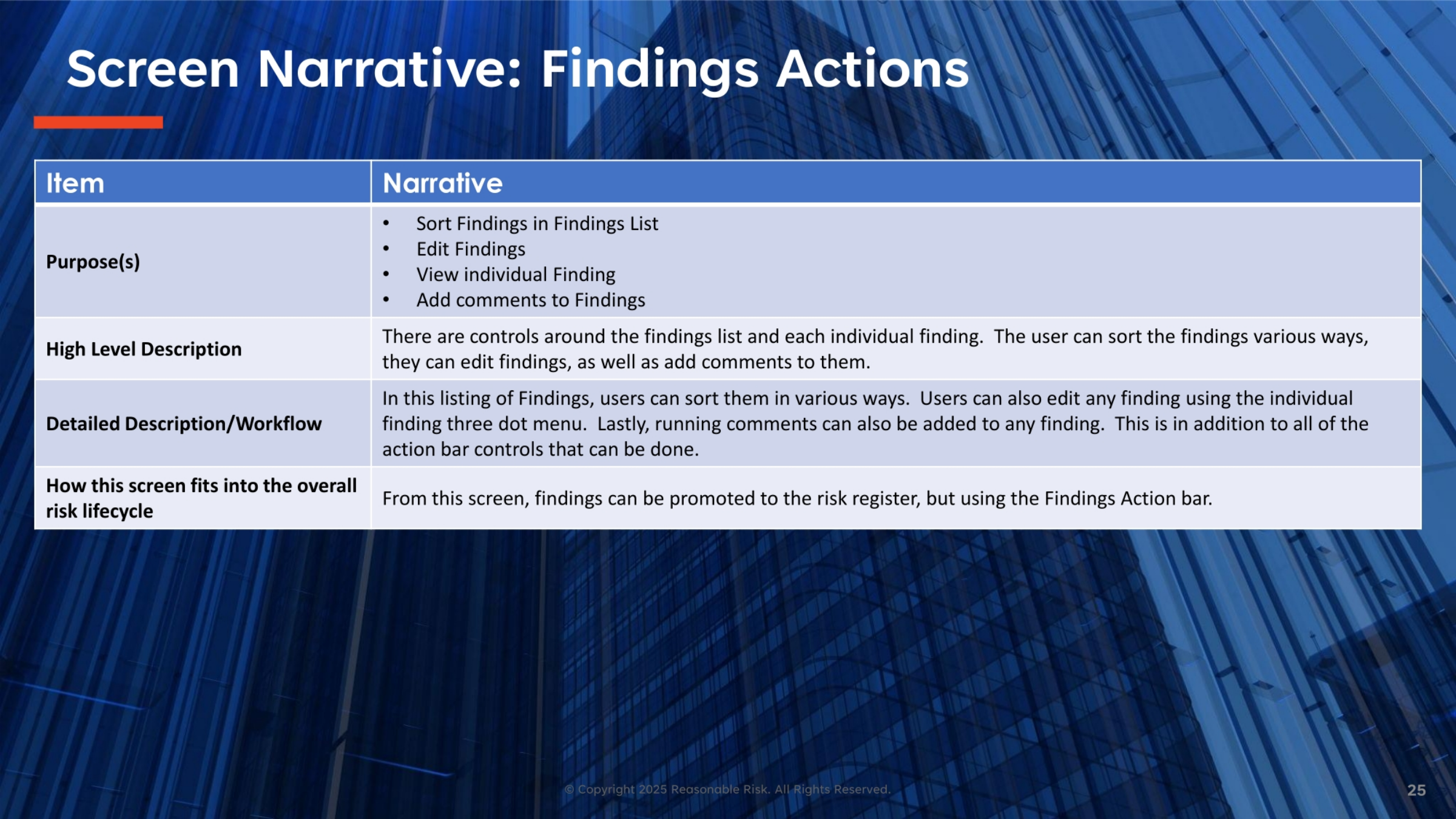
Findings actions encompass a range of controls around both the overall findings list and individual findings. Users can sort findings in various ways to organize their view. They also have the ability to edit individual findings and add running comments, providing essential context and tracking. These actions are crucial for detailed management and are complemented by the broader action bar controls. Ultimately, these capabilities support the promotion of findings to the risk register, marking a key step in the risk lifecycle.
26. Screen Review: Findings List/Finding Menu
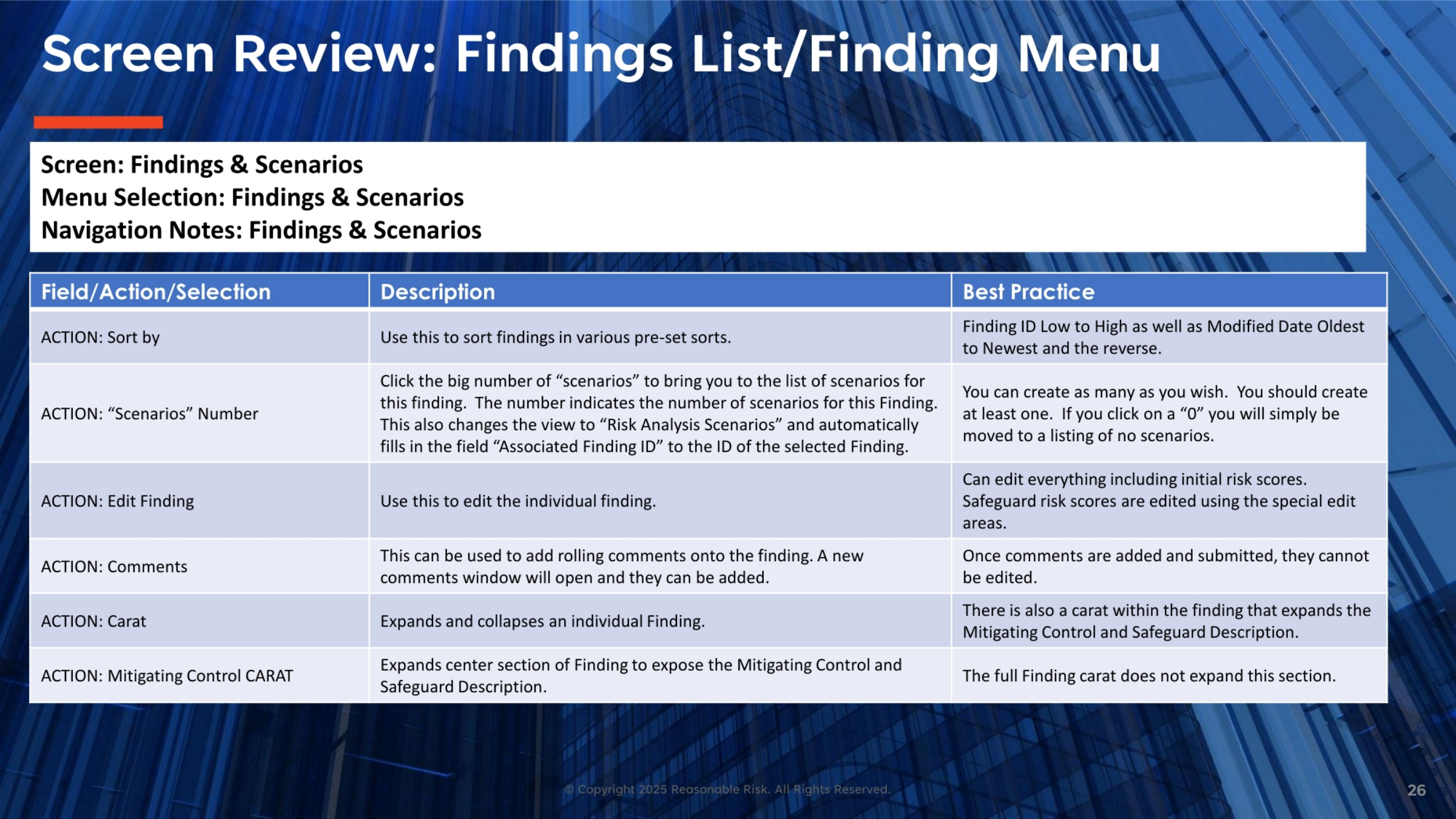
The Findings List and Finding Menu offers several actions for detailed management. The 'Sort by' function allows findings to be organized by criteria like ID or modified date. Clicking the 'Scenarios' number navigates to a list of scenarios for that specific finding, automatically populating the associated Finding ID. Individual findings can be edited, including initial risk scores and safeguard risk scores. The 'Comments' feature allows for rolling comments, which are uneditable once submitted. Carats are used to expand or collapse individual findings, and a dedicated 'Mitigating Control CARAT' expands the center section to reveal mitigating control and safeguard descriptions.
27. Screen Visual: Finding List and Action Bar
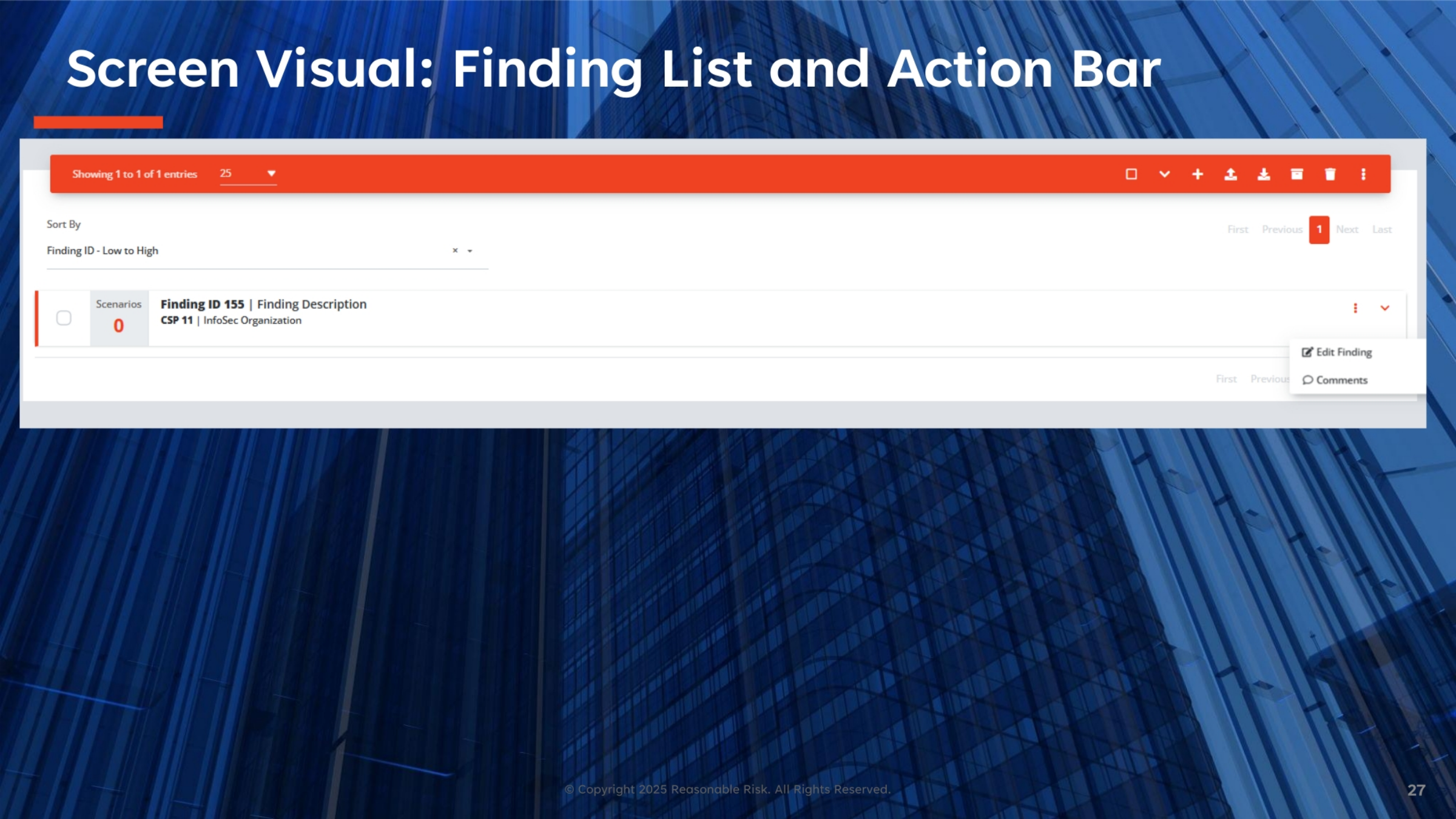
Here we see another visual representation of the Finding List and Action Bar, highlighting the options available for managing individual findings. For Finding ID 155, associated with CSP 11 and the InfoSec Organization, users can easily access actions to 'Edit Finding' or add 'Comments.' These direct access points streamline the process of updating details, adjusting risk scores, and documenting ongoing discussions or decisions related to a specific finding, ensuring comprehensive and up-to-date record-keeping.
28. Screen Narrative: Risk Analysis Scenarios
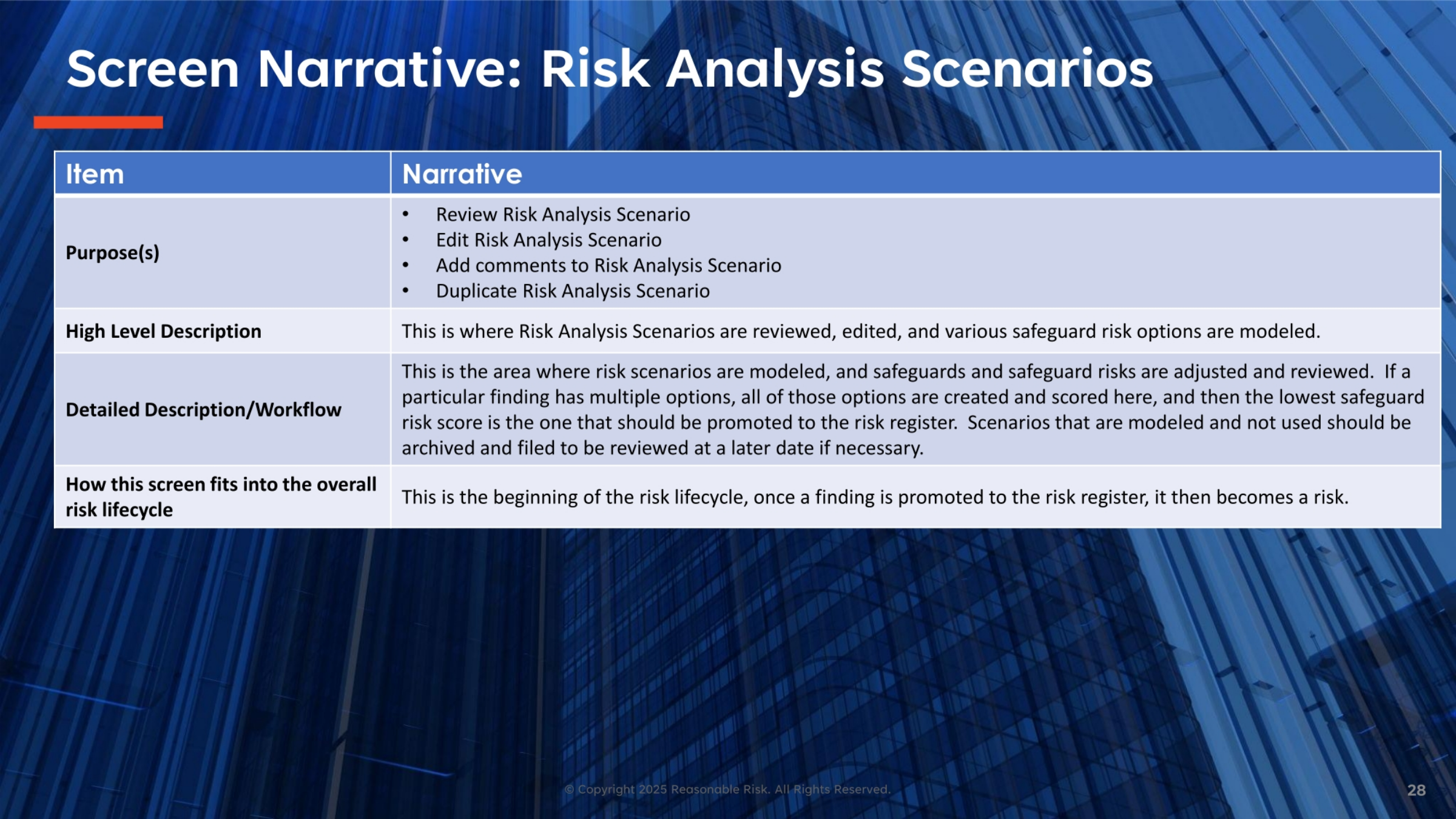
Risk Analysis Scenarios are where findings are thoroughly evaluated and modeled. This section allows for the review, editing, and duplication of scenarios, as well as the addition of comments. It's the area where safeguards and their associated risks are adjusted and reviewed. If a finding has multiple potential solutions, each option can be created and scored here. The scenario with the lowest safeguard risk score is then identified as the optimal choice for promotion to the risk register. Unused scenarios can be archived for future reference, ensuring a comprehensive record of all evaluations.
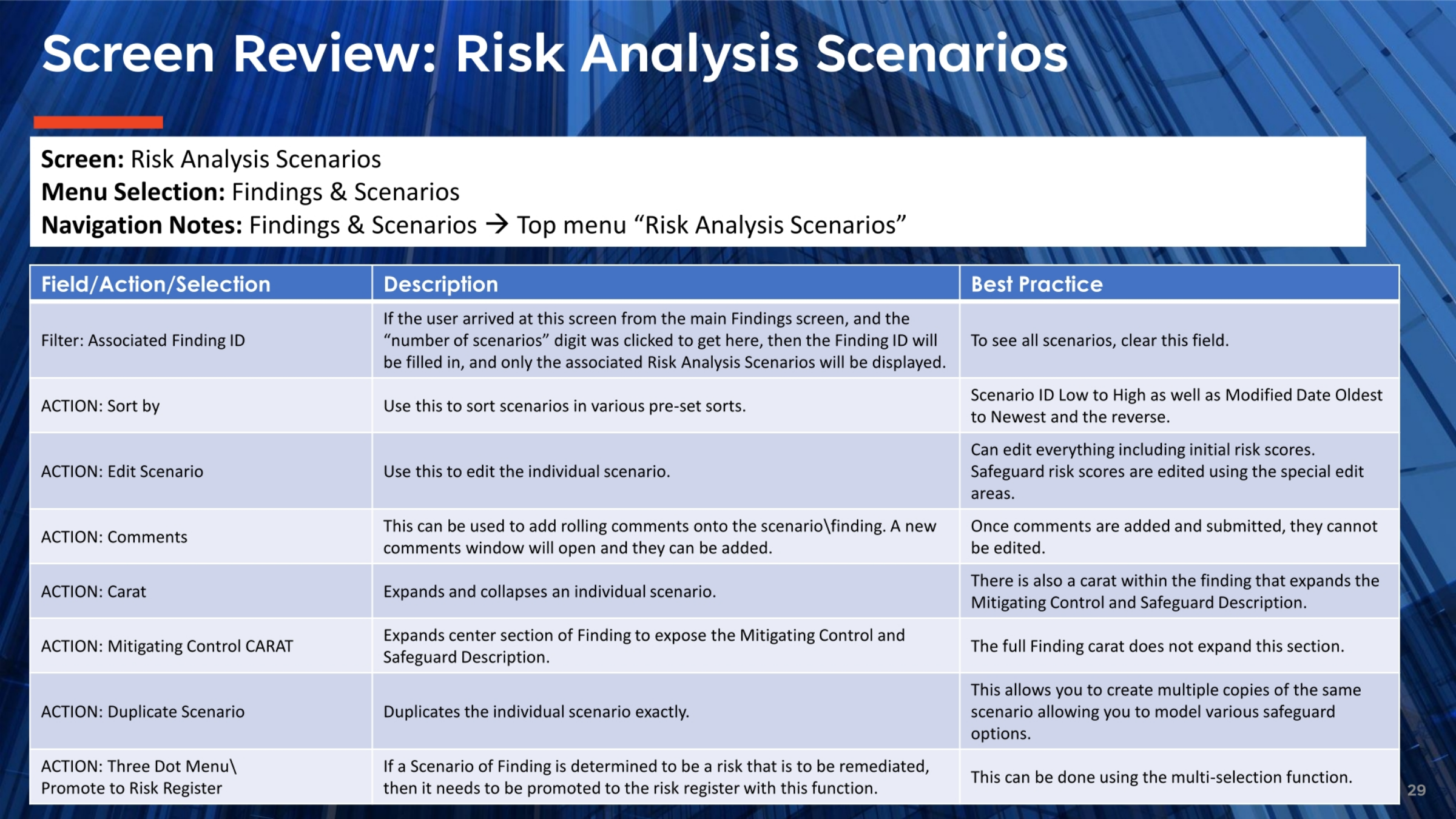
29. Screen Review: Risk Analysis Scenarios
In the Risk Analysis Scenarios review, several key actions facilitate detailed risk modeling. The 'Filter: Associated Finding ID' allows users to view scenarios linked to a specific finding. Scenarios can be sorted by ID or modified date. The 'Edit Scenario' function enables comprehensive modifications, including initial and safeguard risk scores. Users can add rolling comments to scenarios, which become permanent upon submission. Carats expand or collapse individual scenarios, and the 'Mitigating Control CARAT' reveals detailed mitigating control and safeguard descriptions. The 'Duplicate Scenario' feature allows for modeling various safeguard options, and scenarios can be promoted to the risk register using multi-selection.
30. Screen Visual: Risk Analysis Scenarios
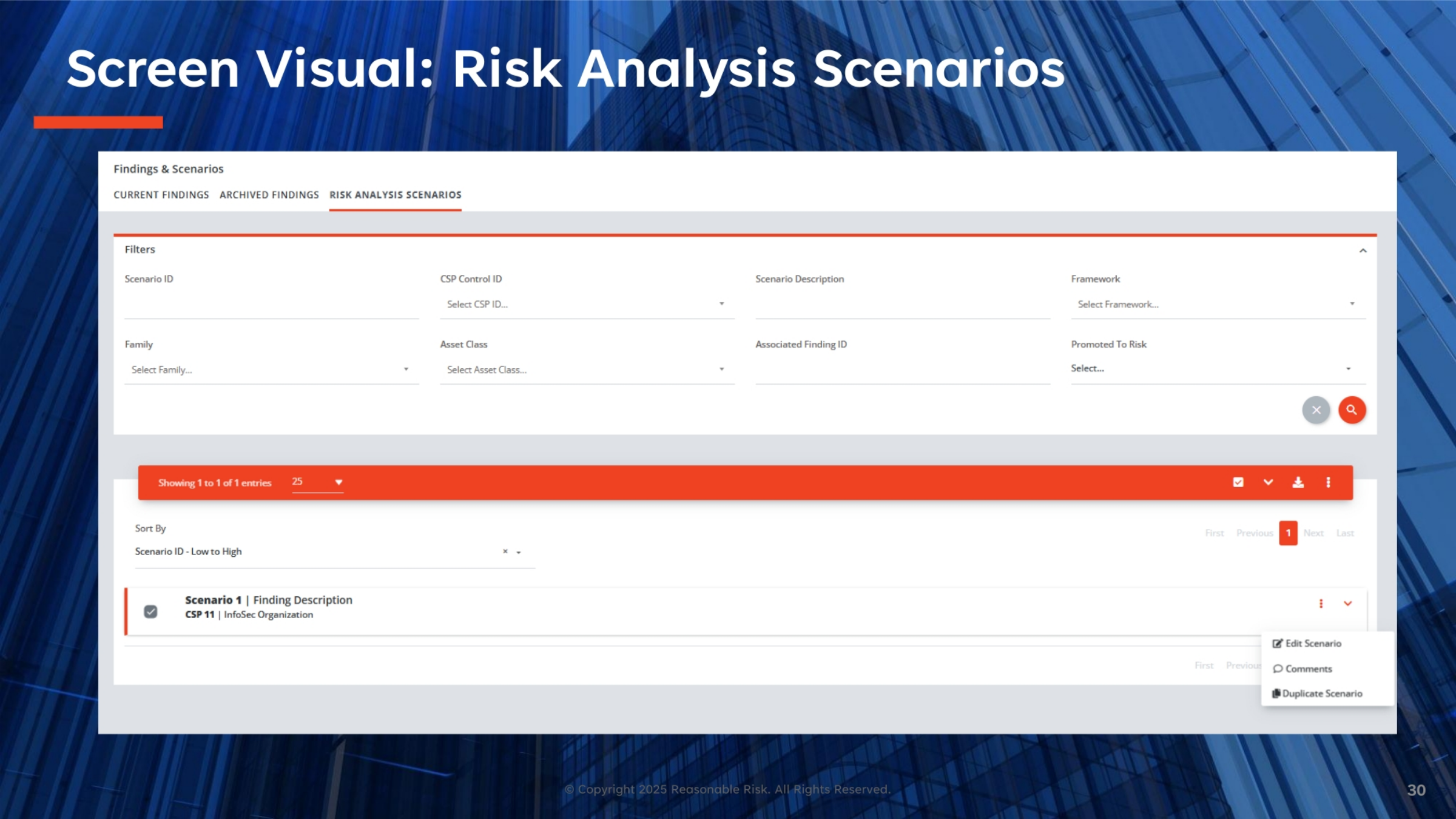
This visual displays the Risk Analysis Scenarios interface, demonstrating how users can manage and evaluate potential risks. The screen includes various filters to narrow down the list of scenarios, such as Scenario ID, CSP Control ID, Framework, Family, Asset Class, and Associated Finding ID. A specific scenario, 'Scenario 1,' is shown, providing options to 'Edit Scenario,' add 'Comments,' or 'Duplicate Scenario.' This layout supports a structured approach to risk assessment, allowing for detailed analysis and comparison of different safeguard strategies.
31. Screen Narrative: Archived Findings
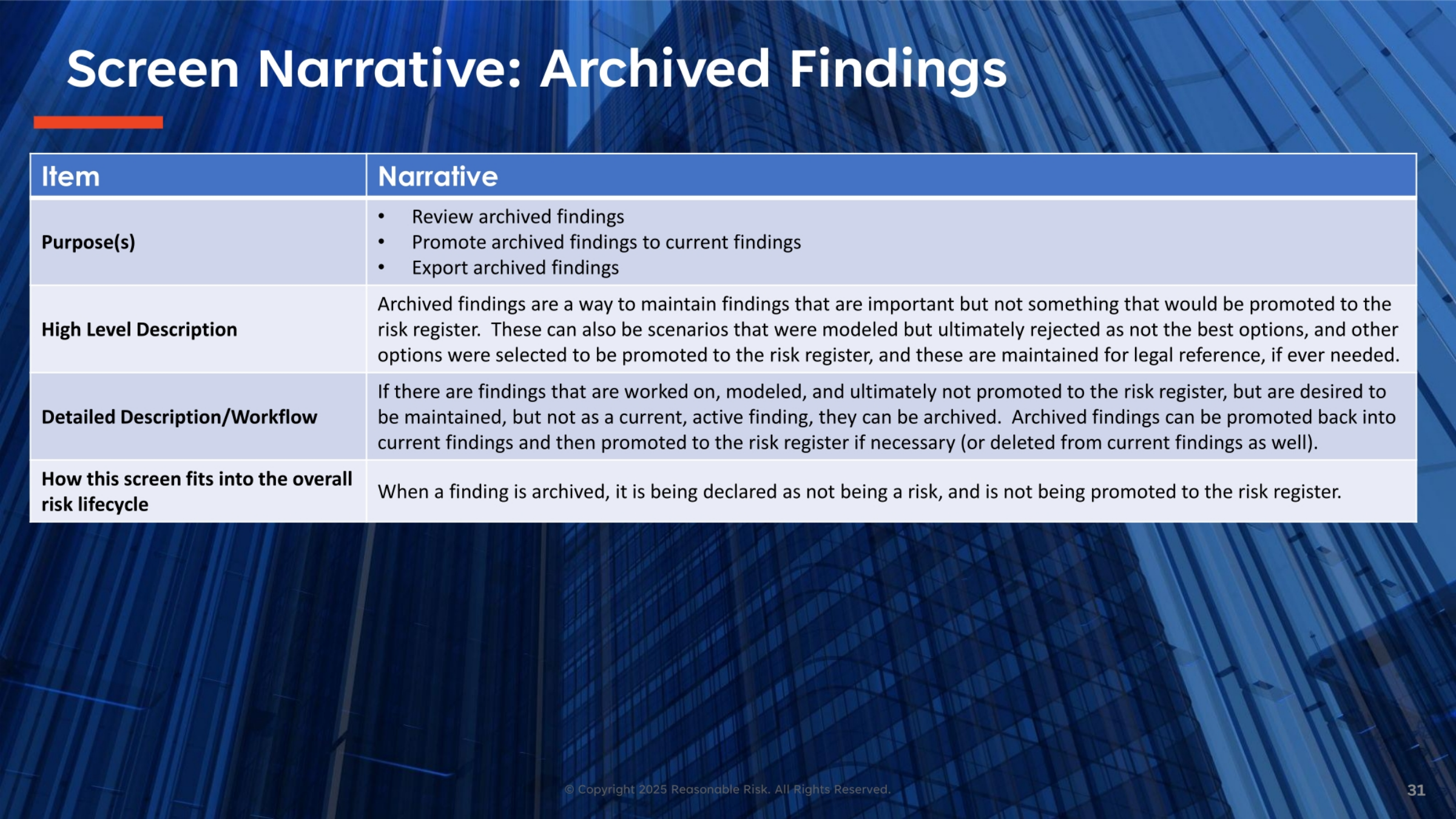
Archived findings provide a crucial mechanism for maintaining records of findings that are important but not currently active or slated for promotion to the risk register. This includes scenarios that were modeled but ultimately not selected as the best options, serving as valuable legal and historical references. Users can review these archived findings, promote them back to the current findings list if they become relevant again, or export them for external use. When a finding is archived, it is explicitly declared as not being a current risk, and therefore, it is not promoted to the risk register.
32. Screen Review: Archived Findings/List
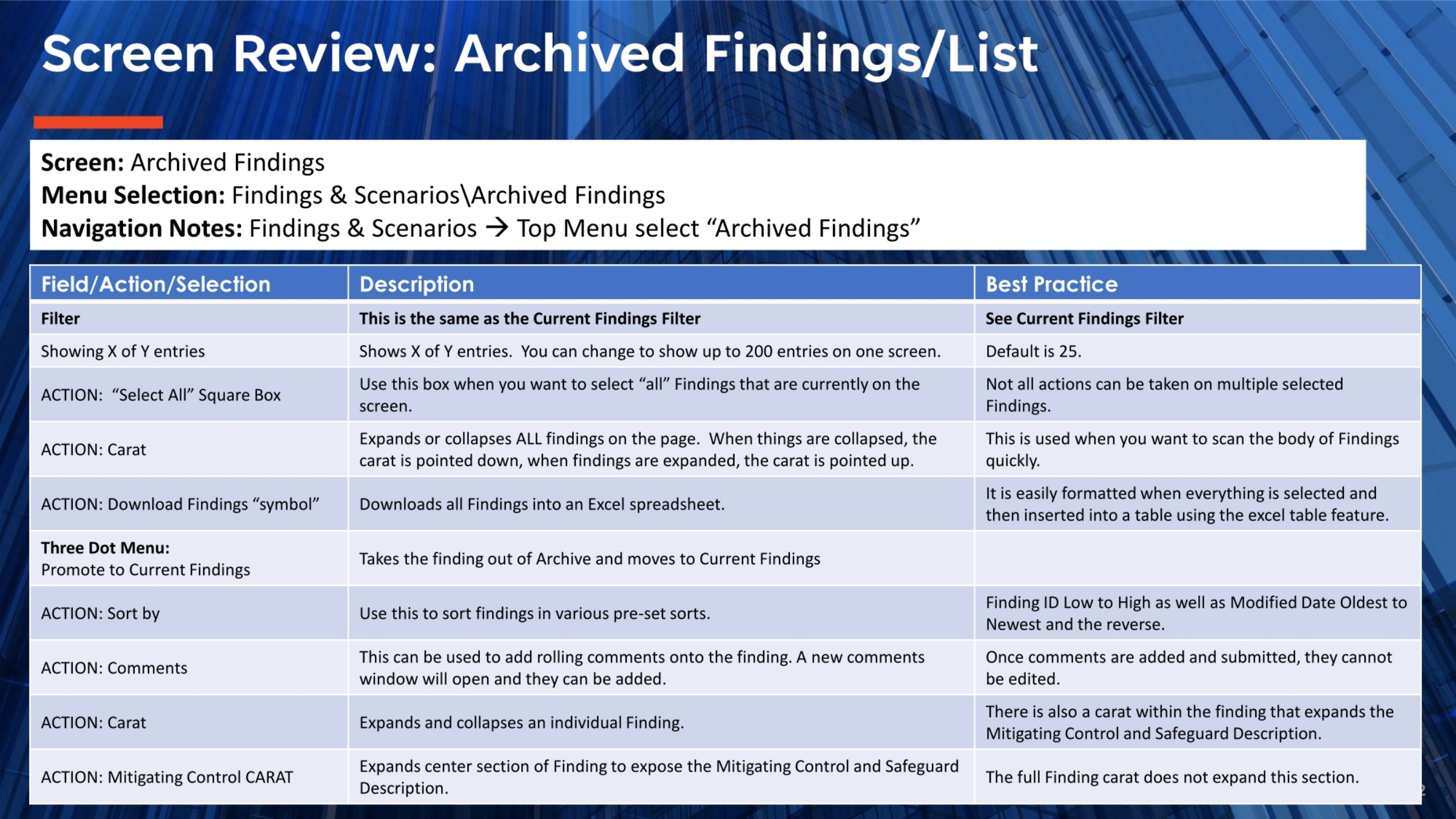
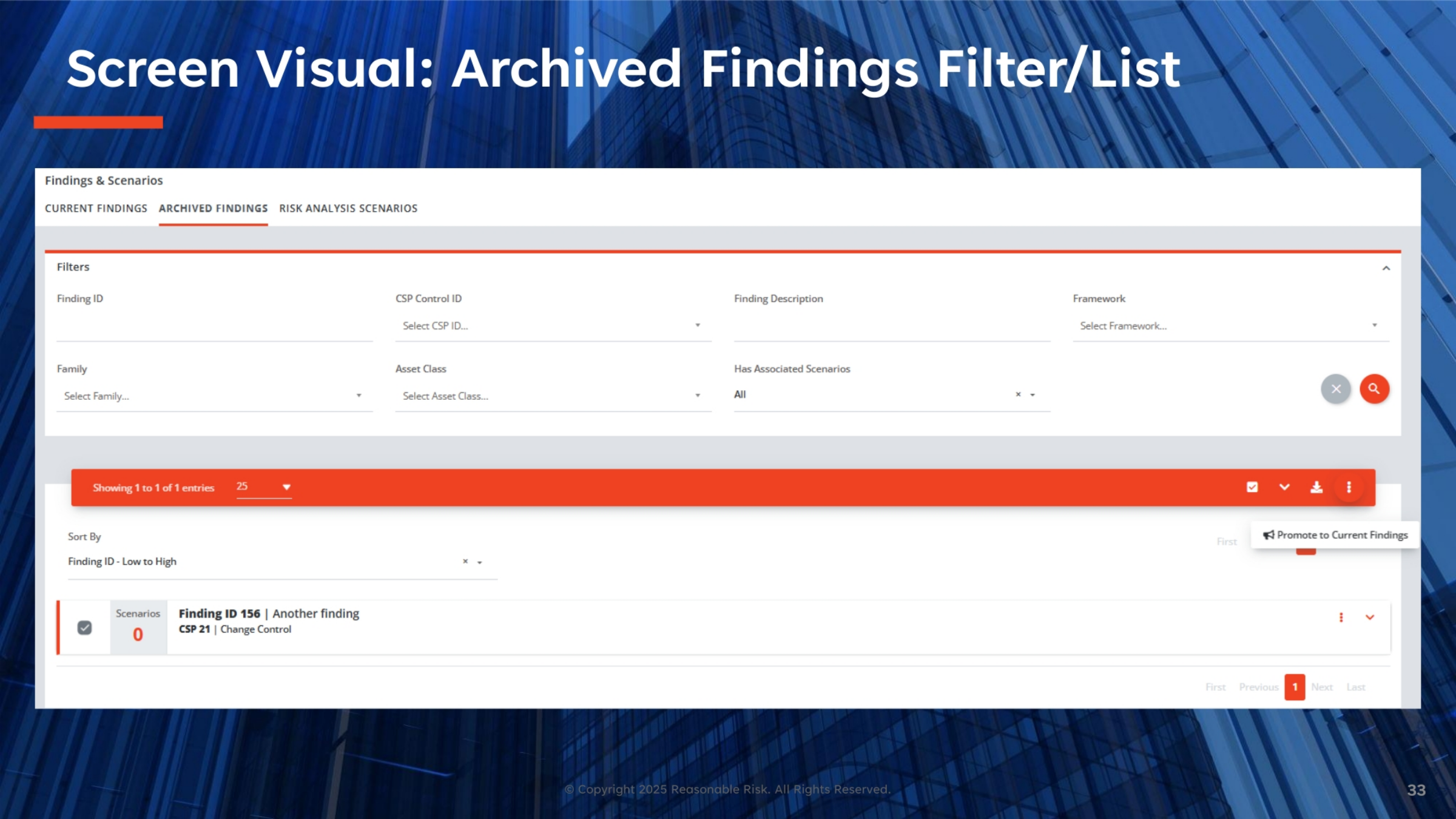
The Archived Findings list offers a comprehensive set of tools for managing historical findings. The filter functionality is consistent with the current findings filter, allowing for efficient searching. Users can adjust the number of entries displayed and utilize the 'Select All' box for bulk actions. Carats expand or collapse individual findings for quick review. Archived findings can be downloaded into an Excel spreadsheet. A key feature is the 'Promote to Current Findings' option, which moves an archived finding back into the active list. Sorting, commenting, and expanding mitigating control details are also available, ensuring thorough management of all findings, past and present.
33. Screen Visual: Archived Findings Filter/List
This visual illustrates the Archived Findings Filter and List interface, providing a clear view of how users can interact with their historical findings. Similar to the current findings screen, it features various filters such as Finding ID, CSP Control ID, and Framework, enabling precise searches. A specific archived finding, ID 156, is displayed, along with the prominent option to 'Promote to Current Findings.' This functionality allows for easy reactivation of previously archived items, ensuring that relevant historical data can be brought back into active consideration when needed.
This training module provided a comprehensive overview of Findings and Scenarios within the Reasonable Risk platform, detailing their creation, editing, filtering, and promotion to the Risk Register. It covered key functionalities like search, various actions, and the process of creating and evaluating Risk Analysis Scenarios, including threat clusters, maturity scores, and likelihood definitions. Emphasizing their critical role as the initial stage in the risk lifecycle, the module also reviewed archiving findings to ensure data accessibility for thorough analysis and scenario modeling.
Comments
0 comments
Please sign in to leave a comment.