This training module provides essential information on managing your user profile and understanding notifications within the Reasonable Risk platform. We will review key features and functionalities to help you optimize your user experience and stay informed.
1. Focus Area: User Profile and Notifications
Welcome to the Reasonable Risk training module. This session focuses on two critical areas: managing your user profile and understanding the notification system. We'll guide you through the essential features to ensure you can effectively customize your experience and stay informed.
2. Agenda: User Profile & Notifications
Our agenda today covers the user profile and notifications.
3. Profile Objectives
In this section, our primary objectives are to ensure you understand how to effectively review your user profile, grasp the purpose of all fields within it, and confidently update your profile information as needed. This foundational knowledge is crucial for personalizing your experience and maintaining accurate account details within the Reasonable Risk platform.
4. User Profile Screen Narrative
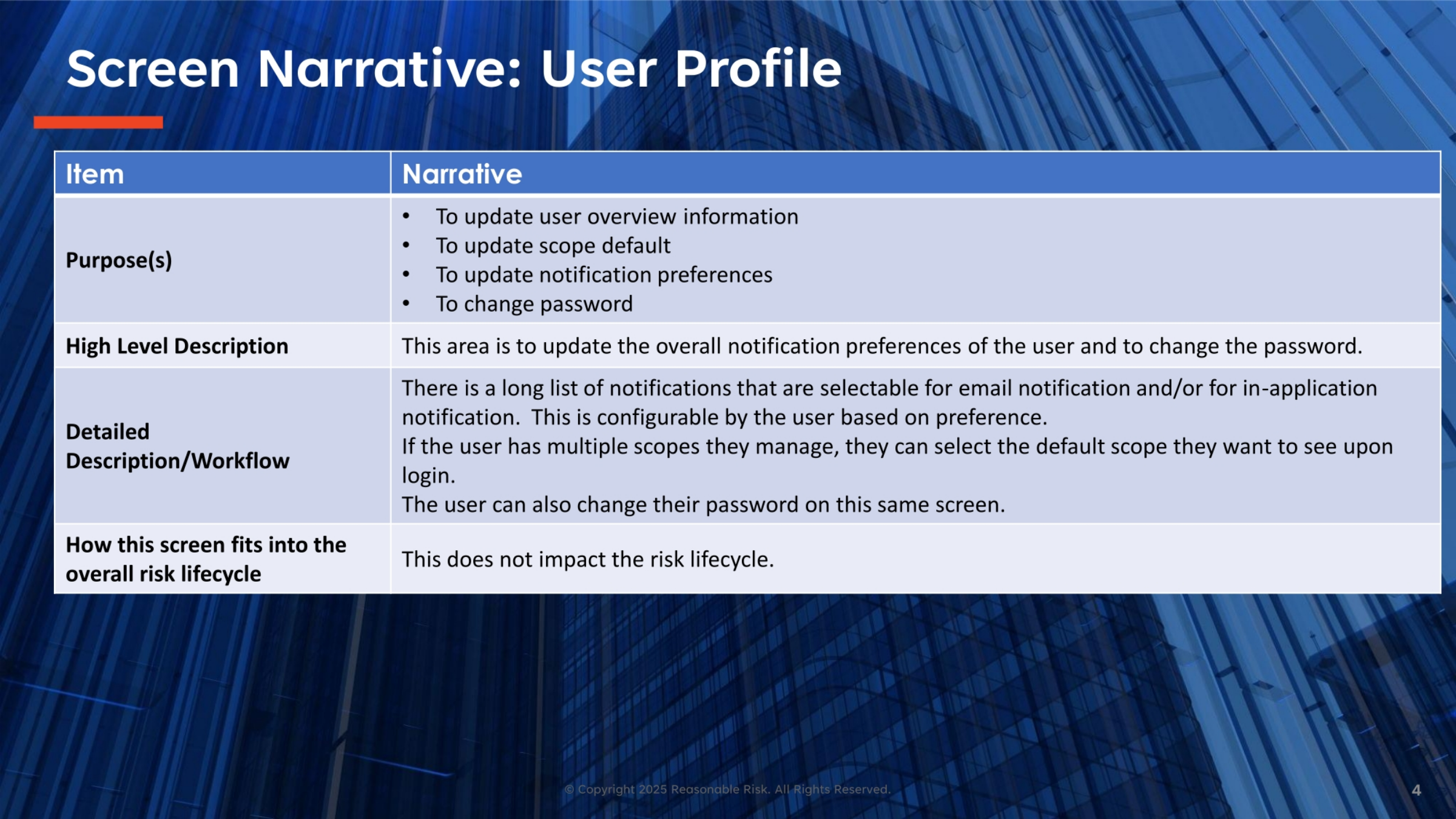
The user profile screen serves multiple key purposes. It allows you to update your general overview information, set your default scope, manage your notification preferences, and change your password. This area is highly configurable, enabling you to select specific email or in-application notifications based on your preferences. If you manage multiple scopes, you can also choose a default scope for login, streamlining your workflow. Importantly, these profile adjustments do not impact the overall risk lifecycle.
5. User Profile Screen Review (Part 1)
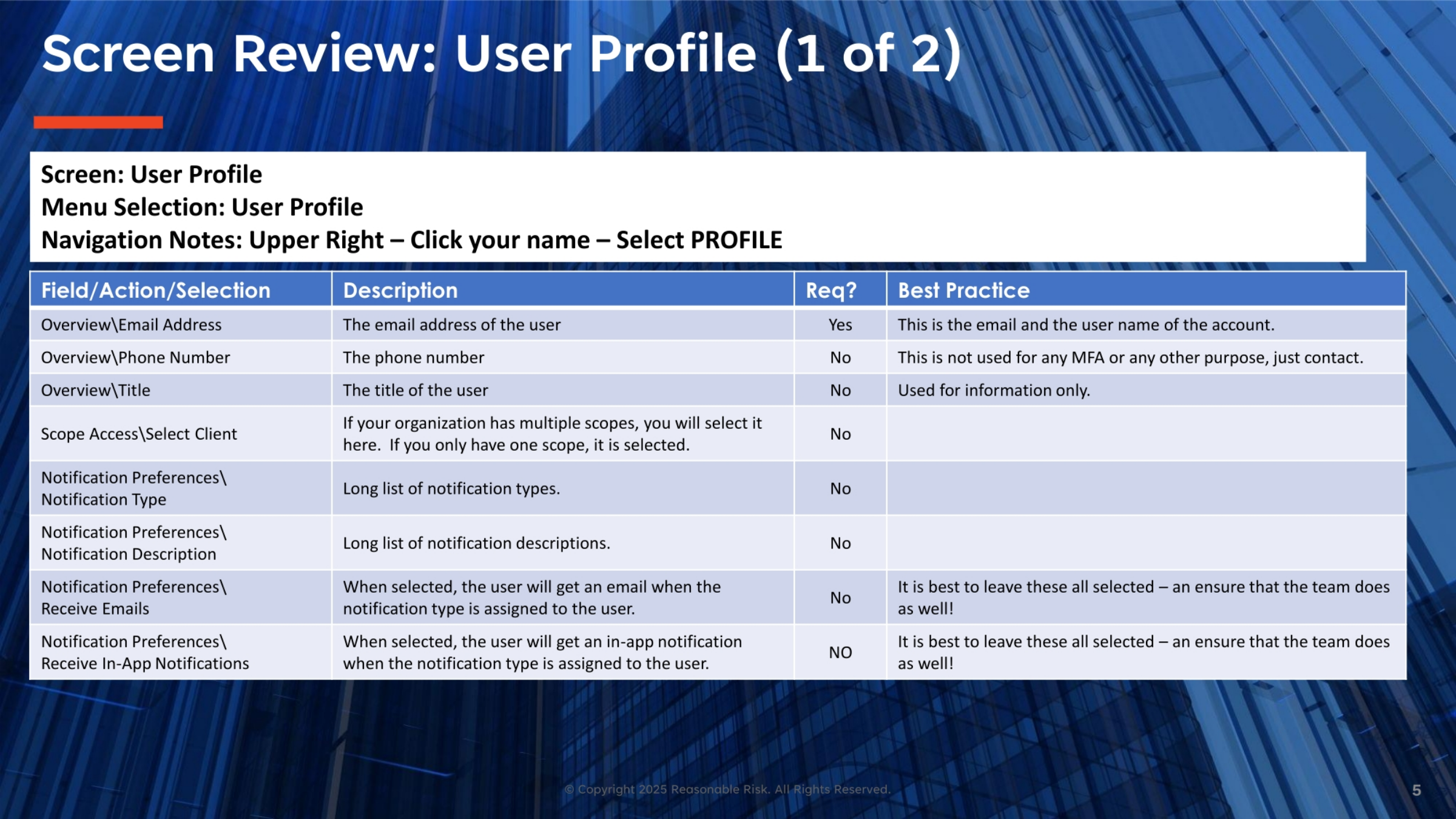
Let's review the user profile screen, starting with the overview section. Your email address is a required field, serving as your account username. While you can enter a phone number and title, these are for informational purposes only and not used for multi-factor authentication. The scope access section allows you to select your default client if your organization manages multiple scopes. For notification preferences, you'll find a comprehensive list of notification types and descriptions, where you can choose to receive emails or in-app notifications. It's generally best practice to keep all these options selected to ensure your team remains fully informed.
6. User Profile Screen Review (Part 2)
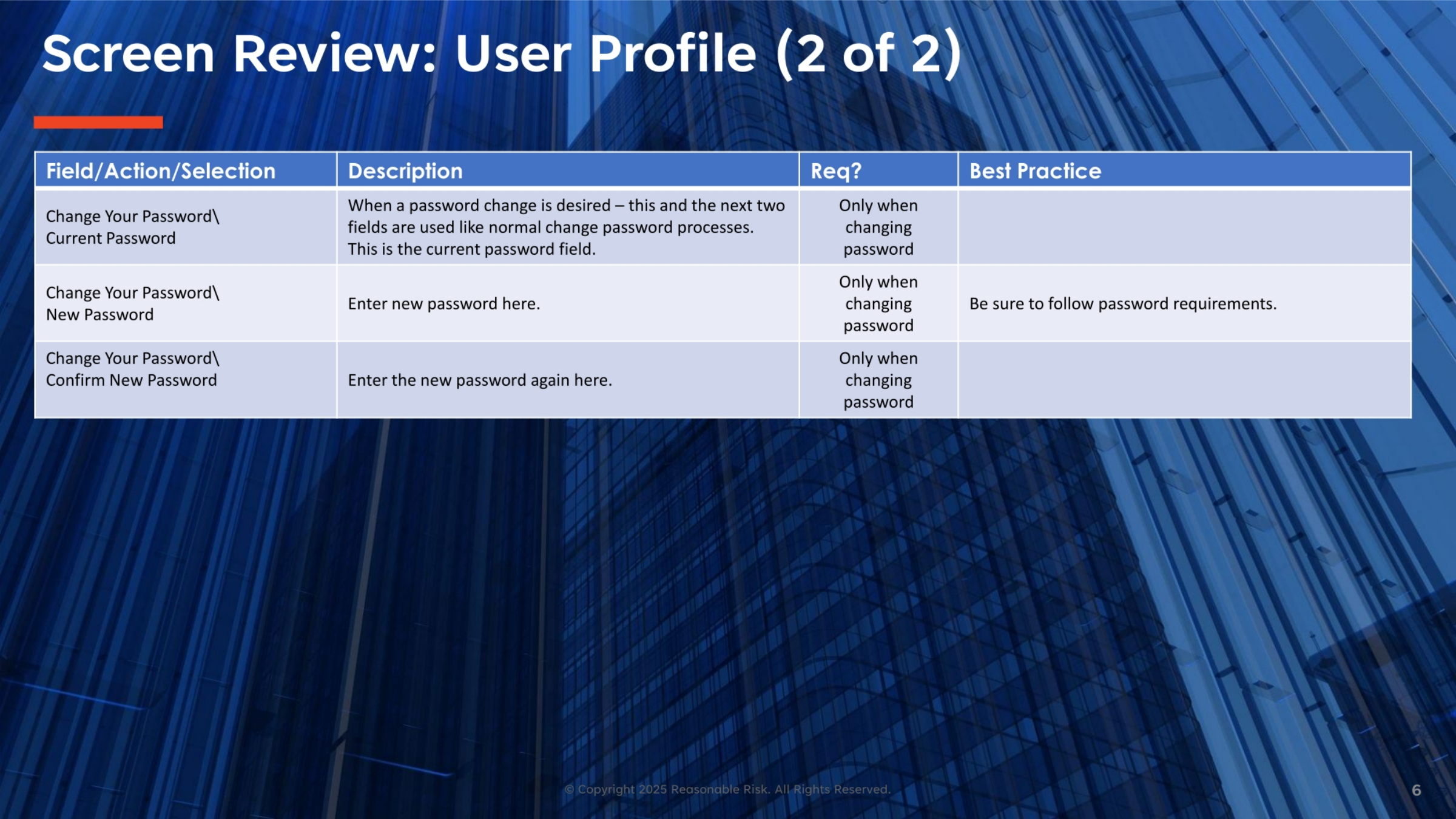
Continuing our review of the user profile, the second part focuses on password management. To change your password, you'll need to enter your current password, followed by your new password, and then confirm the new password. These fields are only required when you intend to update your password. When setting a new password, always ensure it adheres to the specified password requirements for security. This process is straightforward and designed to keep your account secure.
7. User Profile Screen Visual (Part 1)
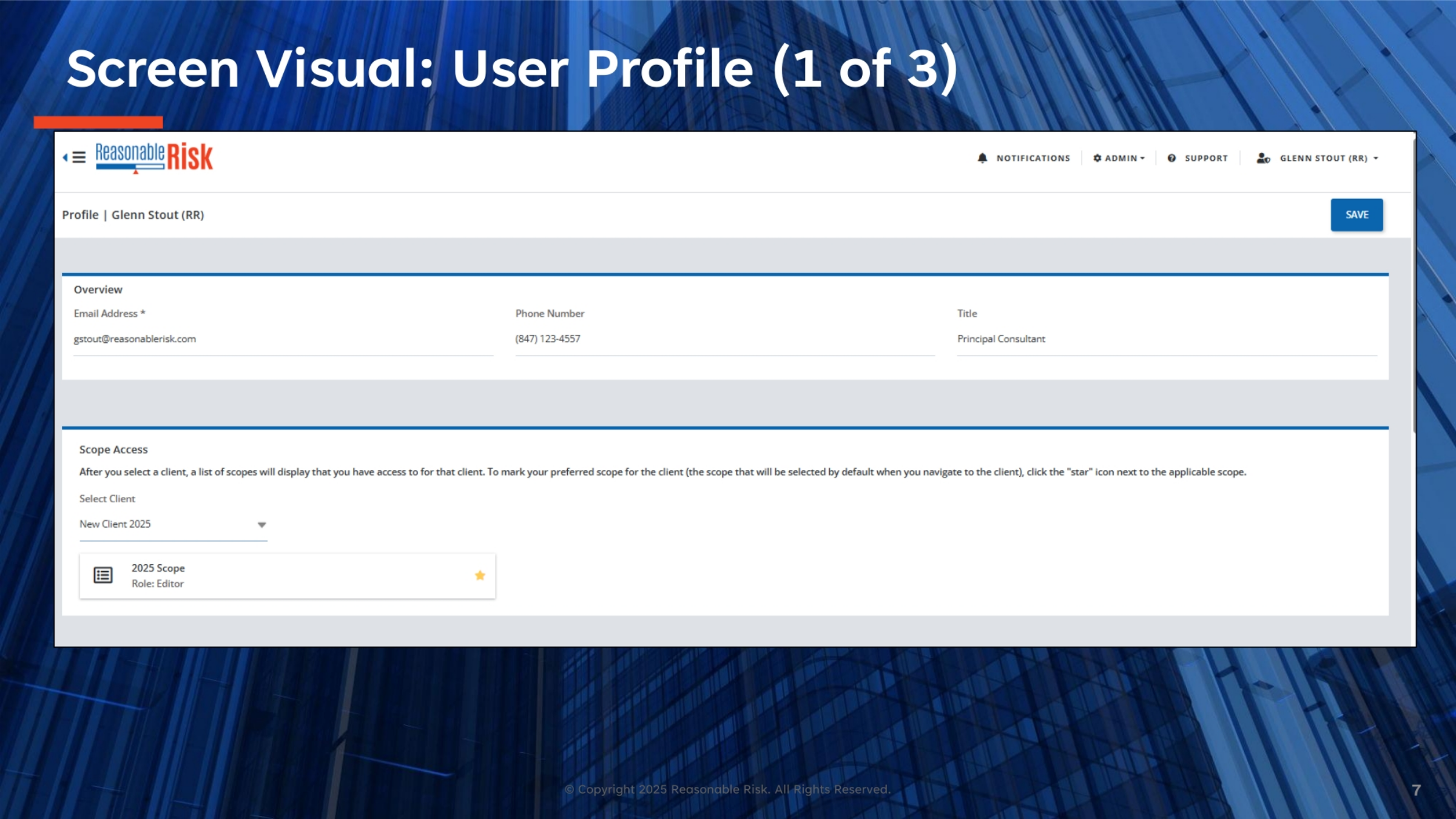
Here we see the first visual representation of the user profile screen. You'll notice the 'Overview' section at the top, displaying your email address, phone number, and title. Below that is the 'Scope Access' section. This area allows you to select your client and view the scopes you have access to. You can also mark a preferred scope with a star icon, which will then be selected by default when you log in, enhancing your user experience.
8. User Profile Screen Visual (Part 2)
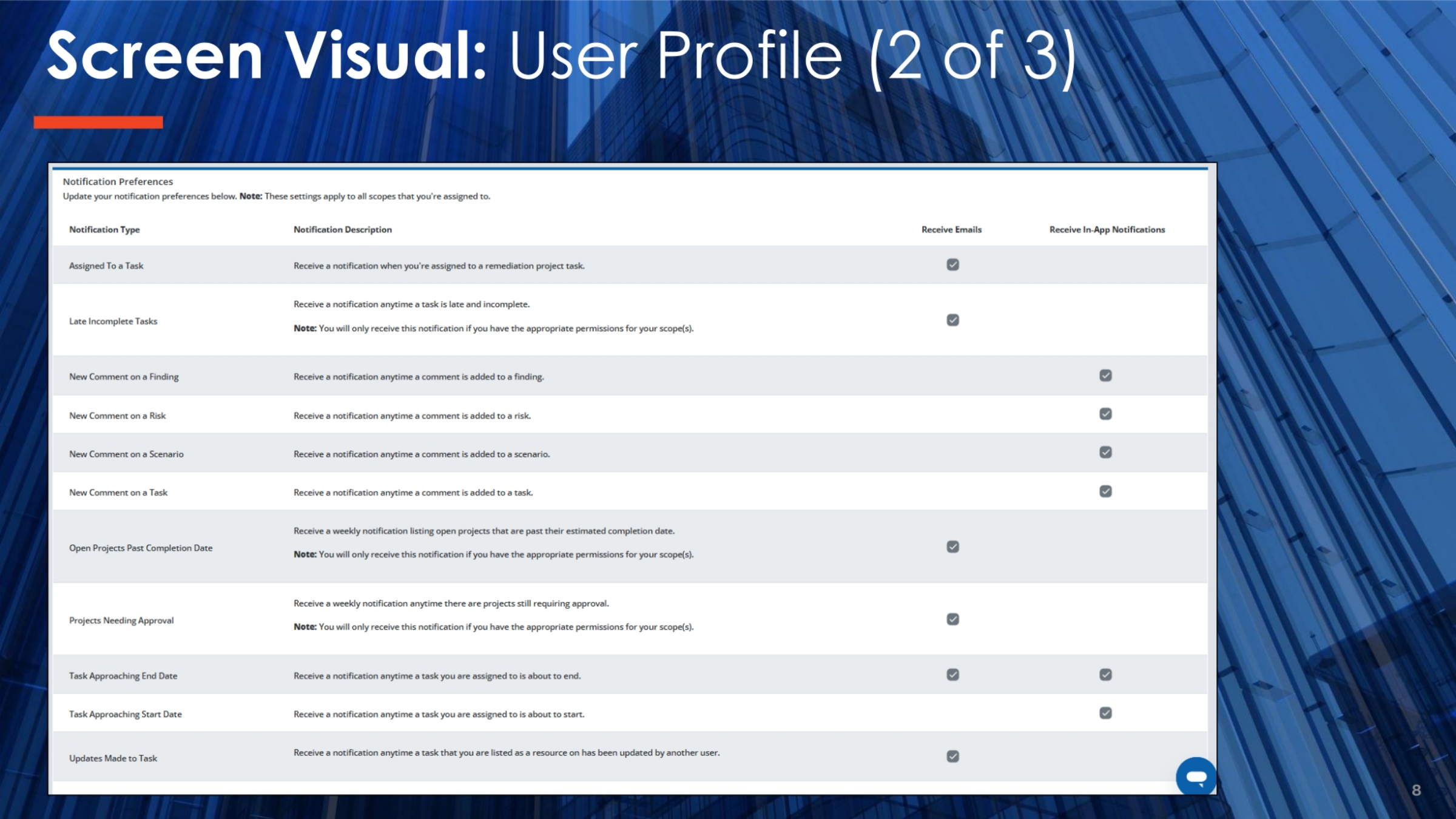
This visual highlights the 'Notification Preferences' section of your user profile. You can see a comprehensive list of notification types, such as 'Assigned To a Task' or 'Late Incomplete Tasks,' along with their descriptions. For each type, you have the option to select whether you wish to 'Receive Emails' and 'Receive In-App Notifications.' These settings apply across all scopes you are assigned to, allowing for consistent notification management. Note that some notifications are permission-dependent.
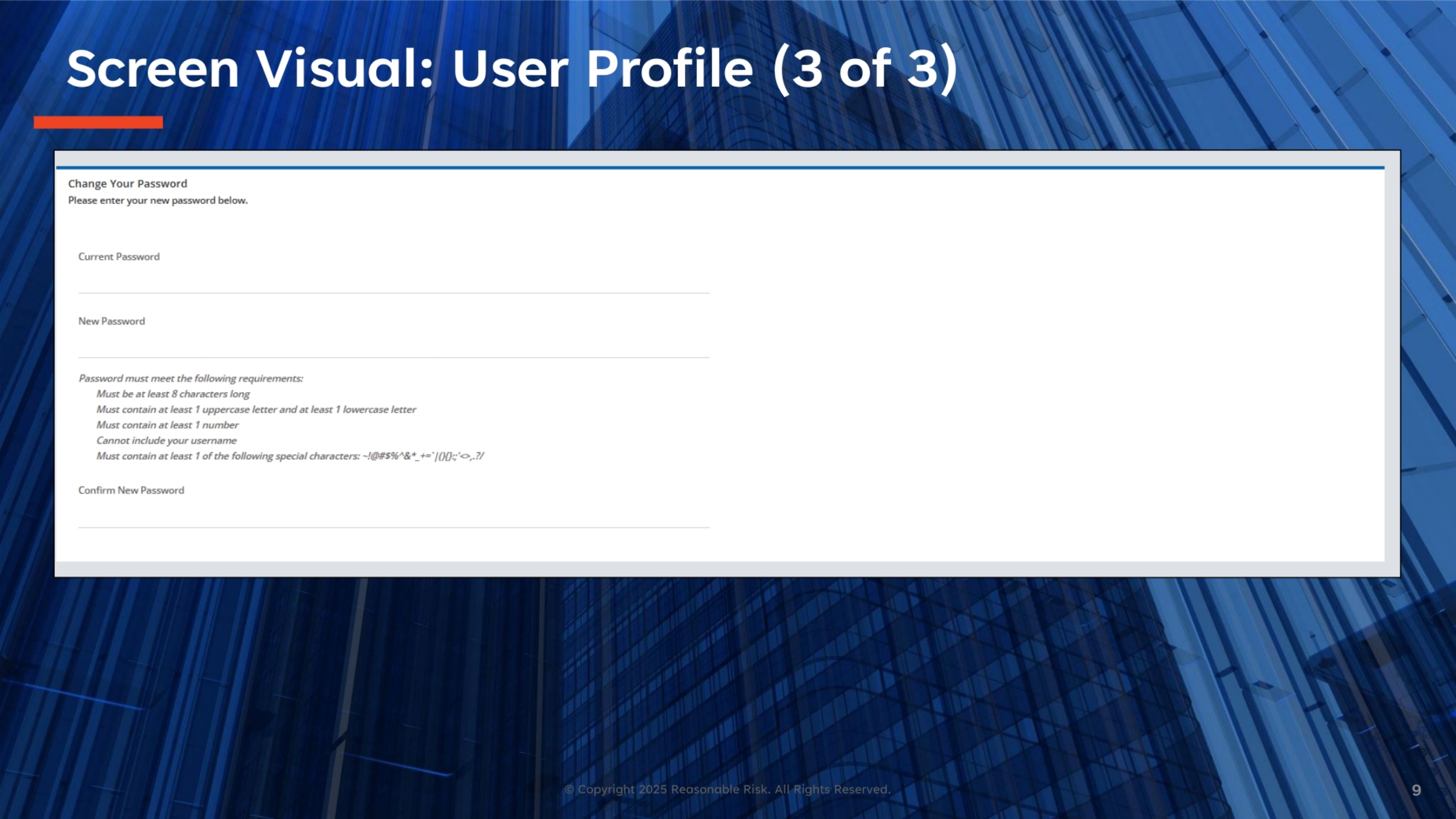
9. User Profile Screen Visual (Part 3)
The final visual of the user profile screen focuses on the 'Change Your Password' section. Here, you'll find fields to enter your current password, new password, and confirm your new password. Below these fields, the system clearly outlines the password requirements, including minimum length, character types, and forbidden elements like your username. Adhering to these guidelines ensures the strength and security of your account password.
10. Notifications Objectives
Now, let's explore the objectives for understanding notifications.
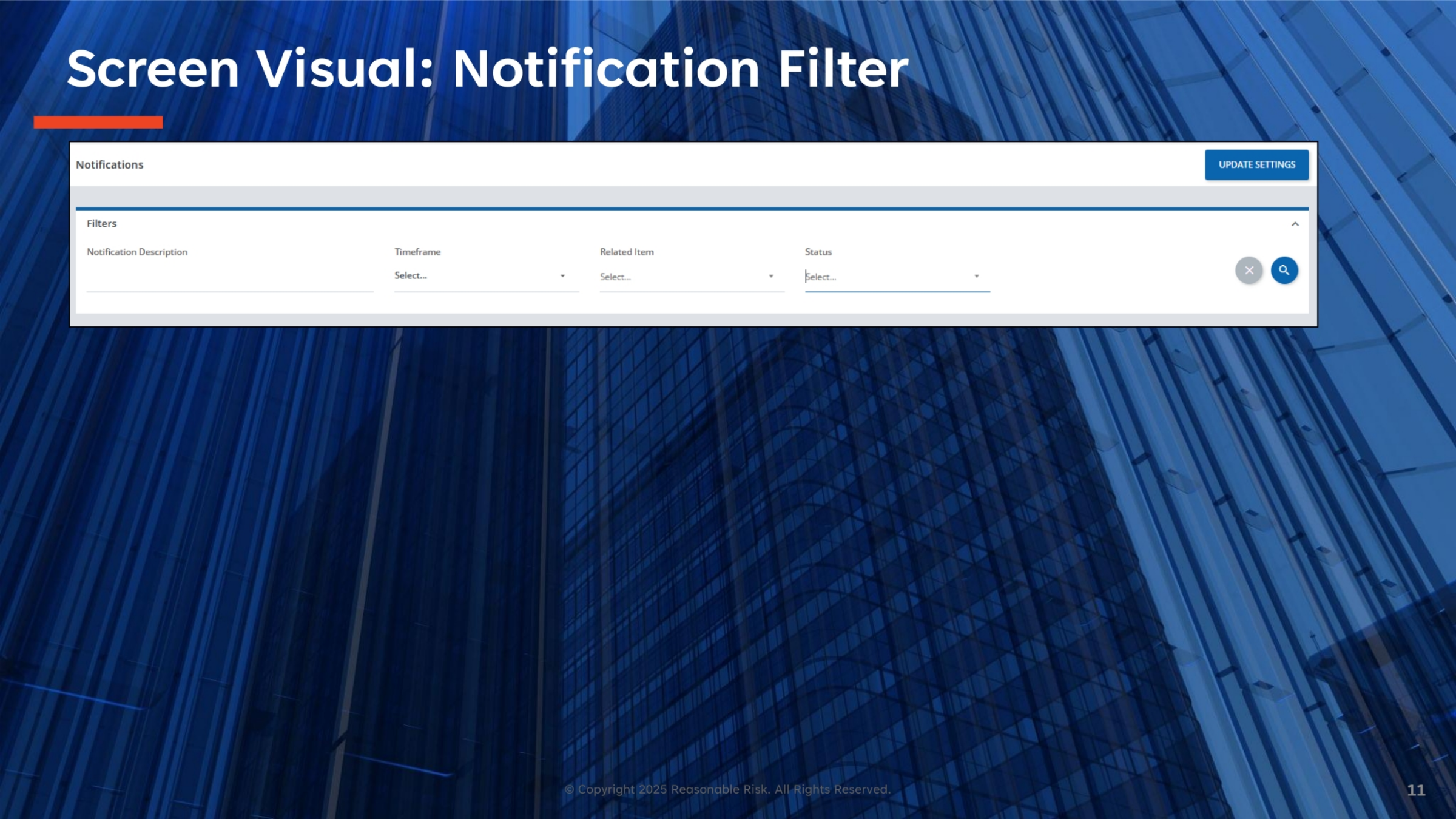
11. Notification Filter Screen Visual
This screen visual demonstrates the notification filter functionality. It allows you to efficiently manage and locate specific notifications. You can filter notifications by description, timeframe, related item, and status. This robust filtering capability helps you quickly narrow down your notification list to find the most relevant information, ensuring you stay organized and responsive to important updates within the system.
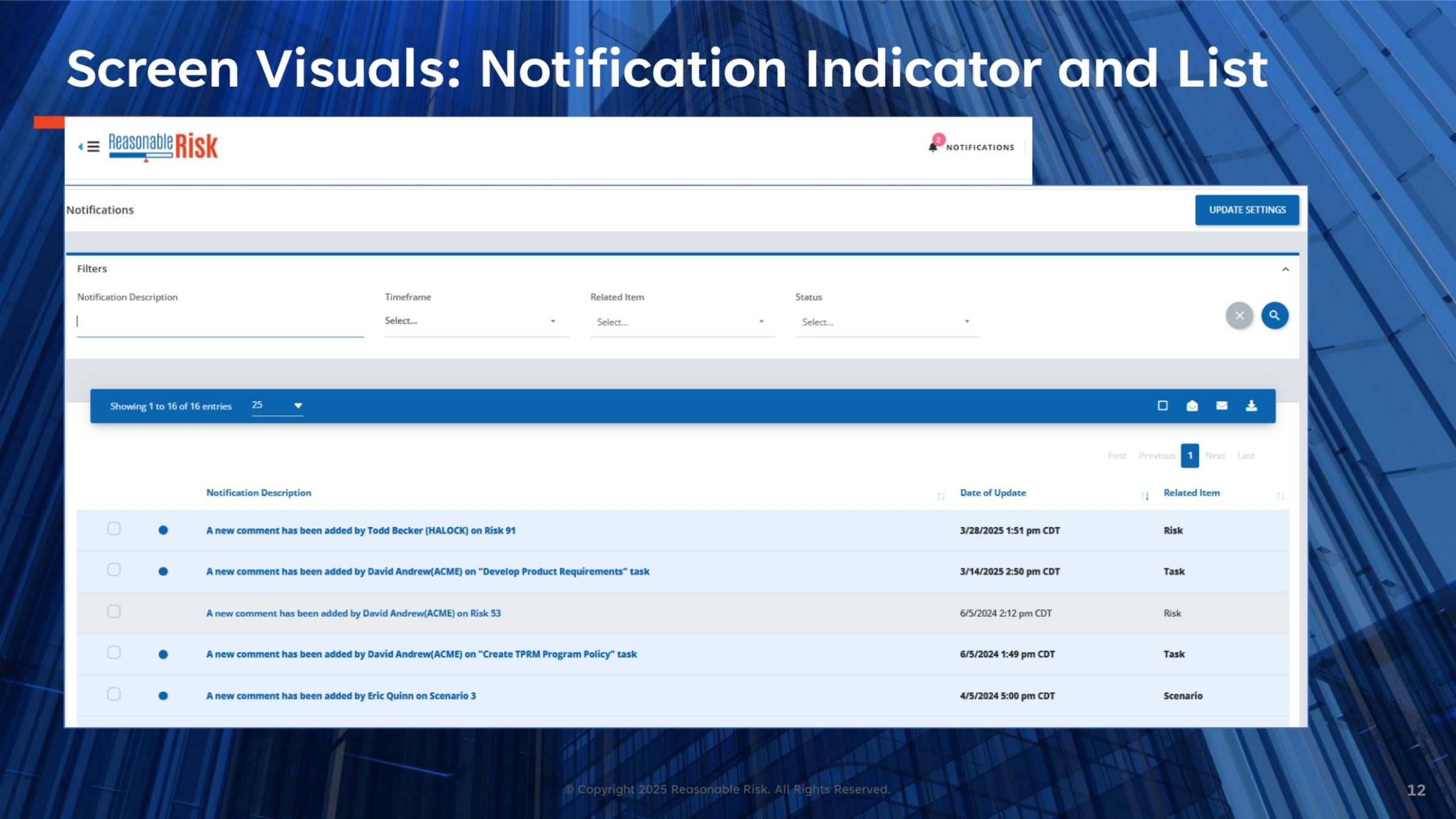
12. Notification Indicator and List Visuals
Finally, we see the notification indicator and the detailed list of notifications. The indicator provides a quick overview of pending alerts. The list itself displays each notification with its description, the date of update, and the related item, such as a risk or task. This comprehensive view allows you to track all relevant activities and comments, ensuring you are always aware of changes and updates that impact your work within the Reasonable Risk platform.
In summary, this training covered how to review and update your user profile, including managing personal details, scope access, and password settings. We also explored the comprehensive notification system, demonstrating how to customize preferences and effectively filter and manage your alerts to stay informed and productive.
Comments
0 comments
Please sign in to leave a comment.