This training module provides essential guidance on navigating the Reasonable Risk platform. We will focus specifically on the main menu, understanding its structure and the functionalities it offers for effective risk management.
1. Focus Area: Main Menu
Welcome to the Reasonable Risk training module. This session is dedicated to exploring the platform's main menu, a central hub for all your risk management activities. We will guide you through its structure and functionalities, ensuring you can navigate the system efficiently and effectively.
2. Main Menu Objectives
Our primary objective for this module is to thoroughly review and understand the main menu and its various options. By the end of this training, you will be familiar with how to access different areas of the platform, manage settings, and utilize key features to support your risk remediation efforts.
3. Screen Narrative: Main Menu
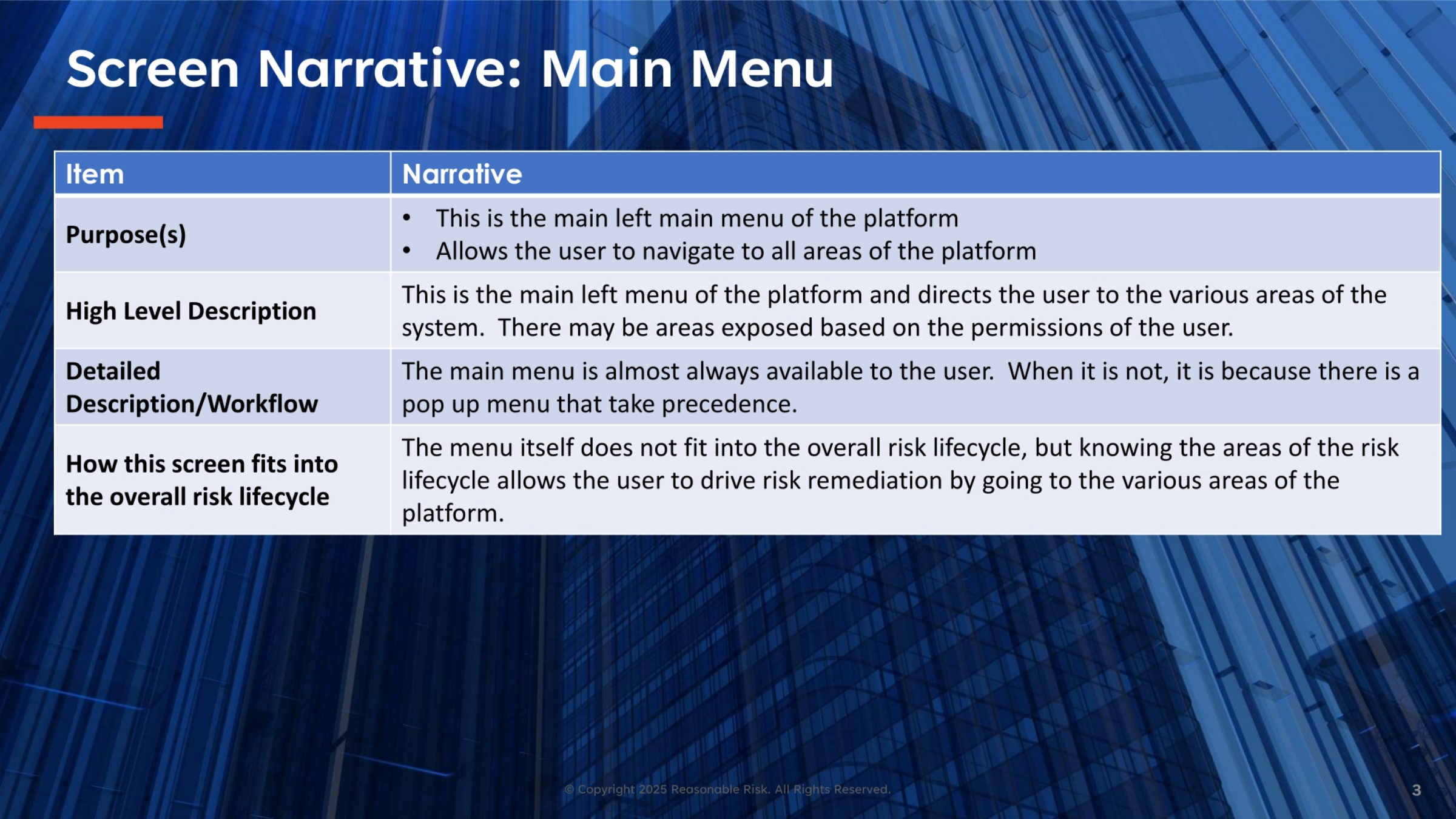
The main menu serves as the primary navigation interface, located on the left side of the platform. It directs users to all areas of the system, with specific sections exposed based on individual user permissions. This menu is almost always available, only being superseded by pop-up menus that take temporary precedence. While the menu itself doesn't directly fit into the risk lifecycle, understanding its areas is crucial for driving risk remediation by providing access to various platform functionalities.
4. Screen Visual: Main Menu
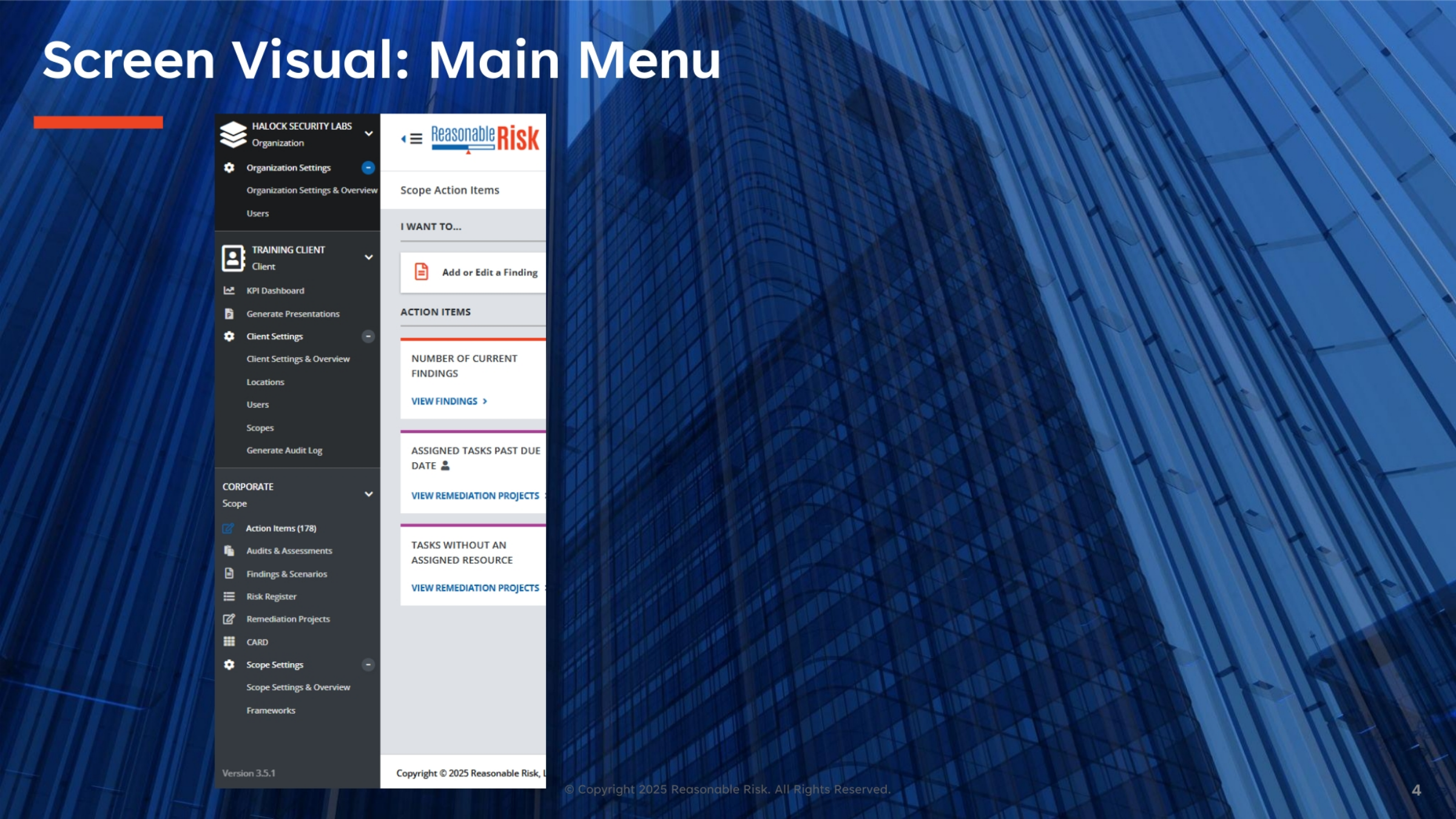
Visually, the main menu is organized into distinct sections, such as 'HALOCK SECURITY LABS Organization,' 'TRAINING CLIENT Client,' and 'CORPORATE Scope.' You'll notice an 'I WANT TO...' section, which provides quick access to actions like adding or editing findings. Below that, the 'ACTION ITEMS' section displays the number of current findings and assigned tasks, offering a snapshot of immediate priorities and allowing you to view findings or remediation projects directly.
5. Screen Review: Main Menu Navigation (Part 1)
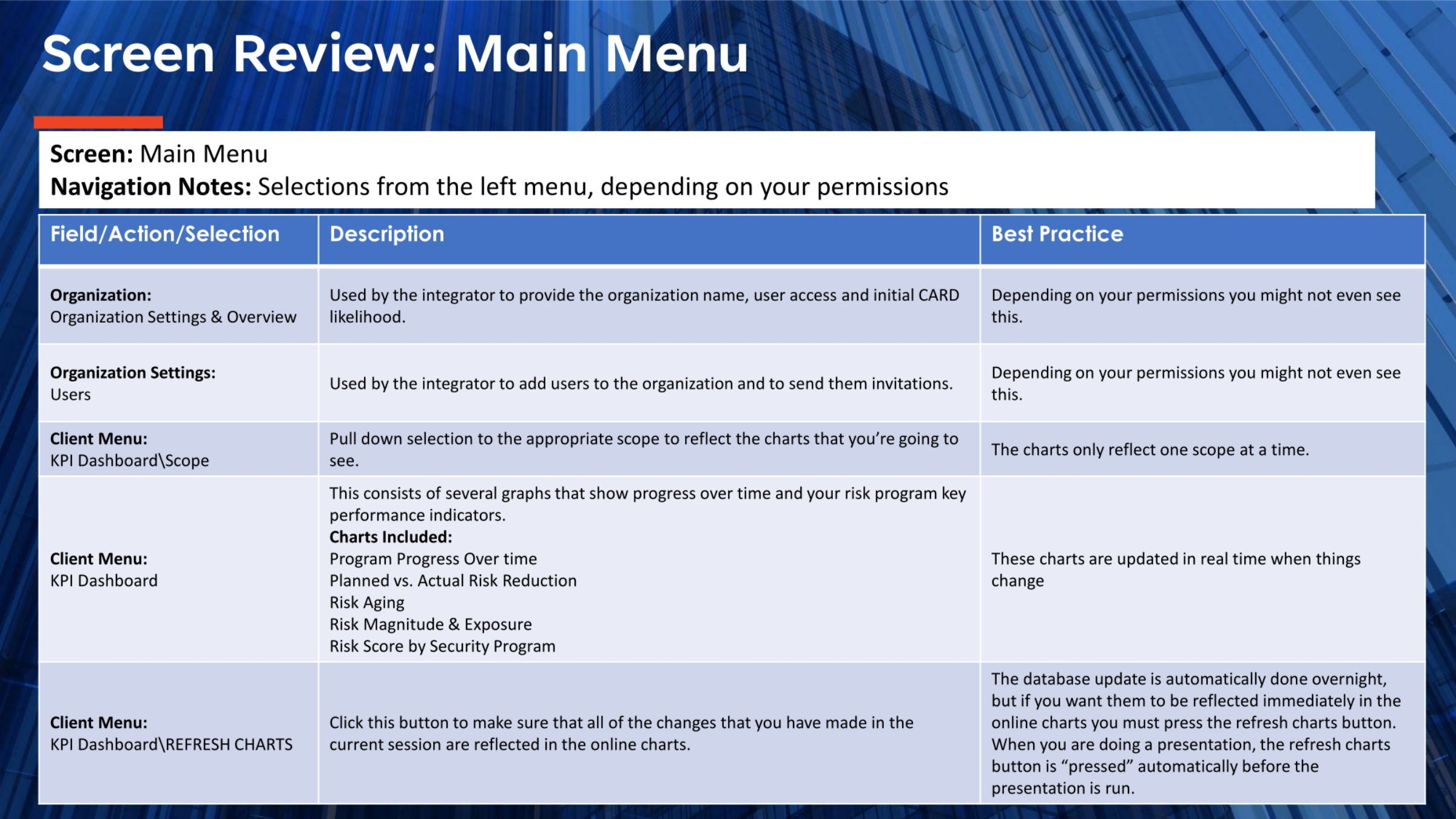
Let's review some key navigation selections. Under 'Organization,' 'Organization Settings & Overview' and 'Users' are typically used by integrators to set up the organization name, user access, and initial CARD likelihood. Similarly, 'Organization Settings: Users' allows integrators to add users and send invitations. Within the 'Client Menu,' the 'KPI Dashboard' provides various graphs showing progress over time and key risk program performance indicators. These charts reflect one scope at a time and are updated in real-time, though a 'Refresh Charts' button is available for immediate updates during a session.
6. Screen Review: Main Menu Navigation (Part 2)
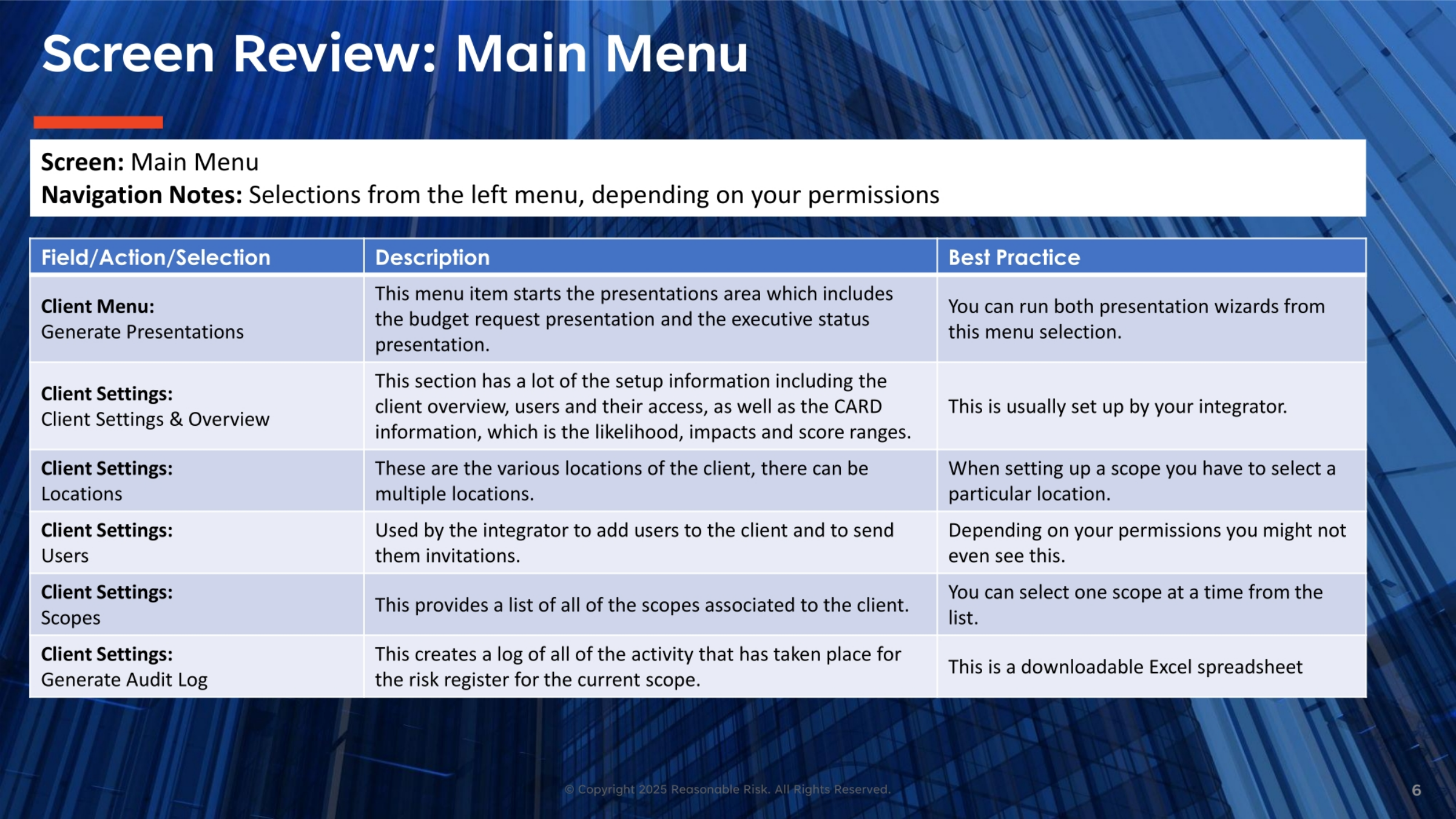
Continuing our review, the 'Client Menu: Generate Presentations' option allows you to run both budget request and executive status presentation wizards. The 'Client Settings' section contains crucial setup information, including client overview, user access, and CARD likelihood, impacts, and score ranges. 'Locations' lists the various client locations, while 'Users' enables integrators to add client users and send invitations. 'Scopes' provides a list of all associated client scopes, and 'Generate Audit Log' creates a downloadable Excel spreadsheet of all activity for the current scope's risk register.
7. Screen Review: Main Menu Navigation (Part 3)
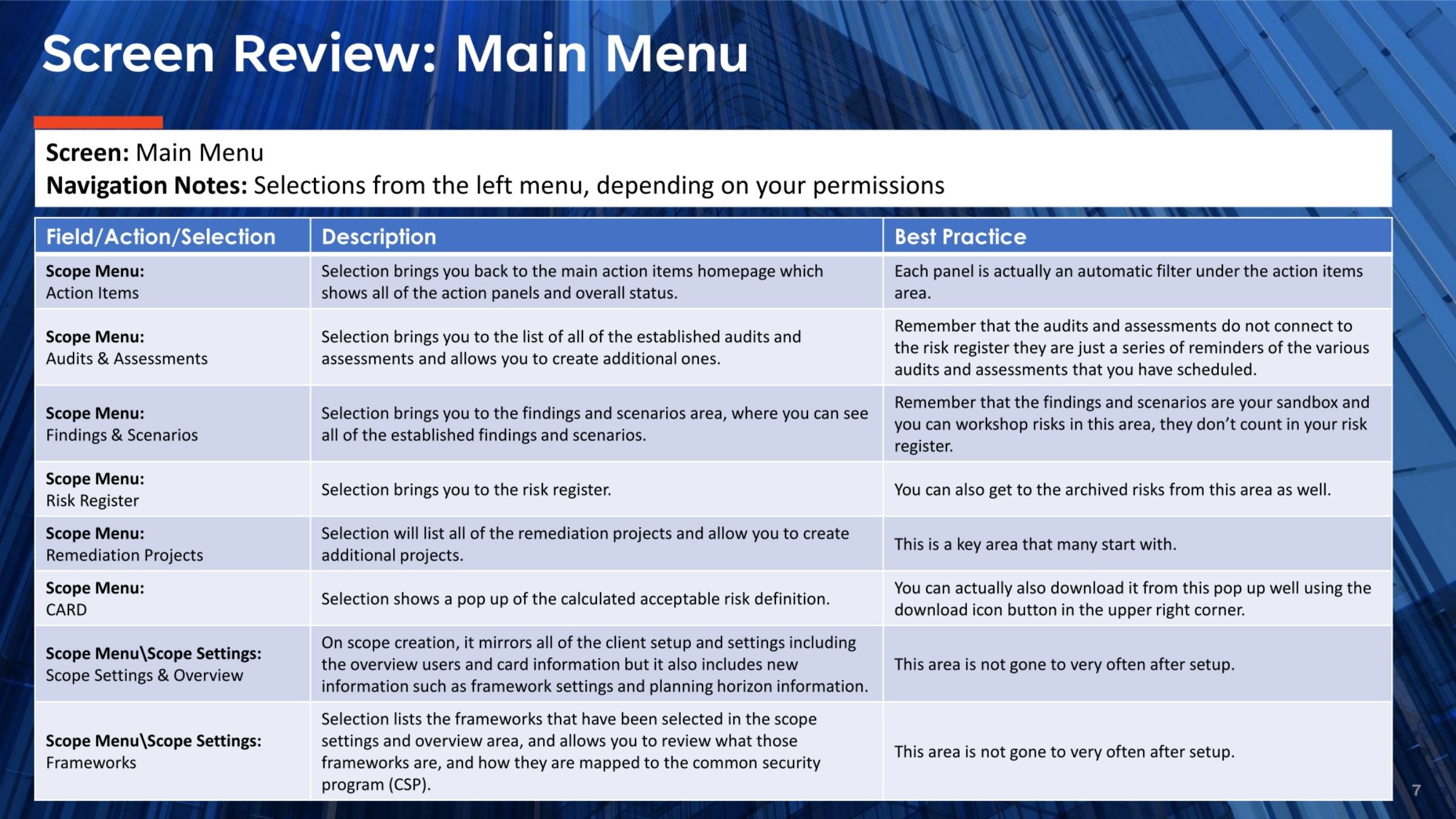
Finally, let's look at the 'Scope Menu' options. 'Action Items' brings you to the main homepage, displaying action panels and overall status. 'Audits & Assessments' lists established audits and allows for new ones, serving as reminders rather than direct risk register connections. 'Findings & Scenarios' is your sandbox for workshopping risks, separate from the risk register. The 'Risk Register' itself manages risks, including archived ones. 'Remediation Projects' lists and allows creation of additional projects. 'CARD' displays the calculated acceptable risk definition, which can be downloaded. Lastly, 'Scope Settings & Overview' and 'Frameworks' are used for initial setup, mirroring client settings and detailing framework mappings to the common security program.
This module provided a comprehensive overview of the Reasonable Risk platform's main menu. We explored its navigation, key sections, and how it facilitates access to various features, from user management and KPI dashboards to risk registers and remediation projects, ensuring efficient platform utilization.
Comments
0 comments
Please sign in to leave a comment.