This training module provides essential information on managing audits and assessments within the Reasonable Risk platform. We will explore the workflow for creating, tracking, and completing these critical security and compliance activities.
1. Focus Area: Audits and Assessments
Welcome to the Reasonable Risk training module focused on Audits and Assessments. This session will guide you through the essential processes and functionalities within the platform to effectively manage your organization's security and compliance reviews.
2. Agenda: Audits and Assessments
Today's agenda focuses entirely on Audits and Assessments.
3. Reasonable Risk Lifecycle Modules
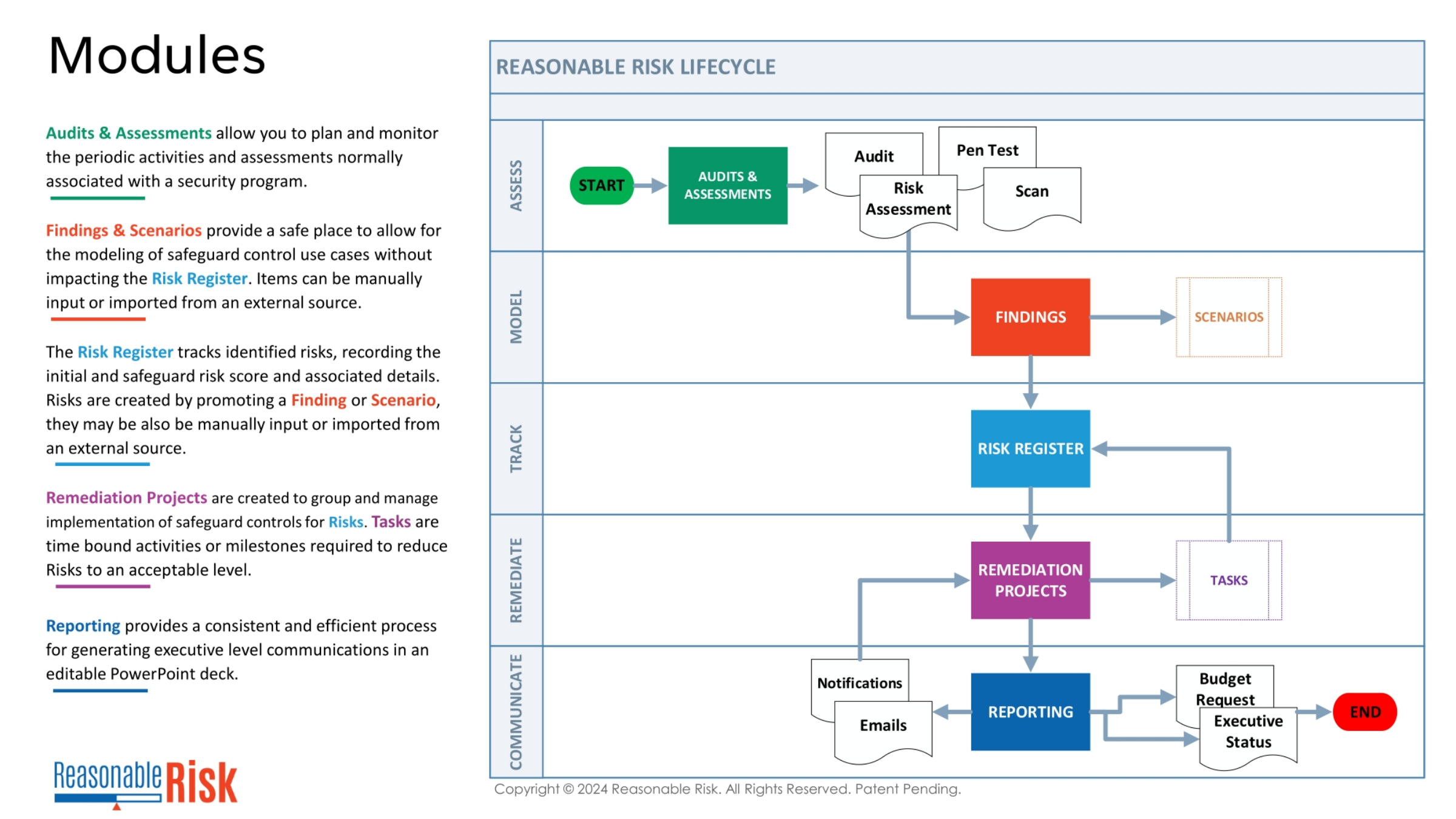
The Reasonable Risk lifecycle encompasses several key modules, starting with Audits & Assessments, which help plan and monitor security program activities. Findings & Scenarios allow for modeling safeguard control use cases without impacting the Risk Register. The Risk Register tracks identified risks and their associated details. Remediation Projects group and manage the implementation of controls to reduce risks, while Reporting provides executive-level communications. Each module plays a crucial role in a comprehensive risk management strategy.
4. Audits & Assessments in the Reasonable Risk Lifecycle
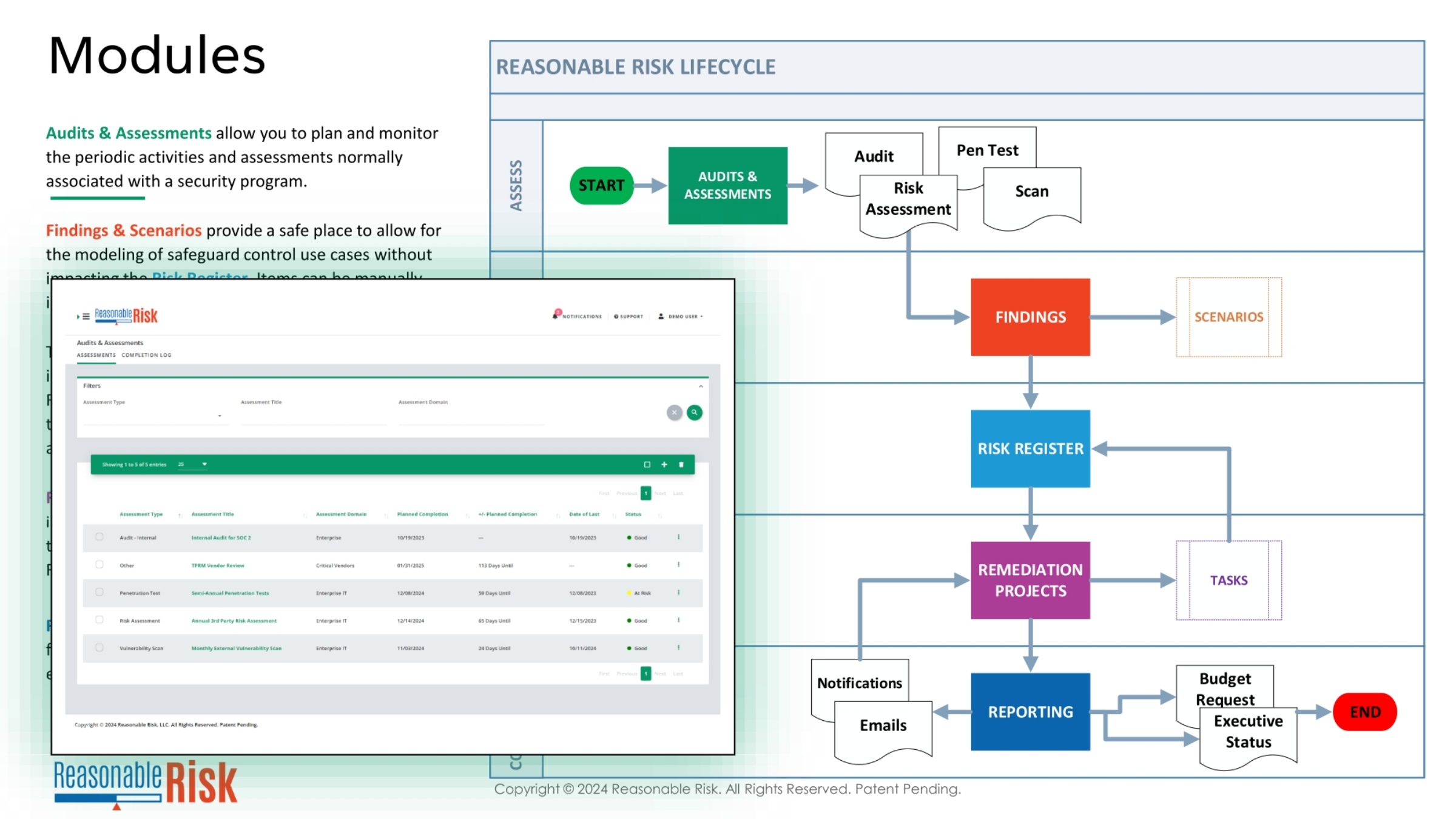
Audits and Assessments are foundational to the Reasonable Risk lifecycle, enabling organizations to plan and monitor periodic security activities. This visual demonstrates how these initial assessments, including audits, penetration tests, and risk assessments, feed into identifying findings and scenarios. These then populate the Risk Register, driving remediation projects and ultimately informing executive reporting. The system provides a clear, structured approach to managing security and compliance efforts.
5. Audits and Assessments Objectives
Our objectives for this module are clear: we will review and understand the core concept of audits and assessments within the Reasonable Risk platform. We will then learn the practical steps involved in creating a new audit or assessment record. Finally, we will cover how to effectively complete and manage an audit or assessment record through its lifecycle, ensuring accurate tracking and reporting.
6. Audits & Assessments: Comprehensive Overview
Reasonable Risk empowers teams to efficiently track various audits, assessments, and penetration tests, whether they are one-time events or recurring. The platform helps schedule these reviews and integrates them into the Executive Status report, ensuring they receive appropriate planning and attention. For recurring events, the system maintains a history of when each audit or assessment took place, providing valuable data for both security and compliance purposes.
7. Audits & Assessments Workflow: Creating Records
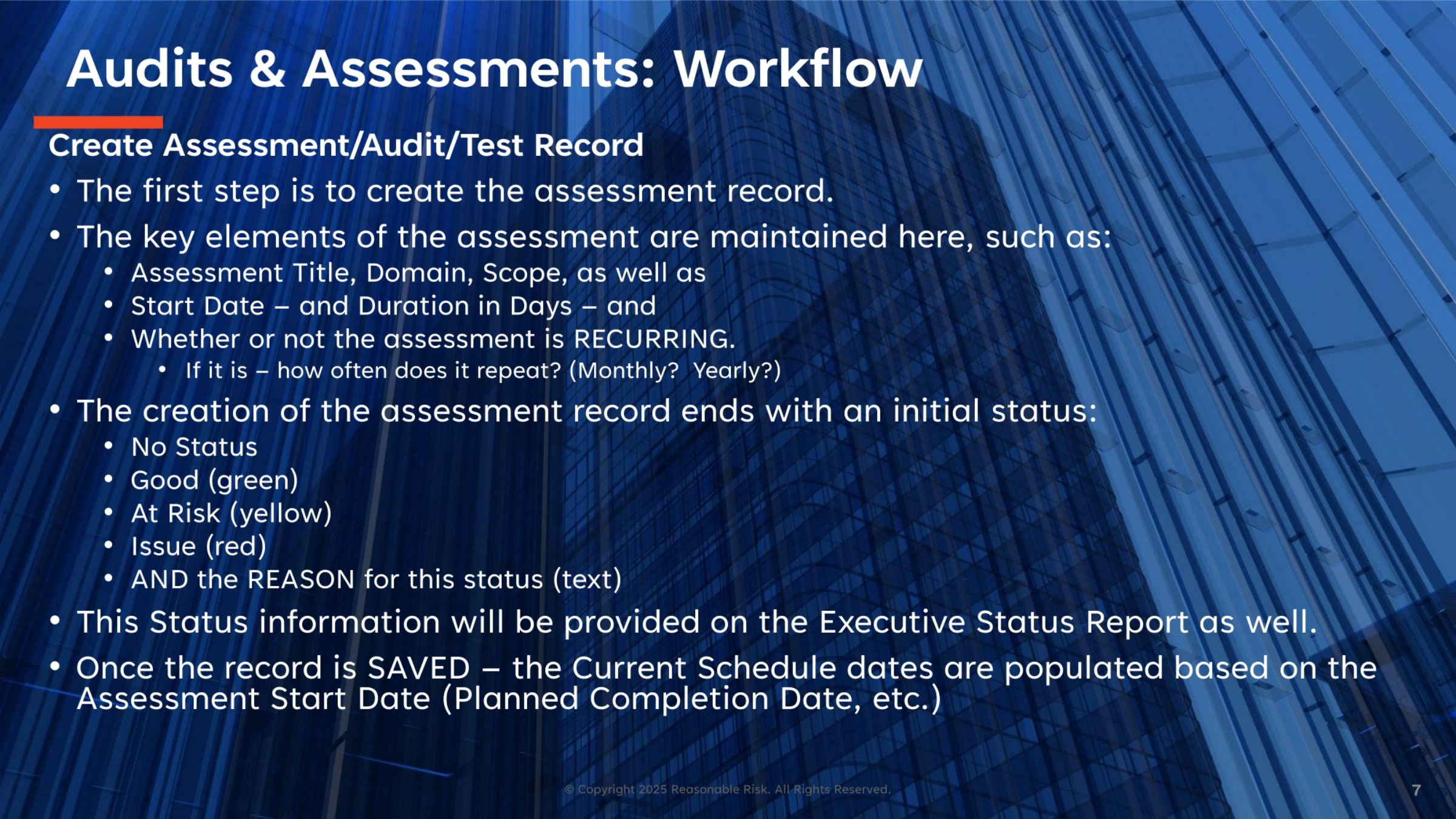
The initial step in the Audits & Assessments workflow is to create a new assessment record. Key elements to define include the assessment title, domain, scope, and whether it is a recurring event. If recurring, specify the frequency, such as monthly or yearly. You'll also set a start date and duration in days. The record concludes with an initial status, which can be 'No Status,' 'Good,' 'At Risk,' or 'Issue,' along with a reason. This status information is crucial for the Executive Status Report, and saving the record populates current schedule dates.
8. Audits & Assessments Workflow: Recurring Assessments
For recurring assessments, once an iteration is completed, a 'Completion Log' entry is created. This log records the date the assessment was finished, building a comprehensive history of how often the assessment, audit, or test has been performed. This historical data is invaluable for demonstrating compliance and tracking the ongoing effectiveness of your security program over time.
9. Example: List of Assessment Records
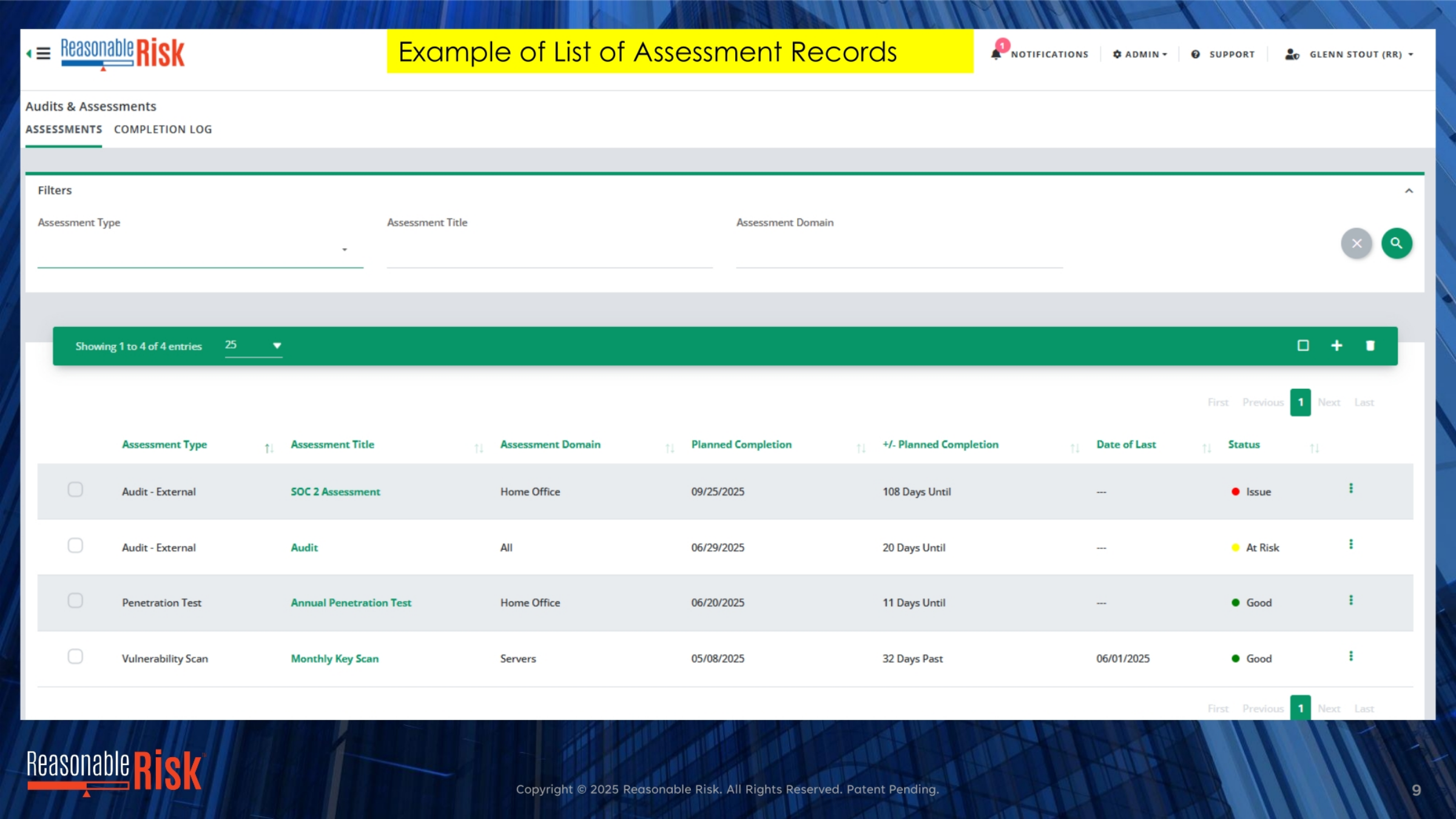
Here we see an example of the list of assessment records within the Reasonable Risk platform. This view provides a clear overview of various assessments, including their type, title, domain, planned completion dates, and current status. Notice how different statuses like 'Issue,' 'At Risk,' and 'Good' are visually indicated, allowing for quick identification of items requiring attention. This centralized list helps teams manage their assessment portfolio effectively.
10. Example: List of Completion Logs
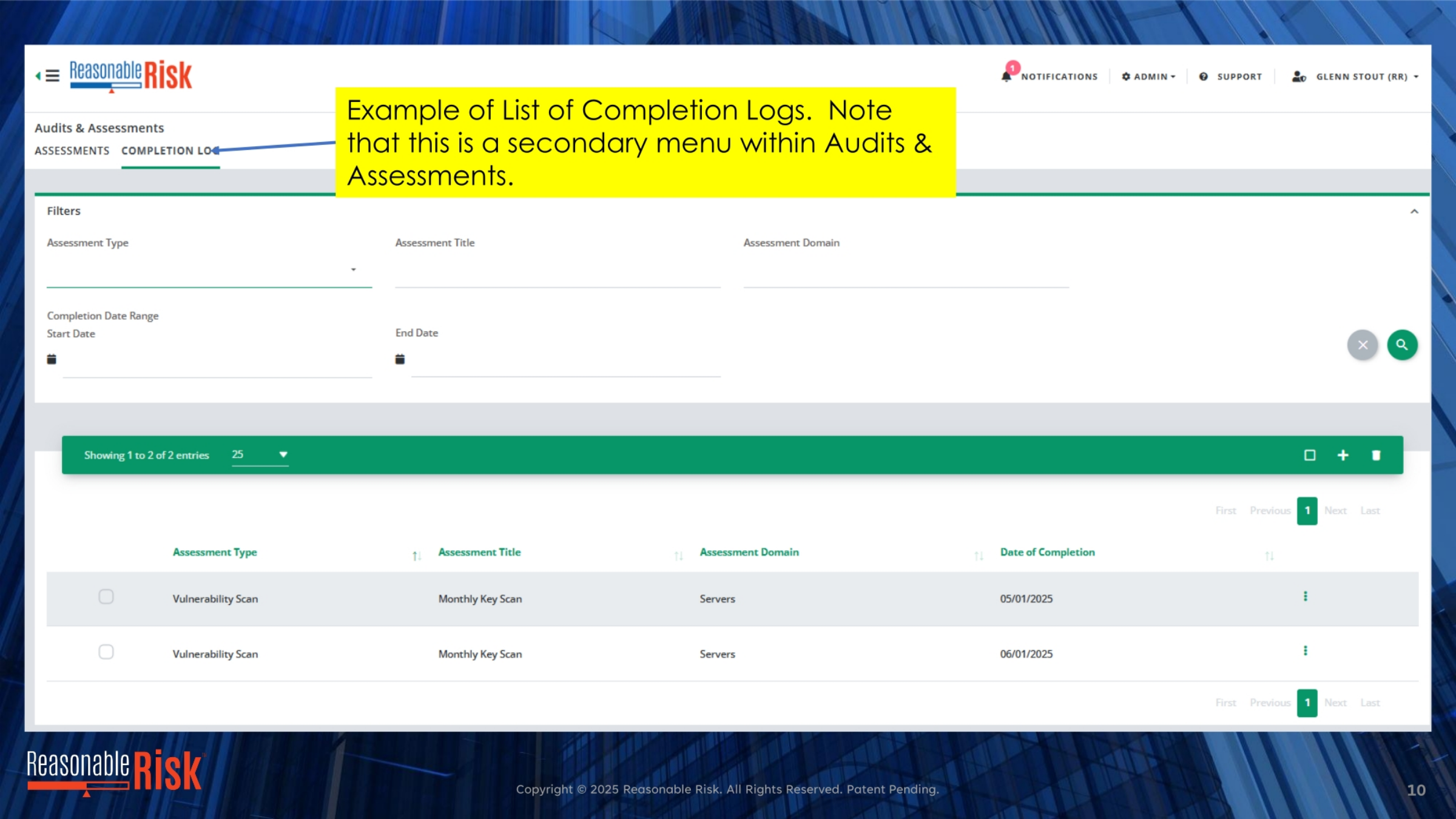
This screen displays an example of the Completion Logs, which serves as a secondary menu within the Audits & Assessments section. It provides a historical record of when specific assessments were completed. For instance, we can see entries for 'Monthly Key Scan' with their respective completion dates. This log is essential for tracking the frequency and history of recurring assessments, supporting compliance and demonstrating ongoing program activity.
11. Audits & Assessments: Executive Status Deck
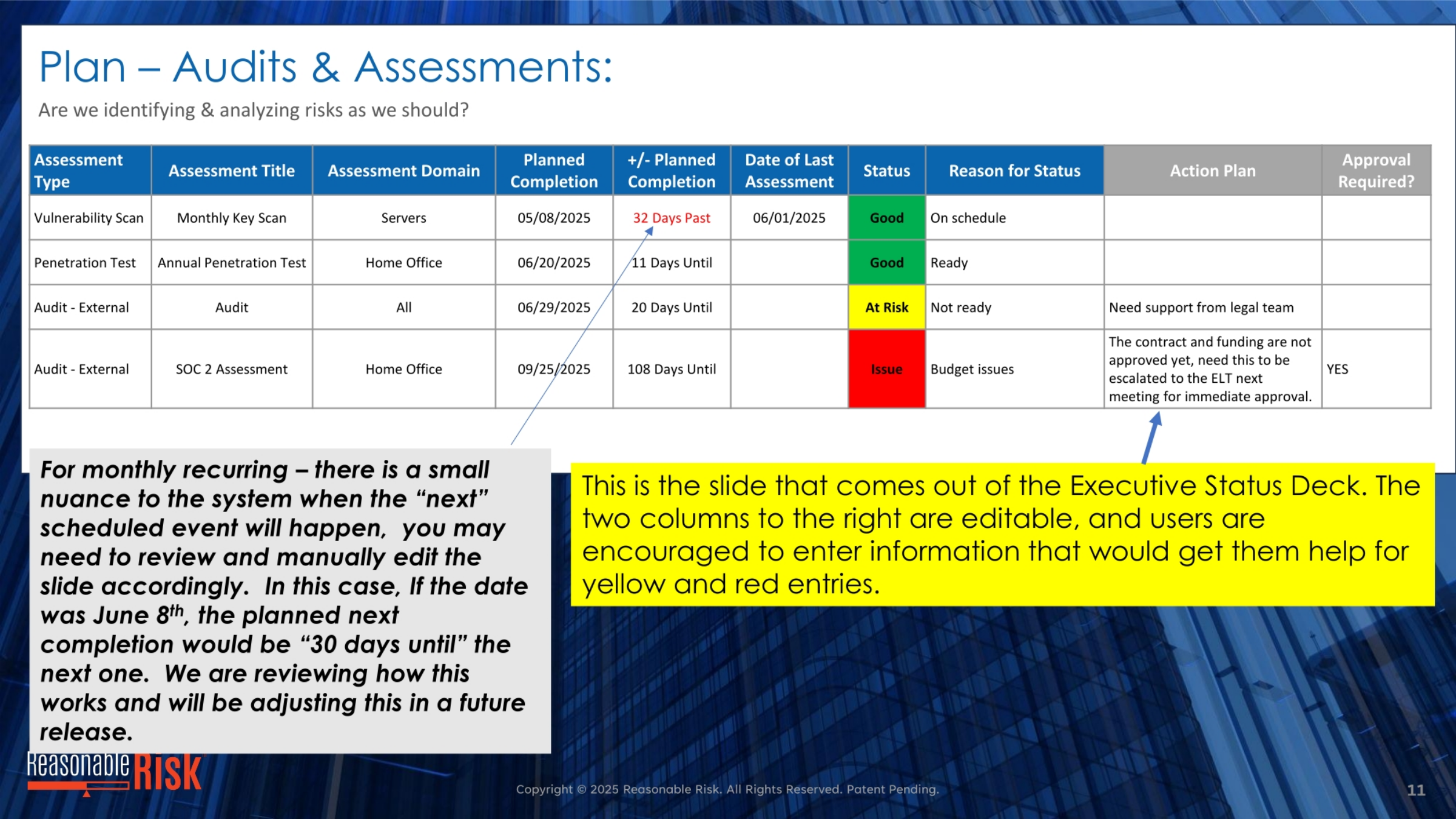
This is a crucial slide from the Executive Status Deck, designed to help identify and analyze risks effectively. It presents a summary of assessments, their status, and reasons for that status. The two columns on the right, 'Action Plan' and 'Approval Required,' are editable, encouraging users to input information that can help resolve 'At Risk' or 'Issue' entries. For monthly recurring events, there's a nuance where the 'next' scheduled event may require manual adjustment, a feature we are continuously refining for future releases.
12. Screen Narrative: Audits & Assessments
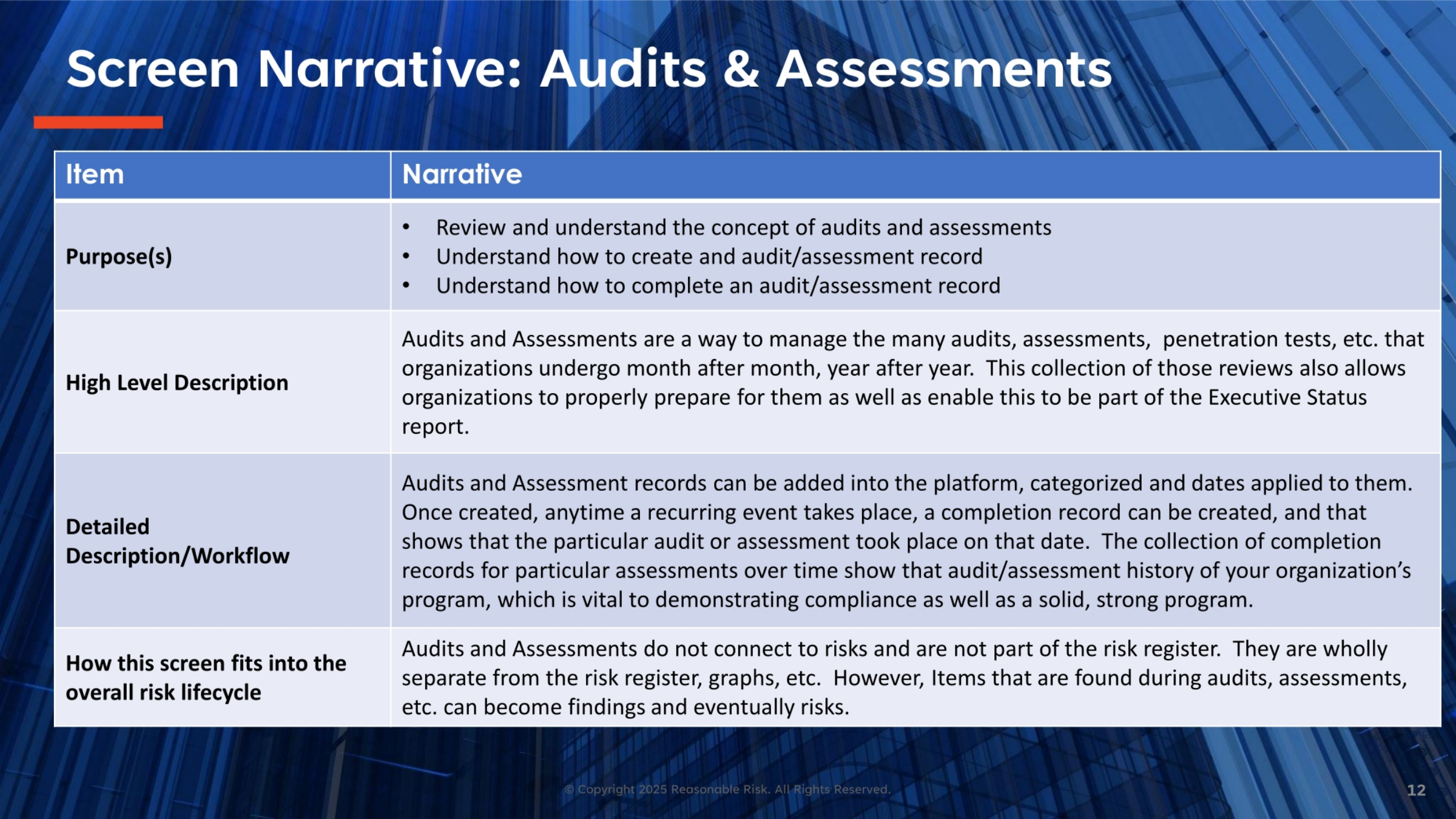
The Audits and Assessments screen is designed to manage the continuous cycle of audits, assessments, and penetration tests that organizations undertake. It allows for proper preparation and integrates these reviews into the Executive Status report. Records can be added, categorized, and dated, with completion records tracking recurring events. This builds a history vital for compliance and demonstrating a strong program. While separate from the risk register, findings from these assessments can evolve into formal findings and risks.
13. Screen Review: Audits & Assessments Fields (Part 1)
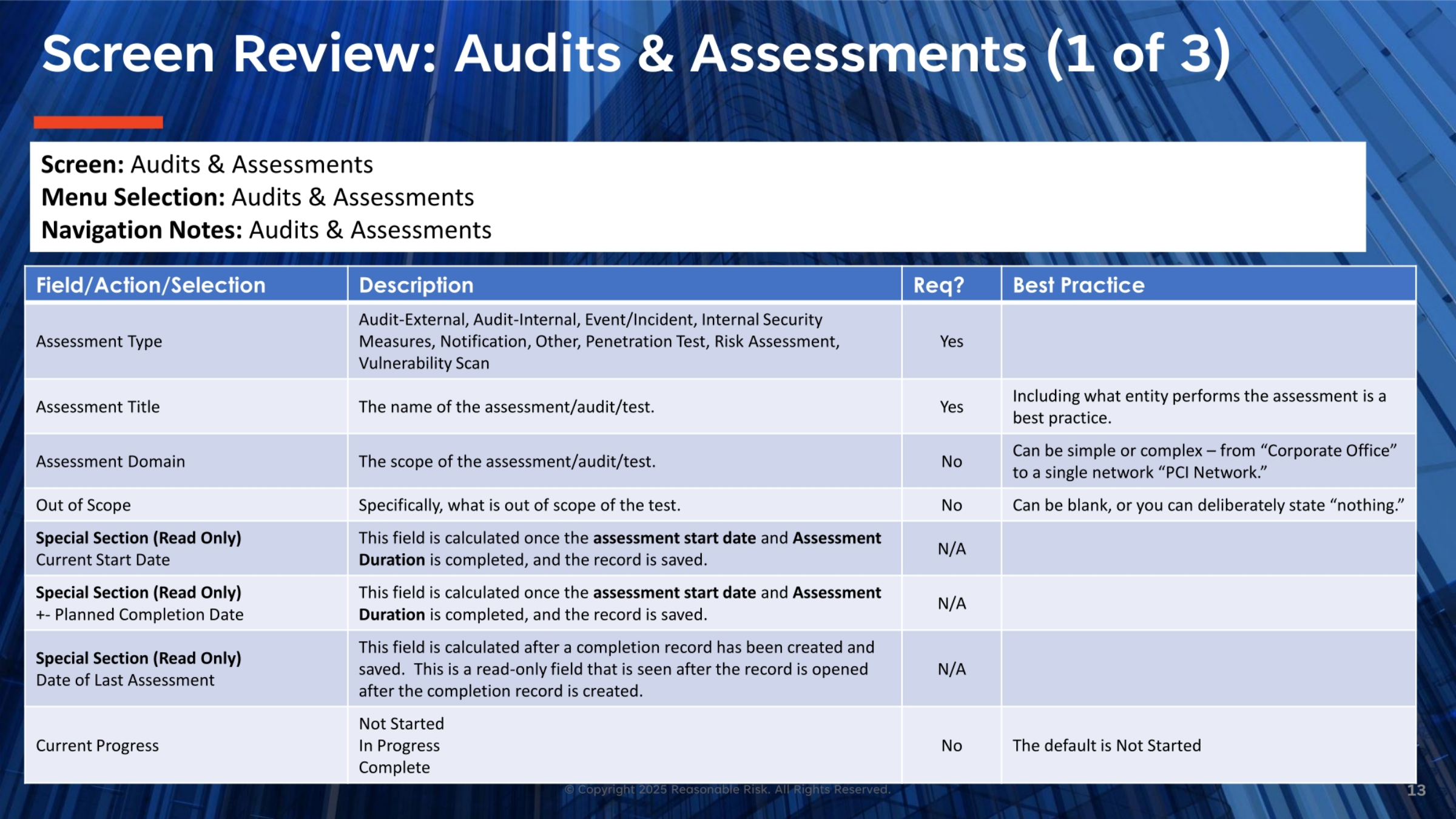
Let's review the fields within the Audits & Assessments screen. The 'Assessment Type' field offers various options like Audit-External, Penetration Test, or Risk Assessment. 'Assessment Title' is where you name the assessment, and it's best practice to include the performing entity. 'Assessment Domain' defines the scope, which can range from a 'Corporate Office' to a specific 'PCI Network.' 'Out of Scope' allows you to specify what is not included. Read-only fields like 'Current Start Date' and 'Planned Completion Date' are calculated upon saving the record, while 'Date of Last Assessment' updates after a completion record is created. 'Current Progress' defaults to 'Not Started'.
14. Screen Review: Audits & Assessments Fields (Part 2)
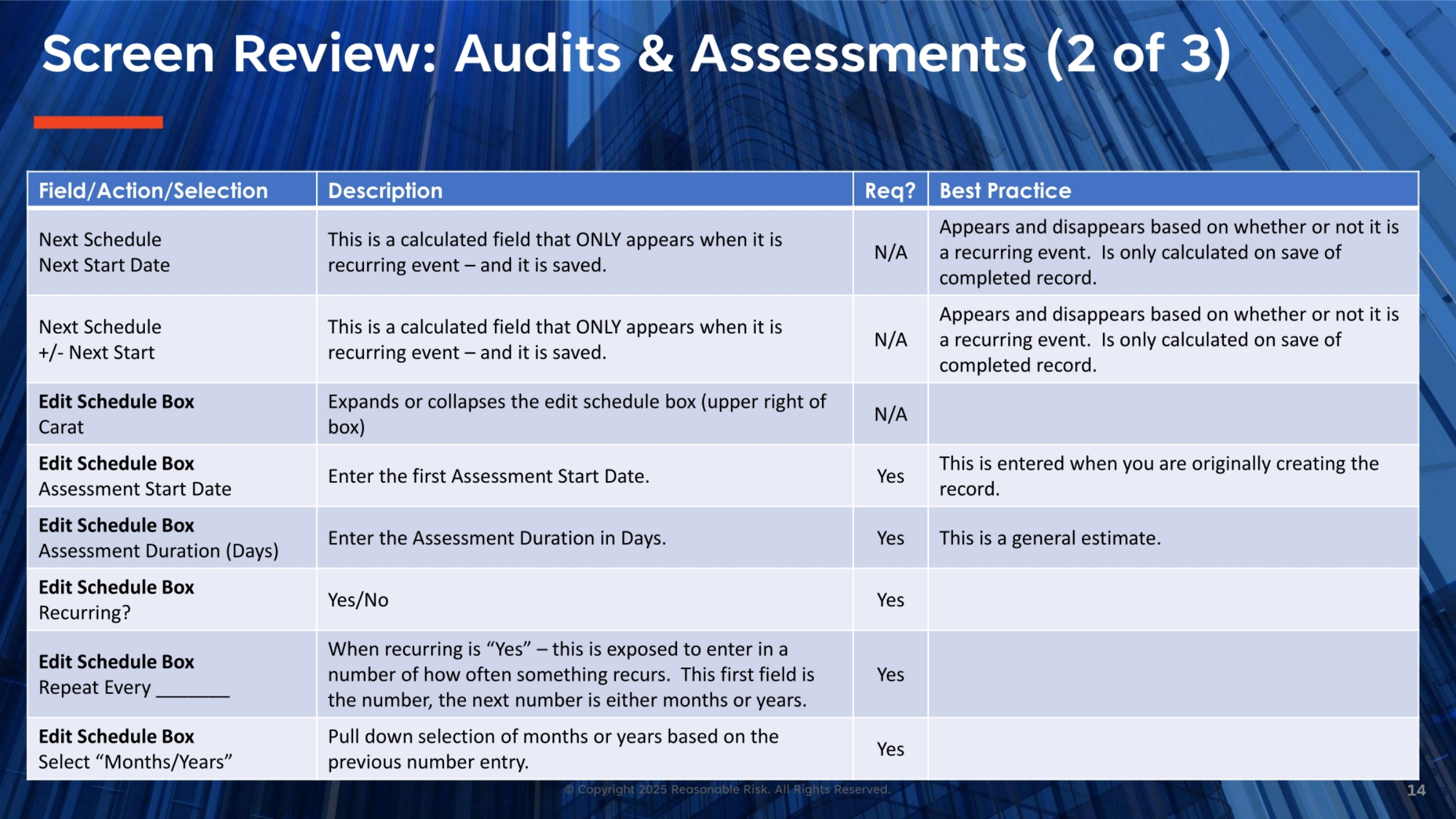
Continuing our review, the 'Next Schedule' fields, including 'Next Start Date' and '+/- Next Start,' appear only for recurring events and are calculated upon saving a completed record. The 'Edit Schedule Box Carat' expands or collapses the schedule details. Within the 'Edit Schedule Box,' you enter the 'Assessment Start Date' and an estimated 'Assessment Duration (Days).' The 'Recurring?' field is a simple Yes/No. If 'Yes,' additional fields appear: 'Repeat Every' for the number, and 'Select Months/Years' to specify the frequency, such as 'every 3 months'.
15. Screen Review: Audits & Assessments Fields (Part 3)
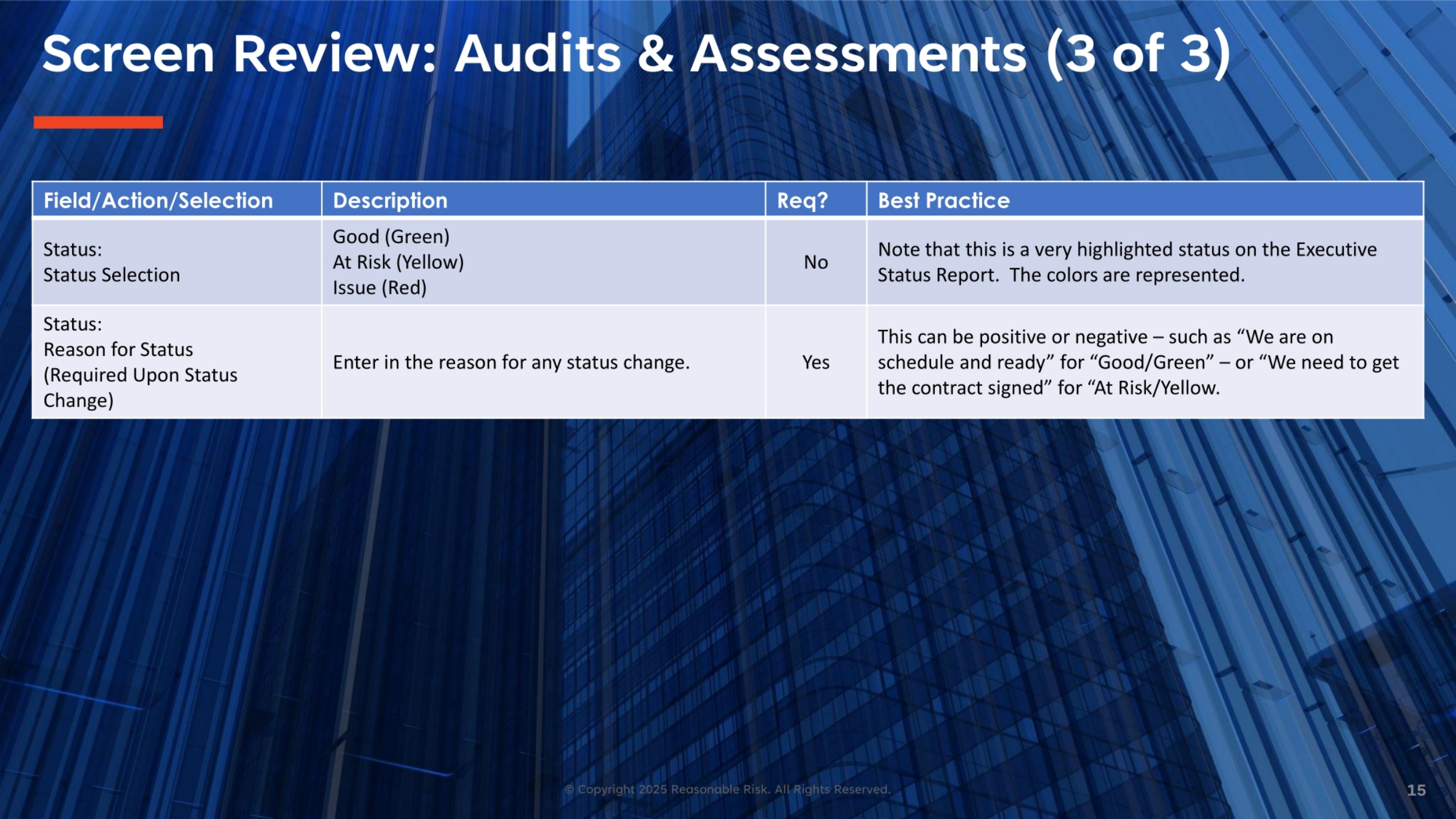
Concluding our field review, the 'Status Selection' field is highly visible on the Executive Status Report, using colors like green for 'Good,' yellow for 'At Risk,' and red for 'Issue.' The 'Reason for Status' field is required whenever the status changes. This allows for positive updates, such as 'We are on schedule and ready,' or negative ones, like 'We need to get the contract signed' for an 'At Risk' status. These details provide critical context for stakeholders.
16. Screen Visual: Add Assessment
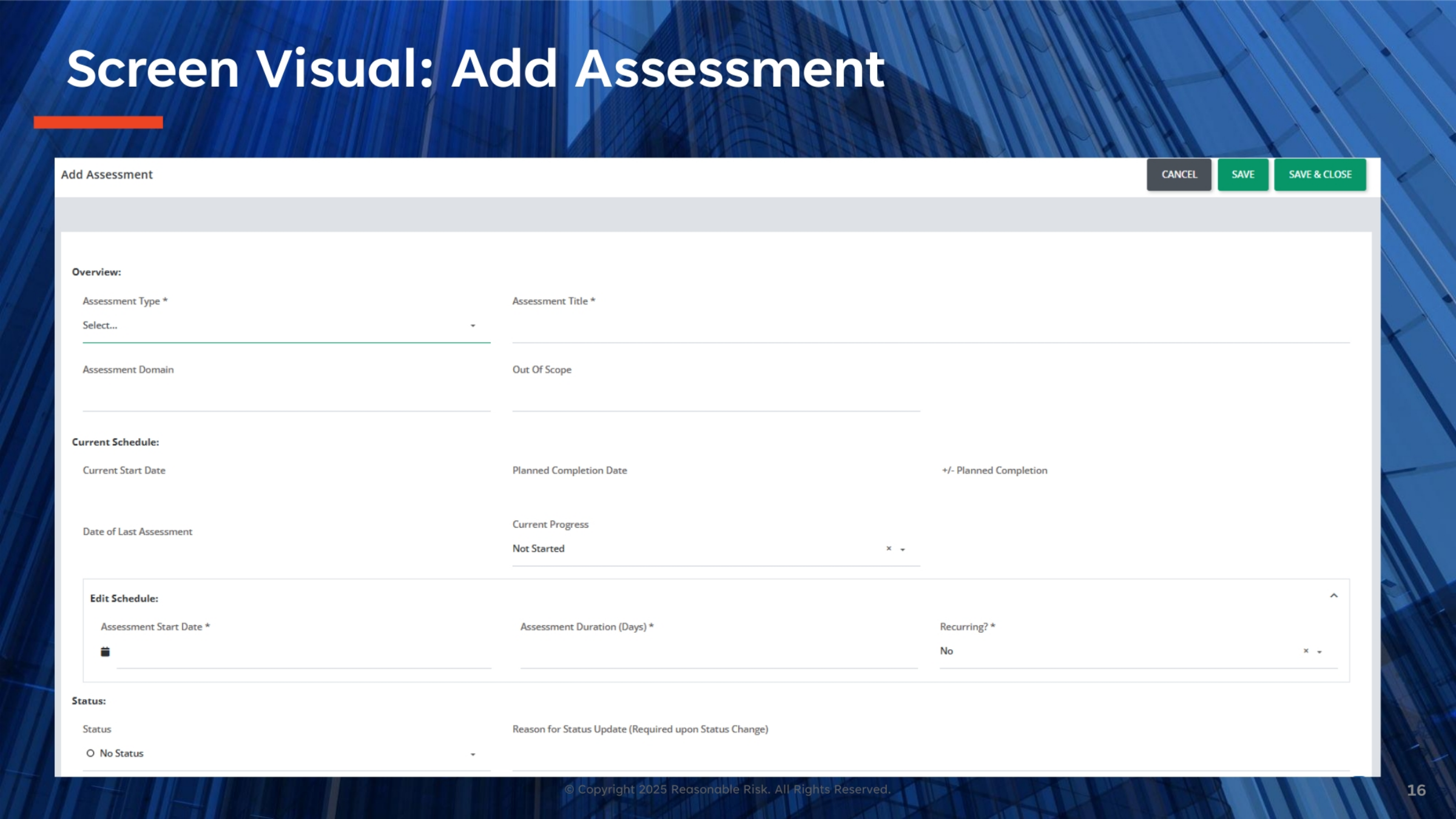
This screen visual demonstrates the 'Add Assessment' interface, where users input details to create a new assessment record. You can see fields for 'Assessment Type,' 'Assessment Title,' 'Assessment Domain,' and 'Out Of Scope.' The 'Current Schedule' section displays calculated dates, while the 'Edit Schedule' section allows for inputting the 'Assessment Start Date,' 'Assessment Duration (Days),' and whether the assessment is 'Recurring.' The 'Status' section defaults to 'No Status,' with an option to add a 'Reason for Status Update.' Buttons for 'Cancel,' 'Save,' and 'Save & Close' are available at the top right.
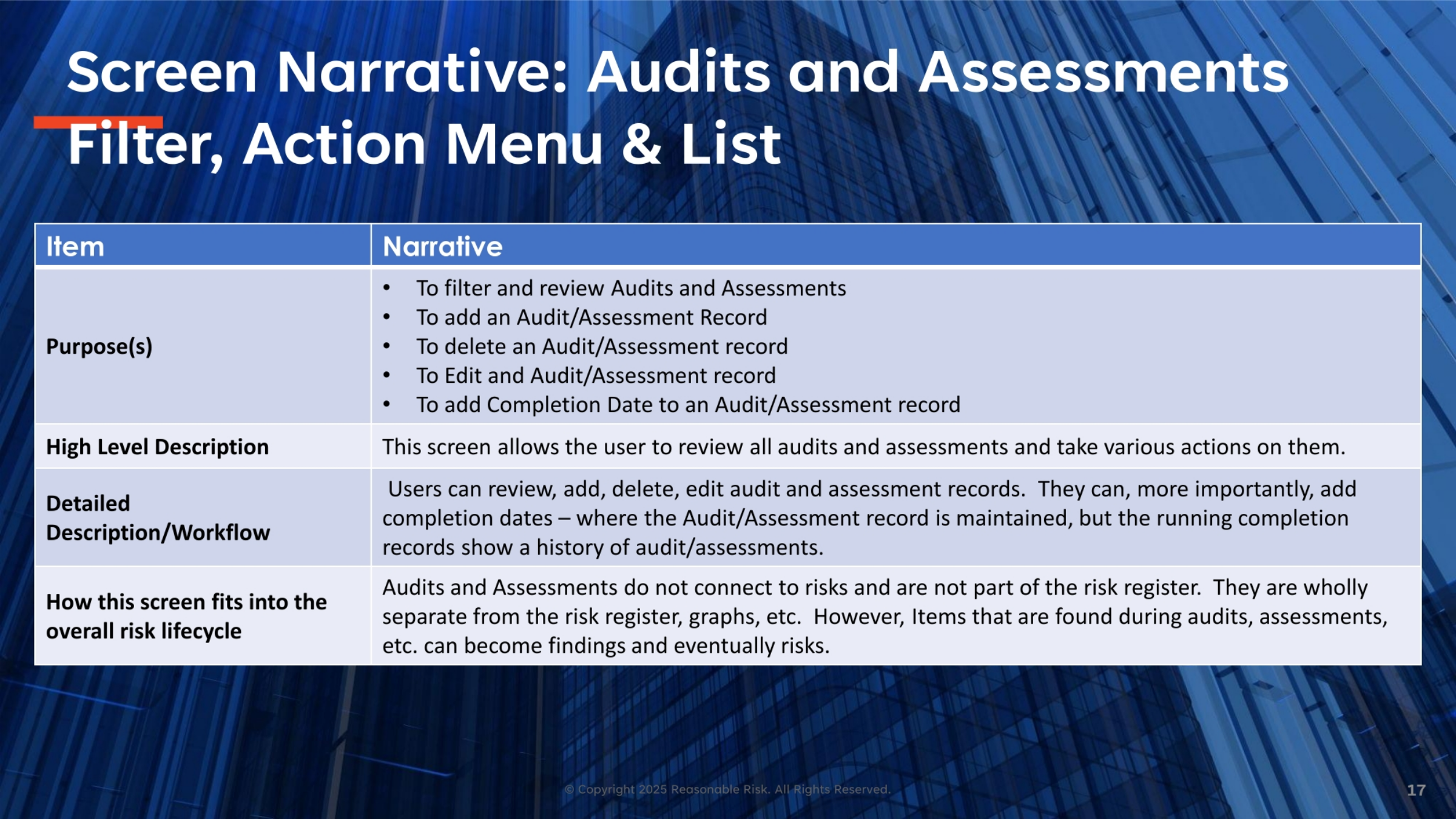
17. Screen Narrative: Filter, Action Menu & List
This screen provides comprehensive functionality for managing audits and assessments. Its primary purpose is to allow users to filter and review existing records. Beyond viewing, it enables various actions: adding new audit or assessment records, deleting selected records, editing existing ones, and crucially, adding completion dates to an audit or assessment record. This centralized hub ensures efficient management and tracking of all assessment activities within the platform.
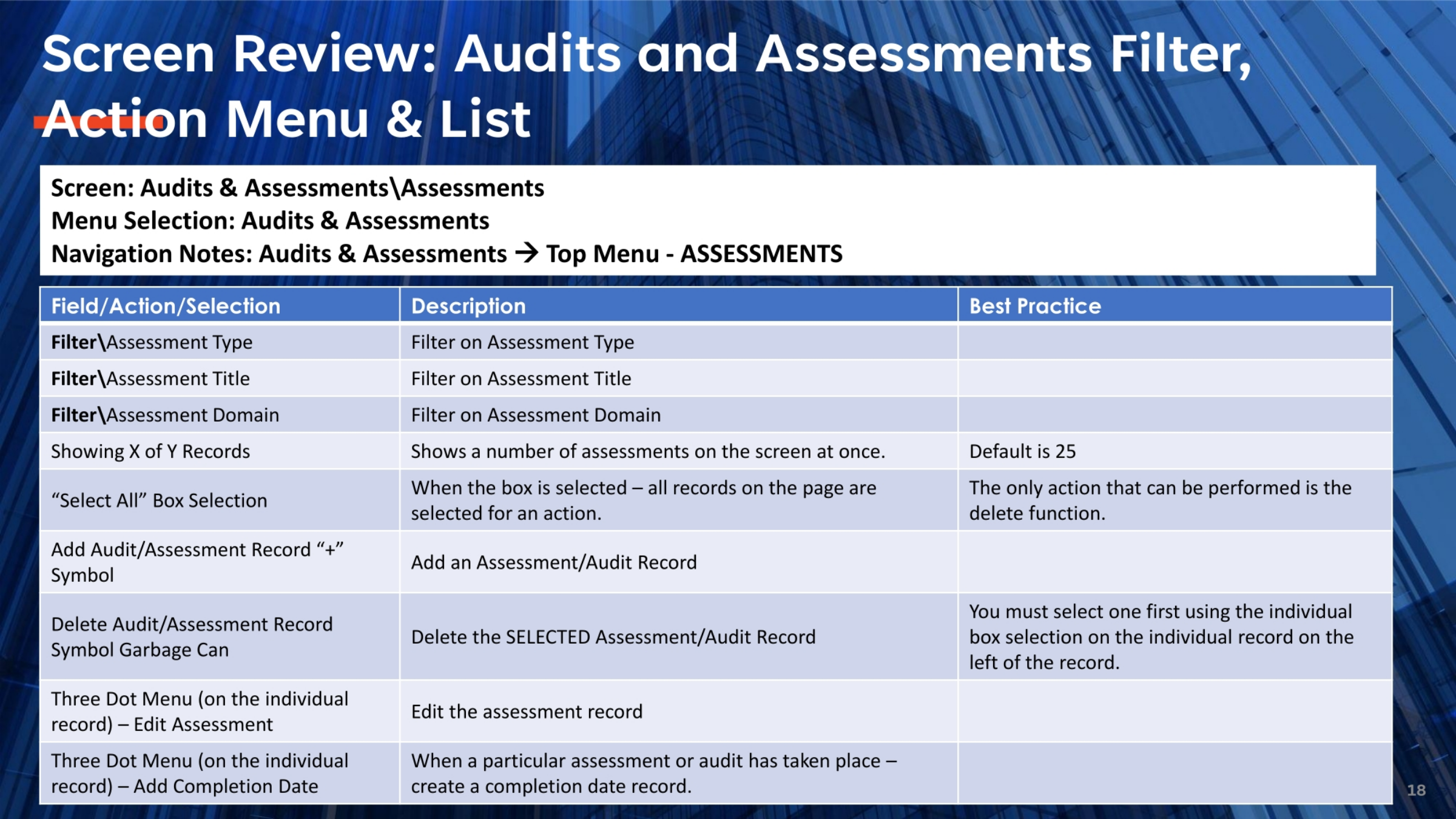
18. Screen Review: Filter, Action Menu & List Details
Let's delve into the specifics of the filter, action menu, and list functionalities. Filters are available for 'Assessment Type,' 'Assessment Title,' and 'Assessment Domain' to refine your view. The 'Showing X of Y Records' indicates the number of assessments displayed, with a default of 25. The 'Select All' box allows for bulk actions, primarily deletion. The '+' symbol is used to add a new assessment record. The 'Garbage Can' symbol deletes selected records, requiring prior individual selection. Finally, the 'Three Dot Menu' on each record provides options to 'Edit the assessment record' or 'Add Completion Date' when an assessment has taken place.
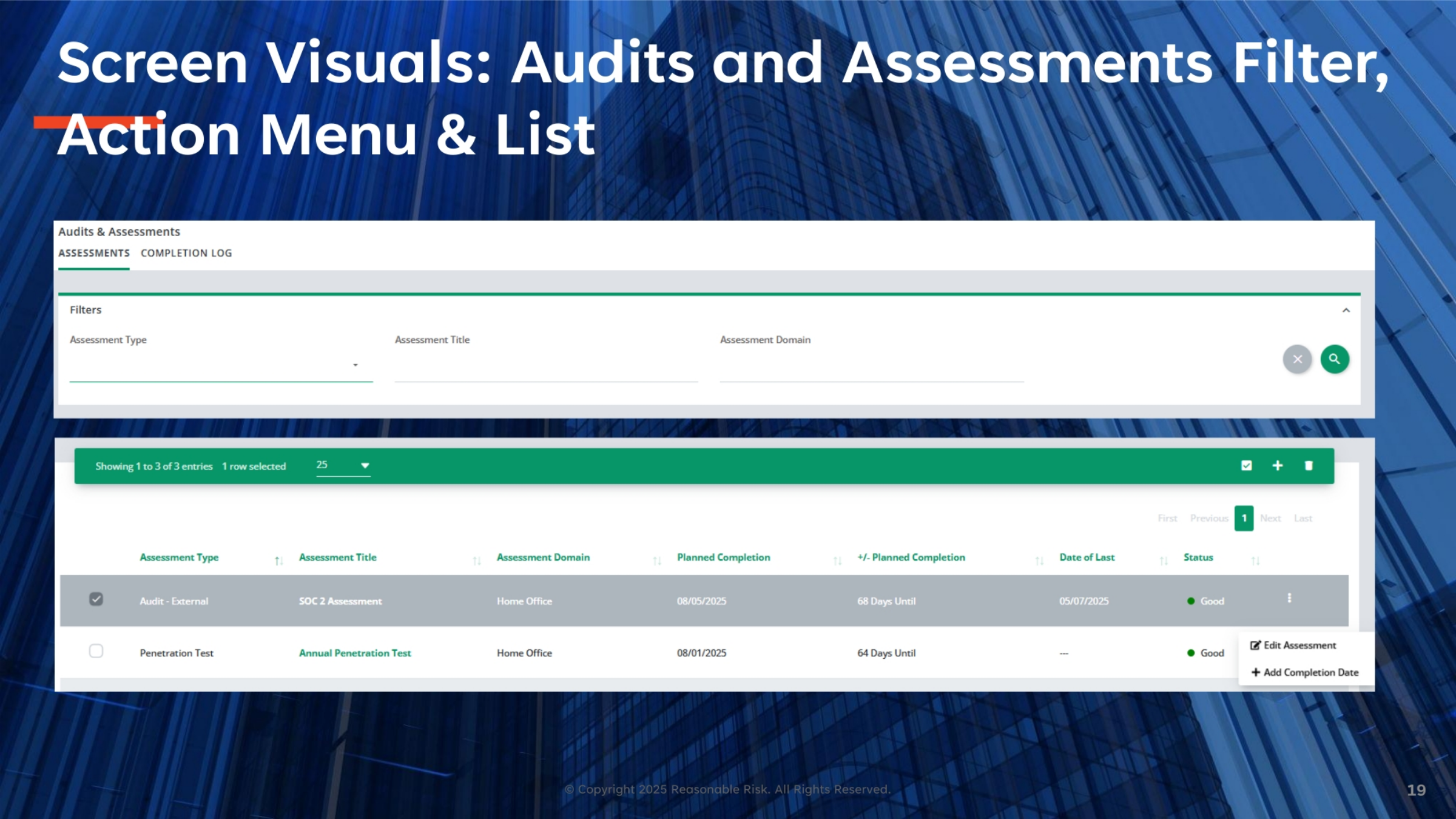
19. Screen Visuals: Audits and Assessments Filter
This visual showcases the Audits and Assessments filter, action menu, and list in action. You can observe the filter options at the top, allowing users to narrow down their search by assessment type, title, or domain. The main list displays existing assessment records, such as 'SOC 2 Assessment' and 'Annual Penetration Test,' along with their planned completion, days until completion, and status. The checkboxes on the left enable selection for actions, and the three-dot menu on the right provides options like 'Edit Assessment' or 'Add Completion Date' for individual records.
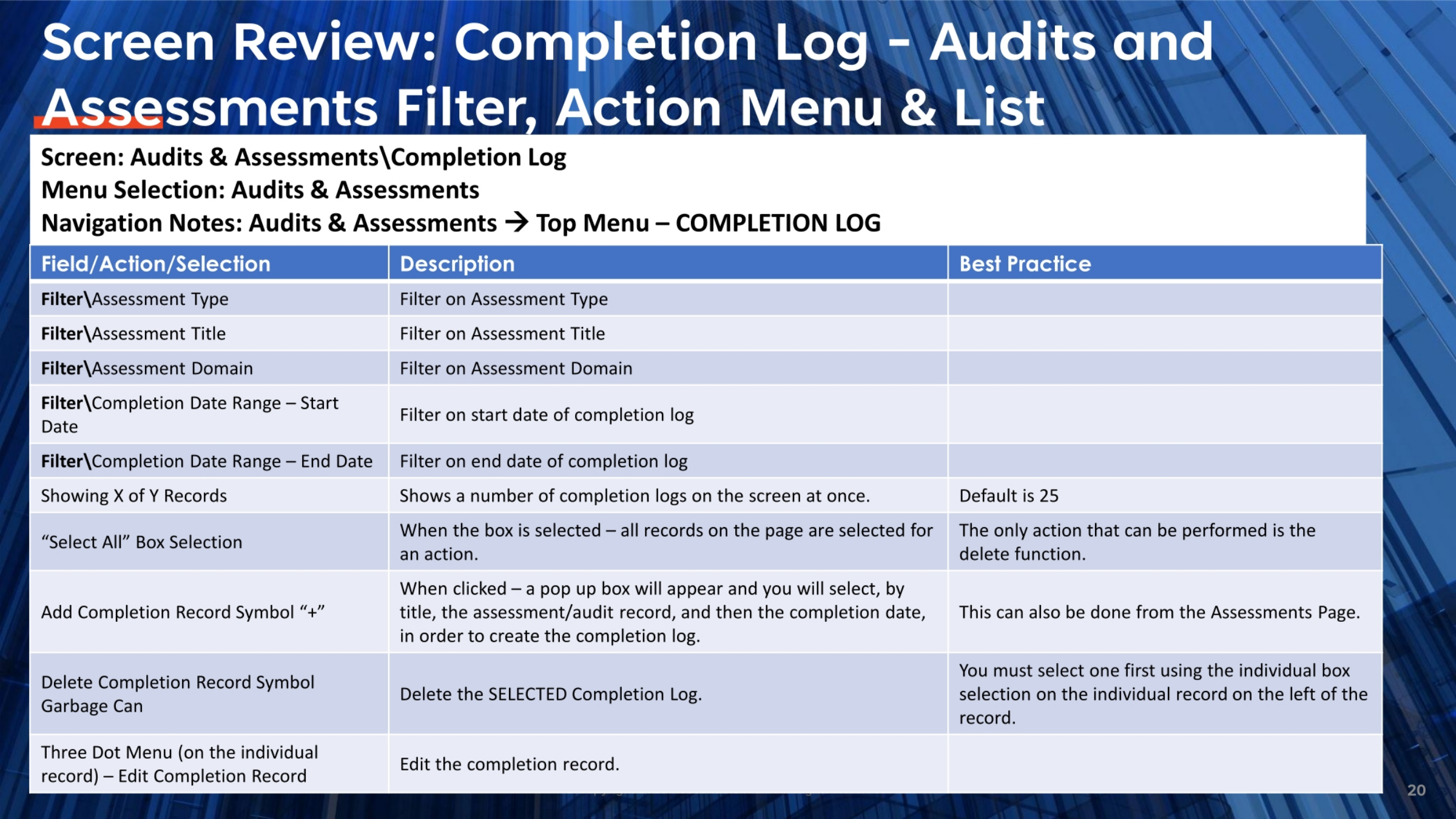
20. Screen Review: Completion Log Filter and Actions
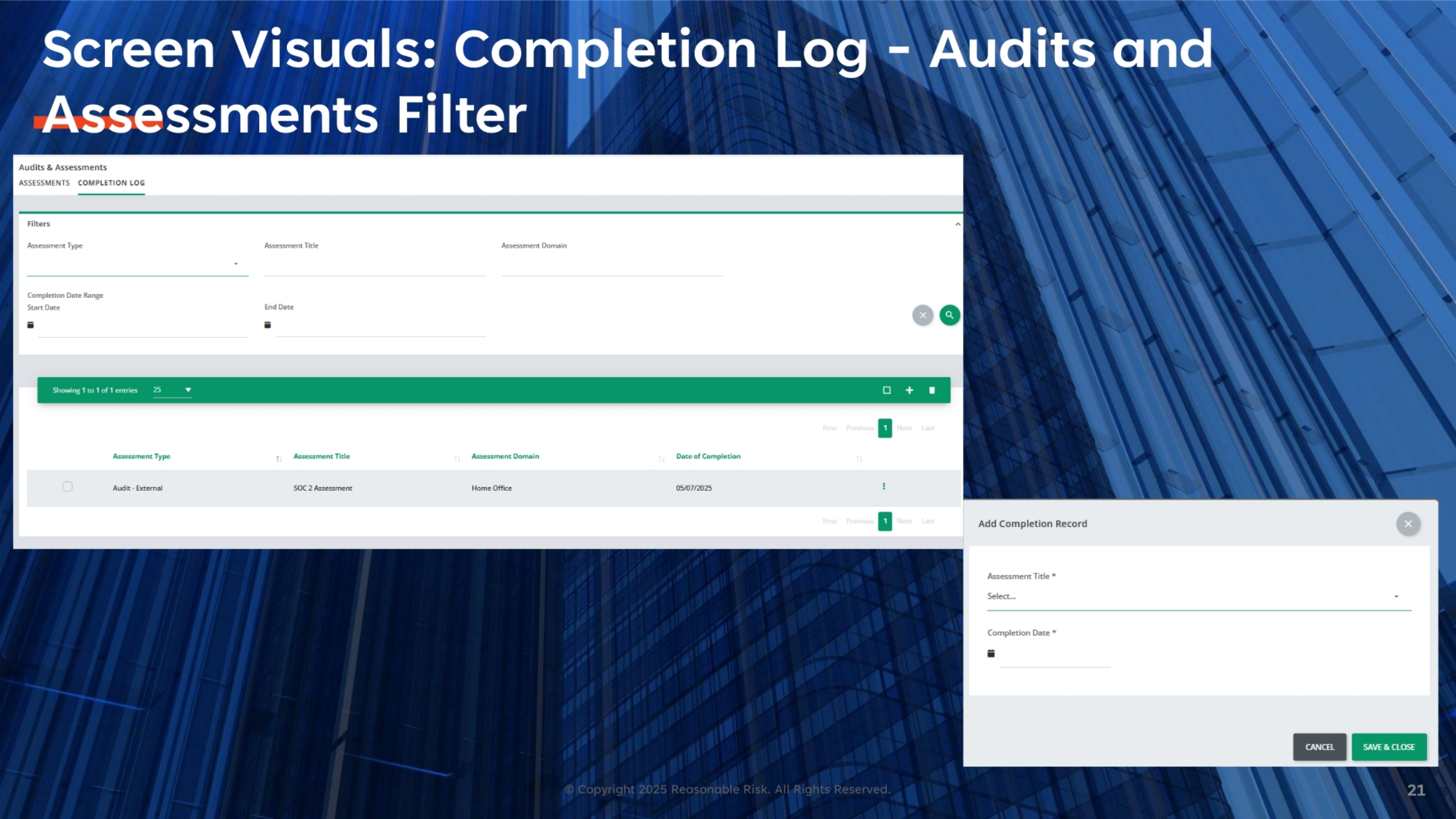
The Completion Log filter, action menu, and list provide specific tools for managing completion records. Filters are available for assessment type, title, domain, and completion date ranges. The display shows a number of completion logs, with a default of 25. The 'Select All' box allows for bulk deletion. The '+' symbol is used to add a new completion record, where you select the assessment and input the completion date. The 'Garbage Can' deletes selected completion logs, and the 'Three Dot Menu' allows you to edit an existing completion record. This functionality can also be accessed from the Assessments Page.
21. Screen Visuals: Completion Log Filter
This screen visual presents the Completion Log filter interface. At the top, you can see the filter options for 'Assessment Type,' 'Assessment Title,' 'Assessment Domain,' and 'Completion Date Range.' The main section displays a list of existing completion records, such as the 'SOC 2 Assessment' with its completion date. On the right, a pop-up window for 'Add Completion Record' is shown, prompting users to select an 'Assessment Title' and input a 'Completion Date.' This interface streamlines the process of documenting completed assessments.
In summary, the Reasonable Risk platform offers a robust system for managing audits and assessments, from initial record creation to tracking recurring events and generating executive reports. By utilizing its features, organizations can maintain a clear history of their security posture and ensure compliance with regulatory requirements.
Comments
0 comments
Please sign in to leave a comment.